

Use matter based permissions to restrict specific users from accessing designated matters. These permissions allow your firm to:
- maintain and ensure confidentiality for certain clients;
- safeguard the information of high profile clients; and
- ease client concerns about confidential document storage, such as medical or financial information.
Table of Contents
- Enable matter permissions
- Users that cannot be restricted from a matter
- What restricted users see
- Restriction Specifics
- Good to Know
Enable matter permissions
triConvey Matter Permissions can restrict specified users from:
- Opening a matter
- Assigning new items to a matter
- Opening items related to a matter
- Editing items related to a matter
Matter Permissions can be enabled from either the triConvey Desktop App or triConvey Companion Site Web App. Changes made in the Desktop App will also apply to the Web App, and vice versa.
triConvey Desktop App
To set Matter Permissions from the triConvey Desktop App, select the Settings gear icon on the top-right corner of the matter, then navigate to the Permissions tab.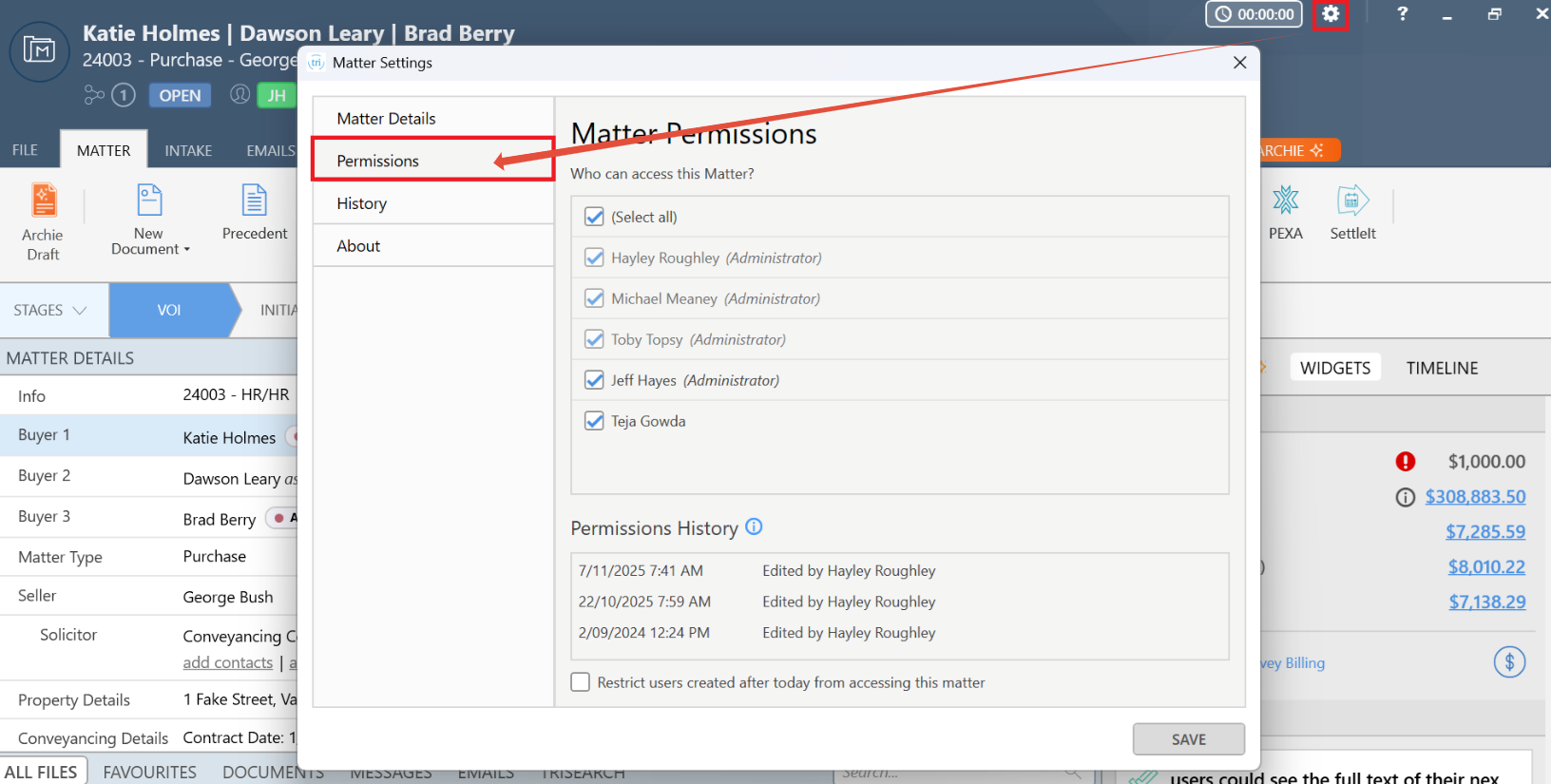
Once you have unticked the relevant users, select Save and the changes will immediately take effect.
triConvey Companion Site Web App
To set Matter Permissions from the triConvey Companion Site Web App, open the matter and select Manage Access on the top-right corner of the screen.
You can set up the permissions in one of two ways:
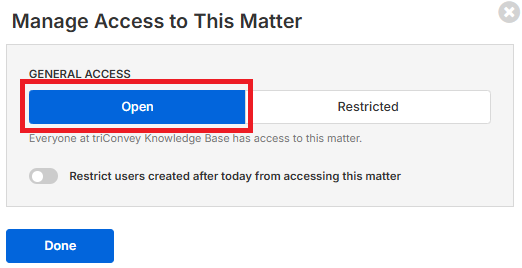
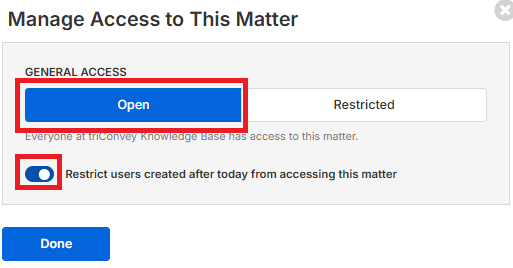
- Open: Everyone in your firm can access this matter.
- Restricted: No one in your firm can access this matter, except for users you have selected.
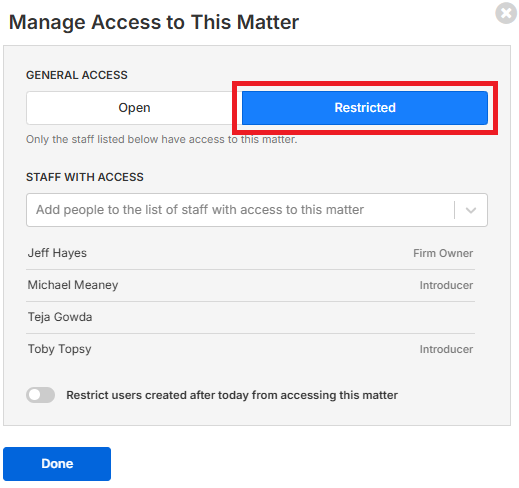
Once you have added or removed the relevant users, select Done and the changes will immediately take effect.
Matter Permission configuration options in the triConvey Companion Site Web App
Refer to the expected behaviour of each configuration below:
1. Open with Restrict users created after today.. toggled Off: This means all users (existing and future) can access the matter.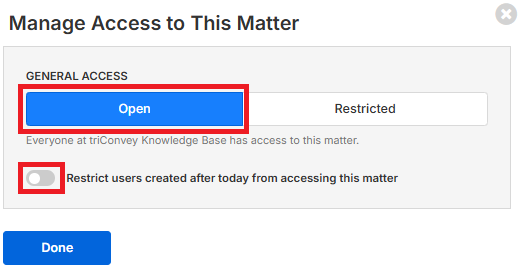
2. Open with Restrict users created after today.. toggled On: This means all existing users can access the matter. Users added to your firm after this date cannot access the matter by default.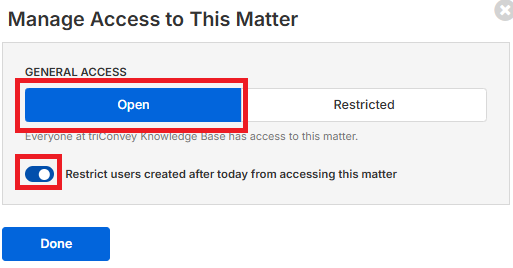
3. Restricted with Restrict users created after today.. toggled Off: This means the following users can access the matter:
- Staff with roles on the matter (e.g. Person Responsible, Person Assisting) and;
- Any users selected from the Staff with access drop-down menu, and;
- Users added to your firm after today.
- Choose this configuration if you would like to restrict some existing staff from accessing the matter.
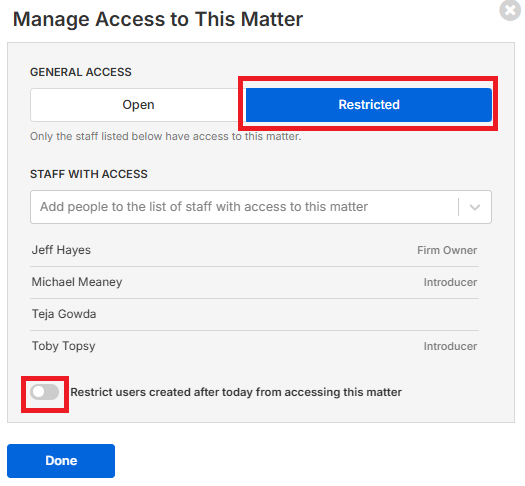
In this example, only "Jeff Hayes", "Michael Meaney", "Teja Gowda" and "Toby Topsy" can access this matter today. If new staff members join after today, they can also access this matter.
4. Restricted with Restrict users created after today..toggled On: This means the following users can access the matter:
- Staff with roles on the matter (e.g. Person Responsible, Introducer) and;
- Any users selected from the Staff with access drop-down menu.
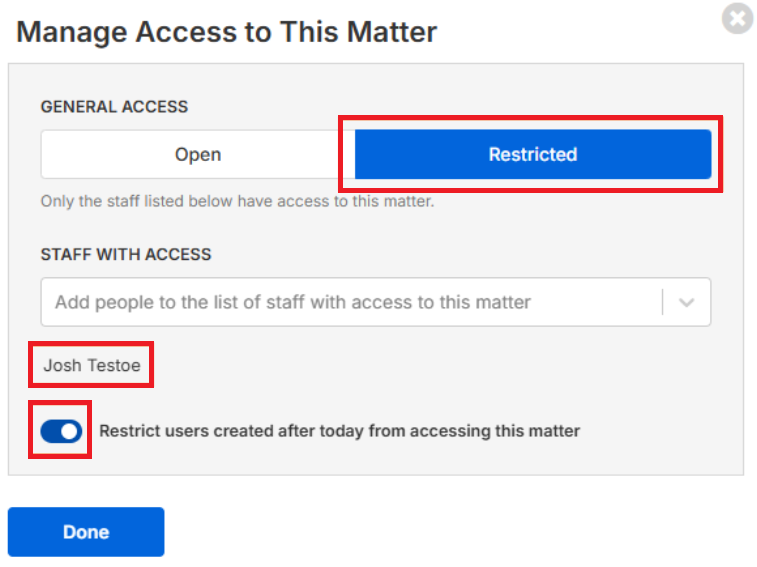
In this example, only "Josh Testoe" can access this matter today and in the future.
Users that cannot be restricted from a matter
The following users cannot be removed from a matter:
- the current user accessing Matter Settings - you cannot remove yourself; and
- users who occupy a role in the matter such as Person Responsible, Person Assisting and Introducer.
Tip: You must first replace them with another staff member who can access the matter.
What restricted users see
If a user does not have permission to access a matter, they will not be able to interact with the matter throughout triConvey, triConvey Companion Site web app, the Mobile/iPad apps and Microsoft Office.
Restricted users can search for all matters via the search bars or Matter List, but attempting to open or assign without permission results in an error message indicating that they do not have sufficient permissions to access it.
If a non-permitted user has the matter open at the moment they are restricted, they will continue to have access until they close the matter by selecting the X button on the top-right corner of the matter window.
Restriction Specifics
| Restricted | Not restricted | |
| Matter (General) | Unable to open Matter window from anywhere | |
| Details (layout information) | Unable to view detailed matter information (aka layouts) | Can see matter description Can see additional matter details surfaced in columns throughout the app (next step date, settlement date, matter stage etc.) |
| Documents | Unable to open documents Documents will not appear in global search | Able to view the document name from AI |
| Contacts | No restriction | Contact names are visible in the mater description Contacts can be opened from the contacts tab with no restriction |
| Tasks | Unable to open or edit tasks | Can view Task in lists (can see the task name and due date etc.) |
| Events | Unable to open or edit events | Can view events in lists and calendars (can see the event name, date, location etc.) |
| Memos | Memos will not appear when searched | |
| Activity | Unable to open or edit Activity | Can view the Activity event in the list |
| Time and Disbursements | Unable to open or edit Time and Disbursements | Can view the Time and Disbursements in the list |
| Client Portal | Unable to add non permitted users to a matter conversation | |
| Reports | No restriction | Can view all report information related to the matter |
| Billing (web) | No restriction (Firm owner will need to restrict billing as a whole from the user) |
Good to Know
- Any user can set up permissions on a matter.
- Any permitted user can change the permissions that are set.
- To restrict new users from accessing a matter, tick or toggle on the Restrict users created after today from accessing this matter setting.
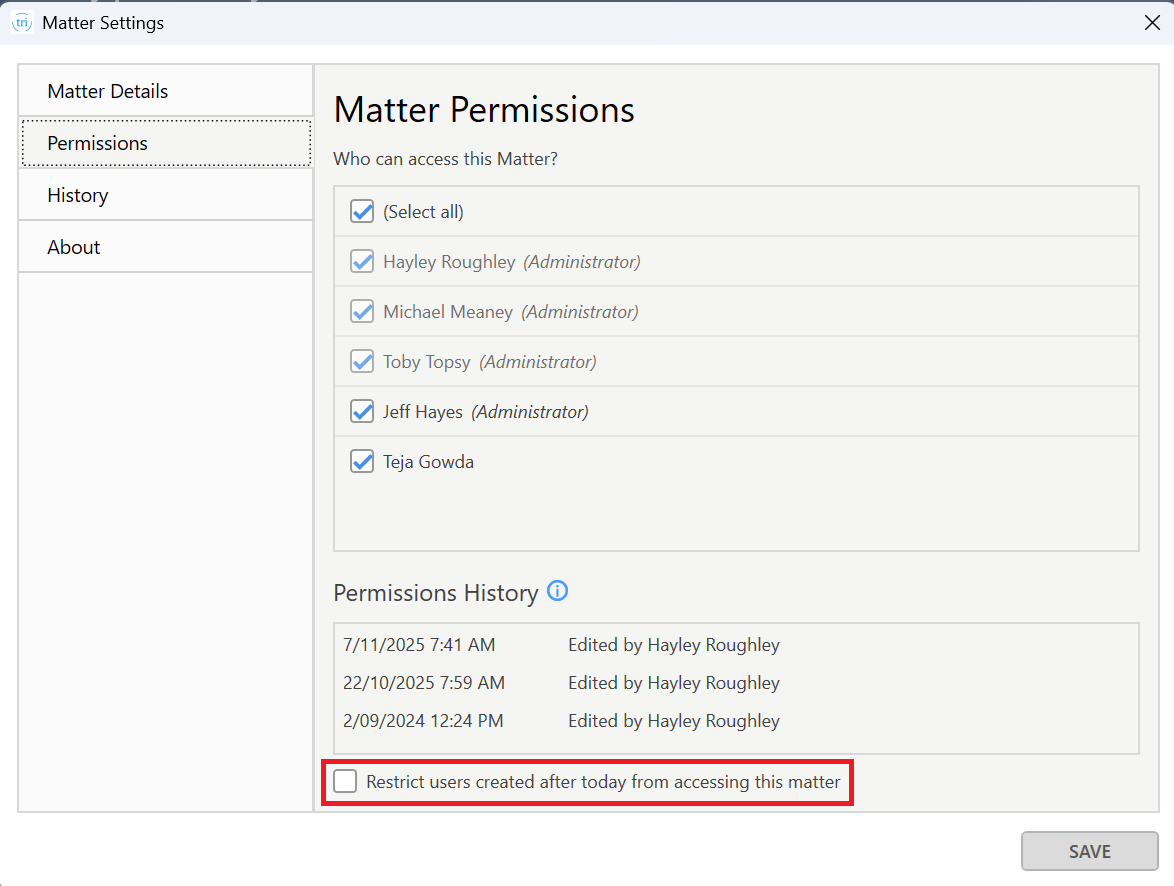
- Edits to the permission settings are noted in the Matter's Permissions History, visible within Matter Settings of the triConvey Desktop App.
- Once saved, the Matter Permissions will take immediate effect. If a non-permitted user has the matter open when this occurs, they will continue to have access until they close the matter.
Was this article helpful?
That’s Great!
Thank you for your feedback
Sorry! We couldn't be helpful
Thank you for your feedback
Feedback sent
We appreciate your effort and will try to fix the article