

Learn how to export firm data from triConvey using the Data import/export tool in the triConvey Companion Site Web App.
1. Navigate to the triConvey Companion Site Web App.
2. In the lower-left corner, click the gear icon and then select Data Import/Export.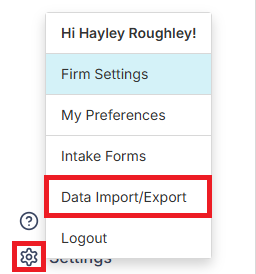
3. At the top right of the Data import/export page, select New Import/Export +.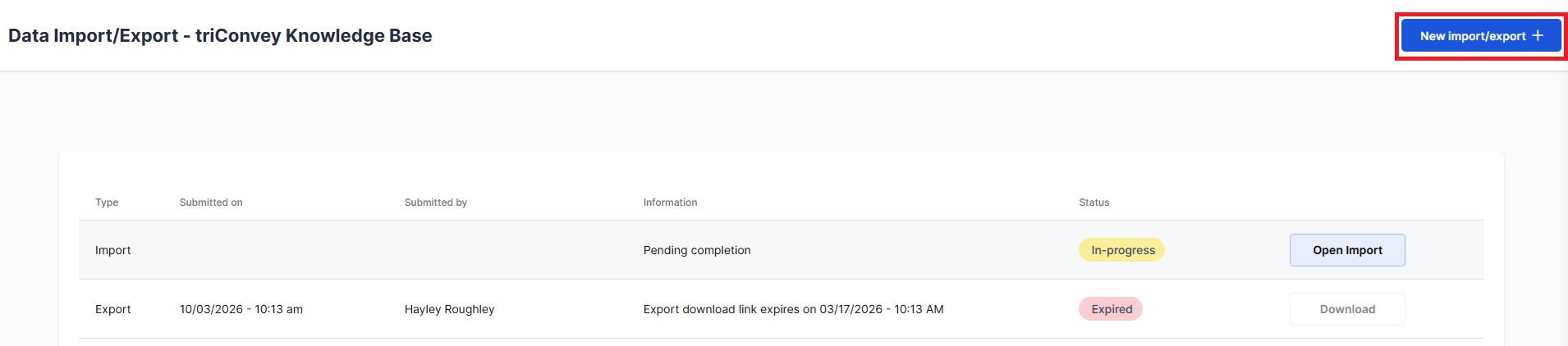
4. On the next screen, tick Data Export and select a reason for the export.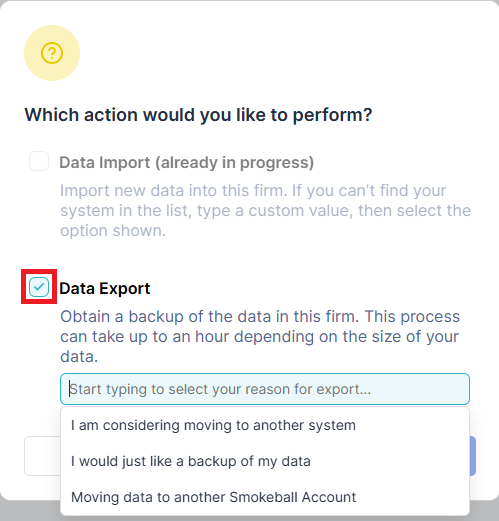
5. Select Continue.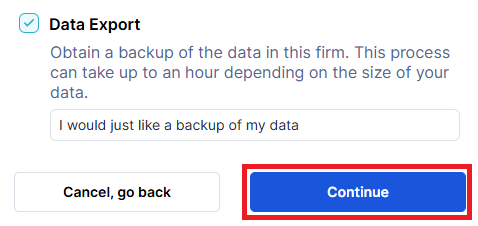
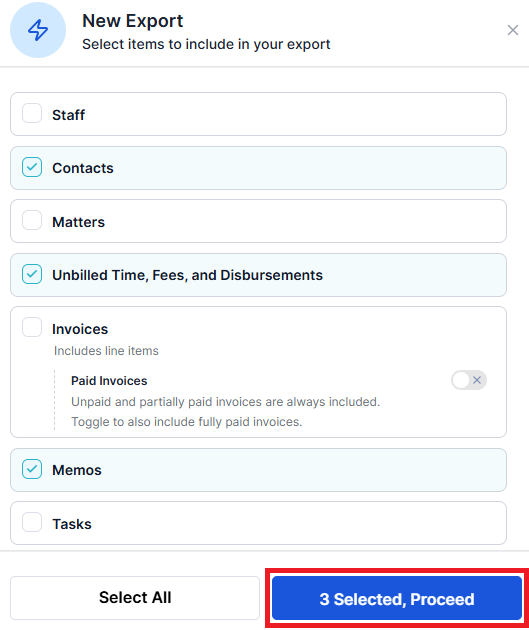
6. Tick the items you would like to export from triConvey, then select Proceed. You can choose from:
- Staff
- Contacts
- Matters
- Account Balances (matter credit, trust, and controlled money account balances)
- Unbilled time, fees, and disbursements
- Invoices and (optional) Paid invoices (Includes line items)
- Memos
- Tasks
- Calendar Events
- Safe Custody Packets and Documents
7. The export will begin to generate. Note that depending on the size of your firm’s data, the export process can take up to an hour.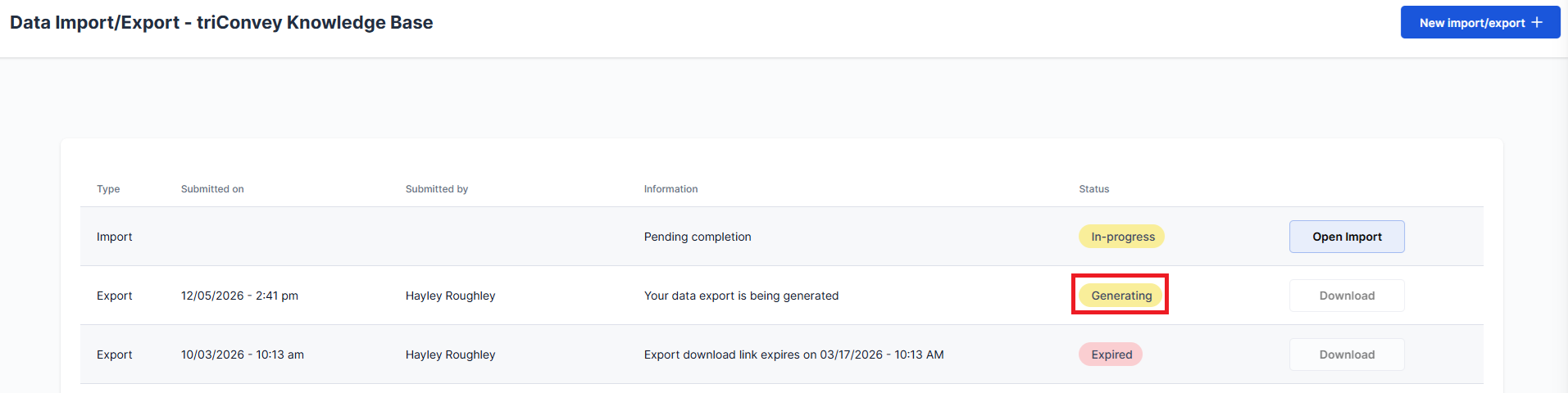
8. Once the status says Complete, select Download to download the .zip file of your data export.
Was this article helpful?
That’s Great!
Thank you for your feedback
Sorry! We couldn't be helpful
Thank you for your feedback
Feedback sent
We appreciate your effort and will try to fix the article