

This article details how to issue a refund through Smokeball Payments.
1. Navigate to Accounts view in the triConvey Companion Site Web App.
2. Select Payments.
3. Open the transaction you need to refund.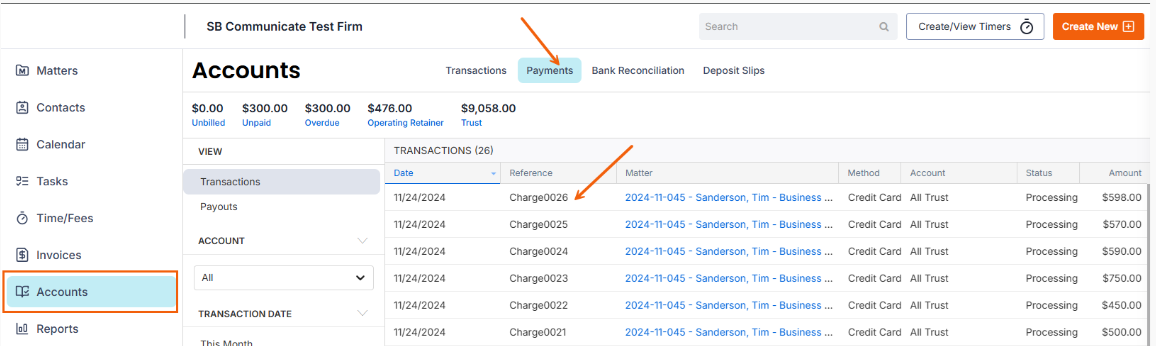
4. Select Go to Refund.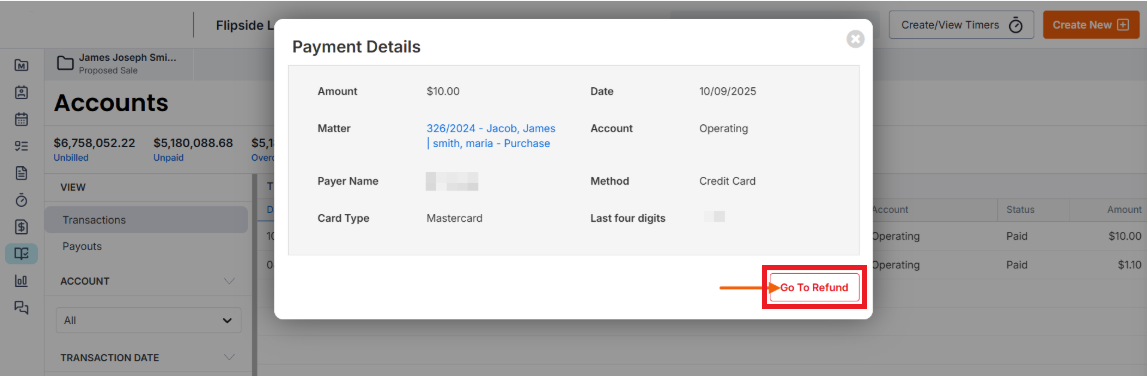
5. You will be taken to the Smokeball Payments Dashboard (powered by Feewise). Click on the transaction in the table and select Refund request on the right-hand side of the screen.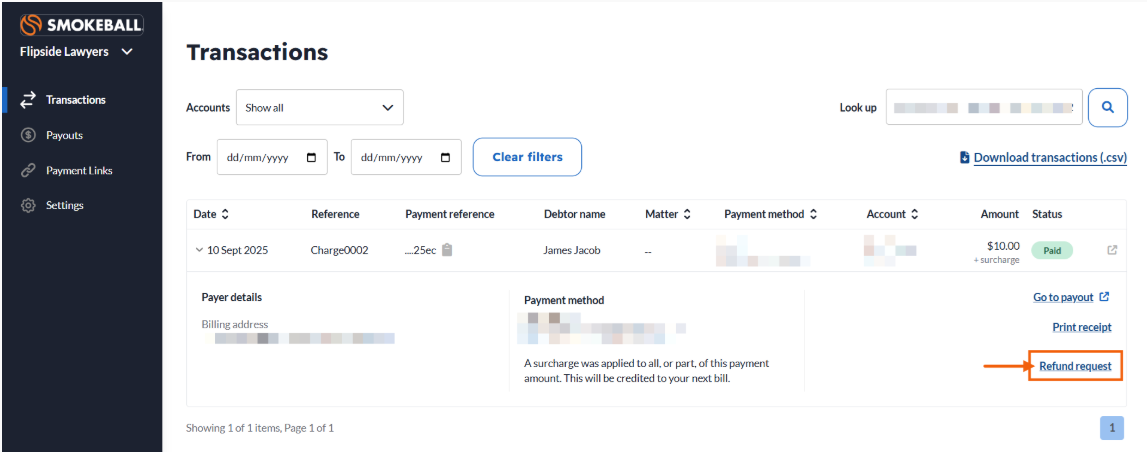
6. Confirm the details of the refund request in the next screen.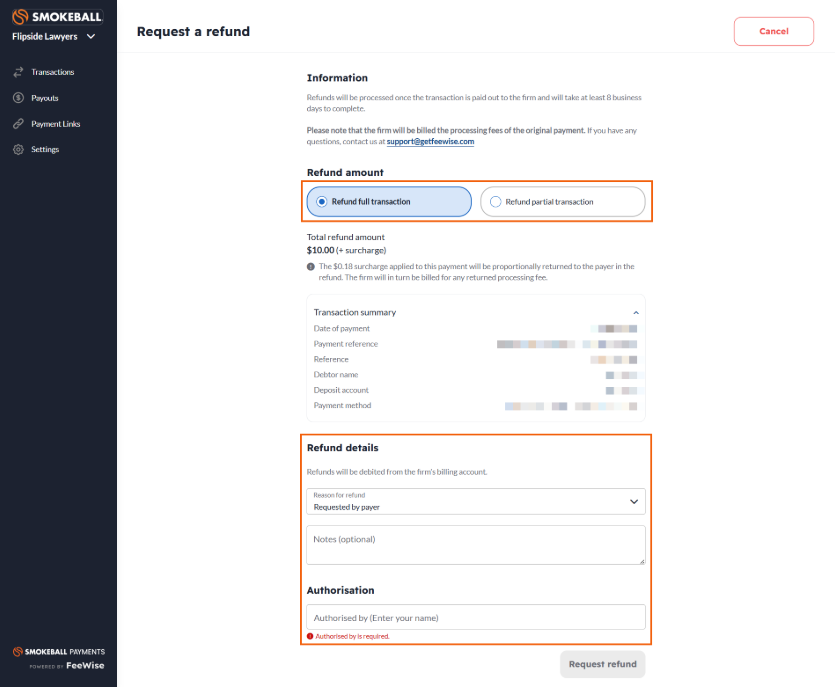
- Choose to refund the full or partial amount of the transaction
- Choose the Reason for refund
- If you chose "Other", add notes in the Notes section
- Enter your name to Authorise the refund
7. Select Request Refund. A refund request will be sent to the payment processor. Refunds typically take at least 8 business days to complete.
Important note: Requesting a refund is not the same as reversing or deleting a transaction in Smokeball. Learn more about reversing or deleting a transaction.
Was this article helpful?
That’s Great!
Thank you for your feedback
Sorry! We couldn't be helpful
Thank you for your feedback
Feedback sent
We appreciate your effort and will try to fix the article