

If your firm resets matter numbers to 1 at the start of each calendar year, you can configure triConvey to do this automatically. You do not need to set it up manually each year.
Table of Contents
Getting Started
The Reset Auto-counter at the beginning of the new calendar year setting can only be ticked if a Year (YY) or Year (YYYY) component is present in the Matter Number.
Reset matter number
1. In the triConvey Companion Site Web App, navigate to the Settings gear icon on the bottom-left corner, then select Firm Settings.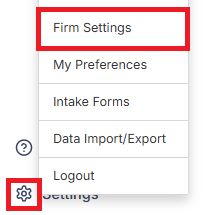
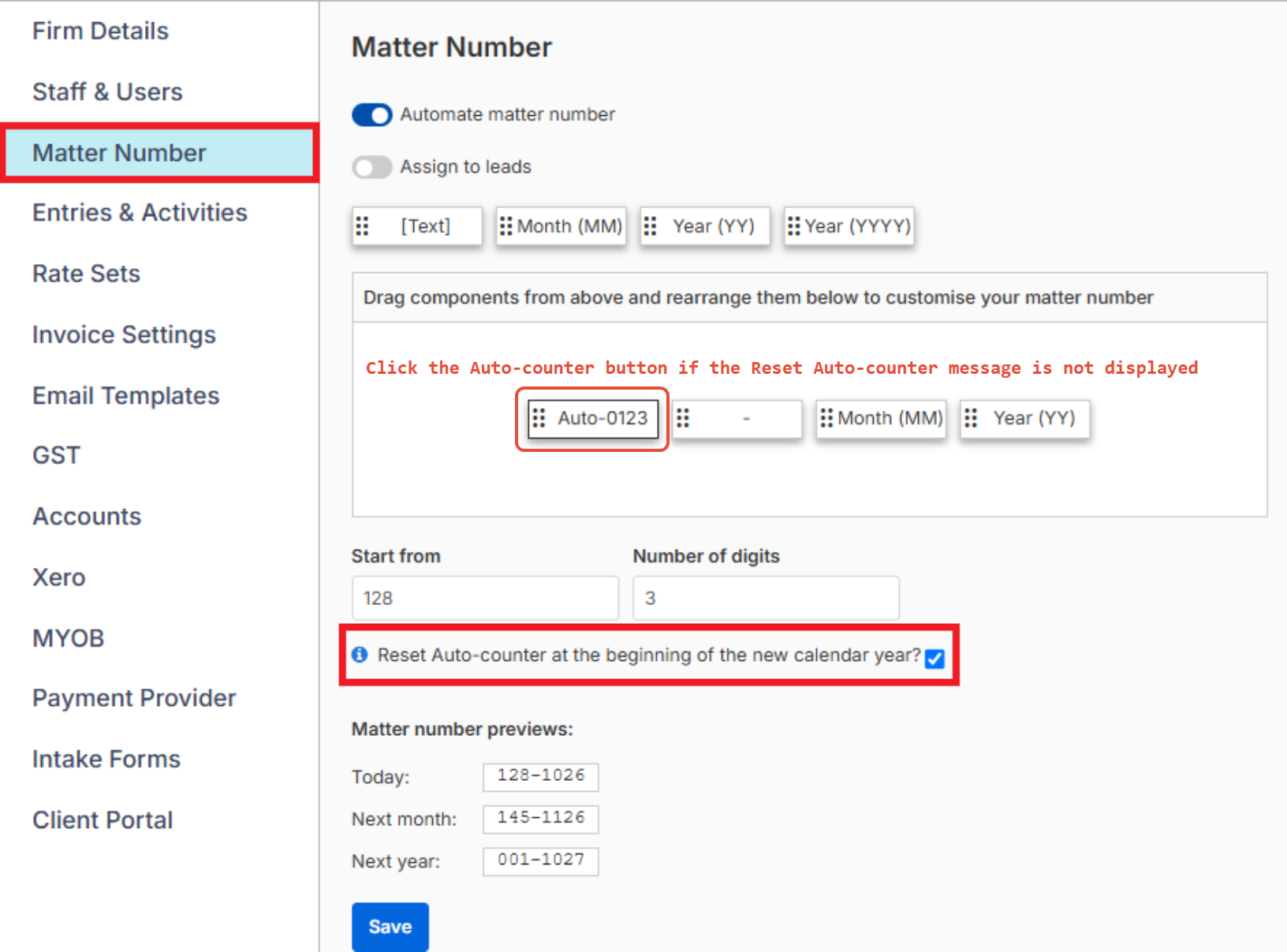
2. Select Matter Number from the left menu.
3. Tick Reset Auto-counter at the beginning of the new calendar year.
Tip: If the Reset Auto-counter message is not displayed, click the Auto-counter button from the component field.
4. Confirm the Matter number preview for Next year is the number you want the first matter of the next calendar year to have.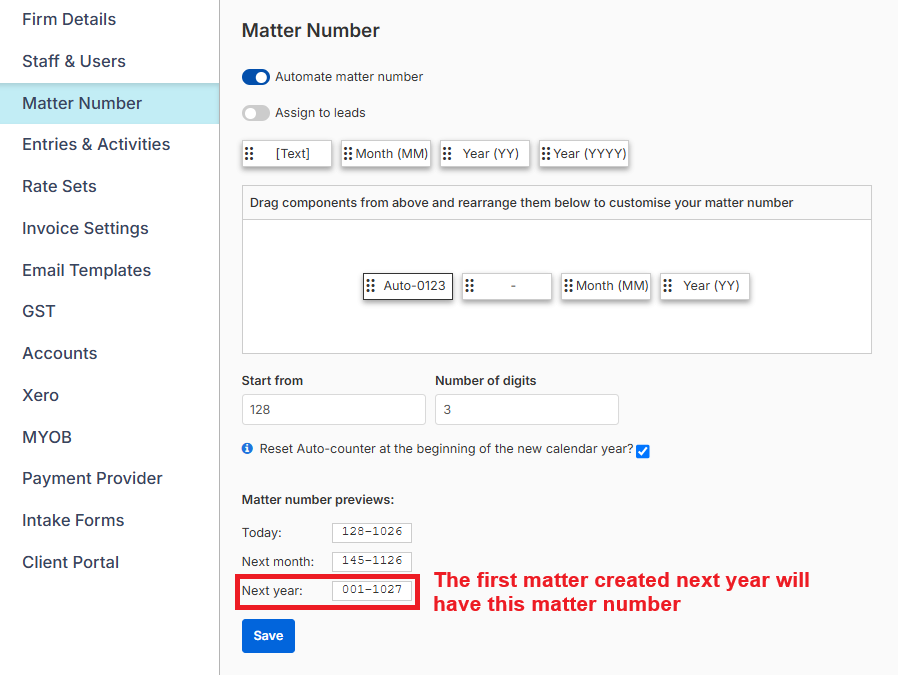
5. Select Save.
Good to Know
- The auto-counter starts again from 1 on the first matter created in the new calendar year. The Start from value directly above the checkbox isn't affected, however the field becomes redundant upon enabling Reset Auto-counter at the beginning of the new calendar year.
- To disable the Reset Auto-counter at the beginning of the new calendar year setting, uncheck the setting and enter a number into the Start from field to reset the numbering if you wish.
Was this article helpful?
That’s Great!
Thank you for your feedback
Sorry! We couldn't be helpful
Thank you for your feedback
Feedback sent
We appreciate your effort and will try to fix the article