

The New Outlook Add-in is installed in each email account, not to the entire Outlook application. This means you can add a second email account to New Outlook and use the Add-in with it. Read on to learn which types of email accounts are supported, and how to add them.
Table of Contents
- Supported account types for secondary email accounts in New Outlook
- Add the New Outlook Add-in to a secondary licensed email account
- Using the Add-in in a secondary mailbox
Supported account types for secondary email accounts in New Outlook
Refer to the following table of account types that work with the New Outlook Add-in:
| Email account type | What it is | Common example | Does the Add-in work? |
| Added licensed account | A user adds another Microsoft 365 account to Outlook that has its own sign-in details (email address and password). They add the account via the Settings > Accounts > Add account in Outlook. It appears as a full second account with its own inbox. | An assistant running a lawyer's inbox. | Yes |
| Shared mailbox | An email address that belongs to nobody and does not have its own sign-in details. People with permission open it alongside their own mailbox. Set up in the Microsoft 365 admin centre. | Email addresses with "info@", "accounts@" or "enquiries@" as the prefix. | No |
| Shared folder | The mailbox owner right-clicks a folder in Outlook, chooses Sharing and permissions, and gives a colleague access. The folder appears inside the colleague's own folder list. | A lawyer sharing their inbox with a paralegal to triage correspondence. | No |
| Full Access Delegation | Admin/IT gives one person full access to another person's whole mailbox from the admin centre. It appears automatically in the delegate's Outlook as a separate mailbox, without the owner's password. | A lawyer on extended leave; IT gives their assistant full access. | No |
| Send As/Send on Behalf Of | IT lets a user send email as "info@" (or on a colleague's behalf) from their own mailbox by changing the From address. They never open the other mailbox. | Reception replies from info@ so the firm presents one address. | No |
| Microsoft 365 Group mailbox | Looks like a shared mailbox to users but is built differently, and Microsoft does not run Add-ins in it. It's the inbox that comes with a Team. | A department or matter Team gets a group inbox. Not to be confused with shared mailboxes. | No - this is a Microsoft limitation. |
| Public folders, online archive, room and resource mailboxes | Older Exchange folder trees, Microsoft's In-Place Archive, and mailboxes that represent rooms or equipment. | Historic correspondence archives and meeting room bookings. | No - this is a Microsoft limitation. |
Add the New Outlook Add-in to a secondary licensed email account
1. Follow the steps in this Microsoft article to add an email account to Outlook.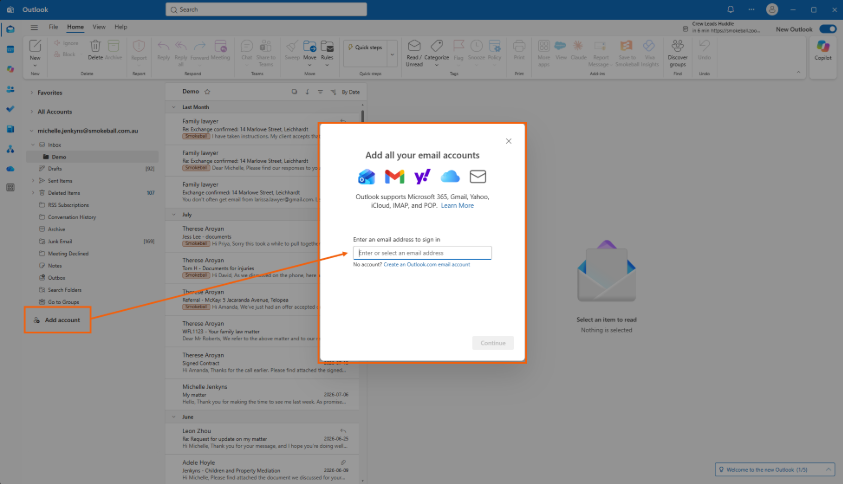
2. Open the secondary mailbox.
- In the Outlook desktop app, this appears below the primary mailbox.
- In Outlook on the web, switch from the primary account to the secondary account. Outlook on the web cannot show two mailboxes in a single session, so you will need to switch between mailboxes instead.
3. Install the Smokeball New Outlook Add-in (if it is not already installed).
4. Open the Add-in toolbar from the Outlook Apps section and select Connect mailbox.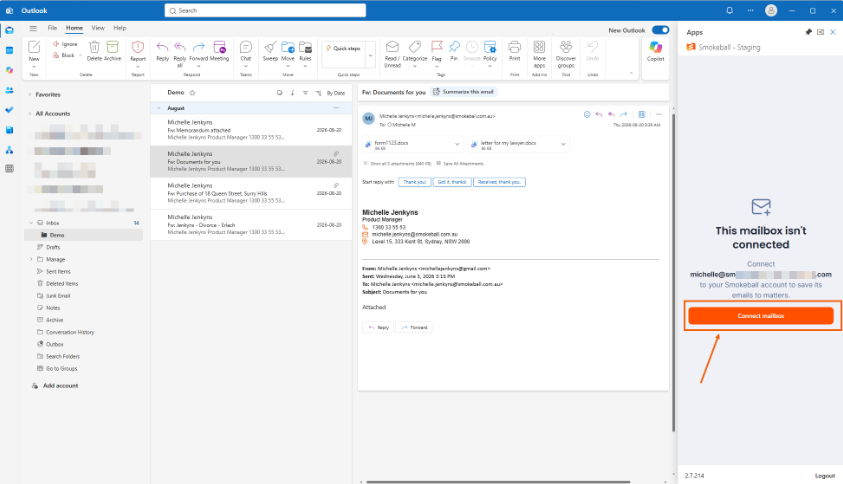
5. Select Sign in with Microsoft.
6. Enter the password of the current email account.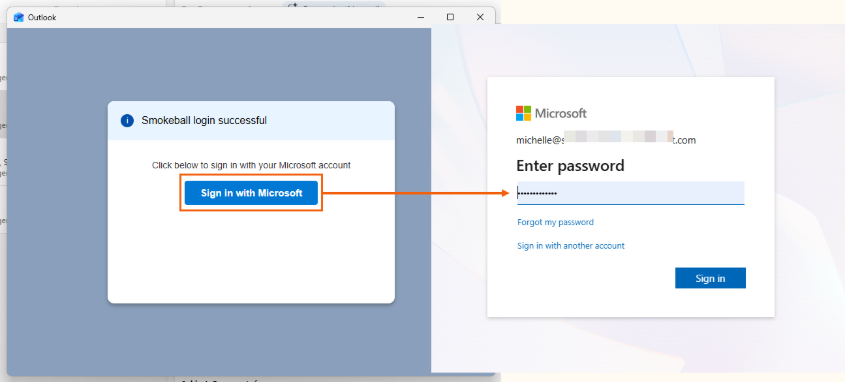
7. Select Sign in. The Add-in is now active in that mailbox and linked to your triConvey account.
To add a third licensed account or more, repeat these steps for each account.
Using the Add-in in a secondary mailbox
After you connect the account, the Add-in works the same in the secondary mailbox as in the primary mailbox, with two behaviours worth noting:
- When a user saves an email manually (opens the email, picks a matter, and saves), the matter shows the user’s initials. The activity and AutoTime are recorded against that user.
- Reply emails in the secondary mailbox are saved to matters automatically as usual. Automatic saving runs under the first triConvey user who linked that mailbox. If that user signs out of triConvey or leaves the firm, the next active user takes over.
Was this article helpful?
That’s Great!
Thank you for your feedback
Sorry! We couldn't be helpful
Thank you for your feedback
Feedback sent
We appreciate your effort and will try to fix the article