

Learn how to change the font family, size and style of the fields in a PDF form, ensuring they are consistent and easy to read before you file or send them.
Table of Contents
- Getting Started
- Changing the font in a single field
- Changing the font on a page or the whole document
- List of available fonts
- Good to know
Getting Started
Font options are available when you open a form for use. They are not available in Modify Mode.
Changing the font in a single field
1. Open the matter, then open the PDF form.
2. Right-click on the field you wish to change, then select Change Field Font.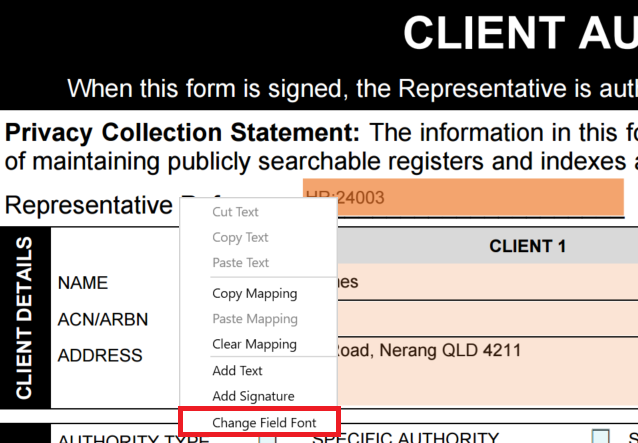
3. Select the font, size and style.
Tip: You can enter a custom font size, including half-sizes (e.g. 12.5).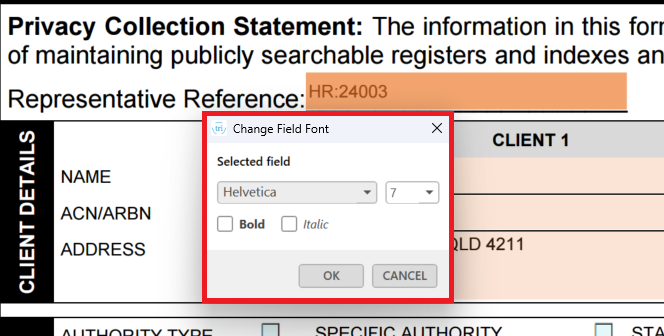
4. Select OK. The field updates straight away.
Changing the font on a page or the whole document
1. Open the matter, then open the PDF form.
2. Right-click on the page, outside of any field, then select Change Field Font.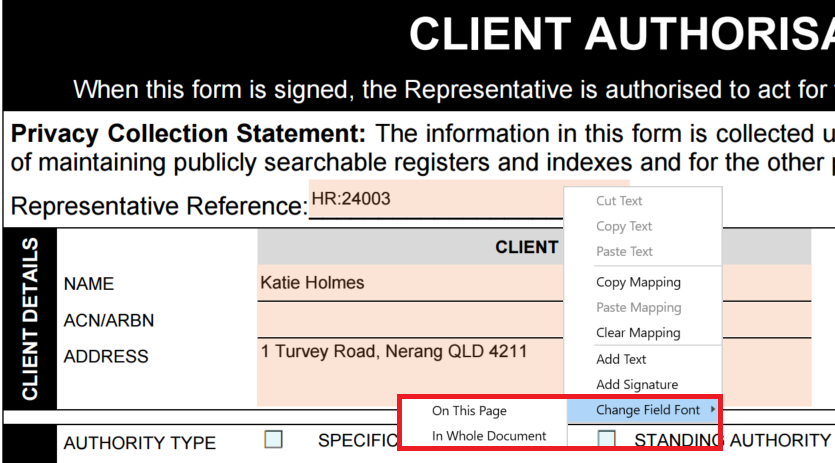
3. Select one of the following:
- On This Page: This updates every text field on the current page.
- In Whole Document: This updates every text field in the form.
4. Select the font, size and style.
Tip: You can enter a custom font size, including half-sizes (e.g. 12.5).
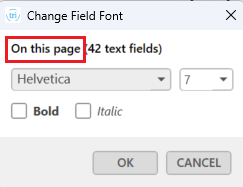
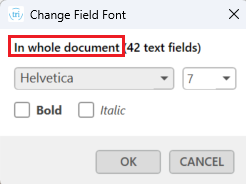
5. Select OK. All the targeted fields update in one action.
List of available fonts
When editing the font in a PDF using this method, the following fonts are always available:
- Helvetica
- Arial
- Times New Roman
- Courier New
The following fonts are available if they are installed on your computer and their licence allows them to be embedded in a PDF:
- Calibri
- Segoe UI
triConvey cannot override font licensing restrictions.
Good to know
- Your font changes are saved with the form and print as shown.
- Font changes apply only to the form you change. Other forms and the template are not affected.
- Font options are only available when you open a form for use, not in Modify Mode.
- You cannot change the font in non-text-fields, such as checkboxes, using this method. Only text fields are updated.
Was this article helpful?
That’s Great!
Thank you for your feedback
Sorry! We couldn't be helpful
Thank you for your feedback
Feedback sent
We appreciate your effort and will try to fix the article