

The Activity tab shows everything you and your staff have done in triConvey. Use it to:
- View activities completed over time or in a custom date range.
- Create an itemised list of completed activities, so everything is billed properly.
- Find activities that haven't become time entries yet.
- See how much work you're completing for your rate, and whether staff are over-or under-utilised.
Table of Contents
View Activities
1. Select Activity from the left panel of the triConvey Home Dashboard.
2. In the left-hand panel, open the Staff drop-down and select one or more staff members.

The activities appear in the main window, with a summary timeline and pie chart.

Note: This activity view will display up to 5000 activities at a time.
Filter activities
Use the filters in the left-hand panel to narrow the list:
- Show activities from matters, leads, or both.
- Show only particular types of activity.
- Choose Day, Week, or Month, then move backwards to view earlier periods.
- If an activity is missing, click Refresh to update the list. This option is located at the bottom of the Activity list.

Find activities that are not time entries yet
In the Activity View, you can filter activities that haven’t been added to Time & Disbursements, so you get paid for all of it. It works whether or not your firm uses AutoTime.
1. Select Activity from the left-hand menu.
2. In the Staff filter, select Select all, or choose the staff members you want to check.
3. Select the Show where Time Entry is not set filter.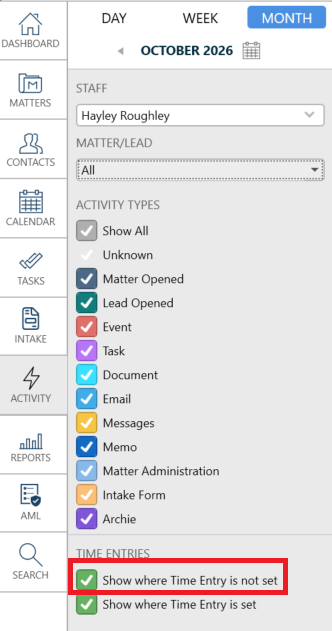
The list will show every activity that isn’t a time entry yet.
- Select Add on an activity to make it billable (under the Time Entry? column).
- Select the ellipsis (three dots) next to Add first if you want to edit the description or time.

Once added, the entry appears in Time & Disbursements, ready to include in an invoice.
Using AutoTime? triConvey creates time entries from your activities each night. Use this filter to find anything it didn’t pick up. Learn more about setting up AutoTime activity tracking.
Not using AutoTime? You can also review and approve activities day by day with Time Finder. Time Finder isn’t available if AutoTime is turned on.
Add an activity that wasn't tracked
If you completed work outside triConvey, such as taking a phone call, enter it as a separate activity and link it to the relevant matter.
Learn more about adding an activity.
Related Guides
Learn more about different ways to track activities in the articles below:
- Track time from activities completed in triConvey
- Use the Time Finder to track activities
- Set up AutoTime activity tracking
- Print or export activity
Was this article helpful?
That’s Great!
Thank you for your feedback
Sorry! We couldn't be helpful
Thank you for your feedback
Feedback sent
We appreciate your effort and will try to fix the article