

Table of Contents
- Getting Started
- How to determine if my version of Word is affected
- How to resolve issue
- Workarounds we have identified
- Frequently Asked Questions
Getting Started
Recently, Microsoft has released an update to Word (Version 2601) which introduced the following issues with Word documents:
- Heading numbers disappearing (for example, “1.”, “1.1”, “2.1” no longer appear)
- Numbering or formatting behaving unexpectedly
- Issues after using style separators in Word
Microsoft has acknowledged the issues and is working on a fix.
How to determine if my version of Word is affected
To check if you are on Version 2601:
1. Open Microsoft Word.
2. Click File on the top-left corner.
3. Select Account (or Office Account) from the bottom of the left panel.
4. Under Product Information, look for:
- Version (for example, “Version 2601”)
- Update Channel (for example, “Current Channel” or “Monthly Enterprise Channel”)
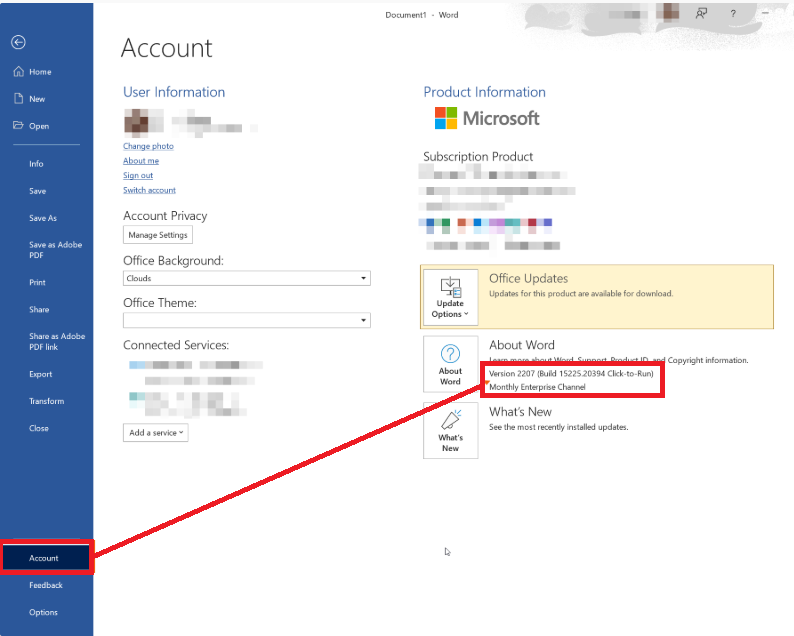
The issues affect Word version 2601, which is on the Current Channel.
If you are on the Current Channel, it means you get new features and fixes as soon as Microsoft releases them. Unfortunately this also means that you may get new bugs earlier, which is what has happened this time with Version 2601.
How to resolve issue
This issue is dependent on Microsoft releasing a fix to the bug introduced in Version 2601. This would mean waiting for the next Version to be released on the Current Channel.
However, there is another type of channel called the Monthly Enterprise Channel which does not have Version 2601 yet as it only releases updates once a month. We have discovered that moving to the Monthly Enterprise Channel fixes the issues.
Therefore we recommend moving from the Current Channel to the Monthly Enterprise Channel, and remaining on it until Microsoft has fully resolved the issue.
Important Note: Moving Channels should only be done by your IT provider or System Administrator. Do not attempt to change the Channel yourself if your firm has managed IT.
Follow the Microsoft article for steps on moving Channels: Change the Microsoft 365 Apps update channel for devices in your organisation.
Workarounds we have identified
While we wait for Microsoft to fix the issue, here are some workarounds that other users have reported to resolve issues:
Option A - Saving the final copy of the document in a .doc format (instead of .docx)
Some users have reported saving the document to .doc instead of .docx resolves their issue. triConvey is designed to work with .docx files so this is recommended only for final export outside of triConvey.
1. In Word, click File > Save As.
2. Choose a location.
3. Change the file type to Word 97–2003 Document (*.doc).
4. Use this .doc file only for the final external version (for example, to send to court or a client).
Option B - Use Word on the Web (browser version of Word)
The web version of Word does not appear to have this bug if you are able to save the document into OneDrive and open it in your browser.
If your firm uses OneDrive or SharePoint:
1. Save or move the document into OneDrive or SharePoint.
2. Open the document in Word on the web (from your browser).
3. Check whether headings and numbering display correctly there.
Option C - Upgrade the document out of Compatibility Mode
We have also identified that converting documents to disable Compatibility Mode may resolve issues. To do this, refer to the Microsoft article on converting documents to a newer format.
Frequently Asked Questions
If you are unsure about any of these steps, please contact your IT provider or triConvey Support.
Was this article helpful?
That’s Great!
Thank you for your feedback
Sorry! We couldn't be helpful
Thank you for your feedback
Feedback sent
We appreciate your effort and will try to fix the article