

Learn how to organise data exported from your other software to maximise its compatibility with the triConvey Data Import tool.
Table of Contents
- Best practice for preparing all data
- Preparing Staff data
- Preparing Contact data
- Preparing Matter data
- Preparing Opening Balance data
- Preparing Activity Type Data
- Preparing Unbilled Time & Fee data
- Preparing Unbilled Disbursement data
- Preparing Invoice data
- Preparing Memo data
- Preparing Task data
- Preparing Calendar Event data
- Preparing Safe Custody data
Best practice for preparing all data
To ensure your data upload runs as smoothly as possible, follow these recommendations before uploading your files to the data import tool.
- Remove all duplicates in your source file. The Data Import tool DOES NOT identify duplicate entries.
- Check the data in the source file has been entered correctly. If your data was wrongly entered in the previous legal software, it will appear in triConvey in that format.
- Some columns are required when mapping during the file upload process. You can view these columns by selecting Upload and checking the left-hand panel for required columns. Ensure your input file includes columns that can be mapped to these required items. Input column names do not need to match those listed in the left-hand panel.
If your source file does not contain a column that can be mapped to a "Required" triConvey import column, open your source data file (in Excel or similar), add a column that can be used to map to the "Required" triConvey column (the column name does not need to match the triConvey column name), then re-upload it to the import tool.
Alternatively, you can download a sample Excel template on the bottom-left corner of the Upload window and copy/paste your source data into the relevant columns in that template.
- Only one source file can be uploaded per data type - e.g. if you have two source files for Contacts, you must merge them into one file before uploading.
- Columns are mapped on a one-to-one basis - e.g. if you have two columns for Matter ID in your source file, you can only map one of them to triConvey's Matter ID destination column.
- Note: The order of columns and name of column headers in the source file does not affect the import.
Preparing Staff data
This is relevant if you wish to add new or additional staff members that do not already exist in triConvey.
Staff - Available Fields
| Column Name | Required/Optional | Notes |
| Staff ID | Required | This is a unique identifier used for a Staff Member. This ID will not be visible in triConvey and is an internal identifier only. |
| Title | Optional | |
| First Name | Required | |
| Middle Name | Optional | |
| Last Name | Required | |
| Initials | Optional | |
| Email Address | Required | Must be unique |
| Current Staff | Required | Is the staff member current (yes/no) |
Preparing Contact data
Ensure you have checked the following in your source data file before uploading it to triConvey:
- As columns are mapped on a one-to-one basis, if your source data contains multiple columns for the same data, for example, a person address, phone number or email, and also company address, phone number or email, merge them into one column/set of columns. There is only one set of triConvey destination mapping columns for each, regardless of whether the record is a person or company contact. See the following sections for more information on formatting person vs. company (Firm/Business/Organisation) contacts.
- E.g. Merge the data from "Home Address Country" and "Business Address Country" into a single column "Country" or merge data from the "Personal Email" and "Business Email" into a single column "Email".
- E.g. Merge the data from "Home Address Country" and "Business Address Country" into a single column "Country" or merge data from the "Personal Email" and "Business Email" into a single column "Email".
- You can have multiple email addresses per contact. However, you must keep them in the same cell and separate them by a semicolon ( ; ).
- Names - Depending on the format of the source names, the import tool allows contact names to be uploaded in several formats, Full Name OR First Name, Middle Name, Last Name. If contact names are provided in the "Full Name" format, the import tool will automatically split them into the relevant name components during the upload process (including if they are company/organisation names).
- Note: Full Name splitting may not be completely accurate in all cases, and you will have the opportunity to review and correct any issues during the final stage of the upload process. Any full names automatically split out by the import tool will also have the original input name copied to the "notes" field for historical reference.
- Note: Full Name splitting may not be completely accurate in all cases, and you will have the opportunity to review and correct any issues during the final stage of the upload process. Any full names automatically split out by the import tool will also have the original input name copied to the "notes" field for historical reference.
- Contact Types - There are two types of contacts you can import to triConvey - "Person" and "Company" (Firm/Business/Organisation). If your source data does not contain this information or you have no column to map to the triConvey "Type" field, the import tool will automatically detect and populate this information.
- Addresses - Depending on the format of the source addresses, the import tool provides the flexibility for addresses to be uploaded in multiple formats:
Full address (including Suburb, State, Postcode, and Country) |
|
| Simple street address (followed by Suburb, State, Postcode, and Country in separate fields) |
|
| Detailed street address (followed by Suburb, State, Postcode, and Country in separate fields) |
|
| Address Mapping Options: | Option 1: If you map your source address data to the Full address fields, the import process will automatically split the data into the relevant detailed sections, including the Suburb, State, Postcode, and Country, so it is imported to triConvey correctly. This is a great option if your input address data has multiple address parts (e.g. street/suburb/state/post code/country) all combined on one line/in the same cell. |
| Option 2: If you map your source address data to the simple address fields, the import process will automatically split the data into the relevant detailed sections so it is imported to triConvey correctly. This is a great option if your input address data has the street address on one line/in the same cell, and the suburb/state/post code/country in separate fields. | |
| Option 3: If you map your source address data to the detailed address fields, no further processing/manipulation of the address data will be performed. This is a great option if your input address data already has the street address components broken down into individual fields (e.g., street number, street name, street type, etc), as well as the suburb/state/post code/country. | |
| Option 4 (not recommended): If you map your source address data to the Simple and Detailed address fields, where possible, the import process will automatically split the simple data out into the relevant detailed sections, so they are imported to triConvey correctly. No processing/manipulation of the detailed address data will be performed. Note: Address splitting may not be completely accurate in all cases, and you will have the opportunity to review and correct any issues during the final stage of the upload process. Any addresses automatically split out by the import tool will also have the original input address copied to the "Notes" field for historical reference. |
- Note: Address splitting may not be completely accurate in all cases, and you will have the opportunity to review and correct any issues during the final stage of the upload process. Any addresses automatically split out by the import tool will also have the original input address copied to the "Notes" field for historical reference.
Contacts - Available Fields
| Column Name | Required/Optional | Notes |
| Contact ID | Required | A unique identifier used for a Contact. This ID will not be visible in triConvey and is an internal identifier only. |
| Type | Required | Must be a "Person" or "Company" (Firm/Business/Organisation). If not provided, where possible, this will be auto-populated. |
| Full Name | Optional | This field should not be mapped in conjunction with First Name/Middle Name/Last Name. If used for mapping, the import tool will automatically split the full name out to First name, Middle name, Last name, or Company name. |
| Title | Optional | |
| First Name | Required if Type is "Person" | This field should not be mapped in conjunction with Full Name. Less than 200 characters. |
| Middle Name | Optional | This field should not be mapped in conjunction with Full Name. Less than 200 characters. |
| Last Name | Optional | This field should not be mapped in conjunction with Full Name. Less than 200 characters. |
| Company Name | Required if Type is "Company" | For "Company" type records, the name of the contact goes here. For "Person" type records who are associated with a company/organisation, enter the associated company name here, as well as the person's name (in full name OR first/middle/last name). Less than 200 characters. |
| Doing Business As Name | Optional | Optional. Can be used if a Company contact has a business name that differs from the company name (trading as/practising as). |
| ABN | Optional | Australian Business Number (ABN) for a Company contact. |
| Job Title | Optional | |
| Phone | Optional | |
| Mobile Phone | Optional | |
| Business Fax | Optional | |
| Birthday | Optional | DD/MM/YYYY |
| Gender | Optional | |
| Email Address | Optional | Can take multiple (; separated). Less than 255 characters. |
| Full Address | Optional | This field can be used if your input address data has multiple address parts (e.g. street/suburb/state/post code/country) combined on one line/in the same cell. If used for mapping, the import tool will automatically split the street address information out to the detailed format address fields. Incliding the suburb/state/post code/country. |
| Street Address Line 1 | Optional | Simple format address fields. If used for mapping, the import tool will automatically split the street address information out to the detailed format address fields. These fields should not be mapped in conjunction with the Full or Detailed formatt address fields. |
| Street Address Line2 | Optional | |
| Care Of | Optional | Detailed format address. These fields should not be mapped in conjunction with the Full or Simple format address fields. |
| Building/Level | Optional | |
| Unit Type | Optional | |
| Unit Number | Optional | |
| Street Number | Optional | |
| Street Name | Optional | |
| Street Type | Optional | |
| Suburb | Optional | |
| State | Optional | |
| Postal Code | Optional | |
| Country | Optional | |
| Full PO Box Address | Optional | This field can be used if your input PO Box address data has multiple address parts (e.g. street/suburb/state/post code) combined on one line/in the same cell. If used for mapping, the import tool will automatically split the street address information out to the detailed format PO box address fields, incliding the suburb/state/post code. |
| PO Box | Optional | Simple format address. If used for mapping, the import tool will automatically split the street address information out to the detailed format PO box address fields. These fields should not be mapped in conjunction with the Full or Detailed PO box address fields. |
| PO Box Care Of | Optional | Detailed format address. These fields should not be mapped in conjunction with the Full or Simple format PO box address fields. |
| PO Box Type | Optional | |
| PO Box Number | Optional | |
| PO Box Suburb | Optional | |
| PO Box State | Optional | |
| PO Box Postal Code | Optional | |
| Notes | Optional | |
| Additional Notes | Optional | This column can be used to map additional (one or more) input columns to the `Notes` field. All data mapped to this column will be combined into a single Notes field in triConvey (separated by a new line). |
| Webpage | Optional | |
| Tags | Optional | Tags for the Contact. Accepts multiple (; separated). |
Associating Person and Company contacts
There are two types of contacts you can import to triConvey - "Person" and "Company".
During the source file upload process, you are required to populate the Type column for each contact to specify if they are a Person or Company.
You can also link a Person contact to a Company contact (e.g. they are a representative of that Company):
1. For the Person contact:
- In the Type column, enter "Person".
- Any other person-related details such as Title, First/Middle/Last Name (or full name), DOB, Gender, and Job Title should be entered on this Person contact record.
- In the Company Name column on this Person contact record, enter the company's name (they are a representative of that Company).
2. For the Company contact:
- In the Type column, enter "Company".
- Any other Company-related details such as phone number, address, email etc should be entered on this Company contact record.
The above actions can be performed in the source data file before uploading, or directly in the import tool during the file upload process.
Associating Person and Company contacts - Example

In the above example:
| Bill Smith |
|
| Carbolic Legal |
|
| Jen Moore |
|
| Adam Jenkins |
|
| ProLegal |
|
'Person details not valid' error message
When uploading your data to the Data Import tool, if it detects person-related details on a Company contact, it will generate an error: "Person details not valid". See the below example where there is an error message appearing for Company-type contacts as they contain Gender information, which is only meant for Person-type contacts.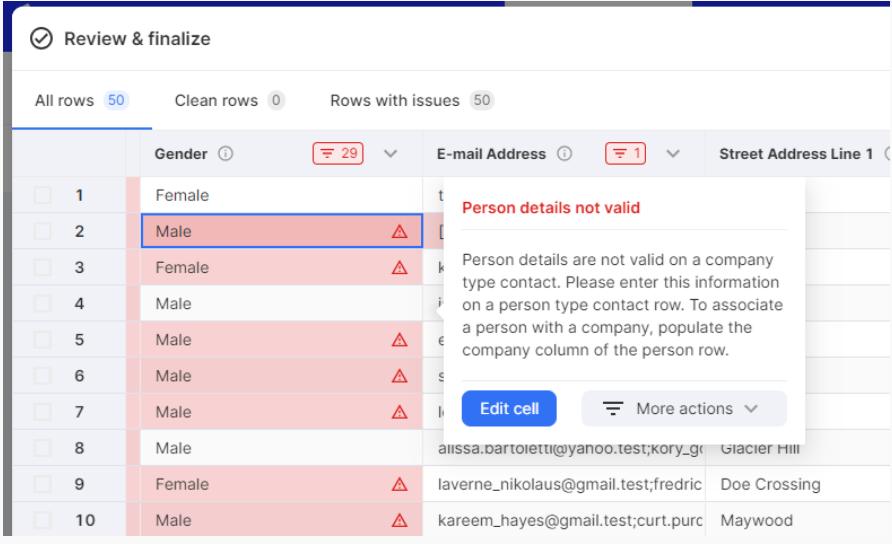
Preparing Matter data
You don't need to upload a separate source file for your Matter Types. Matter type information should be included in the Matters source file, and you will have the opportunity to map them to triConvey Matter Types after uploading your Matters.
Matters - Available Fields
| Column Name | Required/Optional | Notes |
| Matter ID | Required | Unique identifier used for Matter. This ID will not be visible in triConvey and is an internal identifier only. |
| Matter Number / Reference | Optional | |
| Matter Description | Optional | |
| Matter Status | Required | |
| Branch Name | Option | The Branch Office that the Matter relates to. Branch locations can be configured in the firm settings of your Account. Configured branches will then be available for selection. |
| Date Opened | Required | DD/MM/YYYY |
| Date Closed | Required if matter status = "Closed" | DD/MM/YYYY |
| Matter Type | Required | Matter Type as listed in your previous legal software. |
| Billing Type | Optional | Picklist of supported triConvey Billing Types. |
| Person Responsible Name or Email | Optional | Email address, name, or initials for the staff member to use as the Person Responsible on the Matter. If supplied, the staff member must already exist in the account or be included in the Staff import file being imported. |
| Primary Person Assisting Name or Email | Optional | Email address, name, or initials for the staff member to use as the Primary Person Assisting on the Matter. If supplied, the staff member must already exist in the account or be included in the Staff import file being imported. |
| Other Person(s) Assisting Name or Email | Optional | Email address, name, or initials for the staff member(s) to use as the Other Person(s) Assisting on the Matter (accepts multiple, & separated). If supplied, the staff member must already exist in the account or be included in the Staff import file being imported. |
| Person Assisting Email | Optional | Email address of the staff member. This staff member must exist in triConvey, or the Staff import file for the current import. |
| Primary Introducer Name or Email | Optional | Email address, name, or initials for the staff member to use as the Primary Introducer on the Matter. If supplied, the staff member must already exist in the account or be included in the Staff import file being imported. |
| Other Introducer(s) Name or Email | Optional | Email address, name, or initials for the staff member(s) to use as the Other Introducer(s) on the Matter (accepts multiple, & separated). If supplied, the staff member must already exist in the account or be included in the Staff import file being imported. |
| Client ID or Email | Required Can take multiple (separate entries with "&") | Contact ID or Email of the Client for the Matter. Must exist in triConvey, or the contact import file for the current import. |
| Other Side ID or Email | Optional Can take multiple (separate entries with "&") | Contact ID or Email of the Other Side for the Matter. Must exist in triConvey, or the contact import file for the current import. |
| Other Sides Solicitor ID or Email | Optional | Contact ID or Email of the Other Sides Attorney for the Matter. Must exist in triConvey, or the contact import file for the current import. |
| Debtor ID or Email | Optional | Contact ID or Email Address of the Contact to use as the default Debtor (accepts a maximum of three, & separated). A Contact with this ID or Email must exist in triConvey, or the Contact import file for the current import. Populate if you wish to set the default debtor for future invoices to a contact other than the Client of the Matter. |
| Tags | Optional | Tags for the Matter. Accepts multiple (; separated). Tag colours will be applied at random during import, but can be edited later in triConvey. |
| Archived | Optional | Indicate if the Matter is Archived (Yes/No). If set to 'Yes', archive and destroy dates are required. To be archived, the status of the Matter must be Closed or Cancelled. |
| Archive/Box Number | Optional | The archive or box number |
| Archive Location | Optional | The archive location |
| Archive Comment | Optional | Comments relating to the archive |
| Archived Date | Optional | The archive date (DD/MM/YYYY). Required if the Matter is marked as archived. |
| Destroy Date | Optional | The destroy date (DD/MM/YYYY). Required if the Matter is marked as archived. |
| Deleted? | Optional | Defaults to "No" unless supplied otherwise. |
Matter Types
You don't need to upload a separate source file for your Matter Types. Matter type information should be included in the Matters source file, and you will have the opportunity to map them to triConvey Matter Types after uploading your Matters.
Matter Types - Available Fields
| Column Name | Required/Optional | Notes |
| Input Matter Type | Required (will be pre-populated) | This column will be auto-populated with matter types from the uploaded Matters file. |
| triConvey Matter Type | Required | A relevant triConvey Matter Type will need to be selected for each input Matter Type. Some triConvey Matter Types have multiple "acting for" options, for example, Loan Agreement - Borrower and Loan Agreement - Guarantor. Where this is the case, you will see various options available for selection in the triConvey Matter Type dropdowns and can select the most suitable choice. |
Matter Tags
Can be used to add Tags to a Matter. If a provided tag name matches one already configured in the triConvey account, it will be used; otherwise, a new one will be configured during the import.
Matter Tags - Available mappings
| Column Name | Required/Optional | Notes |
| Matter ID or Number | Required | The Matter ID or Number of the associated Matter. Must exist in triConvey, or the matter import file for the current import. |
| Contact ID or Email | Required | Contact ID or Email of the Contact to use for the role. Must exist in triConvey, or the contact import file for the current import. |
| Role Name | Required | The name of the role (e.g. 'Child', 'Council', etc.). Depending on the triConvey Matter Type chosen for each Matter, predefined supported roles will be available for selection; however, custom role names are also supported. |
Matter Roles
Can be used to associate additional Contacts with a Matter. A Role can be specified for each Contact.
Matter Roles - Available mappings
| Column Name | Required/Optional | Notes |
| Matter ID or Number | Required | The Matter ID or Number of the associated Matter. Must exist in triConvey, or the matter import file for the current import. |
| Contact ID or Email | Required | Contact ID or Email of the Contact to use for the role. Must exist in triConvey, or the contact import file for the current import. |
| Role Name | Required | The name of the role (e.g. 'Child', 'Council', etc.). Depending on the triConvey Matter Type chosen for each Matter, predefined supported roles will be available for selection; however, custom role names are also supported. |
Matter Critical Dates
Can be used to add Critical Dates to a Matter. The critical dates supported for each matter will depend on its matter type.
Matters Critical Dates - Available mappings
| Column Name | Required/Optional | Notes |
| Matter ID or Number | Required | The Matter ID or Number of the associated Matter. Must exist in triConvey, or the matter import file for the current import. |
| Date Field | Required | The name of the critical date field. If the supplied field is not supported, a suggested list of supported critical dates will be provided based on the matter type for each matter. Supported fields can be browsed in the following report: Supported Date Fields Report. |
| Date Value | Required | The date for the corresponding critical date field (DD/MM/YYYY). |
Flexible Upload Formats: Since many systems provide/export data in different formats, the import tool has been designed to handle several upload formats. The following styles can be uploaded directly to the import tool:
- Long format example - One row per critical date
Column header names do not need to match those provided in the example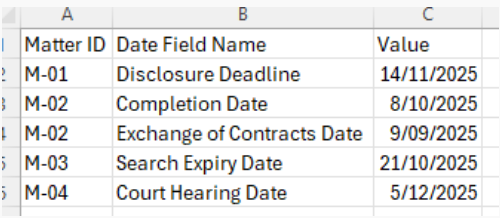
- Wide format example - One row per matter, multiple columns for each critical date (If uploaded in this format, the tool will automatically convert the data to the long format for review before submission).
Column header names do not need to match those provided in the example

Matter Archive Details
Can be used to mark a Matter as Archived and assign archive-related information.
Matter Archive Details - Available mappings
| Column Name | Required/Optional | Notes |
| Matter ID or Number | Required | The Matter ID or Number of the associated Matter. Must exist in triConvey, or the matter import file for the current import. |
| Archived | Required | Indicate if the Matter is Archived (Yes/No). If set to 'Yes', archive and destroy dates are required. To be archived, the status of the Matter must be Closed or Cancelled. |
| Archive/Box Number | Optional | The archive or box number |
| Archive Location | Optional | The archive location |
| Archive Comment | Optional | Comments relating to the archive |
| Archived Date | Optional | The archive date (DD/MM/YYYY). Required if the Matter is marked as archived. |
| Destroy Date | Optional | The destroy date (DD/MM/YYYY). Required if the Matter is marked as archived. |
Preparing Opening Balance data
Import opening Credit and Trust account balances for Matters.
For Trust, as best practice, we recommend using the closing date from your previous system.
Opening Balances - Available Fields
| Column Name | Required/Optional | Notes |
| Matter ID or Number | Required | The ID or Number of the Matter associated to the Opening balances. Must exist in triConvey, or the matter import file for the current import. |
| Opening Credit Balance ($) | Optional | The Opening Credit Balance of the Matter ($) - e.g. "1500.50" or "800.00" or "0.00" or "123.00" |
| Opening Credit Balance Date | Required if balance is above zero | The date used for the Matter opening Credit balance (DD/MM/YYYY). |
| Opening Trust Balance ($) | Optional | The Opening Trust Balance of the Matter ($) - e.g. "1500.50" or "800.00" or "0.00" or "123.00" |
| Opening Trust Balance Date | Required if balance is above zero | The date used for the Matter opening Trust balance (DD/MM/YYYY). As best practice, we recommend using the closing date from your previous system. |
Preparing Activity Type Data
Imported Activity Types can be used for time, fee, or cost recovery entries created once you are up and running with triConvey. Activity Types are not required to import Unbilled Entries.
Activity Types - Available Fields
| Column Name | Required/Optional | Notes |
| Code | Required | A code used for the Activity (between 2-5 characters). Must be unique. |
| Type | Required | The type of activity (Fixed Fee, Time Based, Disbursement). |
| Description | Required | A short description of the Activity. |
| Rate ($) | Required | The rate ($) of the Activity - e.g. "100.50" or "500.00" or "0.00" |
| Duration (Hours) | Required if Type = Time Based | If type = "Time Based", the duration of the Activity in hours - e.g. "1.0" or "1.5" or "2.0" (if not set, will default to 1.0 in triConvey). |
| Quantity | Required if Type = Disbursement | If Type = "Disbursement", the quantity of the Activity - e.g. "1.00" or "1.50" or "2.00" (if not set, will default to 1.0 in triConvey). |
| Cost Type | Optional | If type = "Disbursement", indicate if the cost type is Hard or Soft (defaults to "Hard" in triConvey if left empty). Hard costs are costs paid directly to the supplier, e.g. search fees. Soft costs are costs that your firm can choose to pass to the client, e.g. costs of printer paper and ink. |
Preparing Unbilled Time & Fee data
All unbilled entries must be associated with a Matter.
The default GST rate should be configured in the Firm Settings of your triConvey account before uploading unbilled entries.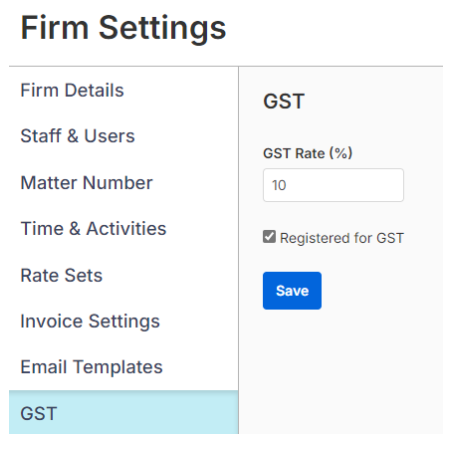
GST for time/fees is calculated based on the default GST rate set in the settings of your triConvey account.
By default, each entry is exclusive of GST.
- Use the "GST Inclusive" field to indicate if an entry is considered GST-inclusive.
- Use the "GST Exempt" field to indicate if an entry is exempt from GST.
Unbilled Time & Fees - Available Fields
| Column Name | Required/Optional | Notes |
| Matter ID or Number | Required | The ID or Number of the Matter associated to the entry. Must exist in triConvey, or the matter import file for the current import. |
| Staff Name or Email | Required | Email address, name, or initials of the staff member associated with the entry. The staff member must already exist in the account or be included in the Staff import file being imported. |
| Date | Required | The date of the entry (DD/MM/YYYY) |
| Type | Required | The type of entry (Fixed Fee or Time Based). |
| Activity Code | Optional | Optional. Must match a Code from an Activity Type in triConvey, or the Activity Type import file for the current import. Assigning an activity code to an entry will not override/set other entry details (description, rate, duration etc). |
| Subject | Required | A short Subject description of the entry. |
| Description | Optional | Description for the entry |
| Rate ($) | Required | The rate ($) of the entry - e.g. "100.50" or "500.00" or "0.00" (defaults to 0.00 if left empty). |
| Duration (Hours) | Required if Type = Time Based | If type = "Time Based", the duration of the entry in hours (allows 5 decimal places for precision). Must be equal to or above 0.01. |
| GST Inclusive | Required | Yes/No. By default, the entry is exclusive of GST. Indicate here if the time/fee amount is considered GST inclusive. GST for time/fees is calculated based on the default GST rate set in the settings of your triConvey account. |
| GST Exempt | Required | Yes/No. Indicate if the entry is exempt from GST (defaults to "No" if left empty). |
| Billable | Required | Yes/No. Indicate if the entry is billable (defaults to "Yes" if left empty). |
| Waived | Required | Yes/No. Indicate if the entry is waived/written-off (defaults to "No" if left empty). |
Preparing Unbilled Disbursement data
All unbilled entries must be associated with a Matter.
The default GST rate should be configured in the Firm Settings of your triConvey account before uploading unbilled entries.
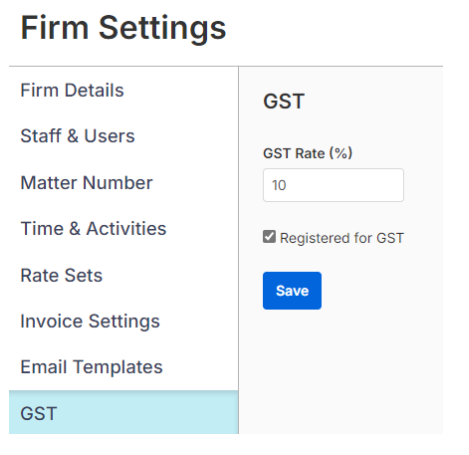
GST for Cost Recoveries is calculated based on the default GST rate set in the settings of your triConvey account.
By default, each entry is exclusive of GST.
- Use the "GST Inclusive" field to indicate if an entry is considered GST-inclusive.
- Use the "GST Override (£)" field to specify a custom GST amount for the entry
- Empty = GST is calculated based on the default GST rate set in the settings of your triConvey account.
- 0 = Exempt from GST
- Any other value = This value will be used as the GST on the entry
- Empty = GST is calculated based on the default GST rate set in the settings of your triConvey account.
Unbilled Disbursements - Available Fields
| Column Name | Required/Optional | Notes |
| Matter ID or Number | Required | The ID or Number of the Matter associated to the entry. Must exist in triConvey, or the matter import file for the current import. |
| Staff Name or Email | Required | Email address, name, or initials of the staff member associated with the entry. The staff member must already exist in the account or be included in the Staff import file being imported. |
| Date | Required | The date of the entry (DD/MM/YYYY) |
| Activity Code | Optional | Optional. Must match a Code from an Activity Type in triConvey, or the Activity Type import file for the current import. Assigning an activity code to an entry will not override/set other entry details (description, rate, quantity etc). |
| Subject | Required | A short subject description of the entry. |
| Description | Optional | Description for the entry |
| Rate ($) | Required | The rate ($) of the entry - e.g. "100.50" or "500.00" or "0.00" (defaults to 0.00 if left empty). |
| Quantity | Required | The quantity of the entry - e.g. "0.50" or "1.50" or "2.00" |
| GST Inclusive | Required | Yes/No. By default, the entry is exclusive of GST. Indicate here if the cost recovery amount is considered GST inclusive. Unless overridden, GST is calculated based on the default GST rate set in the settings of your triConvey account. |
| GST Override ($) | Optional | Optional. Specify a custom GST amount for the item. If left blank, GST will be calculated automatically using the default GST rate set in your triConvey account settings. Entering 0.00 will mark the item as GST Exempt. You can also enter a specific GST amount (other than 0.00) to override the calculated GST for the item. |
| Billable | Required | Yes/No. Indicate if the entry is billable (defaults to "Yes" if left empty). |
| Waived | Required | Yes/No. Indicate if the entry is waived/written-off (defaults to "No" if left empty). |
| Cost Type | Optional | Indicate if the cost type is Hard or Soft (defaults to "Hard" in triConvey if left empty). Hard costs are costs paid directly to the supplier, e.g. search fees. Soft costs are costs that your firm can choose to pass to the client, e.g. costs of printer paper and ink. |
| Anticipated | Optional | Indicate whether the entry is a regular Disbursement or an anticipated Disbursement (defaults to "No" if empty). |
| Supplier ID or Email | Optional | Indicate whether the item is a regular Disbursement or an anticipated Disbursement (defaults to "No" if empty). |
| Supplier Reference | Optional | If the item is payable to a supplier or is marked as anticipated, enter the ID or Email Address of the Contact to use as the supplier. This field is required if the item is marked as anticipated. The Contact must already exist in triConvey , or be included in the Contacts import file for the current import. |
| Supplier Payment Due | Optional | Enter a reference for the supplier Contact if the item is payable to a supplier or is an anticipated Disbursement that has been paid. |
| Supplier Payment Method | Optional | If the item is payable to a supplier or is anticipated, enter the due date for the supplier payment (DD/MM/YYYY). |
| Supplier Account Name | Optional | If the item is payable to a supplier or is an anticipated Disbursement that has been paid, enter the supplier payment method (Bank Transfer or Direct Debit). |
| Supplier Payment Reference | Optional | If the item is payable to a supplier or is an anticipated Disbursement that has been paid, enter the account name used for the supplier payment. |
Preparing Invoice data
All Invoices must be associated with a Matter and a Contact (debtor).
There are two options for importing invoices: Basic or Detailed.
Basic: Best when only limited invoice data is available
- Only requires an Invoice import file to be provided.
- Amongst other invoice-related information, this file must contain summary fee/disbursement amounts for each invoice.
- Following the import, a single fee and/or disbursement line item will be added to each invoice based on the summary amounts provided.
- The Issue Date and Staff Member provided for each invoice will also be used for the summary Fee and/or disbursement line items created on the invoice.
Detailed: Best when more granular line item invoice data is available
- Both an Invoice AND an Invoice Items import file must be provided.
- Provides the flexibility to include multiple detailed line items per invoice.
- For each line item, information such as staff, date, type, duration, quantity, and GST can be provided (see full field list below).
- Each invoice must have at least one invoice item.
- Once invoice and invoice item data have been supplied, the import tool will perform validation checks to ensure that the sum of all invoice items (inc GST), excluding any waived/written-off items, matches the total amount (inc GST) specified for each invoice in the invoice import file.
GST:
The default GST rate should be configured in the Firm Settings of your triConvey account before uploading Invoices.
This is an important step to ensure the summary information provided by the import tool is calculated correctly.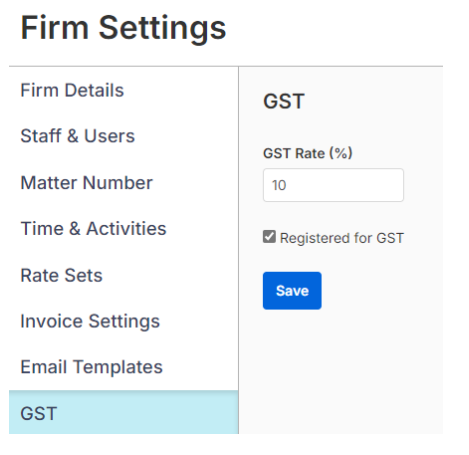
Invoices Basic - Available mappings
| Column Name | Required/Optional | Notes |
| Invoice Number | Required | Must be a unique number with no leading zeros. |
| Debtor ID or Email | Required | The ID or Email of the Contact who is the debtor on the Invoice (accepts multiple, & separated). Three maximum. Must exist in triConvey, or the contact import file for the current import. |
| Matter ID or Number | Required | The Matter ID or Number of the associated Matter. Must exist in triConvey, or the matter import file for the current import. |
| Issue Date | Required | The Invoice Issue Date (DD/MM/YYYY). Will also be used as the date for Fee/Disbursement line items. |
| Due Date | Required | The Invoice Due Date (DD/MM/YYYY). |
| Title | Required | Title text for the Invoice. 255-character max. |
| Subtitle | Optional | Subtitle text for the Invoice. This will appear under the main Title. 255-character max. |
| Notes | Optional | Footer notes for the invoice. This text will appear at the bottom of the invoice. |
| Total Inc. GST ($) | Required | Overall Invoice Total. Must be above 0.00. Amount should be Inc GST - e.g. "1500.50" or "800.00" or "123.00". |
| Fee Total Inc. GST ($) | Required | Fee portion amount. Should be Inc. GST - e.g. "1500.50" or "800.00" or "0.00" or "123.00". |
| Fee Total GST Exempt | Required | Yes/No Indicate if the fee portion amount is exempt from GST. Defaults to "No" if left empty, in which case GST will be calculated based on the default GST rate set in the settings of your triConvey account. |
| Disb Total Inc. GST ($) | Required | Disbursement portion amount. Should be Inc. GST - e.g. "1500.50" or "800.00" or "0.00" or "123.00". |
| Disb GST Override ($) | Required | Optional. Specify a custom GST amount for the Disbursement portion. If left blank, GST will be calculated automatically using the default GST rate set in your triConvey account settings. Entering 0.00 will mark the Disbursement portion as GST Exempt. You can also enter a specific GST amount (other than 0.00) to override the calculated GST for the Disbursement portion. |
| Amount Due Inc. GST ($) | Required | Amount should be Inc GST. Where Amount Due is less than the Total amount, a payment will be created and applied to the invoice automatically on import for the difference. |
| Payment Date | Required when the Amount Due is less than the Total Amount | Required when the Amount Due is less than the Total Amount. A payment will be created and applied to the invoice automatically on import for the difference. |
| Staff Name or Email | Required | Required. Each invoice must have an assigned owner — the staff member who created or finalised the invoice. Enter the email address, name, or initials of the staff member. The staff member must already exist in the account or be included in the Staff import file being imported. This will also be the staff member used for assignment of the Fee and Disbursement line items on the invoice. |
Invoices Detailed - Available mappings
| Column Name | Required/Optional | Notes |
| Invoice Number | Required | Must be a unique number with no leading zeros. |
| Debtor ID or Email | Required | The ID or Email of the Contact who is the debtor on the Invoice (accepts multiple, & separated). Three maximum. Must exist in triConvey, or the contact import file for the current import. |
| Matter ID or Number | Required | The Matter ID or Number of the associated Matter. Must exist in triConvey, or the matter import file for the current import. |
| Issue Date | Required | The Invoice Issue Date (DD/MM/YYYY). |
| Due Date | Required | The Invoice Due Date (DD/MM/YYYY). |
| Title | Required | Title text for the Invoice. 255-character max. |
| Subtitle | Optional | Subtitle text for the Invoice. This will appear under the main Title. 255-character max. |
| Notes | Optional | Footer notes for the invoice. This text will appear at the bottom of the invoice. |
| Total Inc. GST ($) | Required | Overall Invoice Total. Amount should be Inc GST - e.g. "1500.50" or "800.00" or "123.00". |
| Amount Due Inc. GST ($) | Required | Amount should be Inc GST. Where Amount Due is less than the Total amount, a payment will be created and applied to the invoice automatically on import for the difference. |
| Payment Date | Required when the Amount Due is less than the Total Amount | Required when the Amount Due is less than the Total Amount. A payment will be created and applied to the invoice automatically on import for the difference. |
| Staff Name or Email | Required | Required. Each invoice must have an assigned owner — the staff member who created or finalised the invoice. Enter the email address, name, or initials of the staff member. The staff member must already exist in the account or be included in the Staff import file being imported. |
Billed Invoice Items - Available mappings
| Column Name | Required/Optional | Notes |
| Invoice Number | Required | The Invoice number associated with the item. An invoice with this number must exist in the Invoice import file for the current import. |
| Staff Name Email | Required | Email address, name, or initials of the staff member associated with the item. The staff member must already exist in the account or be included in the Staff import file being imported. |
| Date | Required | The date of the item (DD/MM/YYYY) |
| Type | Required | The type of the item (Fixed Fee, Time Based, Disbursement ). |
| Subject | Required | A short Subject description of the item. |
| Description | Optional | If type = "Time Based", the duration in hours (allows 5 decimal places for precision). Must be equal to or above 0.01. |
| Rate ($) | Required | The rate ($) for the item - e.g. "100.50" or "500.00" or "0.00". |
| Duration (Hours) | Required if type = Time Based | If type = "Time Based", the duration in hours (allows 5 decimal places for precision). Must be equal to or above 0.01. |
| Quantity | Required if type = Disbursement | If type = "Disbursement", the quantity - e.g. "1.00" or "1.50" or "2.25" (must be equal to or above 1.00) |
| GST Inclusive | Required | By default, the item is exclusive of GST. Indicate here if the amount is considered GST inclusive. GST is calculated based on the default GST rate set in the settings of your triConvey account. |
| GST Override ($) | Optional | Optional. Specify a custom GST amount for the item. If left blank, GST will be calculated automatically using the default GST rate set in your triConvey account settings. Entering 0.00 will mark the item as GST Exempt. For Disbursements, you can also enter a specific GST amount (other than 0.00) to override the calculated GST for the item. |
| Waived | Required | Indicate if the item is waived/written-off (defaults to "No" if left empty). |
| Cost Type | Optional | If type = "Disbursement", indicate if the cost type is Hard or Soft (defaults to "Hard" in triConvey if left empty). Hard costs are costs paid directly to the supplier, e.g. search fees. Soft costs are costs that your firm can choose to pass to the client, e.g. costs of printer paper and ink. |
| Anticipated | Optional | If type = "Disbursement", indicate whether the item is a regular Disbursement or an anticipated Disbursement (defaults to "No" if empty). |
| Supplier ID or Email | Optional | If Type = "Disbursement": If the item is payable to a supplier or is marked as anticipated, enter the ID or Email Address of the Contact to use as the supplier. This field is required if the item is marked as anticipated. The Contact must already exist in triConvey, or be included in the Contacts import file for the current import. |
| Supplier Reference | Optional | If Type = "Disbursement": Enter a reference for the supplier Contact if the item is payable to a supplier or is an anticipated Disbursement that has been paid. |
| Supplier Payment Due | Optional | If Type = "Disbursement": If the item is payable to a supplier or is anticipated, enter the due date for the supplier payment (DD/MM/YYYY). |
| Supplier Payment Method | Optional | If Type = "Disbursement": If the item is payable to a supplier or is an anticipated Disbursement that has been paid, enter the supplier payment method (Bank Transfer or Direct Debit). |
| Supplier Account Name | Optional | If Type = "Disbursement": If the item is payable to a supplier or is an anticipated Disbursement that has been paid, enter the account name used for the supplier payment. |
| Supplier Payment Reference | Optional | If Type = "Disbursement": If the item is payable to a supplier or is an anticipated Disbursement that has been paid, enter a reference for the supplier payment. |
Preparing Memo data
Memos must be associated with a Matter.
Memos - Available Fields
| Column Name | Required/Optional | Notes |
| Memo ID | Required | Unique ID for the Memo. This ID will not be visible in triConvey and is an internal identifier only. |
| Matter ID or Number | Required | Required for all Memos. The Matter ID or Number of the associated Matter. Must exist in triConvey, or the matter import file for the current import. |
| Date & Time | Required | Memo date & time (24-hour). Not visible in triConvey Web but retained for historical reference. If not populated, will default to the date of upload (DD/MM/YYYY HH:MM). E.g. 05/08/2024 14:30 |
| Subject | Required | Subject of the Memo (If not populated, where possible, the first 50 characters of the memo text will be used). Maximum 200 characters. |
| Text | Required | Full Memo text (If not populated, where possible, the subject of the memo will be used). |
| Created By Staff Name or Email | Required | Email address, name, or initials of the staff member who created the Memo. The staff member must already exist in the account or be included in the Staff import file being imported. |
Preparing Task data
Tasks - Available Fields
| Column Name | Required/Optional | Notes |
| Task ID | Required | Unique identifier for the Task. This ID will not be visible in triConvey and is an internal identifier only. |
| Matter ID or Number | Optional | The Matter ID or Number of the associated Matter (optional). If supplied, must exist in triConvey, or the matter import file for the current import. |
| Name | Required | Name of the Task |
| Description | Optional | Task description (max 8,000 characters) |
| Status | Required | Task Status (Complete or Incomplete) |
| Created Date | Required | Date the Task was created (DD/MM/YYYY) |
| Created By Staff Name or Email | Required | Email address, name, or initials of the staff member who created the Task. The staff member must already exist in the account or be included in the Staff import file being imported. |
| Assignee Staff Name or Email | Optional | Email address, name, or initials of the staff member to use as the Task assignee (accepts multiple, & separated). If supplied, the staff member must already exist in the account or be included in the Staff import file being imported. |
| Due Date | Optional | Due date of the Task (DD/MM/YYYY) |
| Completed Date | Required if status is "Complete" | The completion date of the Task. Required if Status = Complete (DD/MM/YYYY) |
| Completed By Staff Name or Email | Required if status is "Complete" | Email address, name, or initials of the staff member who completed the Task. Required if Status = Complete. If supplied, the staff member must already exist in the account or be included in the Staff import file being imported. |
| Duration | Optional | Duration of the Task (MM or HH:MM) - e.g. "01" or "15" or "1:30" or "01:06". |
Preparing Calendar Event data
Calendar Events - Available mappings
| Column Name | Required/Optional | Notes |
| Event ID | Required | Unique identifier for the Event. This ID will not be visible in triConvey and is an internal identifier only. |
| Matter ID or Number | Optional | The Matter ID or Number of the associated Matter (optional). If supplied, must exist in triConvey, or the matter import file for the current import. |
| Subject | Required | Name of the Event (255 character maximum). |
| Location | Optional | The Event location (255 character maximum). |
| Comments | Optional | Additional comments or description for the Event. |
| Created By Staff Name or Email | Required | Email address, name, or initials of the staff member who created the Event. The staff member must already exist in the account or be included in the Staff import file being imported. |
| Attendee Staff Names or Emails | Required or Group Calendar Name | Accepts multiple, & separated. Each Event must have at least one Staff Member or Group Calendar as the Assignee (or both). For Staff, enter the email address, name, or initials of the staff member. The staff member must already exist in the account or be included in the Staff import file being imported. Note: An attendee’s Calendar Event will only be visible in the application once imported if they are an active paying user or a former Staff member. |
| Group Calendar Name | Required or Attendee Staff Emails | Accepts multiple, & separated. Each Event must include at least one Group Calendar Name or Staff attendee (or both). |
| All Day Event | Required | Indicate if the Event is all day (Yes/No). |
| Start Date & Time | Required | The start date and time (24-hour) of the Event (DD/MM/YYY HH:MM). Note: triConvey does not allow bulk imports of events more than two years old. |
| End Date & Time | Required | The end date and time (24-hour) of the Event (DD/MM/YYY HH:MM). Must be equal to or greater than Start Date Time. |
| Time Zone | Optional | Optional: Time zone for the Event in IANA format (e.g. 'Australia/Sydney'). By default, the firm address set in the triConvey settings will be used to determine the time zone for the event. This can be overridden if needed by providing a value in this column. |
| Billable | Required | Indicate if the Event is Billable (Yes/No). All day Events or Events longer than 12 hours cannot be marked as Billable. |
Preparing Safe Custody data
Packets must be associated with a Contact.
Packets can be imported without associated documents, but documents cannot be imported without Packets. Therefore, Packets must be uploaded and valid before Documents data can be added.
Safe Custody Packets - Available mappings
| Column Name | Required/Optional | Notes |
| Contact ID or Email | Required | The ID or Email of the Contact associated with the Packet (accepts multiple, & separated). Must exist in triConvey, or the contact import file for the current import. |
| Packet Number | Required | The unique Packet reference number. Must be a unique number above zero. |
| External Ref. | Optional | Similar to Packet Number, but can cater for data from systems that do not conform to triConvey validation requirements. If the Packet Number field cannot be used (due to validation concerns - e.g. duplicates, non-numeric values), this field can be used as an alternative, and the Packet Number can be sequentially numbered. |
| Storage Location | Required | The Packet storage location. |
| Notes | Optional | Notes for the Packet. |
| Created by Staff Name or Email | Required | Email address, name, or initials of the staff member who created the Packet. The staff member must already exist in the account or be included in the Staff import file being imported. |
| Created Date | Required | The date the Packet was created (DD/MM/YYYY). |
Safe Custody Documents - Available mappings
| Column Name | Required/Optional | Notes |
| Packet Number | Required | The Packet Number of the associated Packet. This Packet Number must exist in the Safe Custody Packet import file for the current import. |
| Document Type | Required | The type of Document - e.g. Birth Certificate |
| Document Number | Required | The unique document reference number per Packet. Must be a unique number above zero. |
| External Ref. | Optional | Similar to Document Number but can cater for data from systems that do not conform to triConvey validation requirements. If the Document Number field cannot be used (due to validation concerns - e.g. duplicates, non-numeric values), this field can be used as an alternative and the Document Number can be sequential numbering. |
| Description | Required | Description for the Document. |
| Status | Required | The status of the Document (Held / Removed / Retrieved). |
| Reason | Optional | Reason/notes. For example, a reason why the Status is marked as Removed, Retrieved. |
| Matter ID or Number | Optional | The Matter ID of the associated Matter (optional). If supplied, must exist in triConvey, or the matter import file for the current import. |
| Received Date | Required | The date the Document was received (DD/MM/YYYY). |
| Last Movement Date | Required if the status of the Document is Removed/Retrieved. | The date of the last document movement (DD/MM/YYYY). Required if the status of the Document is Removed/Retrieved. |
| Created By Staff Name or Email | Required | Email address, name, or initials of the staff member who added/last updated the Document. The staff member must already exist in the account or be included in the Staff import file being imported. |
Handy Tip: Download the Excel template at the bottom of the upload screen. It has pre-filled headers that will reduce column mapping later.
Was this article helpful?
That’s Great!
Thank you for your feedback
Sorry! We couldn't be helpful
Thank you for your feedback
Feedback sent
We appreciate your effort and will try to fix the article