

If you have connected to New Outlook, you can utilise some New Outlook features in the Outlook Mobile App while on the go.
On the Outlook Mobile App, you can:
- Assign emails to triConvey matters
- Open those matters in the triConvey Mobile App
- Save email attachments to the matter
- Raise a task against a matter
Table of Contents
Getting Started
Ensure you have:
1. Connected triConvey to New Outlook from your PC/Mac.
2. Downloaded the Outlook Mobile App from the relevant App Store for your mobile device.
Assigning an email to a matter
To assign emails to a triConvey matter from the Outlook Mobile App:
1. Tap on the email to open it.
2. Tap on the three dots icon at the top-right corner of the email.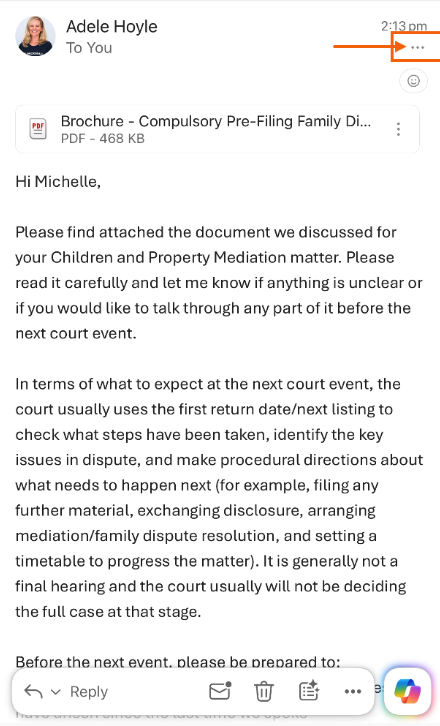
3. Tap Save to Smokeball.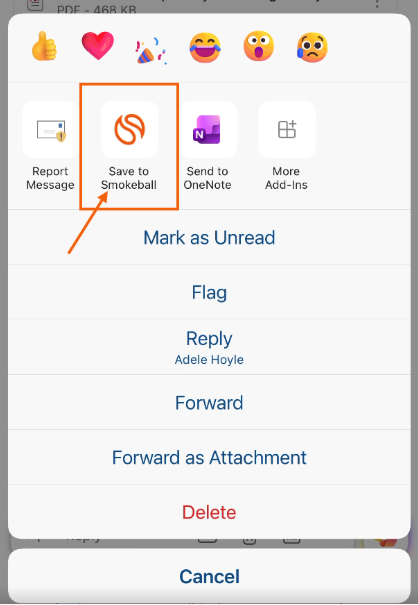
4. Search for the matter to assign the email to, then tap Assign.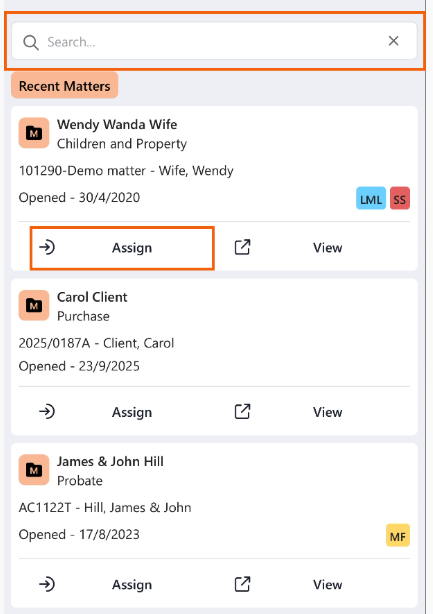
Further email actions after assigning a matter
Once an email has been assigned to a matter, you can view the assigned matter and complete additional actions by tapping on the three dots icon of the email and selecting Save to Smokeball.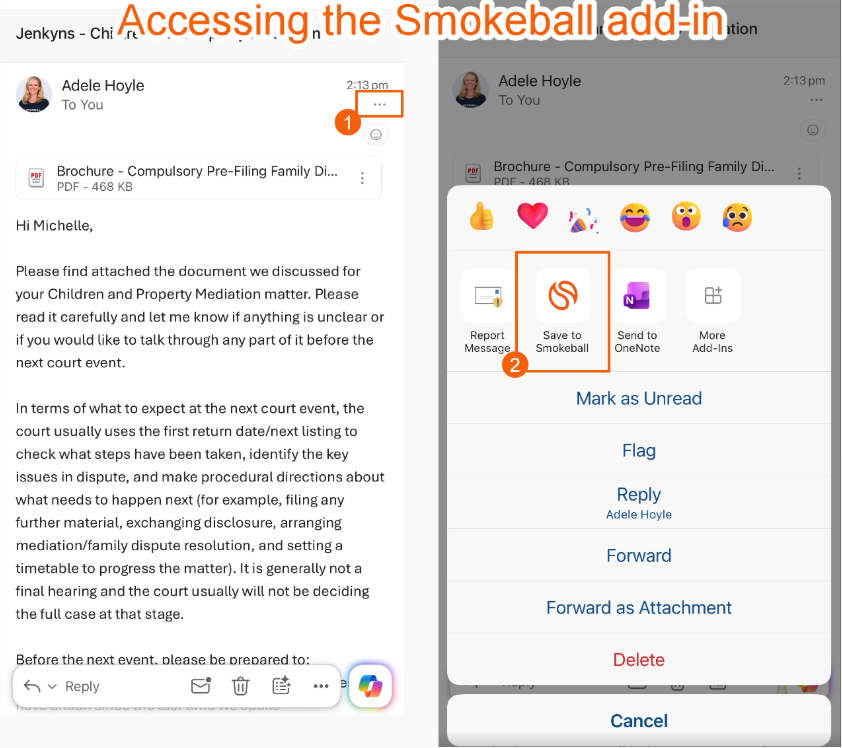
Viewing the assigned matter
Tap on View to open the matter in the triConvey Mobile App.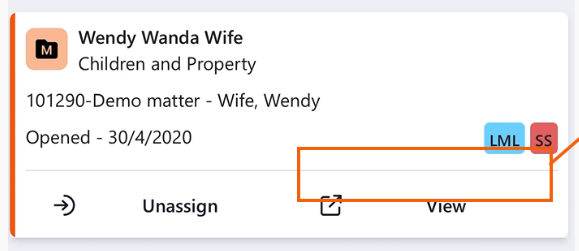
Saving email attachments to the matter
Tap on the Attachments section, then tap on the files you wish to save to the matter. A Save Attachments to Matter button will appear; tap it to complete the process.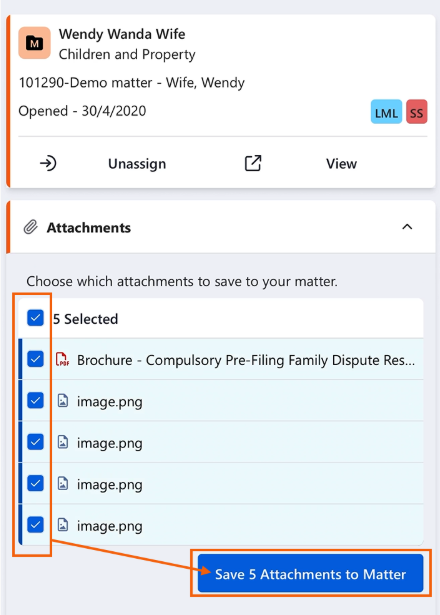
Create a task for the matter
Tap on the Tasks section, then tap Add Task. Enter the task information, then scroll down and tap Save Task.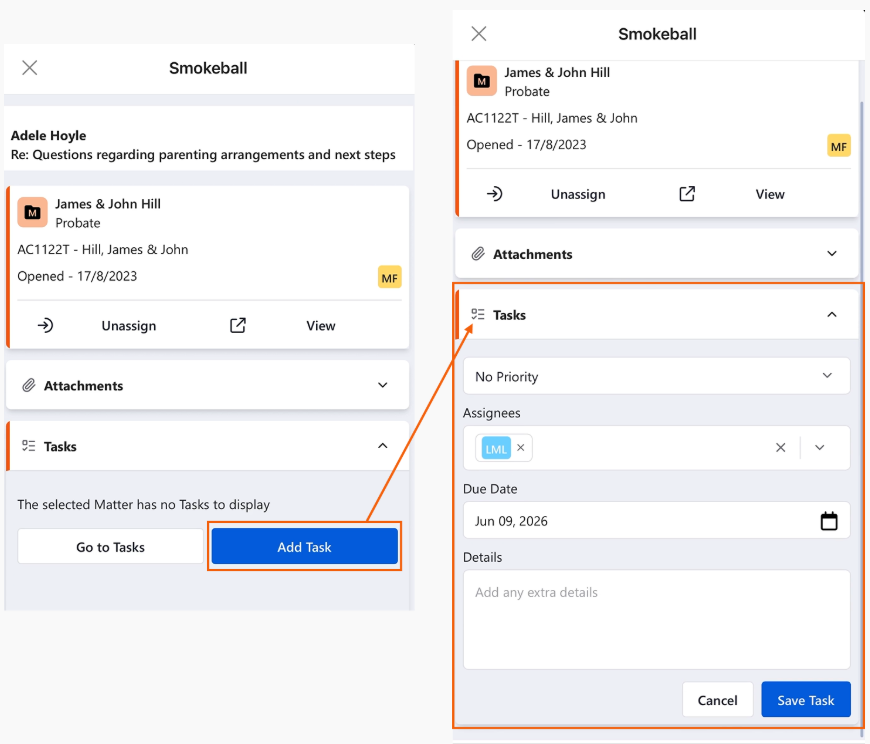
You can also open the matter's task list by tapping Go to Tasks.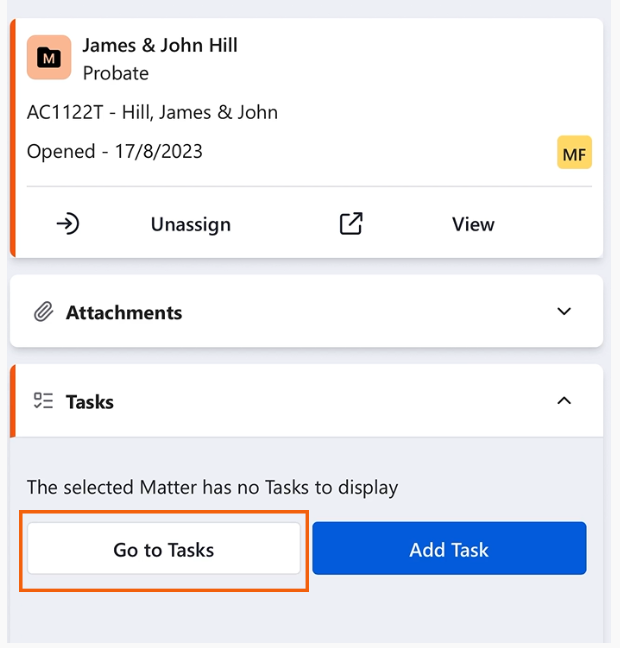
Was this article helpful?
That’s Great!
Thank you for your feedback
Sorry! We couldn't be helpful
Thank you for your feedback
Feedback sent
We appreciate your effort and will try to fix the article