

View your triConvey calendar on the mobile app to keep track of tasks and events in a daily or monthly view.
Table of Contents
Getting Started
The screenshots in this article are of the iOS App version of the Mobile App. Label names and locations of buttons may differ on the Android (Google Play) App.
Access the calendar
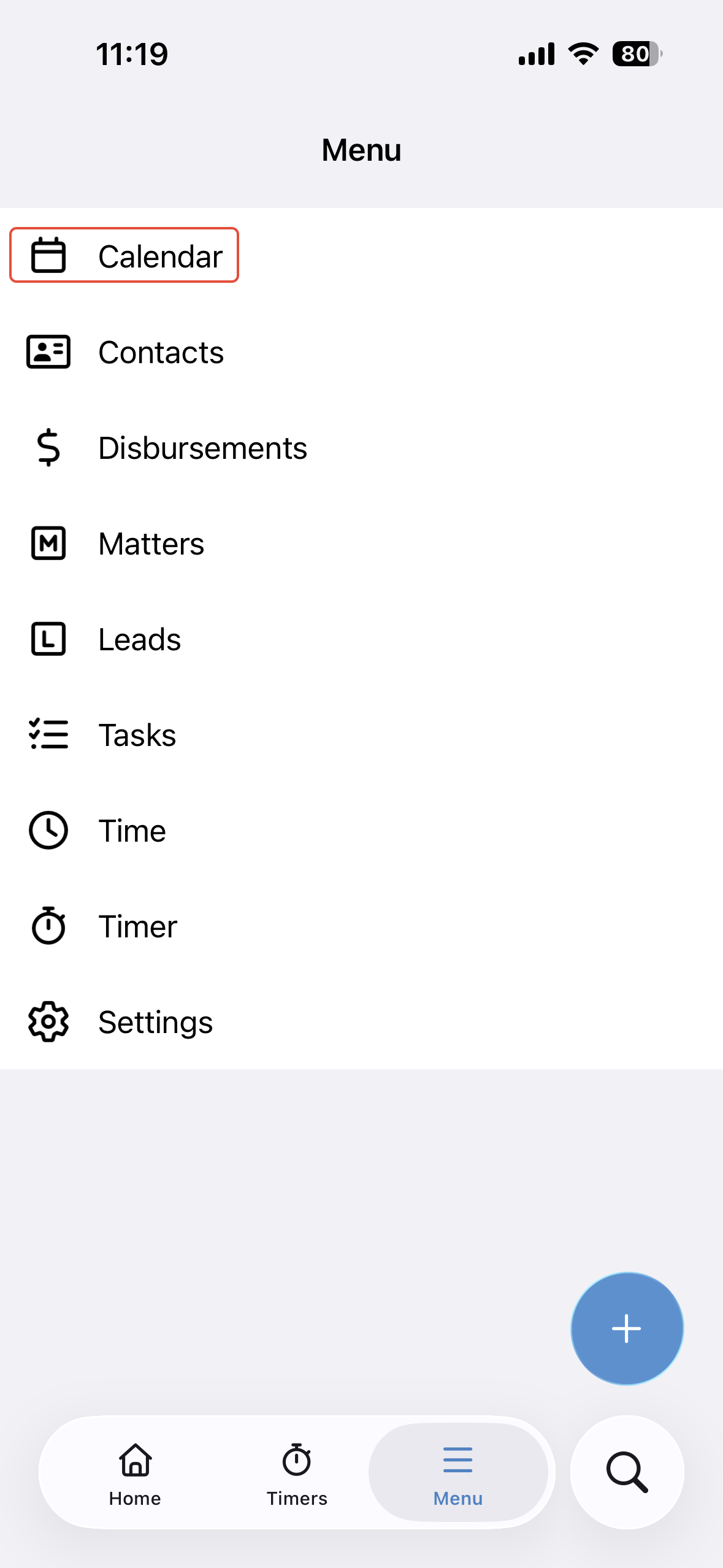
Tap the hamburger icon on the bottom-right corner of the app and then tap Calendar.
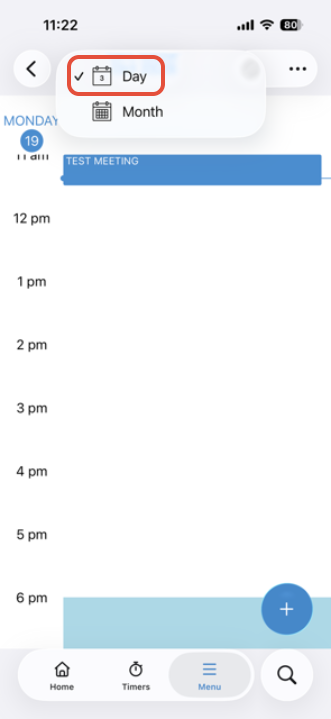
By default, you'll land on the monthly calendar view. To change this view to Daily, select the Calendar icon on the top-left of the screen, then select Day.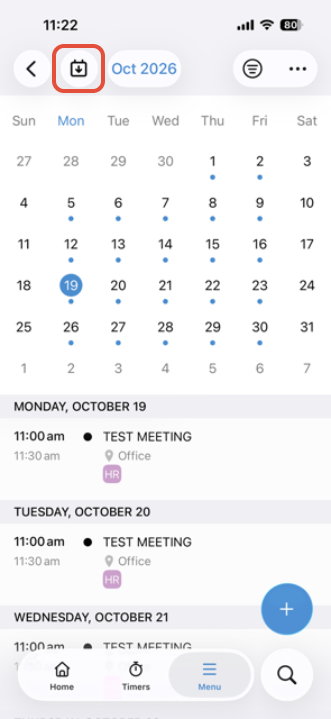
You can also view specific dates by tapping on the date and entering the date you wish to see.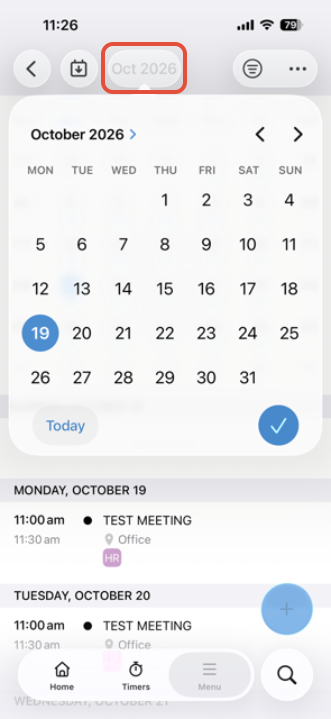
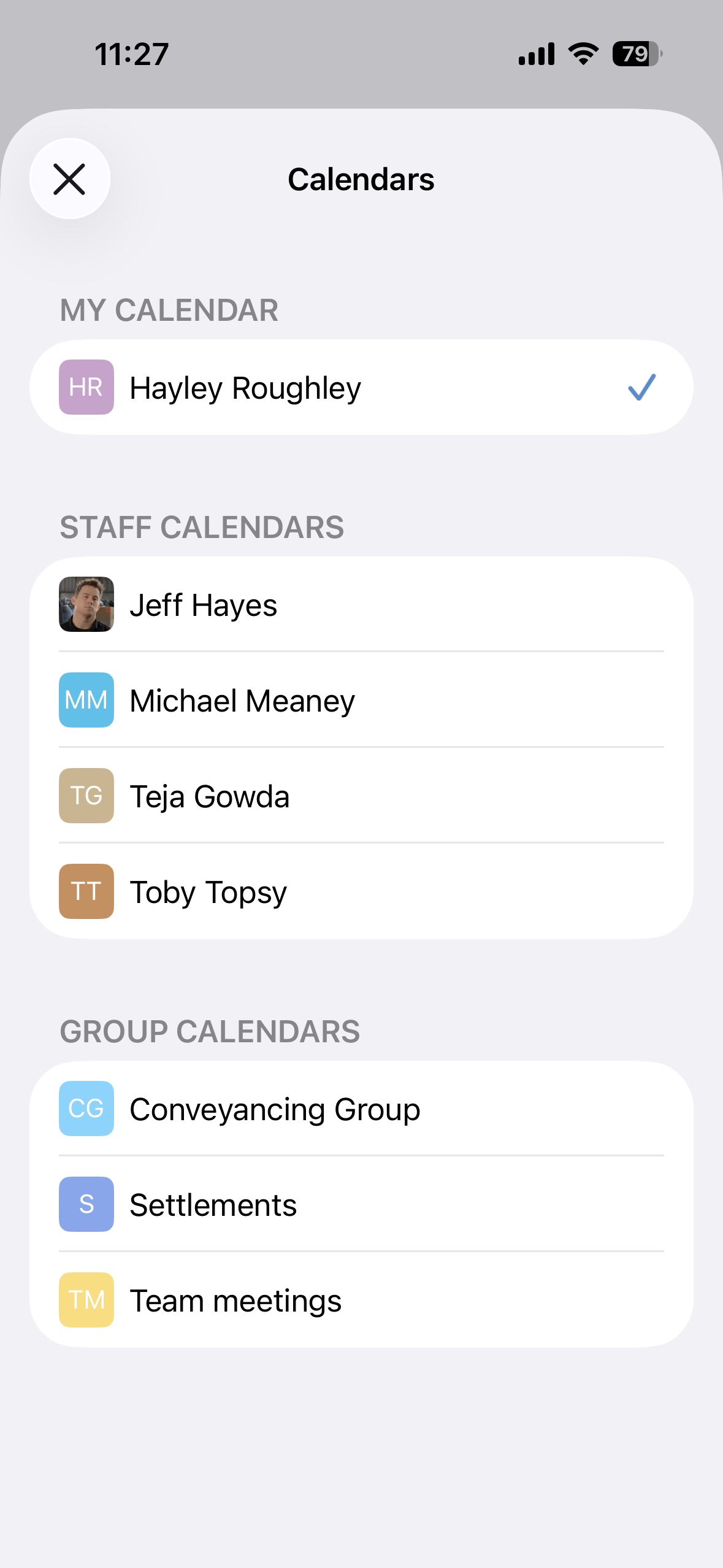
To add a staff member or group's calendar to the calendar view, select the filter icon.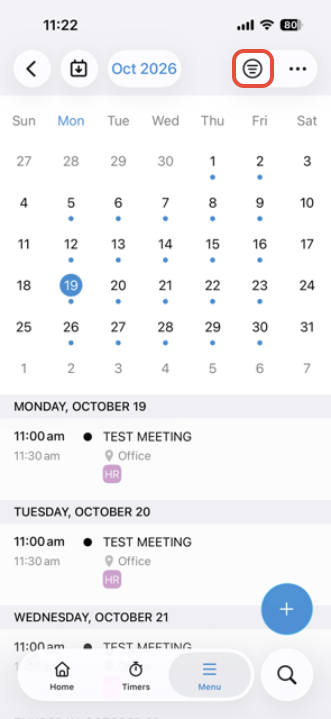
Search for an existing event
Use the magnifying glass icon to search for events by event name.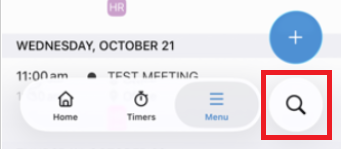
Add a calendar event
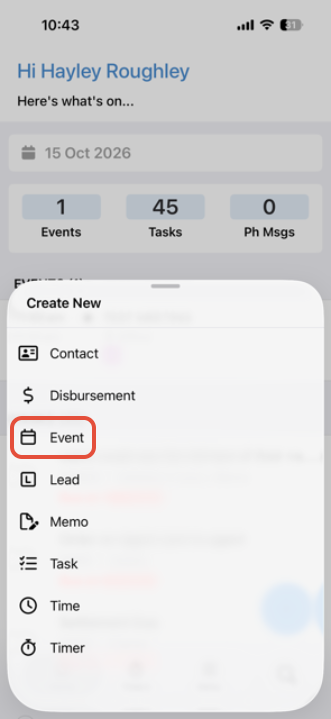
Tap on the Plus icon to add a new event to your triConvey calendar. The Subject field is the only mandatory field you need to enter before saving.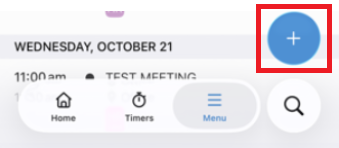
Was this article helpful?
That’s Great!
Thank you for your feedback
Sorry! We couldn't be helpful
Thank you for your feedback
Feedback sent
We appreciate your effort and will try to fix the article