

Table of Contents
- Getting Started
- Display payment details at the top of an invoice
- Display payment details in the Notes section
- Display payment details on a separate page
- Important Note
Getting Started
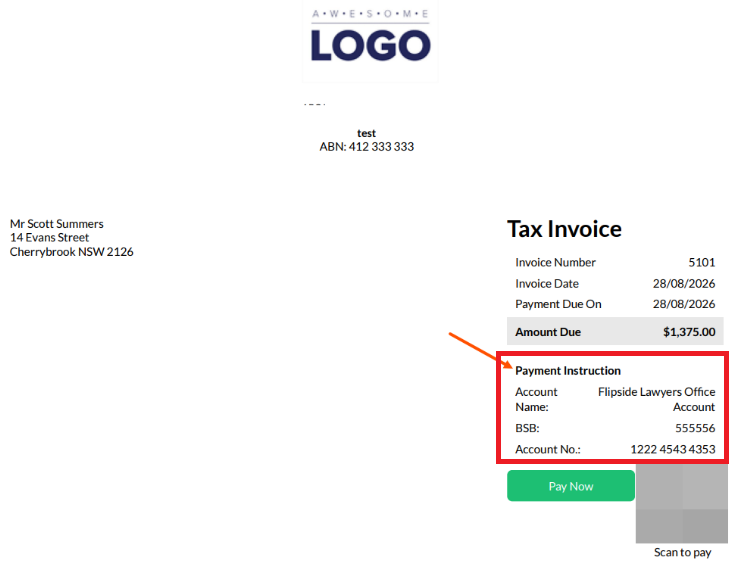
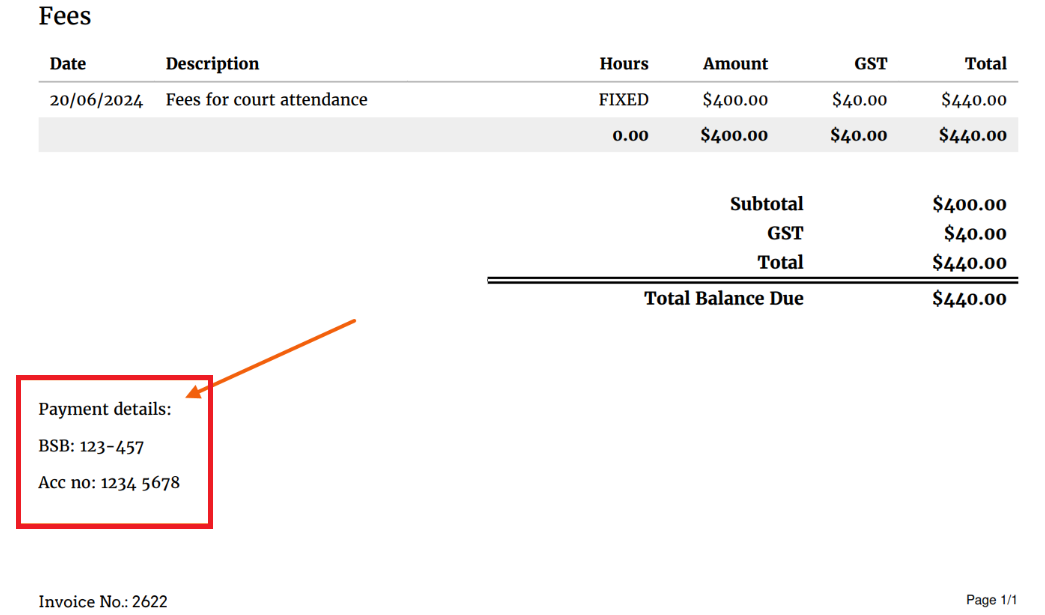
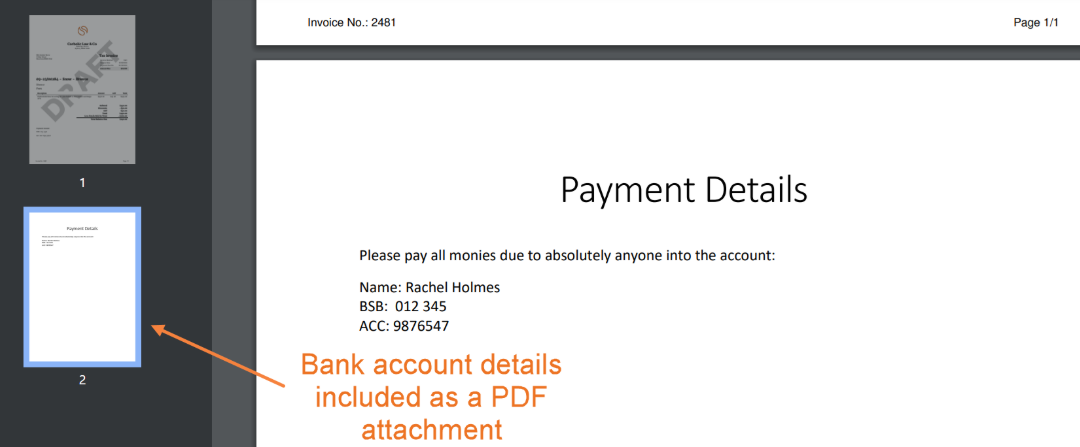
There are three places that bank account details can be displayed on a PDF invoice:
- At the top of an invoice.
- In the Notes section, under the list of invoice items.
- On a separate page.
Updates made to invoice templates will only apply to invoices created in the future. Any existing invoices (draft and final) will still display the old payment details.
Display payment details at the top of an invoice
1. Open the triConvey Companion Site Web App.
2. Select the gear icon from the bottom-left corner and select Firm Settings.
3. Select Accounts from the left panel.
4. Select the Operating Account Detail tab.
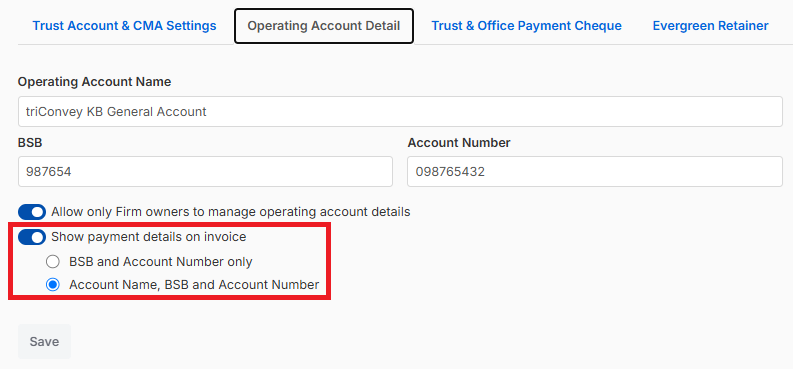
5. Check that the Operating Account details are correct, then toggle Show payment details on invoice. Choose whether the invoice should display the BSB and Account Number only, or the Account Name, BSB and Account Number.
Allow only Firm owners to manage operating account details is toggled on by default.  Toggling this off will allow any User in your firm to change bank account details.

Show payment details on invoice is toggled on by default.  Toggling this off will remove payment details from being displayed on invoices.
6. Click Save.
Display payment details in the Notes section
1. Open the triConvey Companion Site Web App.
2. Select the gear icon from the bottom-left corner and select Firm Settings.
3. Select Invoice Settings from the left panel.
4. Under Template Settings, select the invoice template you wish to edit and then select the PDF Invoices tab.
5. Scroll down to the Notes heading.
6. Add the Payment details as required.

7. Select Save.
Display payment details on a separate page
If your firm sends invoices with a separate page containing payment details, you will need to upload this as a new PDF attachment.
1. Open the triConvey Companion Site Web App.
2. Select the gear icon from the bottom-left corner and select Firm Settings.
3. Select Invoice Settings from the left panel.
4. Under Template Settings, select the invoice template you wish to edit.
5. Select the PDF Invoices tab.
6. Scroll down to the PDF Attachment heading.
7. Select Choose File to upload the updated payment details PDF.

8. To update your payment details PDF later, choose the updated PDF and select Replace.
Important Note
The updated invoice template with new payment details will apply to invoices created in the future. Finalised invoices, both unpaid and paid, will still show the old bank account details.
To apply the new payment details on an existing invoice:
1. Remove any payments on the invoice.
2. Select Edit to revert the invoice back to draft.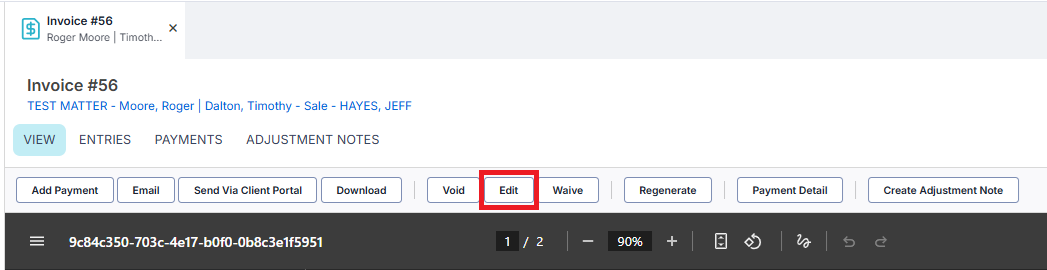
3. Finalise the invoice again.
Was this article helpful?
That’s Great!
Thank you for your feedback
Sorry! We couldn't be helpful
Thank you for your feedback
Feedback sent
We appreciate your effort and will try to fix the article