

Once you have connected your triSearch account to triConvey, learn how to leverage the integration to simplify your workflow and maintain compliance.
Table of Contents
- Getting Started
- Order a triSearch search from triConvey
- Show triSearch searches saved to a matter
- Create a PEXA worksapce
- Access SettleIT and Securexchange in triConvey
- Access the AML Compliance Centre in triConvey
- Frequently Asked Questions
Getting Started
If you haven't already, ensure that you have connected your triSearch account to triConvey.
Order a triSearch search from triConvey
There are two ways to order a search from your matter in triConvey, depending on your Matter Type.
2. Select New Search.
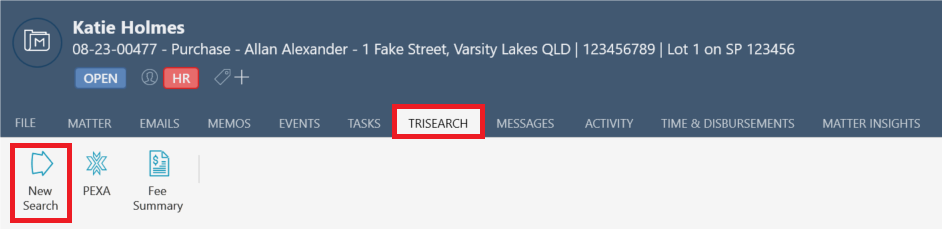
3. triSearch will open in your internet browser. Complete your order through triSearch.
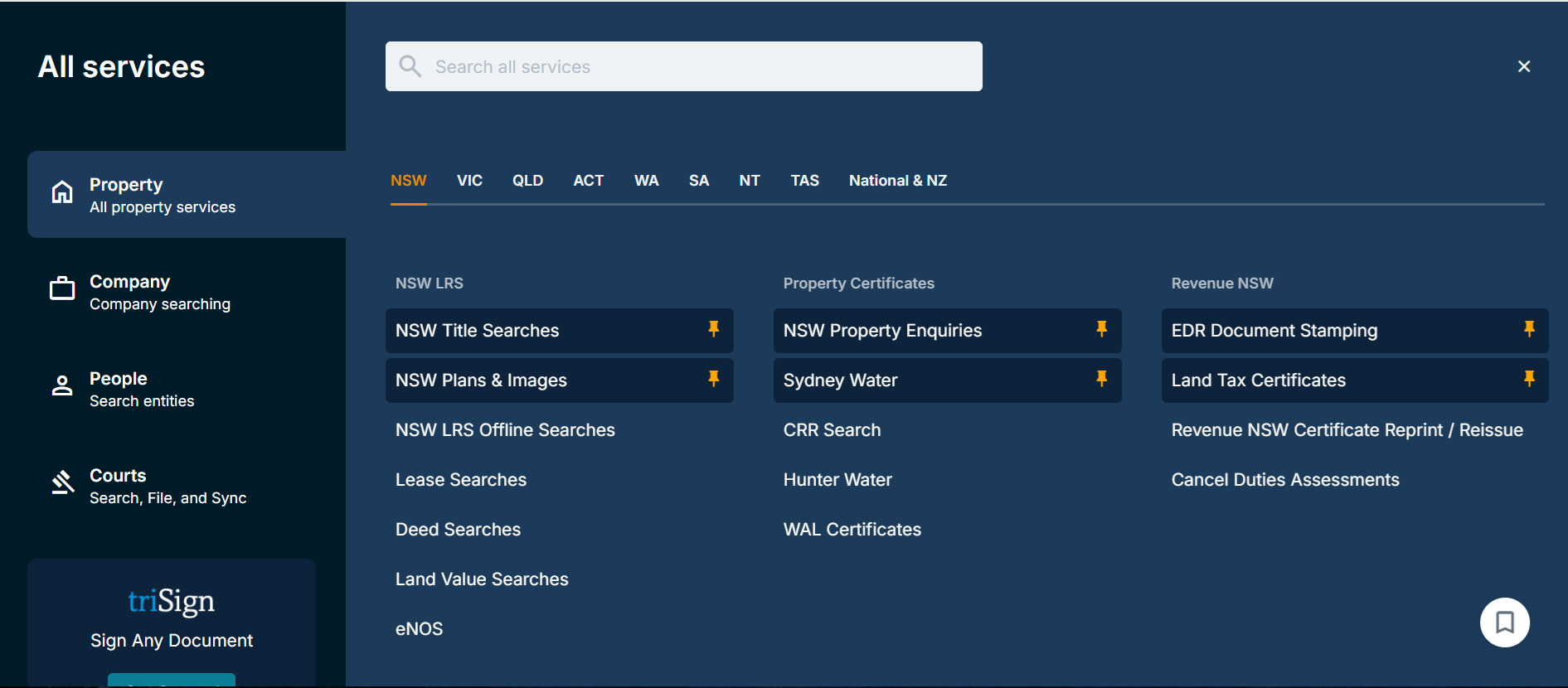
4. Once the order is completed, you can navigate back to the triConvey matter to see a list of reports or electronic signatures ordered through triSearch, including their status, which user made the order and the disbursement fee for the order.
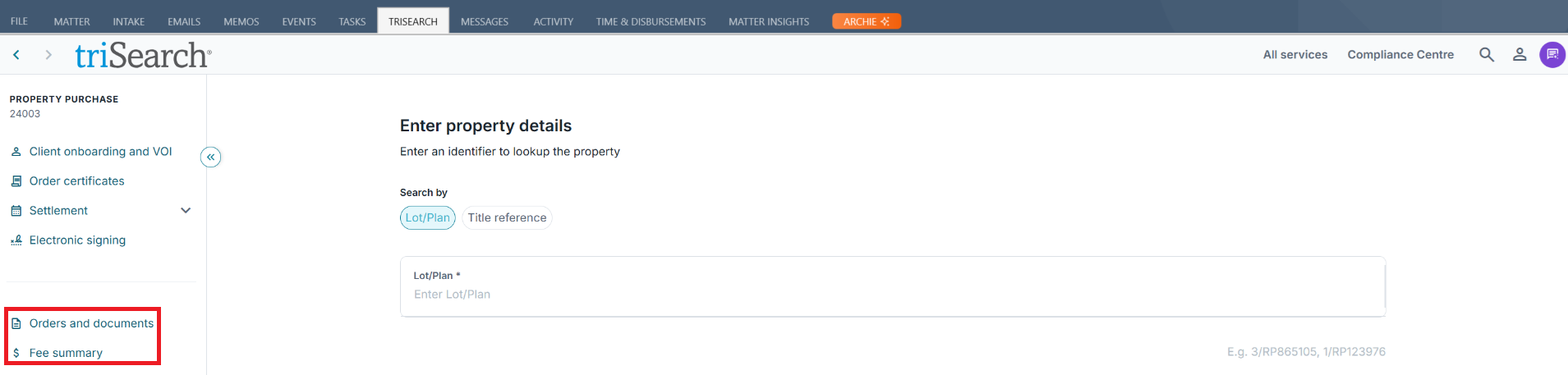
2. Either use the navigation panel on the left or select the All Services button on the top-right corner of the screen, when working from One Flow in the matter.
3. Once the order is complete, you can view it in the Orders and documents section on the left panel. You can also view a Fee summary of the orders you have placed on this matter so far. The disbursement fees will also populate in the Time & Disbursements tab in the matter.
Notes:
- Searches will save into the matter documents in triConvey once the status shows Complete. If the status shows Pending, Waiting, Sent to the authority, or Error, contact Support for more information.
- You can right-click searches to view them or manually save them to a matter.
Show triSearch searches saved to a matter
You can filter documents in a matter to only show triSearch searches. To do this:
1. Open a Matter in triConvey and scroll down to the Files section.
2. Select triSearch next to the document search bar.
Create a PEXA worksapce
1. Open a Matter in triConvey.
2. Select the Matter tab and select PEXA.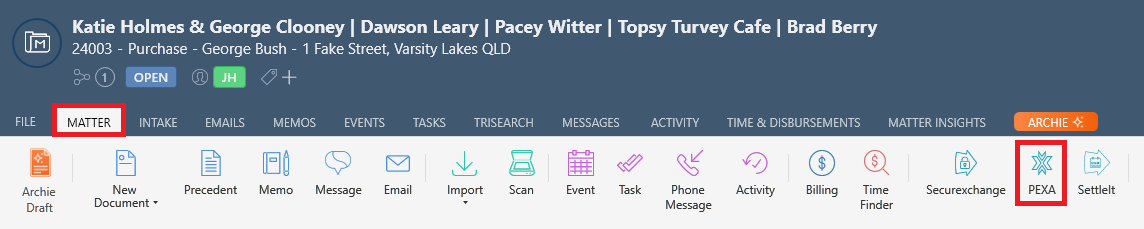
3. Follow the prompts to set up a PEXA workspace through triSearch.
After setting up the workspace, selecting PEXA from the triConvey matter will open it for you again in PEXA.
Access SettleIT and Securexchange in triConvey
SettleIT and Securexchange can be accessed from the Matter tab within a triConvey matter. They are located at the end of the list along with PEXA.

If you have a small triConvey window, select triSearch first to access these features.

Learn more about SettleIT and Securexchange.
Access the AML Compliance Centre in triConvey
The AML Compliance Centre can be accessed by selecting a matter, clicking the triSearch tab, and clicking the Compliance Centre button.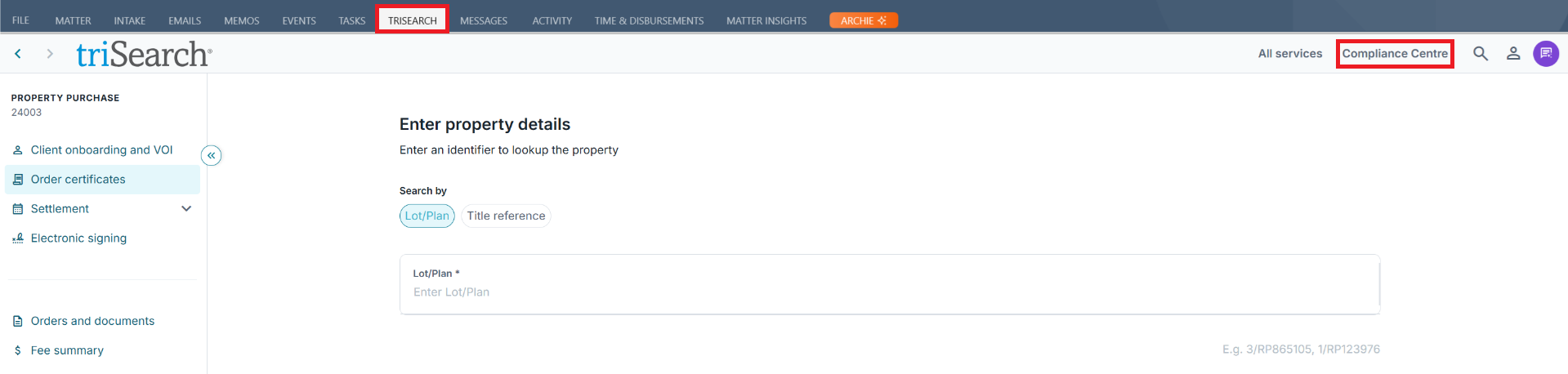
You will be taken to the following page to review any outstanding actions required to meet AML compliance obligations.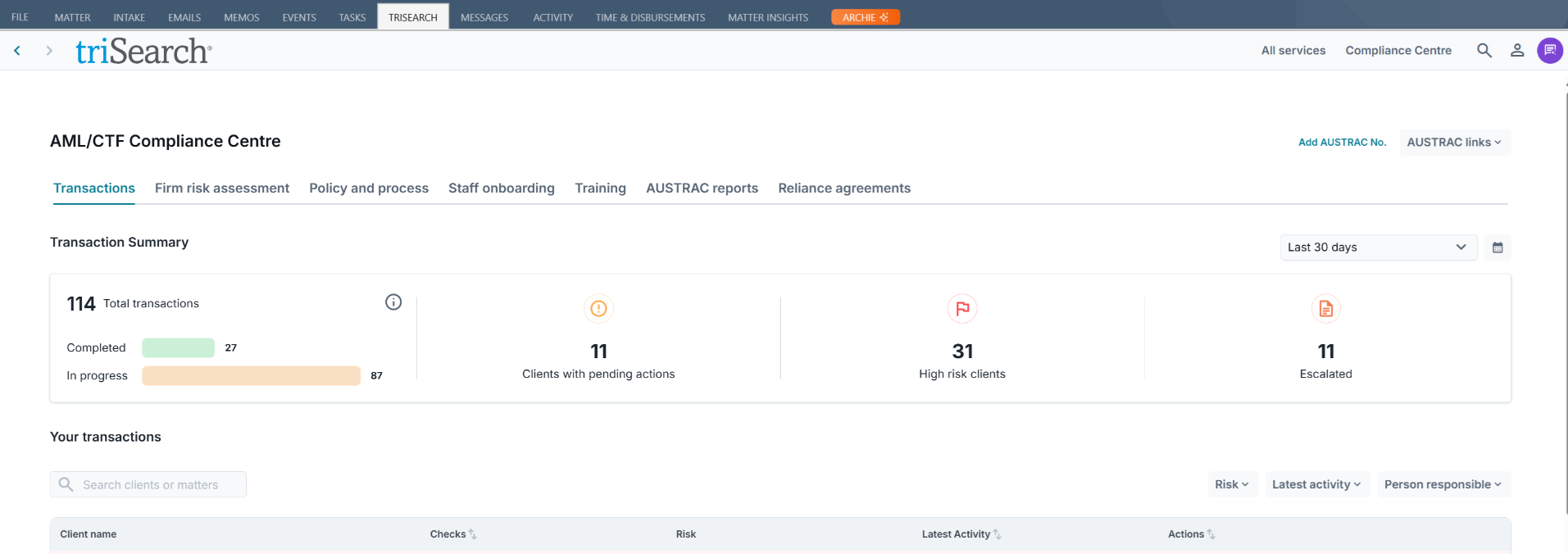
Frequently Asked Questions
Was this article helpful?
That’s Great!
Thank you for your feedback
Sorry! We couldn't be helpful
Thank you for your feedback
Feedback sent
We appreciate your effort and will try to fix the article