

Ensure sensitive data is entrusted to the right users by setting up different access levels for staff members.
Table of Contents
- Getting Started
- Permissions in the triConvey Desktop App
- Permissions in the triConvey Companion Site Web App
Getting Started
Permissions in triConvey are managed in two areas:
- The triConvey Desktop App
- The triConvey Companion Site Web App
Permissions in the triConvey Desktop App
To edit permissions in the triConvey Desktop App:
1. Select the gear icon in triConvey to access triConvey Settings.
2. Select Staff & Users from the left menu and then select the Permissions button.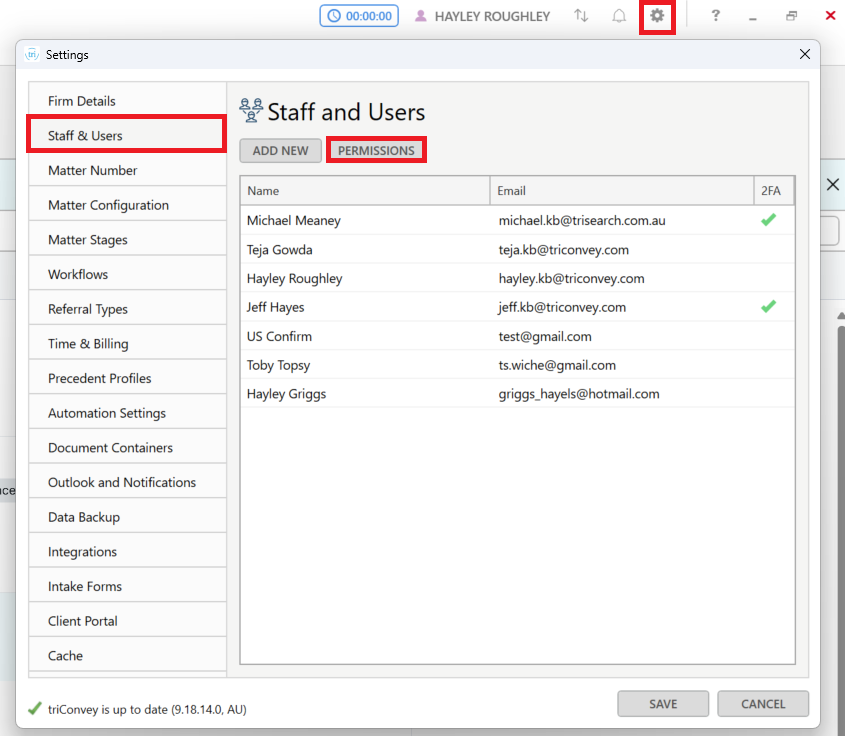
3. Select a user from the left-hand Name column to access their permissions.
4. Under each column, tick the level of access for each section that the user should have.
Tip: You must untick the Billing App permission to restrict Hourly Rate, Time Entry and Billing widget permissions.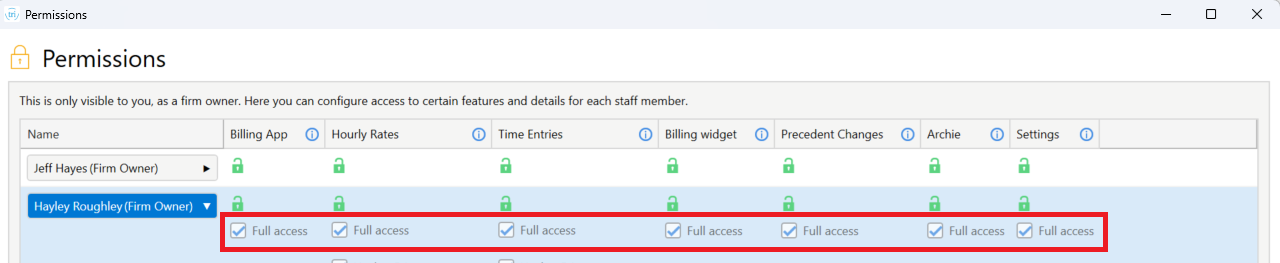
5. Select Save & Close at the bottom right-hand corner to apply your changes.
Billing App Permissions
The Billing App column allows you to grant or remove access to view billing features available in the triConvey Companion Site Web App.
If you untick Billing App access for a staff member, you can still choose if that staff member can view and edit hourly rates and/or time entries for other staff members, as well as access to the billing widget in all matters.
Users without access to the Billing App can still log in to the web app and access productivity features such as matters, contacts, tasks, calendars and messages. However, clicking on any billing-related areas (such as trust account summary figures or billing dashboard items) will result in an insufficient permissions message:
Once you remove Billing App access, you can choose to further limit access to features in the triConvey Web App by editing the permissions there.
Precedent Permissions
The Precedent Changes column allows you to edit access to the Precedent Library. Edit restrictions include:
- Adding, renaming, and deleting a Precedent, Folder, or Precedent Profile
- Importing, replacing, converting, or changing a version of a Precedent
- Creating a copy of a Precedent or Folder
- Modifying and moving a Precedent or Folder
- Creating shortcuts of a Precedent or Folder
- Accepting and rejecting published Precedent changes
- Restoring Deleted Precedents, Folders, or Precedent Profiles
Archie Permissions
The Archie column manages access to triConvey's AI Legal assistant Archie for the specific user, namely the Archie tab in a lead or matter file and all Archie settings.
Settings Permissions
The Settings column allows you to restrict non-Firm Owner users from making changes in triConvey Settings that affect the whole firm.
When this permission level is applied, the only areas the staff member can access in triConvey Settings are:
- their Staff Card in the Staff & Users tab; and
- the Outlook and Notifications tab.
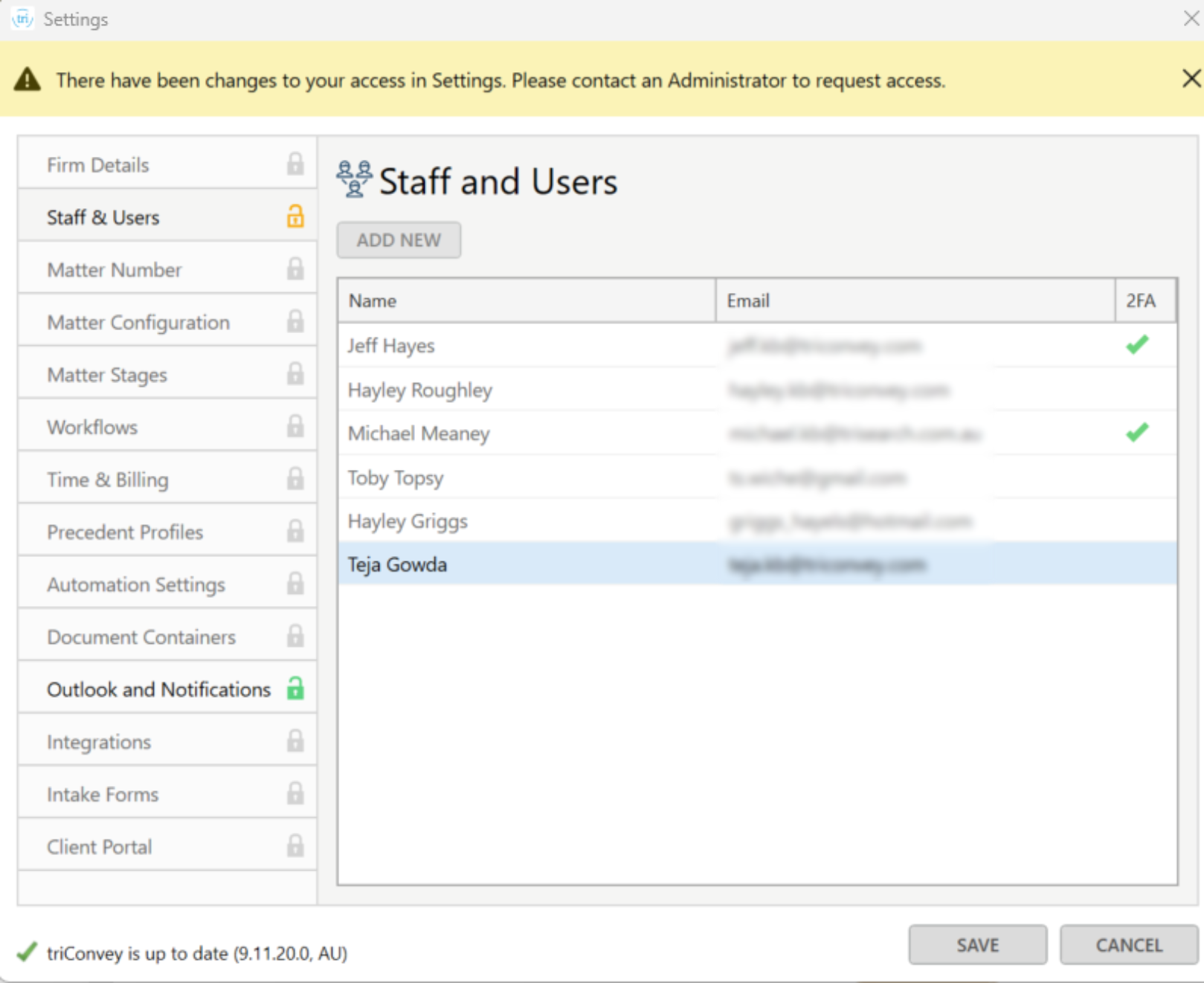
In addition, the staff member can only access billing-related settings in the Firm Settings of the triConvey Companion Site Web App.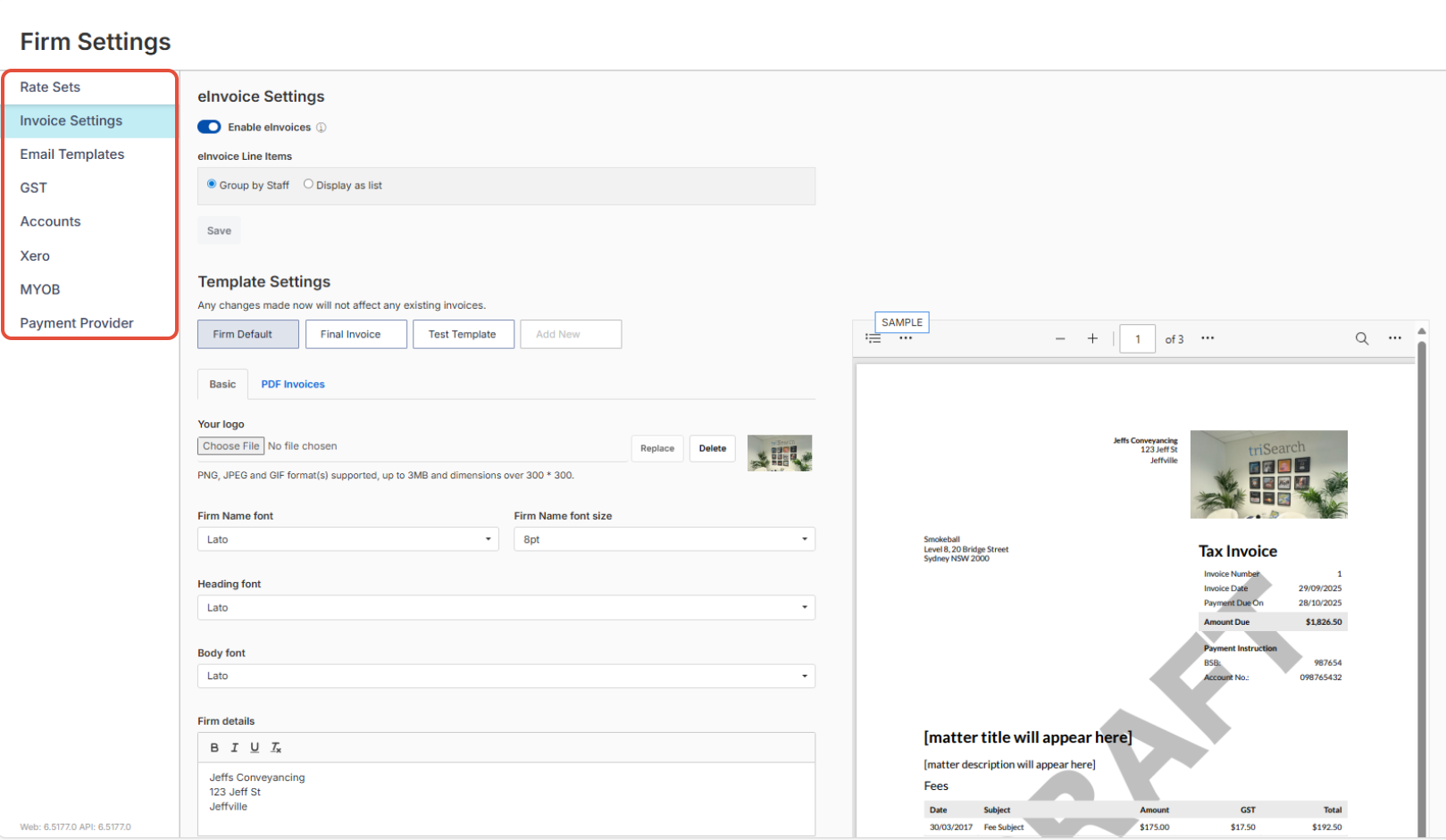
Permissions in the triConvey Companion Site Web App
In the Web App, you can further customise permissions to access the following billing-related features:
- Invoicing
- Accounts
- Disbursements
- Reports
- Billing Settings
- Clearance override (the ability to manually process payments and receipts)
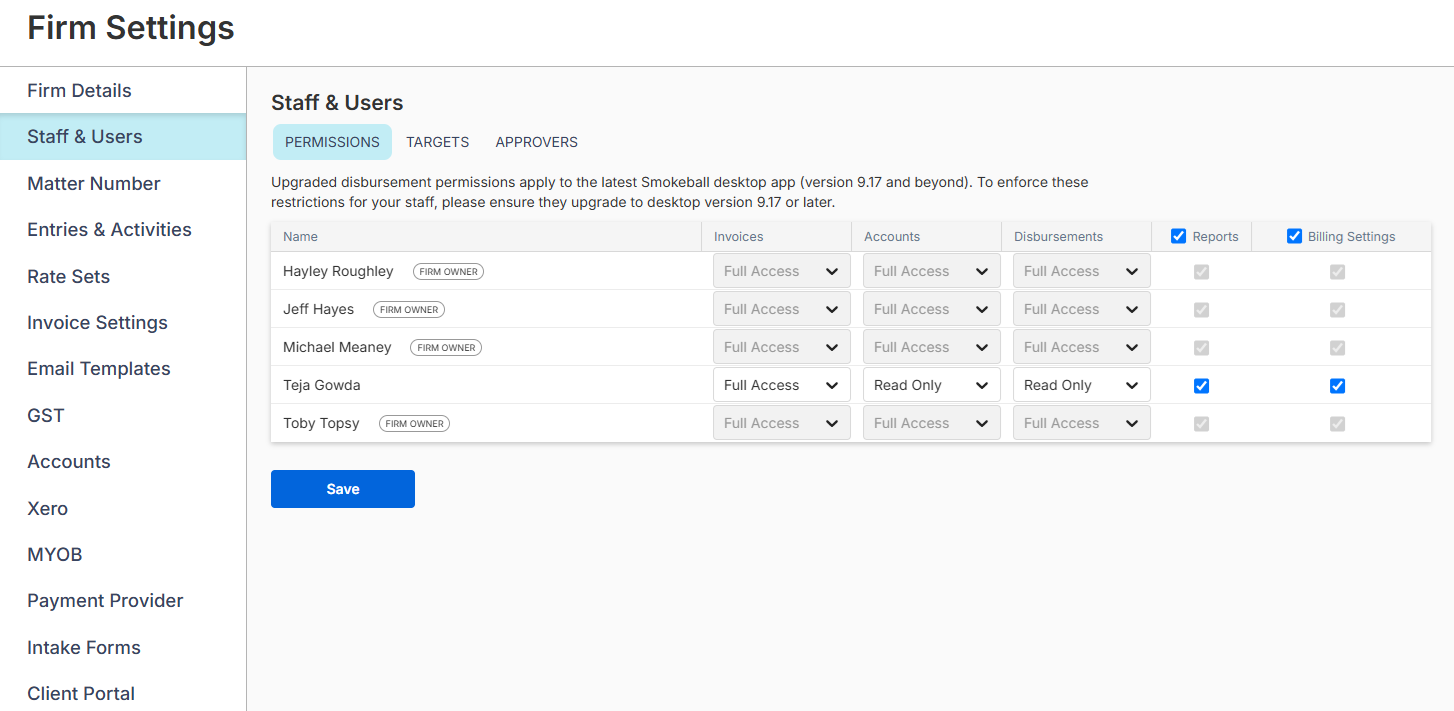
To access web app permissions:
1. Select the gear icon and click on Firm Settings.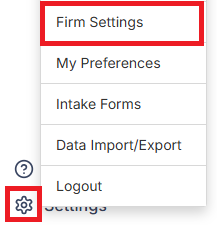
2. Select Staff & Users on the left panel. This section is only available to Firm Owners.
3. On the Permissions tab, configure the level of access for the relevant staff member/s.
4. Select Save.
Invoices
For Invoice permissions, the access options are Full Access, Read Only and No Access:
Full Access: Users retain full ability to:
- Create, edit, finalise, and delete invoices
- Apply, edit, and reverse payments
- Manage payment plans
- Use all bulk and quick actions
Read Only: Users can view invoice information, but cannot create or modify invoices or payments.
- On the Finalised invoice screen, Read Only users can Email, Download, View Payment Detail and view history. They can also view the Entries and Payments tabs. All other buttons are visible but disabled (not clickable).
- On the Draft Invoice screen, Read Only users can only view the draft preview, close the invoice, or link the invoice to a matter. All other actions are disabled.
- On the Payment Details screen, the Delete and Reverse actions are removed.
- On the main Invoices screen, the Add Payment and Bulk Actions buttons are disabled. The Create Invoices and Trust to Office tabs are also disabled. On the Reminders tab, the Bulk Actions button is disabled.
- On Matter > Invoices, Create Invoice, Add Payment and Bulk Actions buttons are disabled.
- On Matter > Time & Fees and Matter > Disbursements, Create Invoice is disabled.
- On Contact > Invoices, Create Invoice, Add Payment and Bulk Actions buttons are disabled.
- On Contact > Payment Plans, Add Payment, Edit Plan and Close Plan are disabled. Create New Plan is also disabled.
- The Payments option is not selectable under the Quick Add menu on the top-right corner of the triConvey Web App.
No Access: Users cannot access invoices or related billing data, even if they see related tabs or links.
The following areas show the tab/section, but users with No Access cannot select or open them:
- Main Invoices screen
- Matter > Invoices
- Contact > Invoices
- Accounts > Invoice Ledger
- Accounts > Client Communications
- Matter > Transactions > Invoice Ledger
- Matter > Transactions > Client Communications
- Contacts > Ledger > Invoice Ledger
- Main Contacts screen > Payment Plans
- Contacts > Payment Plans
- Matter Overview
- Invoicing tile is removed
- Users will see the “surface” in some cases (e.g., tab labels) but will not be able to interact with them.
- Invoicing tile is removed
The following areas will display a "You do not have permission to access this area" message if the user tries to navigate to any invoice-related page from:
- Time & Fees (main page and via the matter)
- Disbursements (main page and via the matter)
- Descriptions and ledger lines that link to Trust Account, Operating Account and the Credit Memo Ledger
- Split Billing invoices
Other restrictions include:
- Unbilled and Due columns are removed from the matter list.
- Unbilled, Unpaid and Overdue amounts are hidden from the balance summary at the top of matters.
- Unpaid and Overdue amounts are hidden from Contacts.
Accounts
For Accounts permissions, the access options are Full Access, Read Only and No Access.
Full Access: Users can view and edit all accounts information for all matters, without any restrictions.
Read Only: Users can view but not edit accounts information for all matters.
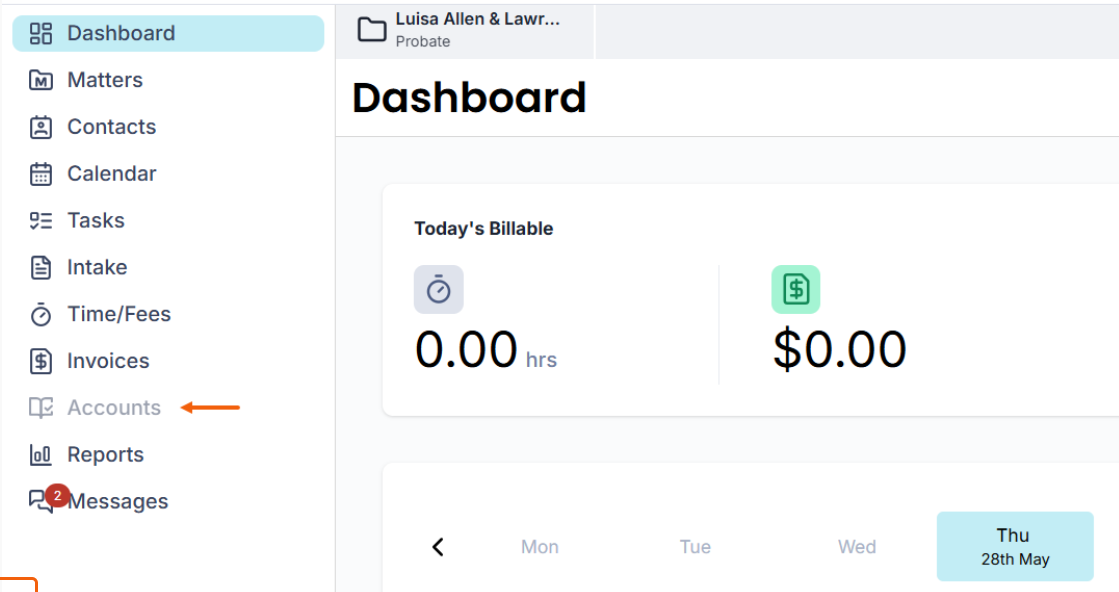
- The Accounts section on the left panel of the triConvey Companion Site Web App remains visible but is disabled.
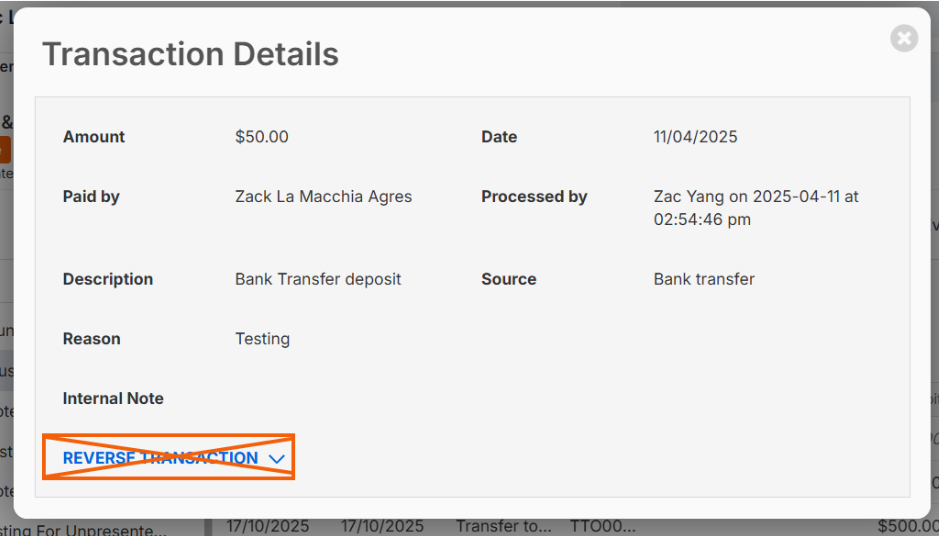
- When opening the Transactions tab in a matter or contact, transactions remain viewable, but Reverse Transaction is unavailable.
- In the list of transactions for Trust Accounts and CMAs, the buttons to Deposit Funds, Create/Request Payment, Transfer Funds and Protect Funds are disabled.
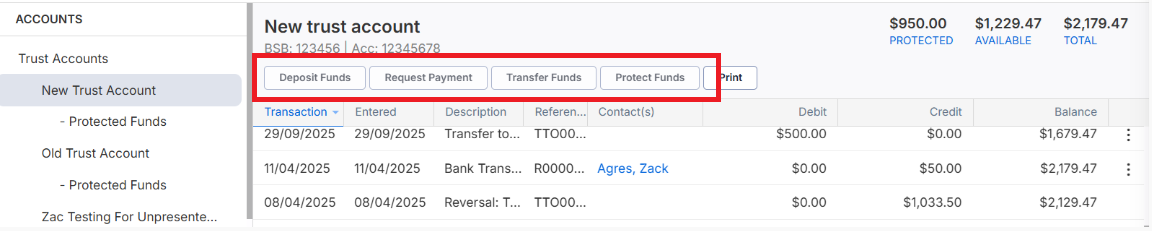
- Printing receipts remains available.
No Access: Users are restricted from viewing accounts data for any matter.
- The Accounts section on the left panel of the triConvey Companion Site Web App is disabled.
- When opening the Transactions tab in a matter or contact, the Invoice Ledger will be shown when Invoice permissions allow.
- If both Invoices and Accounts are set to No Access, the Transactions tab is disabled.
- Trust Account and Controlled Money Account-related sections are hidden from the Invoice section summary.
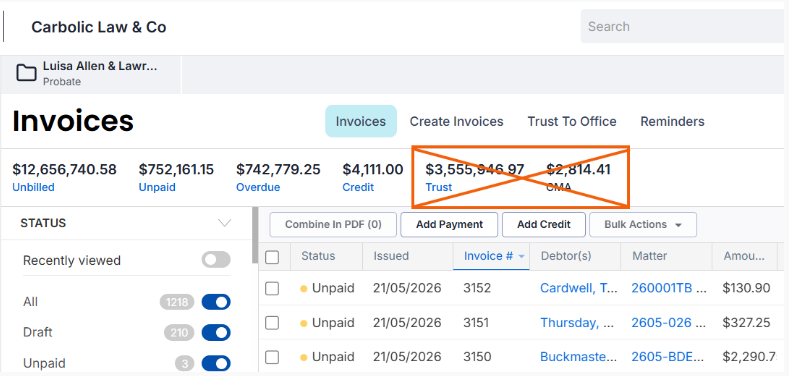
- If Smokeball Payments is active, the Manage Account button is removed from Payment Provider Settings.
Disbursements
For Disbursement permissions, the access options are Full Access and Read Only:
Full Access: Users can add, edit and delete disbursements without any restrictions.
Read Only: Users can view existing disbursement details, but not add or delete any disbursements.
On the triConvey Companion Site Web App, users with Disbursement Read Only permissions will experience the following:
- They cannot create a new disbursement from the Create New (+) menu on the top-right corner of the screen.
- When accessing the Time/Fees section from the left panel, then navigating to Disbursements:
- Quick Add is disabled.
- Disbursement details opens in read-only mode (fields cannot be edited).
- Actions are disabled: New Disbursement Entry, Print Cheques, View Office Payments, Create Cheque
- Print and CSV export remain available.
- Filters remain available and functional.
- When accessing the Time/Fees tab in a matter, then navigating to Disbursements:
- Quick Add is disabled.
- Disbursement details opens in read-only mode (fields cannot be edited).
- Actions are disabled: New Disbursement Entry, Bulk Actions
- Print and CSV export remain available.
- On the Draft Invoice screen:
- Add Entry (Disbursement) is disabled.
- In-line editing of existing disbursement line items is disabled.
- Disbursement item checkbox selection remains available.
On the triConvey Desktop App, users with Disbursement Read Only permissions will experience the following:
- The ability to add a disbursement, including Quick Add, is disabled on the Matter View and Time & Disbursements tab
- Users can open existing disbursement details, but the disbursement window is read-only (fields cannot be edited).
Reports
If Reports is unchecked, the staff member will no longer have access to the entire Reports section.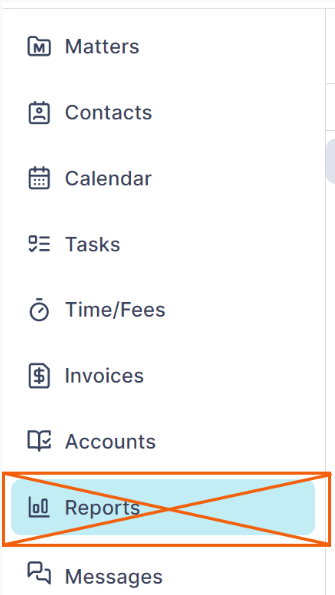
Billing Settings
The Billing Settings permission enables or disables user from accessing Firm Settings on the Web App, regardless of their permissions on the triConvey Desktop App.
Clearance Override
The Clearance Override column allows you to designate certain non-Firm-Owner users to manually mark a pending invoice payment or trust receipt as processed, bypassing your firm's set Clearance Days.
Note: Firm Owner designated staff members will have access to all Web App permissions.
Was this article helpful?
That’s Great!
Thank you for your feedback
Sorry! We couldn't be helpful
Thank you for your feedback
Feedback sent
We appreciate your effort and will try to fix the article