

Our Verification of Identity product is combined with our AML Onboarding product, giving you access to all the Tranche 2 checks and features you will need to meet the new regulatory requirements coming into effect on 1 July 2026.
Table of Contents
- Getting Started
- Launching AML & Onboarding including VOI
- Complete AML/CTF Client Due Diligence
- Status of Client Due Diligence order
- Notification of completion
- Review, sign and submit
- How triConvey is updated after ordering a VOI
- Finalising Onboarding
- Frequently Asked Questions
Getting Started
Ensure that contact details of the person being verified are completed in the Contact card of the Matter.
Launching AML & Onboarding including VOI
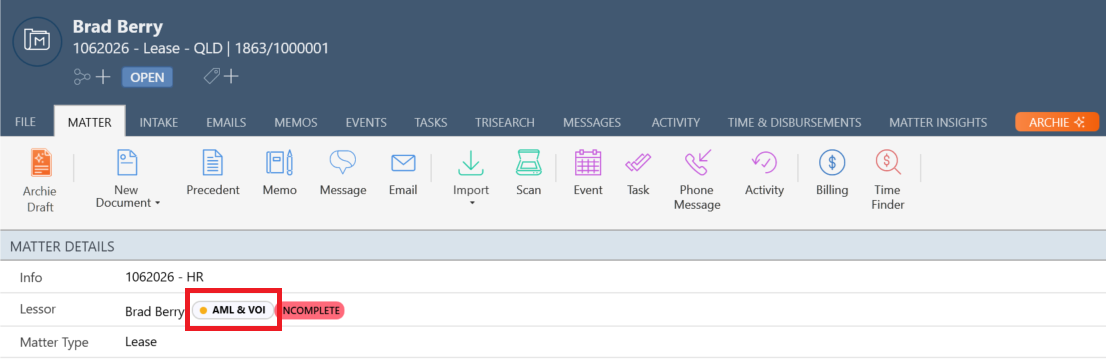
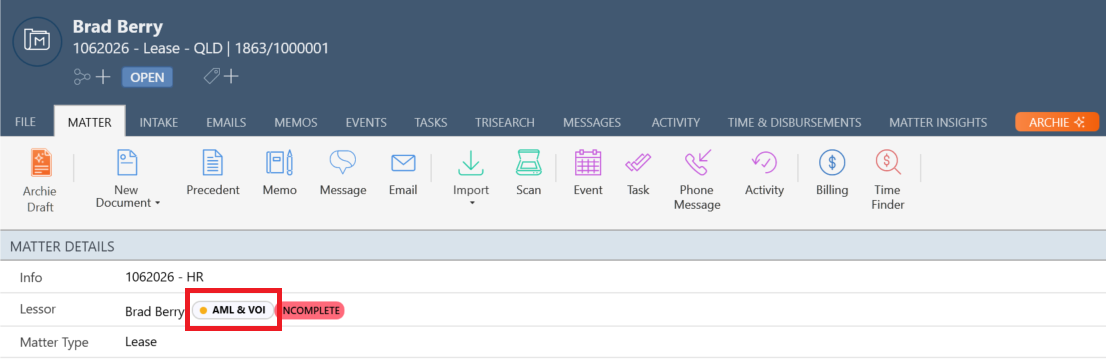
1. Click the AML & VOI pill next to the name of the person being verified in the matter. This will direct you to the AML Onboarding incl. VOI milestone in One Flow; or
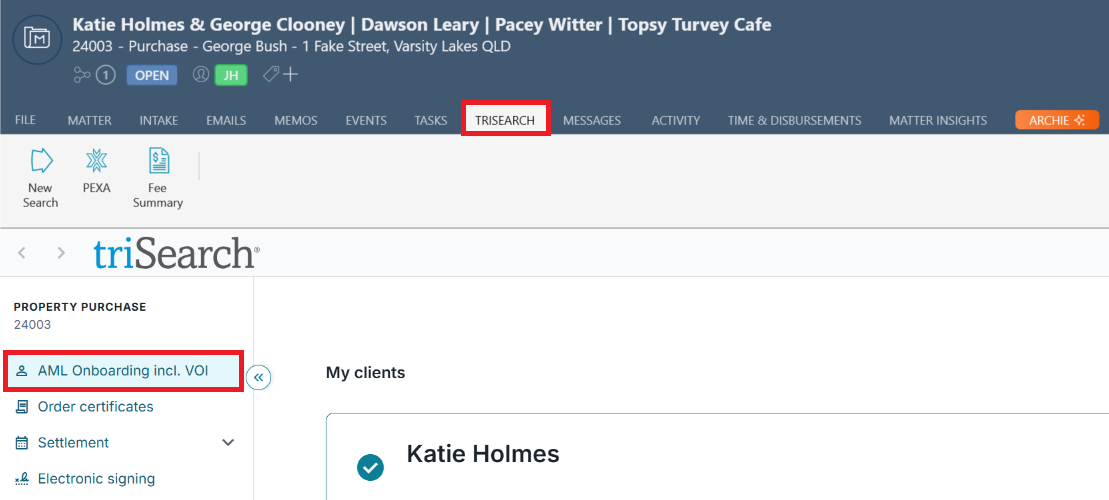
2. Click the triSearch tab and then click the AML Onboarding incl. VOI milestone from One Flow.
Complete AML/CTF Client Due Diligence
Onboard an Individual
1. Select/deselect which client/s to send the VOI request to.
Tip: Verification of identity will be selected by default.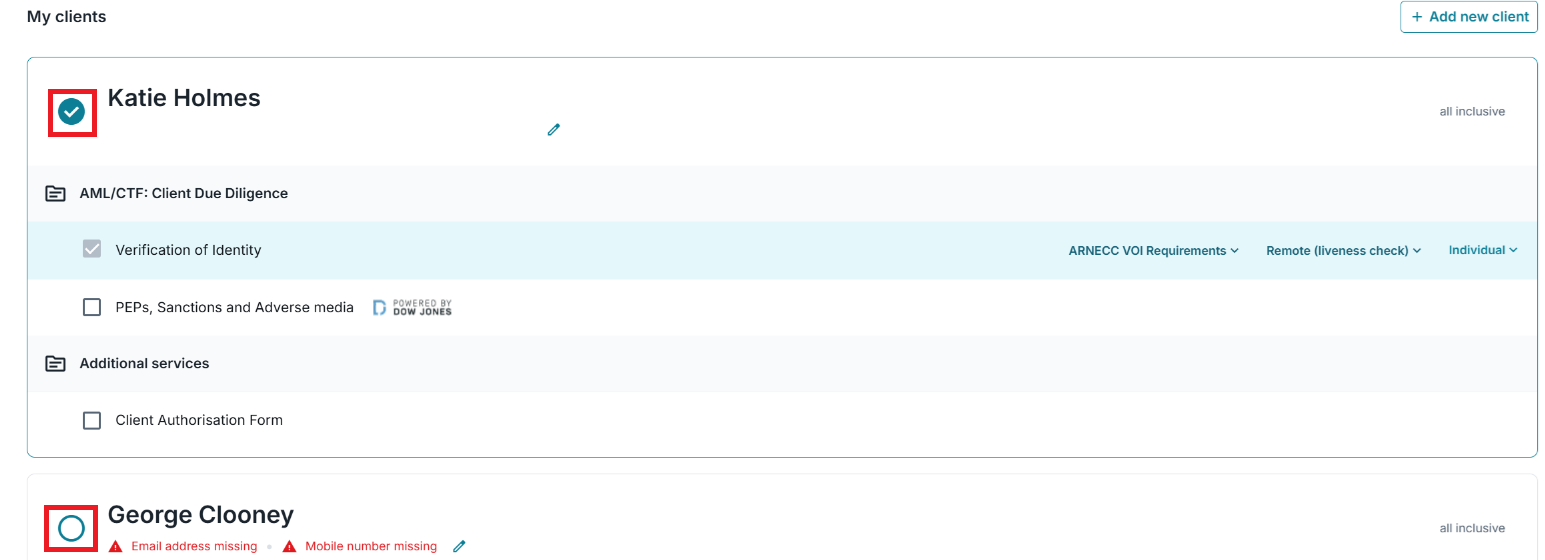
2. Review and select the applicable ARNECC VOI Requirements, Remote (liveness check) and capacity of client (individual/secretary/director etc).
3. Select whether to include KYC onboarding form.
Tip: Click Preview to review the form your client will need to complete.
4. Select whether to include PEPs, Sanctions and Adverse media checks. You can tailor the scope of this search to Precise, Near or Broad.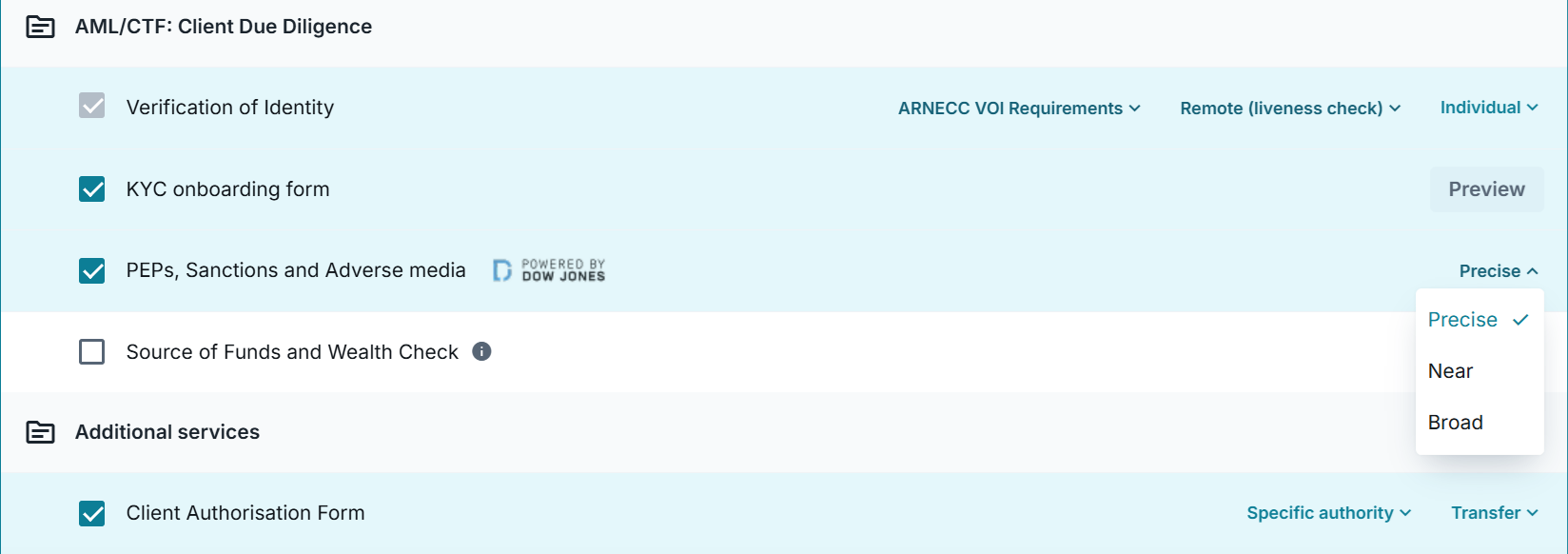
5. Select whether to include Source of Funds and Wealth Check.
Tip: Your client will be asked to upload their bank statements. triSearch will flag any suspicious transactions based on categories specified in the AUSTRAC AML/CTF guidelines.6. If you are not including Additional Services i.e. a Client Authorisation Form or NSW Purchasers Declaration, click Continue and refer to step 4 of Additional Services.
Onboard a Trust or Company
1. Select whether to include KYB onboarding form.
Tip: Click Preview to review the form your client will need to complete.
2. Select whether to include PEPs, Sanctions and Adverse media checks. You can tailor the scope of this search to Precise, Near or Broad.
3. Select whether to include the ASIC Organisation Extract.
4. Select whether to include Source of Funds and Wealth Check.
Tip: Your client will be asked to upload their bank statements. triSearch will flag any suspicious transactions based on categories specified in the AUSTRAC AML/CTF guidelines.5. Select the applicable ARNECC VOI Requirements, Remote (liveness check) and capacity of the Primary Representative (individual/secretary/director etc).
Tip: Verification of identity will be selected by default and cannot be deselected.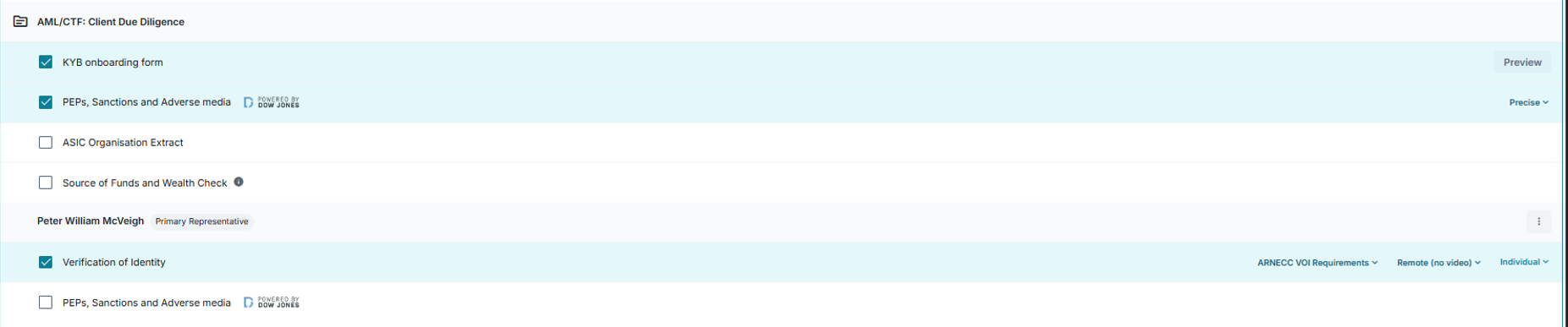
6. Select whether to include PEPs, Sanctions and Adverse media checks. You can tailor the scope of this search to Precise, Near or Broad.
7. If you are not including Additional Services i.e. a Client Authorisation Form or NSW Purchasers Declaration, click Continue and refer to step 4 of Additional Services.
Additional services
1. Select whether to include the Client Authorisation Form. If selected:
- Choose the Specific authority type:
- Specific Authority - an authority for you to act for your client in completing only those Conveyancing Transactions described in the Client Authorisation.
- Standing Authority - an authority for you to act for your client as described in the Client Authorisation for the period of time set out. eg. any transactions between the day this is signed and XX/YY/ZZZZ.
- Batch Authority - an authority for you to act for your client in a batch of Conveyancing Transactions, details of which should be noted on the Client Authorisation.
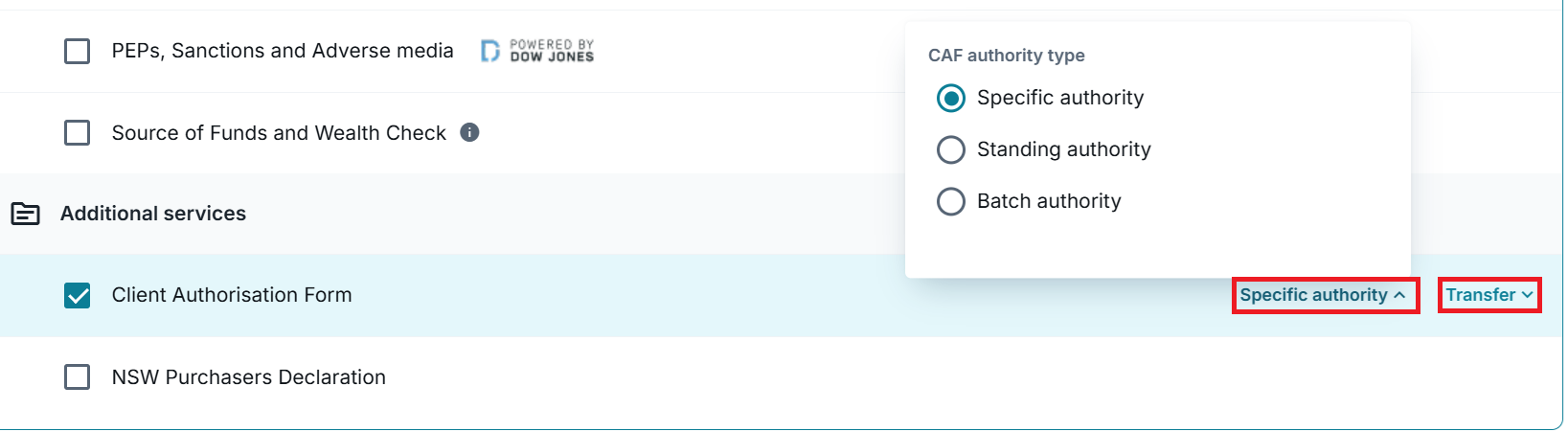
- Choose the Transfer type.
2. For NSW Purchase matters, select whether to include the NSW Purchasers Declaration.
3. Select Continue.
4. Enter Your mobile number to enable two-factor authentication.
Tip: This is the mobile number of the staff member (Verifier) who will be completing the verification.5. If you included a Client Authorisation Form:
- Review Your firm contact details.
- Review and complete Property details.
- Review and complete Client details.
6. Click Add instructions (optional) to enter additional instructions for your client if required.
Tip: You will be required to select the Recipients before entering the Instructions.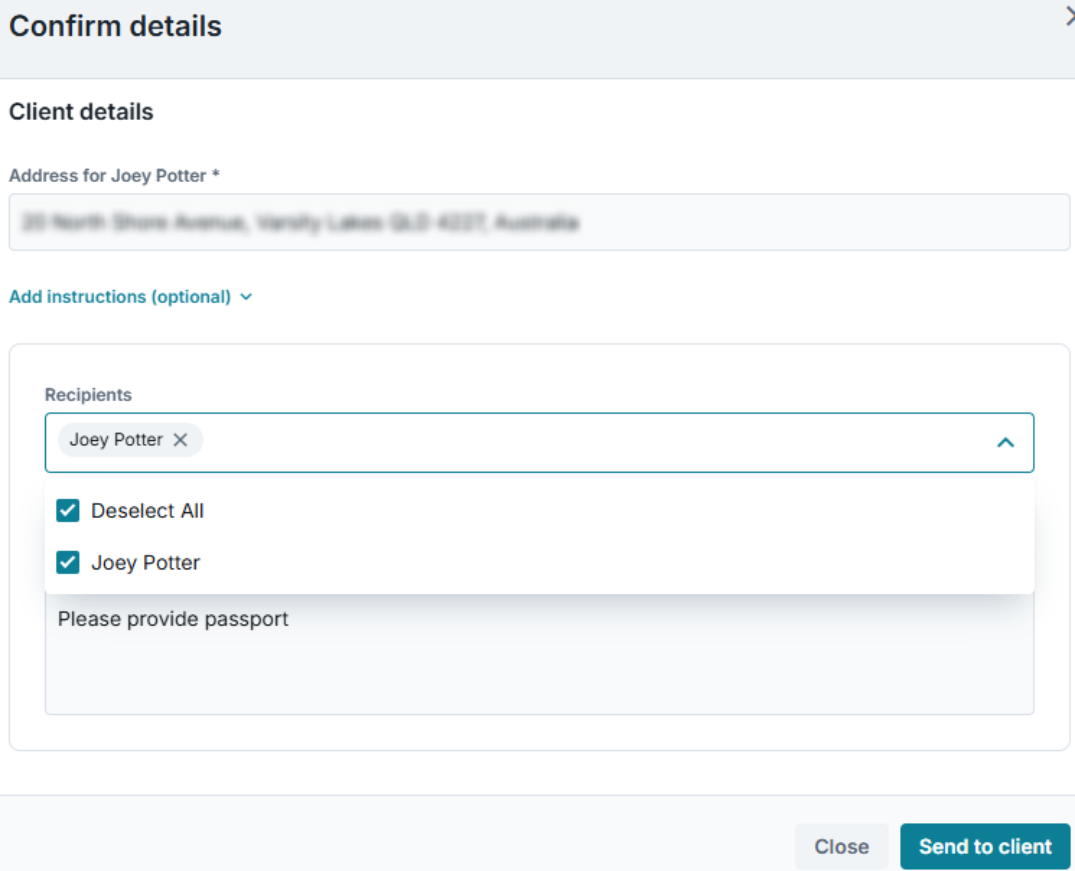
7. Click Send to client.
Tip: Your client will receive an email notifying them to complete the required tasks.Status of Client Due Diligence order
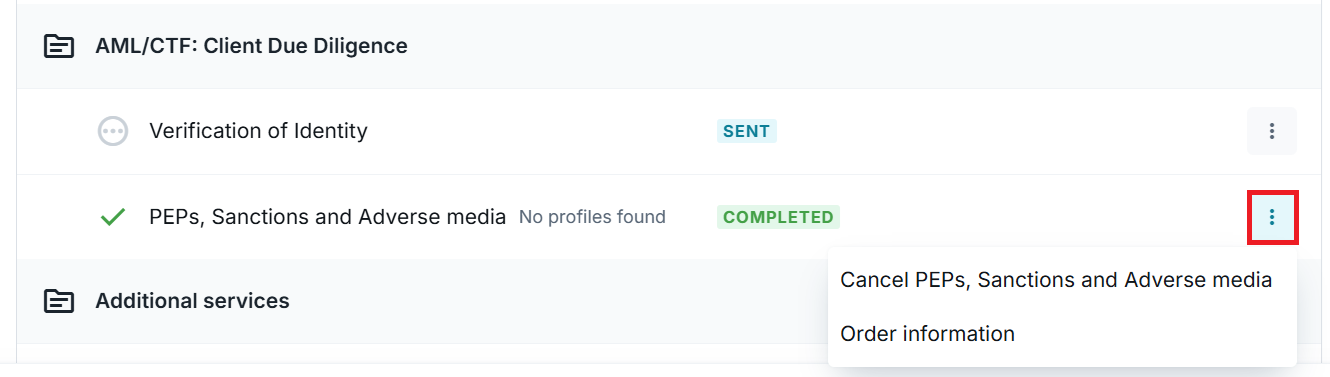
1. The status of the order can be monitored from either One Flow in the matter or the Client Onboarding dashboard in triSearch.
2. Selecting the three dots next to the ordered document allows you to select from Resend, Cancel or view Order information.
Notification of completion
1. The Verifier will receive an email advising that the client has completed the VOI.
2. The status on the matter dashboard will also update.
Review, sign and submit
1. Click Review next to the document to be verified.
2. Verify your mobile number by entering the code sent to you by text then click Continue.
3. Review ID documents submitted to ensure they are accurate. We may flag a potential risk where the face or data does not match. You can edit the document details if you believe your client has made a simple typo i.e. entered the wrong expiry date on their licence which you can clearly see. To do this:
- click Correct errors to edit the details;
- click Manually verify; and
- click Done.
4. If no risks were identified either:
- Request re-submission; or
- click Continue.
Tip: If you requested a video recording, you will need to review the video and and check the box confirming the code spoken matches the code displayed.5. Review and sign declaration to acknowledge that you have read and agree to the declaration.
6. Click Submit VOI.
7. Click either:
- Download report; or
- Go to dashboard
The full VOI report will be saved automatically back into the Matter.
Tip: The report can be downloaded from the matter dashboard at any time.8. A summary report will be emailed as a record of the original verification of identity conducted. The summary report is for confirmational purposes only and as such, the individual's identifying documents are not displayed (for security purposes).
9. If you have requested the Client Authorisation Form be signed, after clicking Review from the matter dashboard:
- Check the tick box to agree to use electronic records and signatures and then click Confirm.

- Click Start.
- Click on the Sign here icon and then draw, type or upload your signature.
- Click Submit Signature.

How triConvey is updated after ordering a VOI
You can view the status of the VOI from the AML & VOI status pill located next to the contact's name.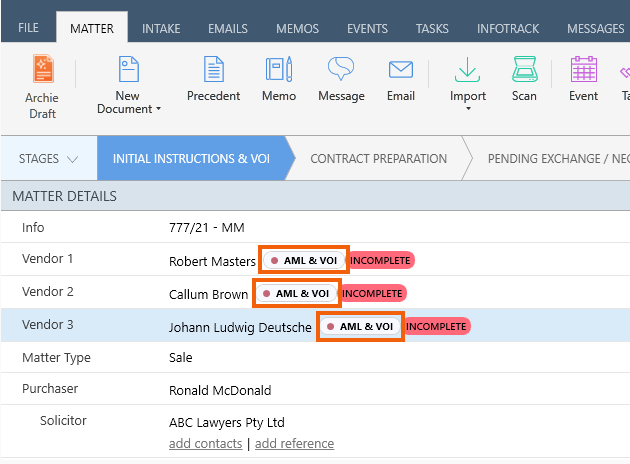
You can also view the AML & VOI status pill in a contact card or in the Contact Details widget in the matter.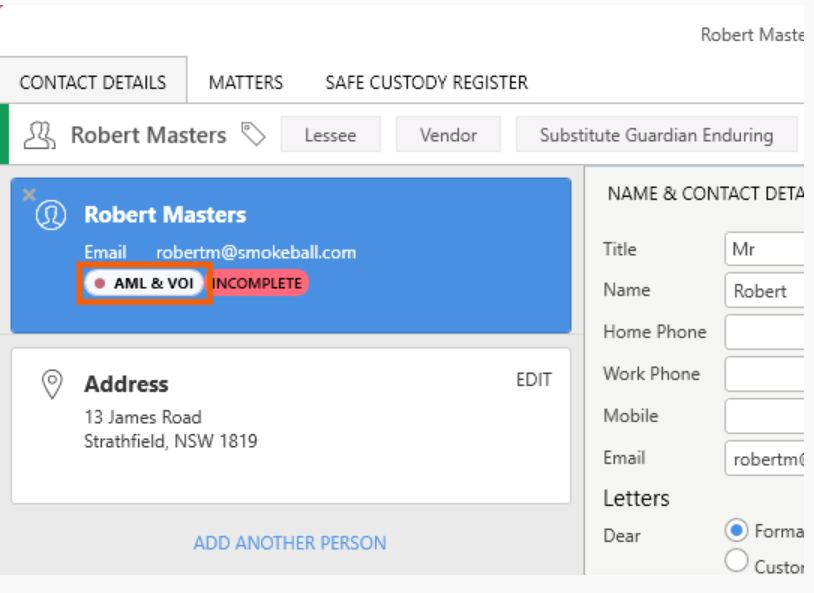
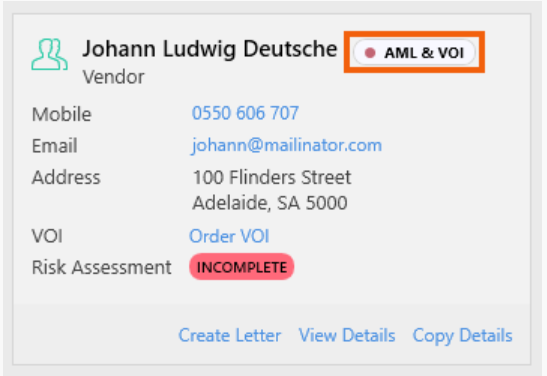
Please note that Completion status does not currently sync from triSearch to the contact card in triConvey — the contact card will need to be updated manually.
Once the VOI has reached its renewal date, the Contact Details widget will show a link to Renew VOI. Selecting this link will take you through the renewal process.
Finalising Onboarding
For help on finalising Onboarding, reviewing AML summaries, Enhanced Due Diligence and escalating clients to the Compliance Officer, refer to our help articles here.
Frequently Asked Questions
Before a participant uploads their ID Documents, they will be prompted to centre their face on their smart device, in the Liveness check step of the workflow. Liveness check will take a short recording of the participant's face before producing a Liveness score and Face analysis.
1. Click the gear icon next to the heading Dashboard.
2. From Firm Settings, scroll down to Report display and toggle on Save VOI report back to my PMS.
Was this article helpful?
That’s Great!
Thank you for your feedback
Sorry! We couldn't be helpful
Thank you for your feedback
Feedback sent
We appreciate your effort and will try to fix the article