

HubSpot is a CRM platform that helps your business manage inbound leads, marketing and customer service. The HubSpot integration with triConvey allows you to sync contacts from HubSpot to triConvey or vice versa, and automatic creation of a general matter in triConvey once a deal is marked as Closed Won in HubSpot.
Table of Contents
Getting Started
As our triConvey software is powered by Smokeball, you can utilise all Smokeball integrations using your triConvey credentials.
Connecting triConvey to HubSpot
1. Create a HubSpot account on the HubSpot website.
2. Log in to HubSpot and click on the Settings gear icon on the top-right corner of the screen.
3. Select Integrations from the left menu and then select Connected Apps.
4. Search for Smokeball on the Hubspot App Marketplace, then connect it.
5. On the next screen, choose Australia from the Firm Region drop-down menu, then enter your triConvey email and password and Sign in.
6. Confirm your triConvey account and select Choose Account to continue.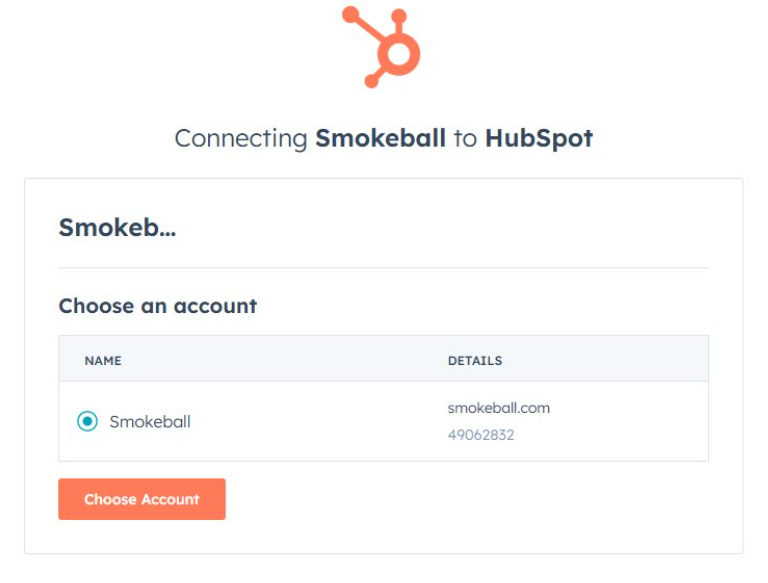
7. On the next screen, select Connect app.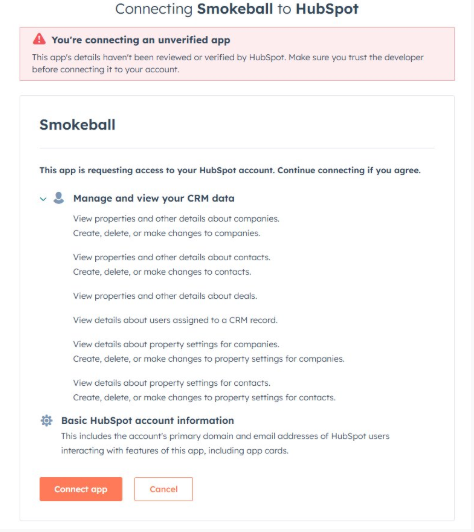
8. If successful, you will receive an Authorisation success message. Now you can exit this window.
9. Navigate back to Connected Apps in HubSpot settings. Smokeball should now be listed as an app.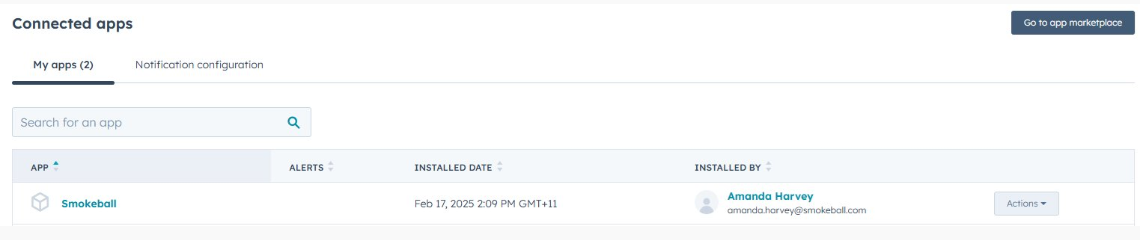
How the HubSpot integration works
Syncing contacts to HubSpot
After connecting triConvey to HubSpot, you must choose the sync direction from either:
- triConvey to HubSpot or;
- HubSpot to triConvey.
To do this:
1. Navigate to HubSpot Settings, then select Integrations > Connected Apps and click on Smokeball.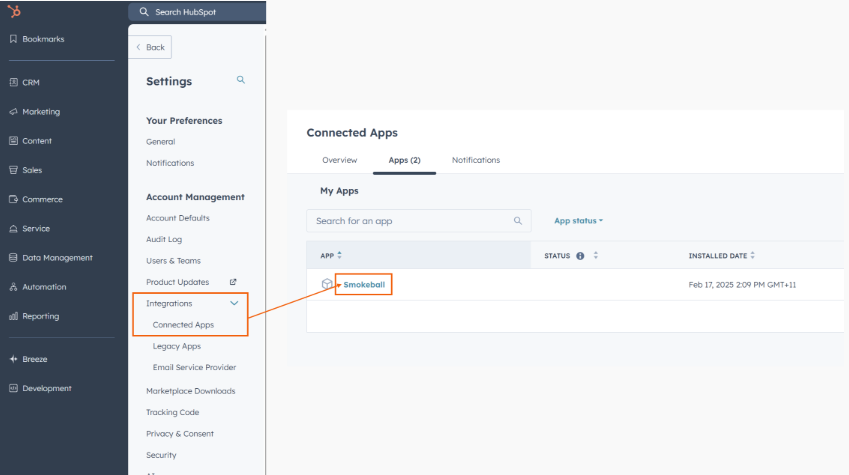
2. Select General Settings.
3. Under Contact Sync Direction, choose whether contacts should sync from Smokeball (triConvey) to HubSpot or HubSpot to Smokeball (triConvey). You can also disable contact sync entirely.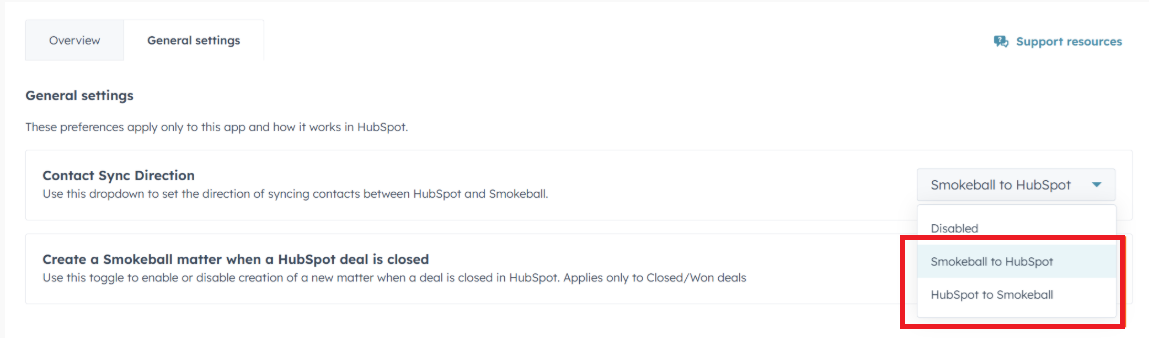
4. Toggle on/off the option to create a Smokeball (triConvey) matter when a HubSpot deal is closed.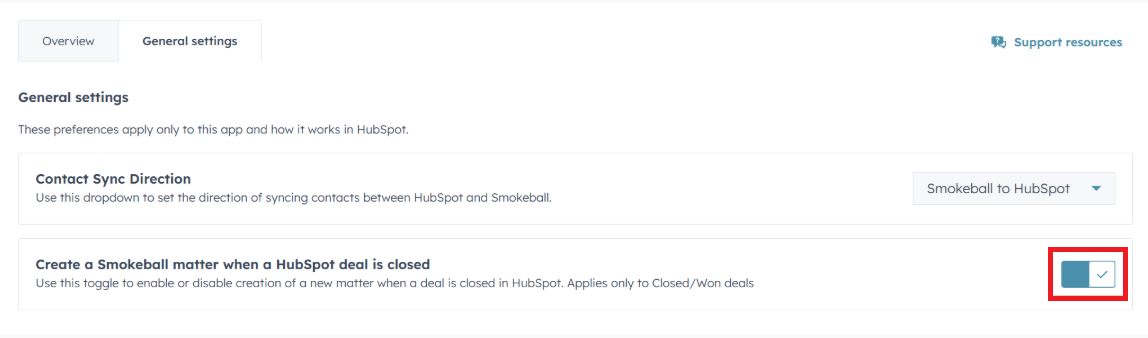
If you chose to sync contacts from Smokeball (triConvey) to Hubspot, it may take up to a few minutes for the contact entry to appear in HubSpot.
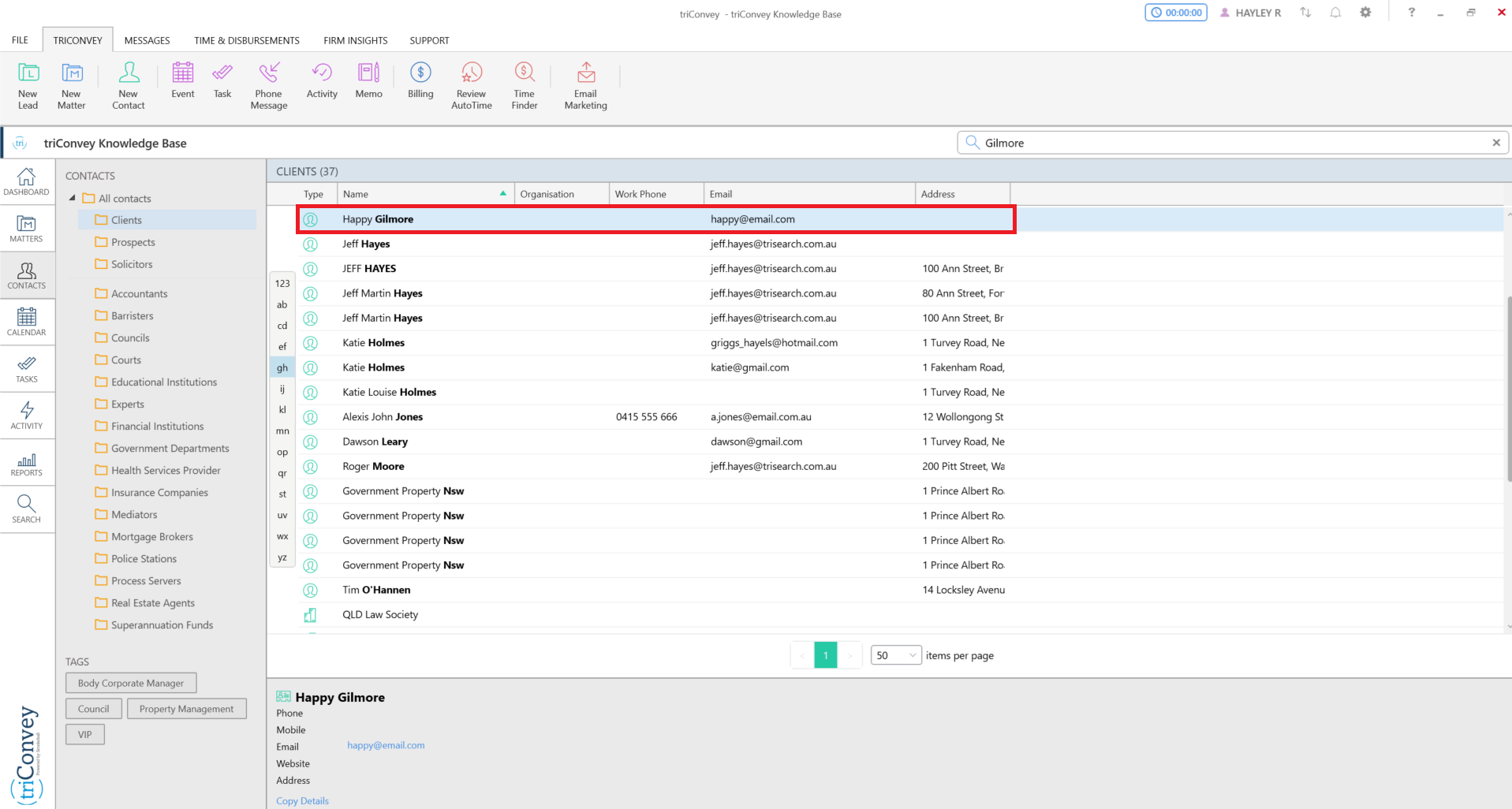
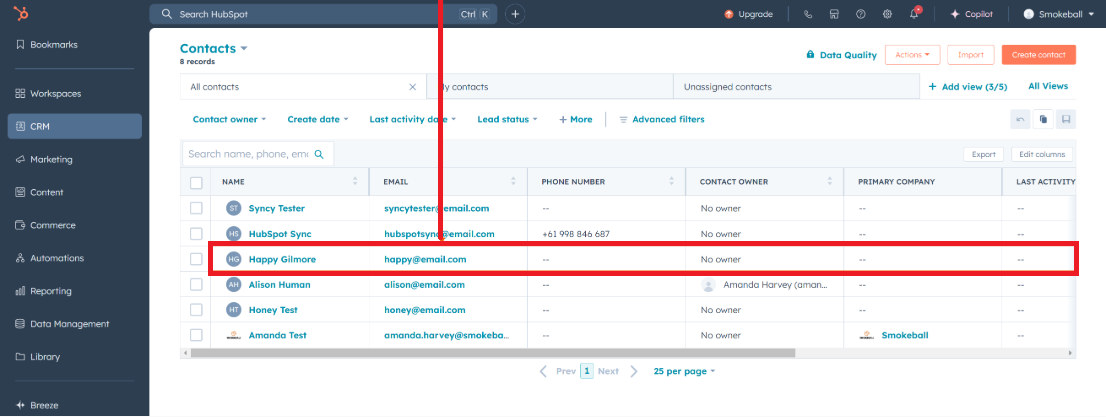
You can access your contacts in HubSpot by selecting CRM from the left panel, then selecting Contacts.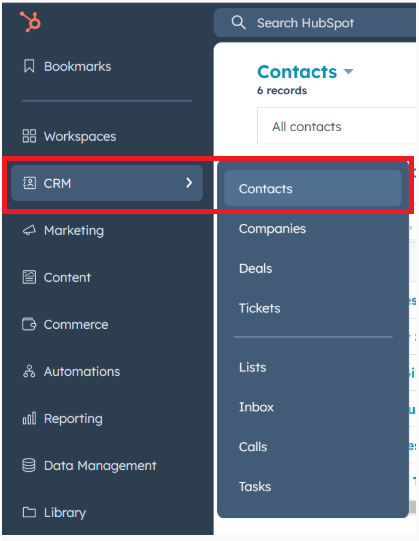
Converting a HubSpot Deal into a triConvey matter
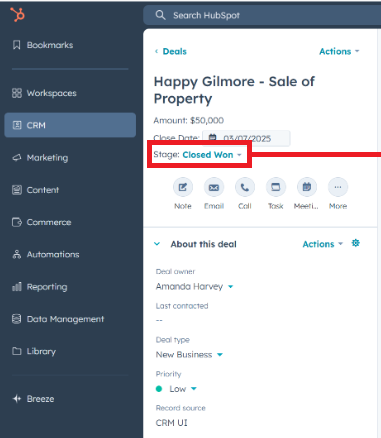
From HubSpot, you can create new Deals associated with these contacts from the CRM > Deals section.
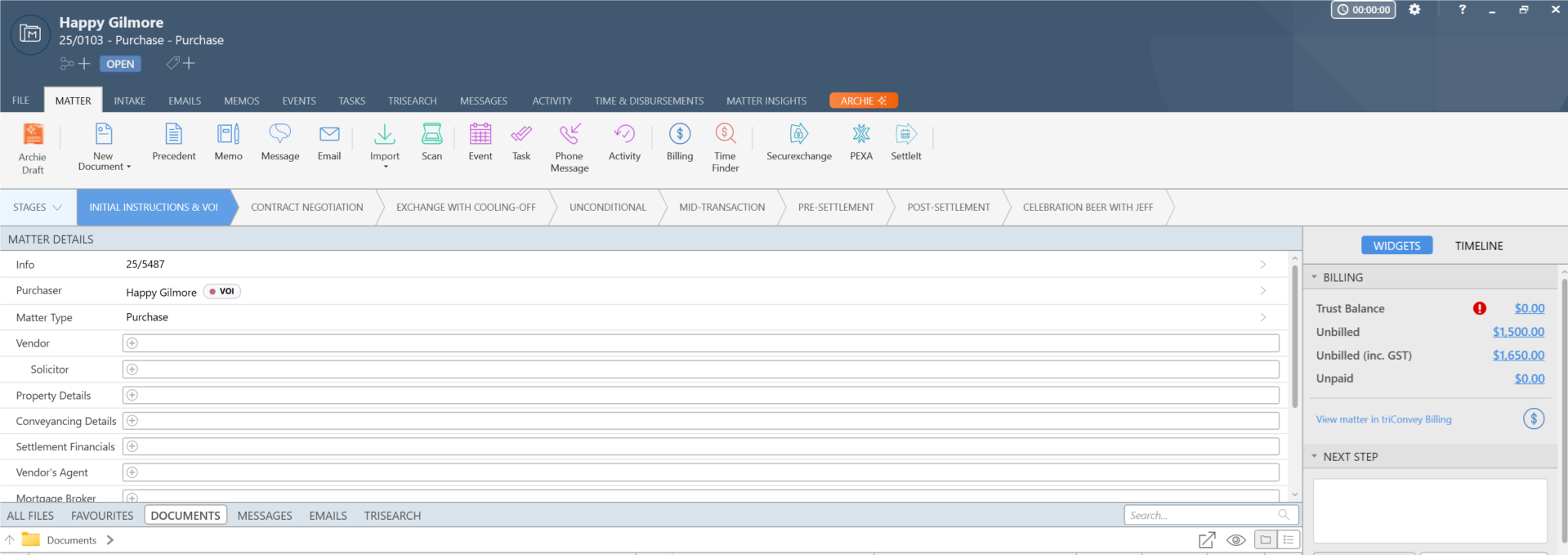
When a Deal transitions to the stage Closed Won, a new General matter will be created in triConvey automatically.
 |  |
To ensure the matter is created correctly, the contact must be listed under the Contacts section of the Deal. If the contact is missing, the matter will not be created in triConvey.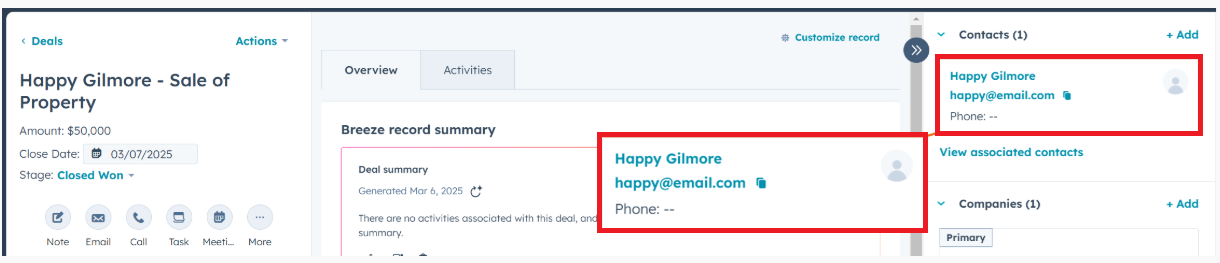
Was this article helpful?
That’s Great!
Thank you for your feedback
Sorry! We couldn't be helpful
Thank you for your feedback
Feedback sent
We appreciate your effort and will try to fix the article