

Prompt Inputs allow you or other Archie users in the firm to provide information that isn't available in the matter before running a prompt.
Prompt Inputs are structured like a form you fill in before the prompt is run. Think of them as prerequisite questions that you need to answer before Archie can run the prompt.
Table of Contents
- Getting Started
- Creating a Prompt Input form
- Using Prompt Inputs as context
- Inserting Prompt Inputs as a variable
- Testing your Prompt Input form
Getting Started
We recommend creating Prompt Inputs if your prompt requires information that varies from matter to matter, or isn't available in the matter.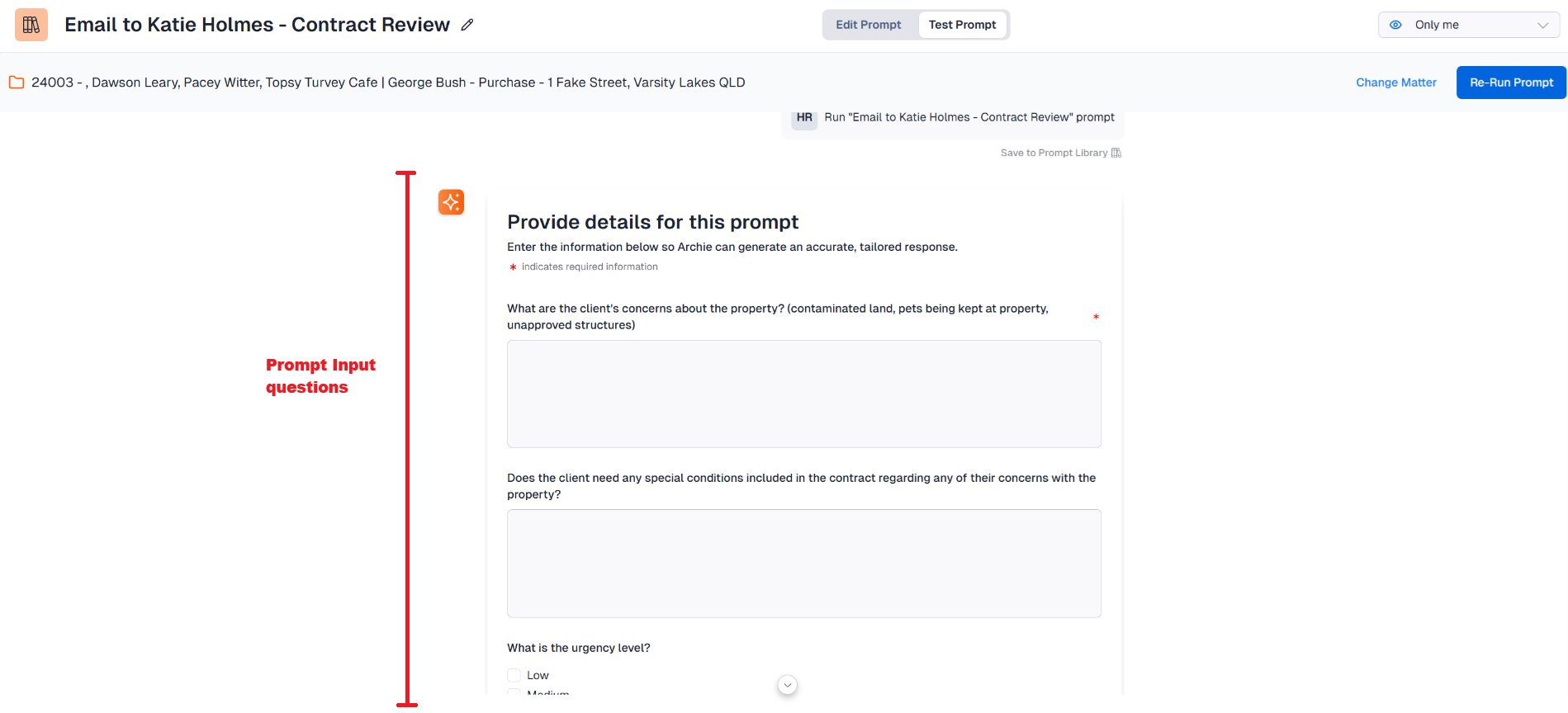
Common questions you may consider adding as Prompt Inputs include:
- "What's the deadline?"
- "What tone should this communication use?" e.g. formal, neutral, simple language
- "What's the client's version of events?" if this information is not in the matter
- Any special instructions e.g. “keep this brief”
- "Are there any sensitive risks to keep in mind?"
Creating a Prompt Input form
Access the Prompt Input area by clicking on Prompt Input below the Steps section in the Prompt Builder.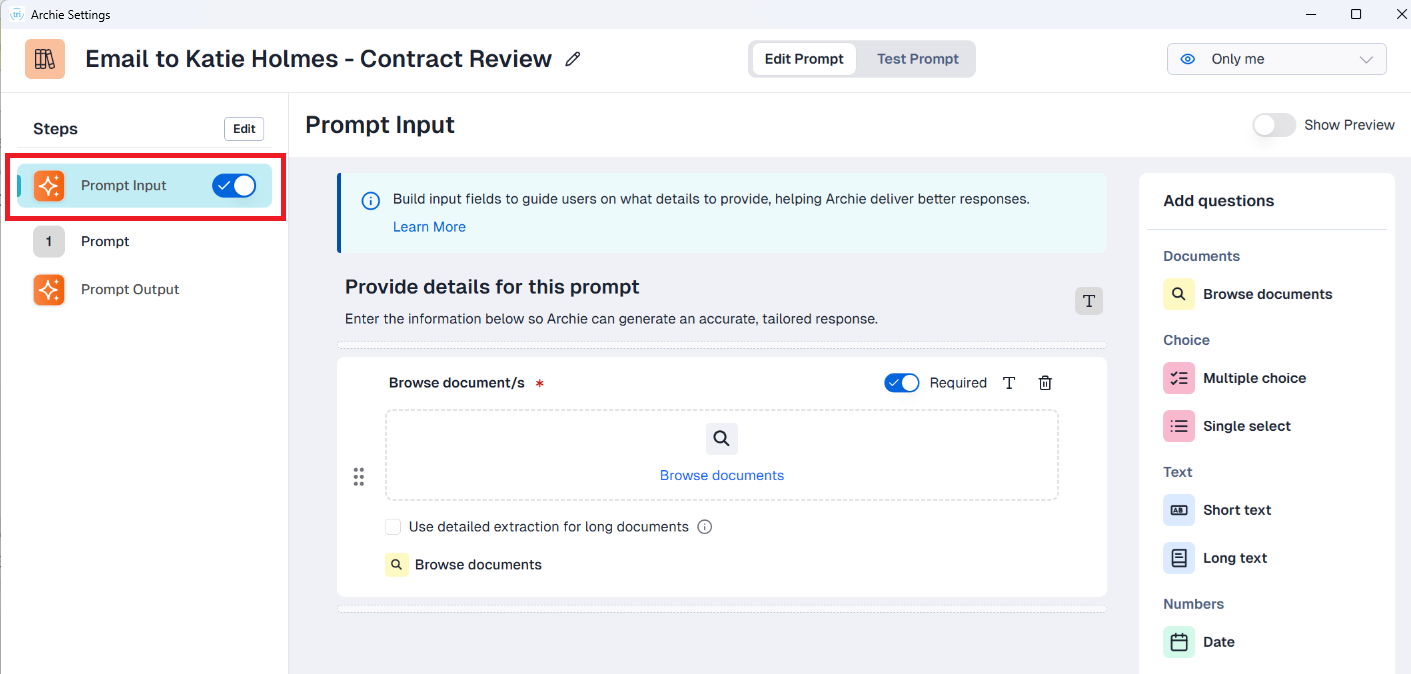
The Prompt Input area is made up of questions you can drag into your Prompt Input form, which can be answered as:
- Short text
- Long text
- Dates
- Single select option (good for Yes/No selections)
- Multiple choice
- Document uploads
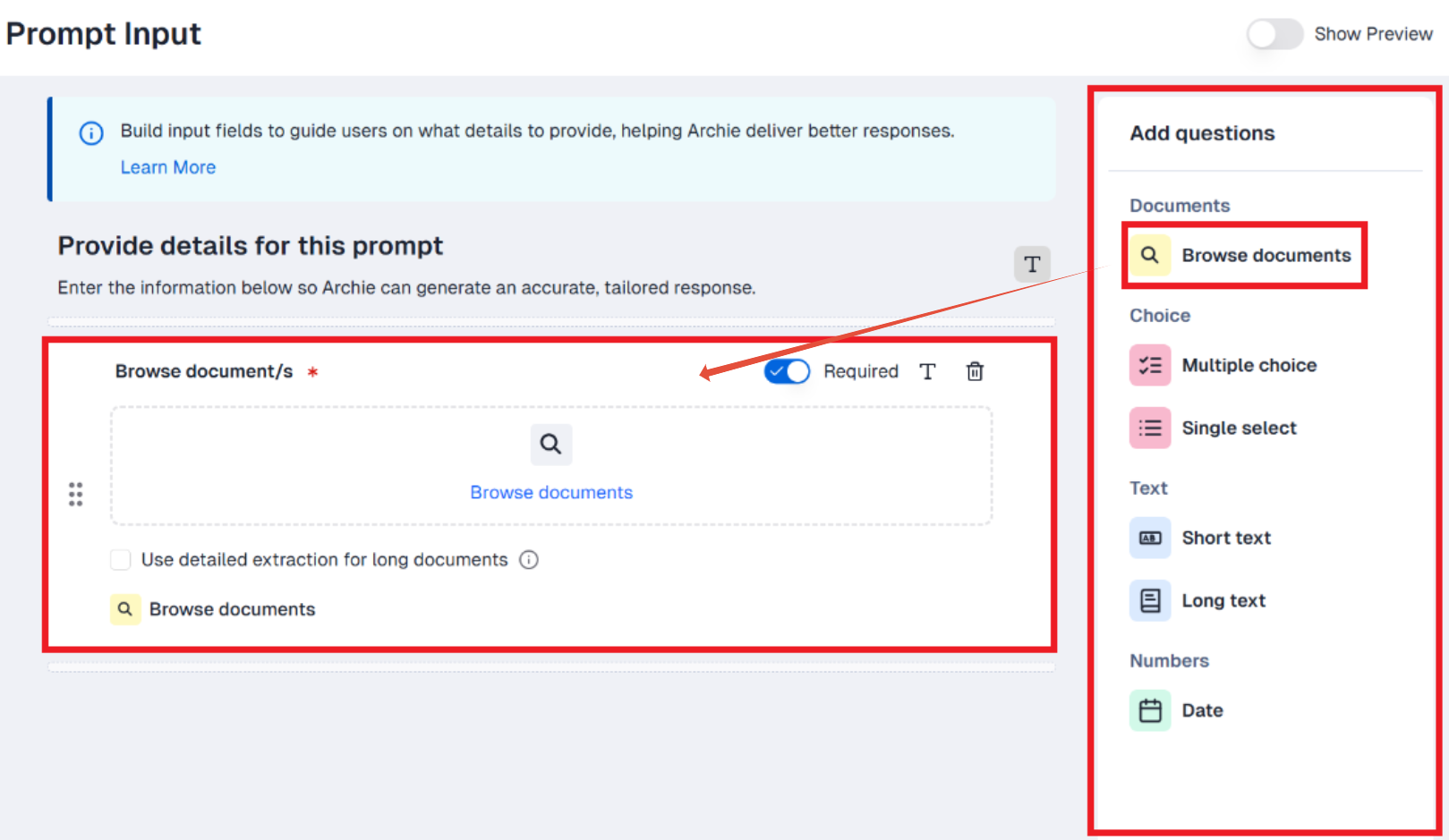
Prompt Inputs can be used in two ways - as context or inserted as a variable.
Using Prompt Inputs as context
By default, Archie treats Prompt Inputs as context. They influence Archie’s reasoning, tone, factual interpretation, urgency and recommendations. They also do not appear verbatim in the draft unless you insert it as a variable.
Think of them as a "read and keep this in mind" instruction for Archie.
In this example below, the questions "What are the client's concerns about the property?", "Does the client need any special conditions included in the contract regarding any of their concerns with the property?" and "What's the urgency level?" would have varying answers depending on the matter. The answers to these questions will be used as context for Archie while it runs the prompt.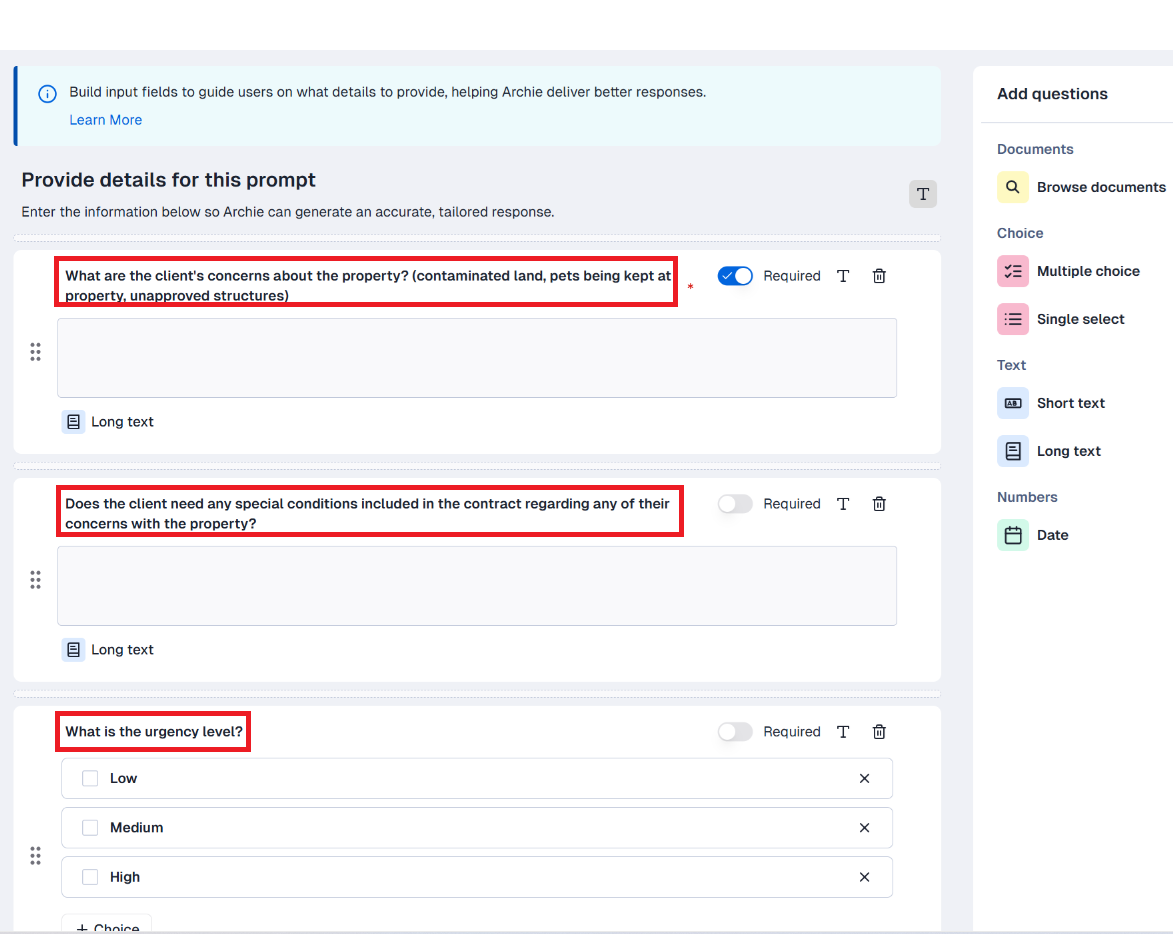
If you would like answers to Prompt Input questions to appear verbatim in the prompt result, read on to learn how to insert it in your prompt as a variable.
Inserting Prompt Inputs as a variable
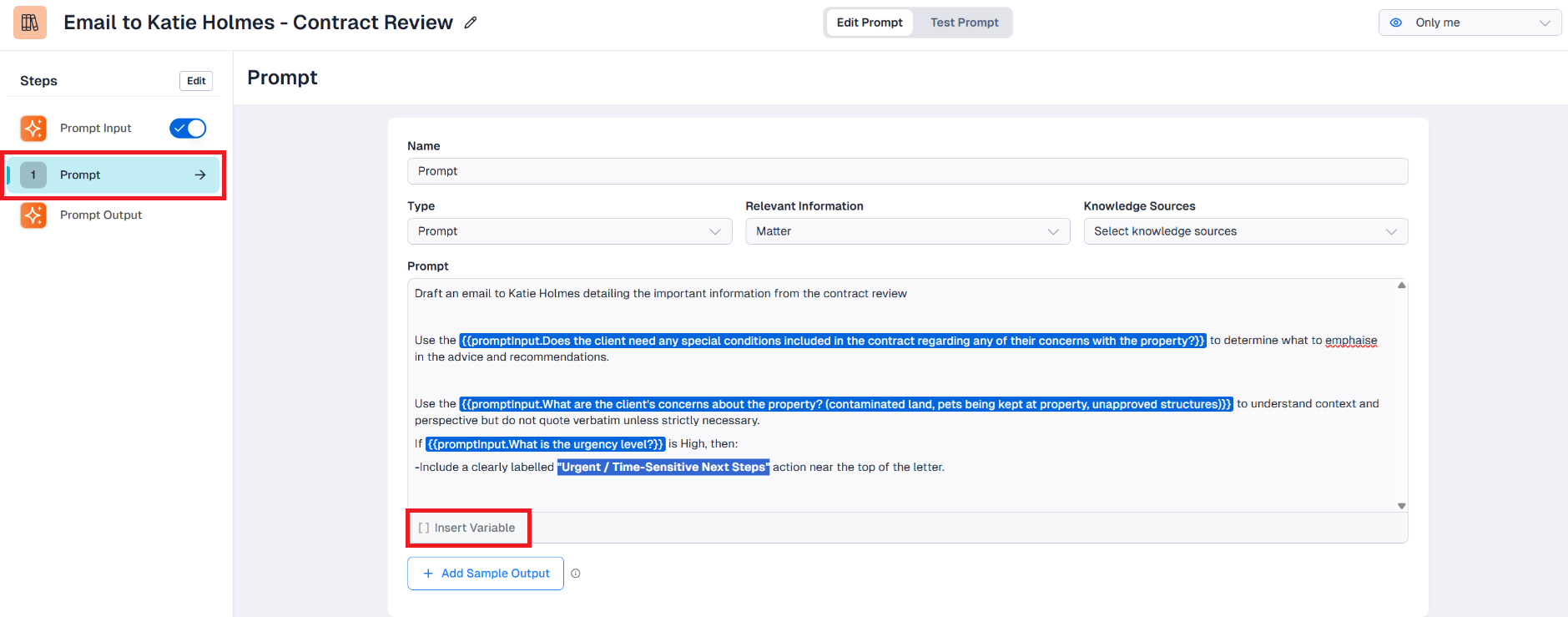
Click on Insert Variable at the bottom of the Prompt or Sample Output text box if you'd like to place specific Prompt Inputs exactly where they should appear in the final output.
This is useful when:
- A value must appear verbatim (e.g. amounts, dates, names)
- A section should appear conditionally based on an input
- The Sample Output needs to illustrate how dynamic values will be rendered
Think of inserting a variable as “put this exact content here.”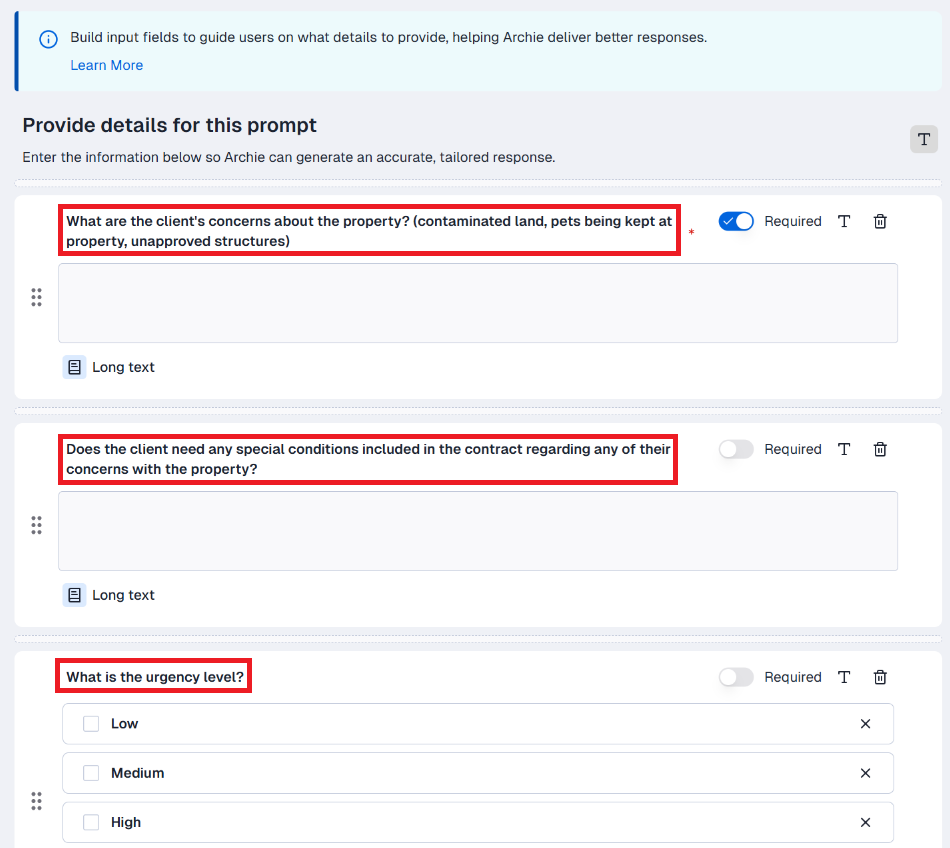
Click on the image to make the view larger
Testing your Prompt Input form
Select Test Prompt at the top of the Prompt Builder at any time to test out the Prompt Input form with a real matter. Results aren't saved in this test environment, so we encourage you to experiment and tweak the form to your liking.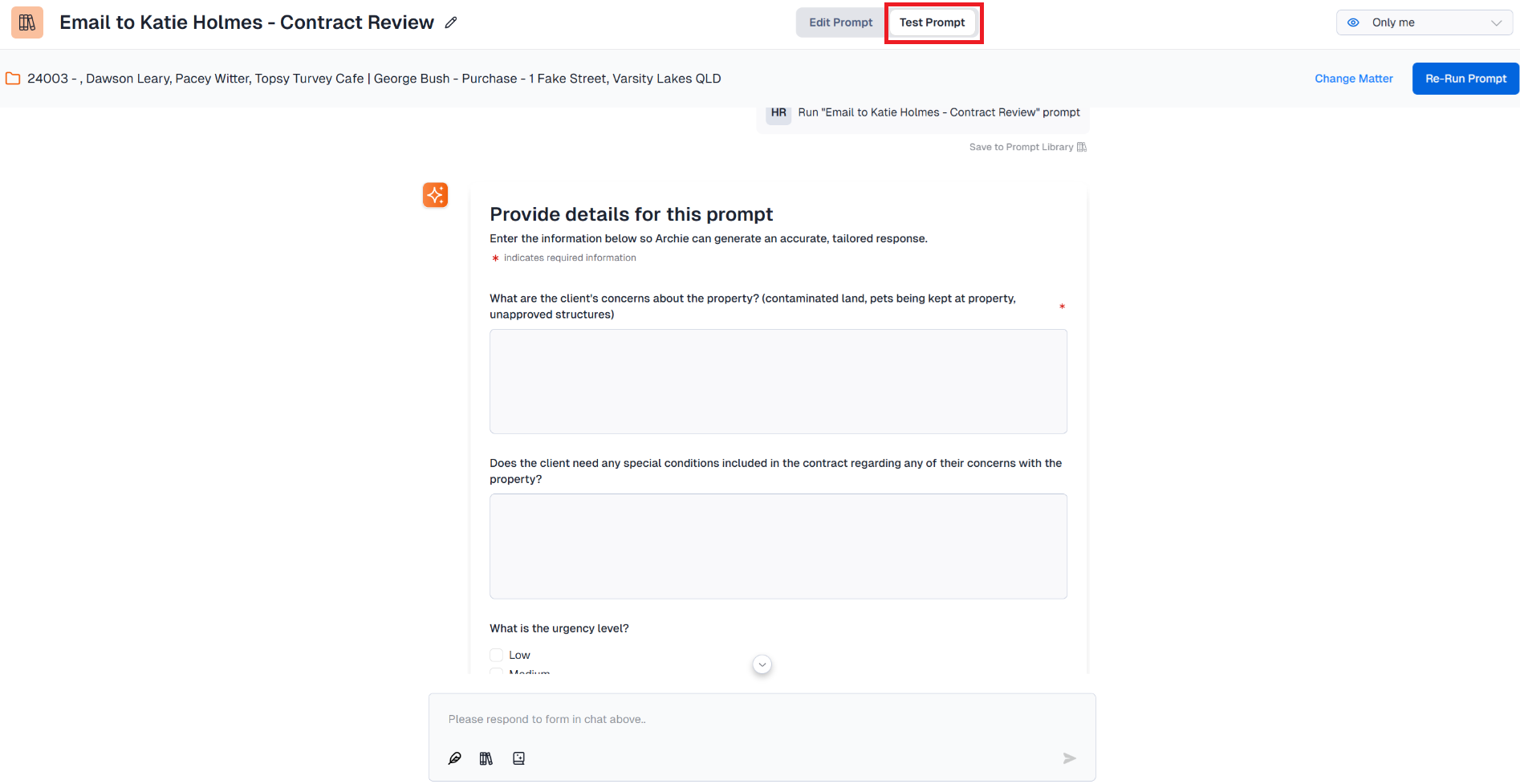
Was this article helpful?
That’s Great!
Thank you for your feedback
Sorry! We couldn't be helpful
Thank you for your feedback
Feedback sent
We appreciate your effort and will try to fix the article