

Learn how to configure your Intake Forms to present in languages other than English, so respondents can complete the form in their native language. Form responses are not translated back to English, retaining their authenticity and reducing risk of misinterpretation.
Table of Contents
- Adding languages to your form
- Editing an Intake Form presented in another language
- How the Intake Form appears for respondents
- Frequently Asked Questions
Adding languages to your form
Multilingual forms must be configured on a form-by-form basis. To do this:
1. Open your Intake Form in the Intake Form builder.
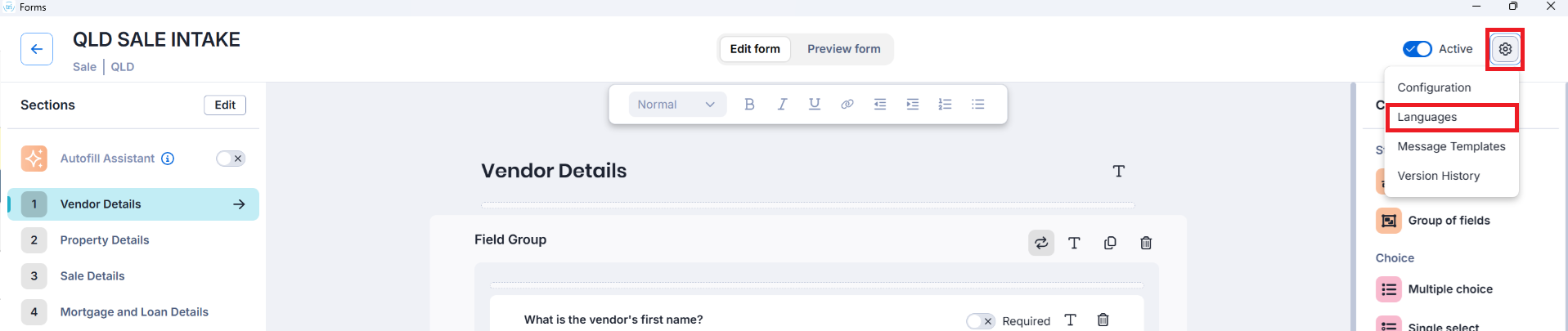
2. Select the gear icon on the top-right corner of the Intake Form builder.
3. Select Languages.
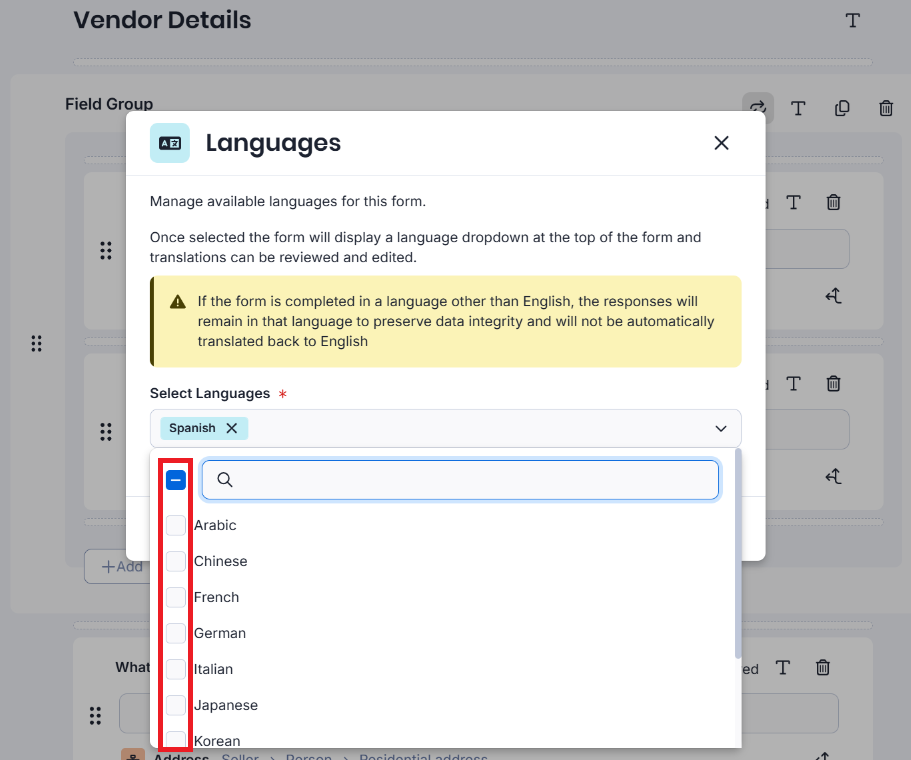
4. Tick one or more languages you would like the form to appear in and then click Save.
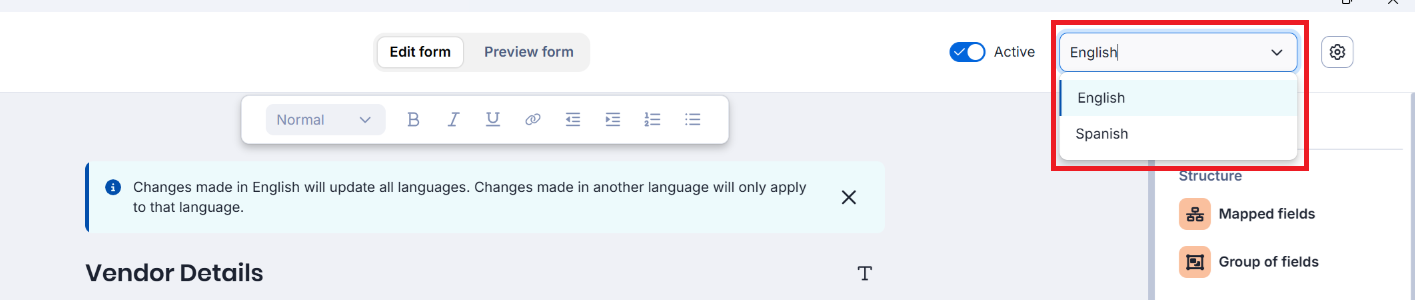
5. A Language Selection drop-down menu will appear on the top-right corner of the Intake Form builder.
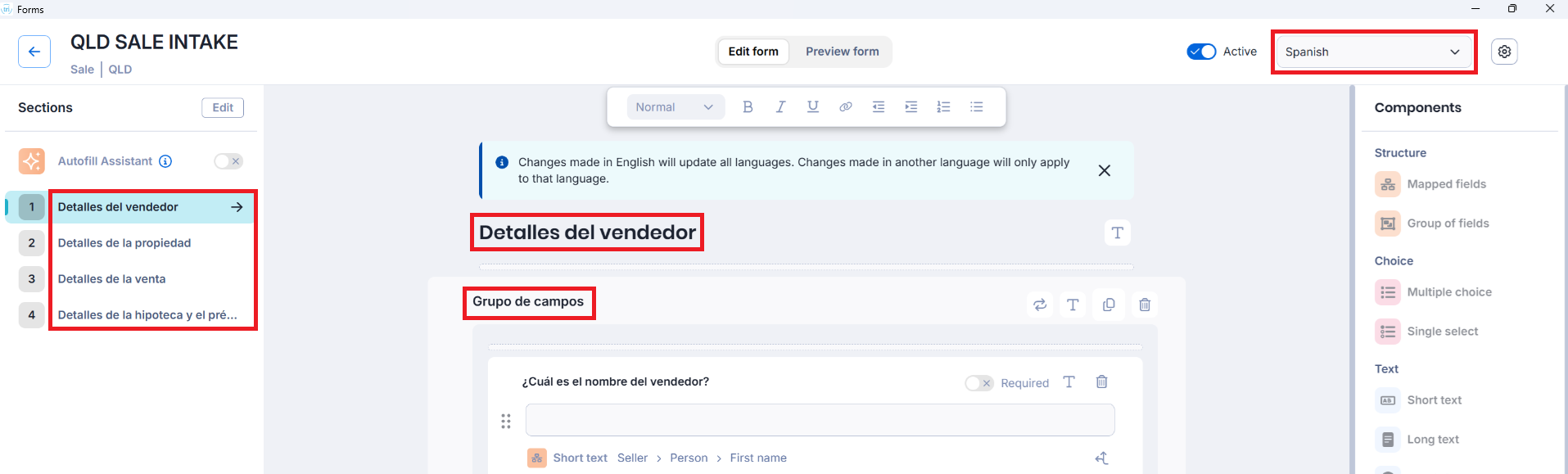
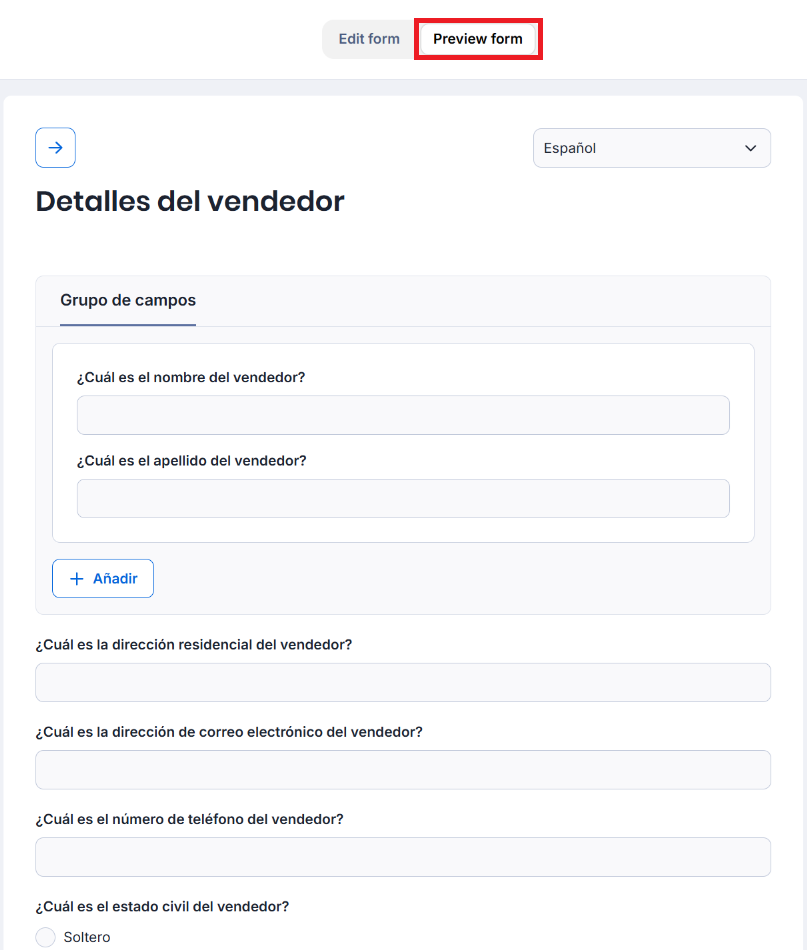
6. Click on the language you wish to view the form in, and all the questions and sections will be translated into that language.
7. Select Preview form to view the translated form in its entirety.
Editing an Intake Form presented in another language
Once you're in a language other than English, you can edit the translated text by clicking on it like normal. Edits to translated forms stay in that specific language, i.e. editing the Spanish form will not modify the English, French, German etc. version of the form.
However, if you edit the English form, changes there will update across all the other languages.
How the Intake Form appears for respondents
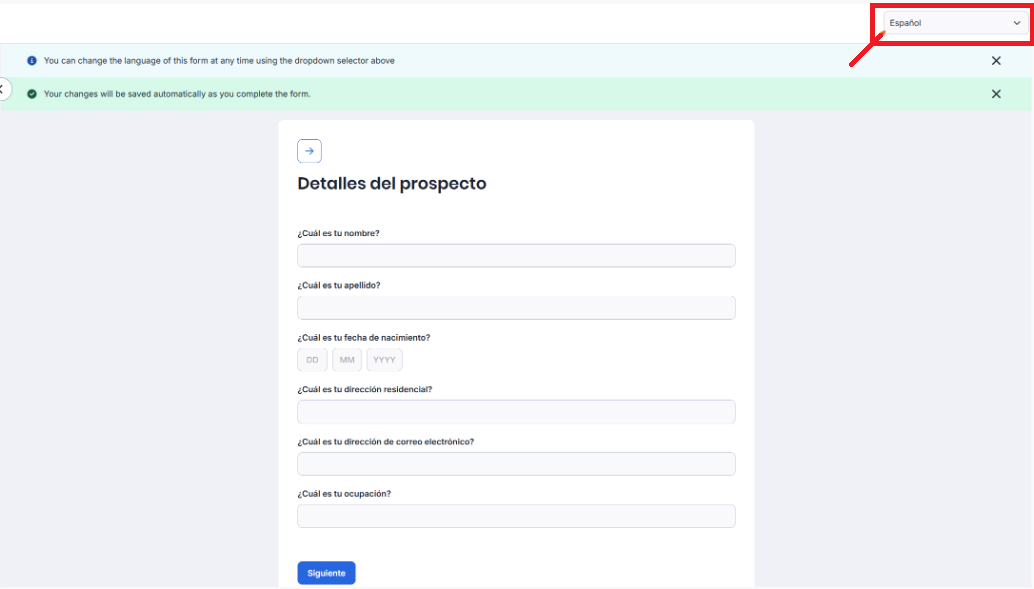
When the form respondent opens the form, there will be a language selector on the top-right corner of the form which they can use to change the language.
Frequently Asked Questions
Was this article helpful?
That’s Great!
Thank you for your feedback
Sorry! We couldn't be helpful
Thank you for your feedback
Feedback sent
We appreciate your effort and will try to fix the article