

Learn how to manage changes to an Active Intake Form, including how auto-save and version history work and how to publish form changes.
Table of Contents
- How version control works in Intake Forms
- Accessing Intake Form Version History
- Reviewing unpublished changes to your Intake Form
- Publishing your Intake Form changes
- Frequently Asked Questions
How version control works in Intake Forms
Changes made to any Intake Form are saved automatically as a new version. Versions come in two states: Auto-save and Published.
- Auto-save versions are saved by triConvey once a day at 11:59 pm (Sydney time). A version is only saved if changes were made in the past 24 hours.
- Published versions are ones you have manually published, and are made visible to form respondents. Form publishing is covered below.
Accessing Intake Form Version History
To access a form's version history, select the gear icon on the top-right corner of the Form Builder, then select Version History.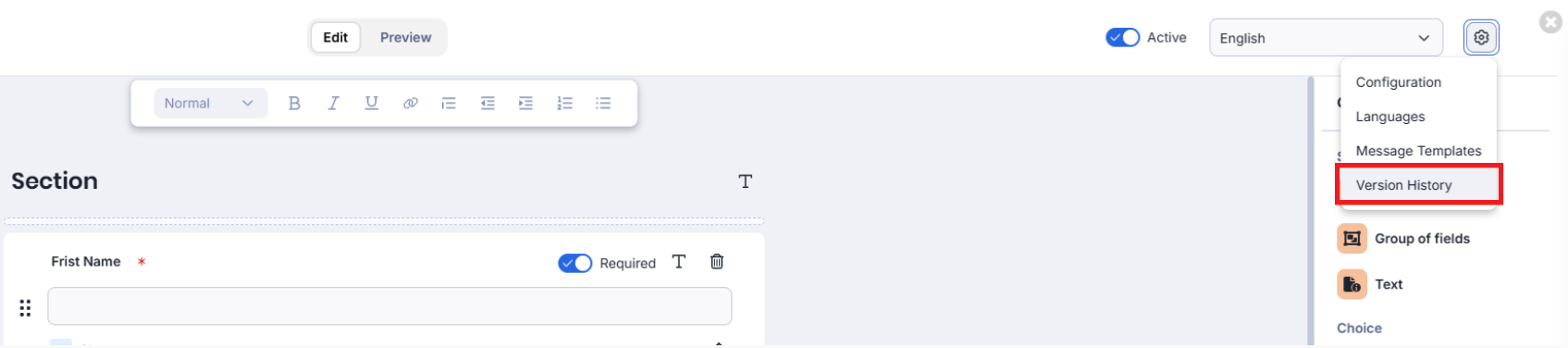
Each version is labelled with its date and whether it was auto-saved by the system or published by a staff member.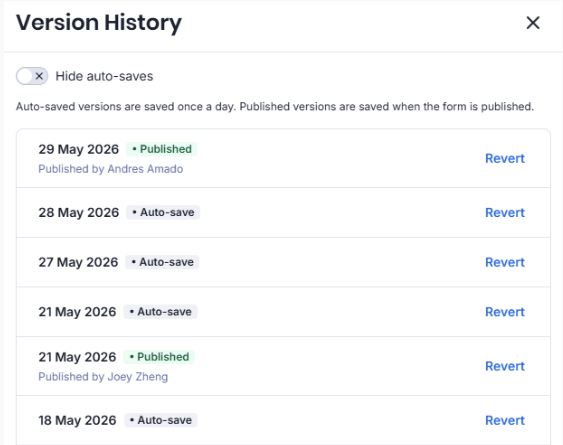
If you revert to an earlier version of a form, newer versions are not deleted. However, any changes made in the 24 hours before the save time will be lost.
Reviewing unpublished changes to your Intake Form
When you edit an Active form, an Unpublished changes indicator appears on the bottom-right corner of the Form Builder. You can leave the Form Builder at any time and your changes will be saved.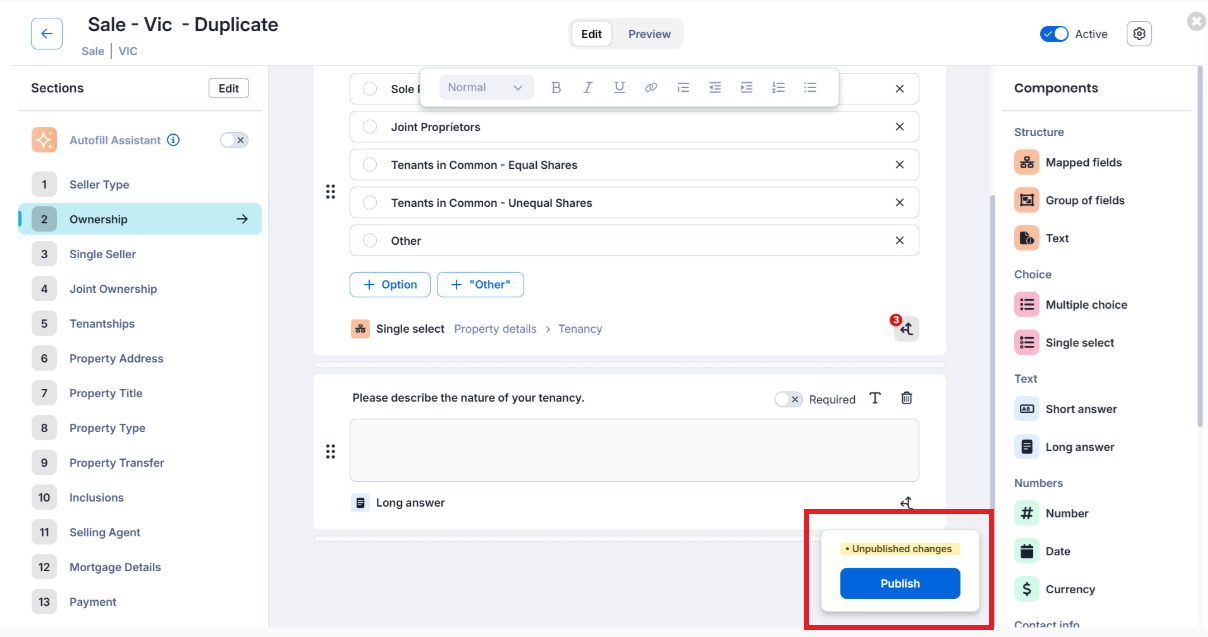
You can view the specific modifications in the editor. They are displayed in a blue tag or box: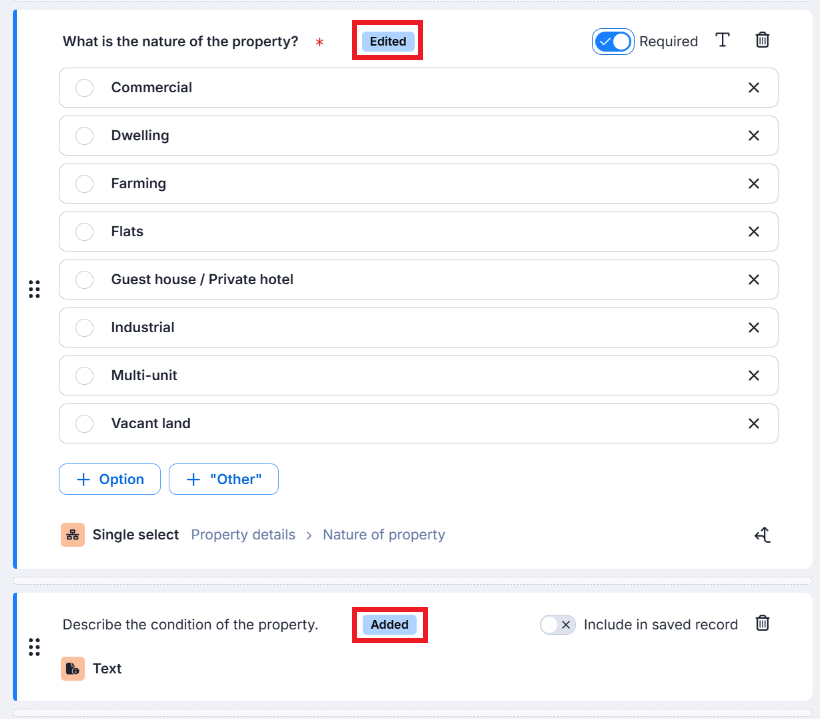
- Added and edited components are tagged with a blue Added or Edited tag, with a blue line along the left-hand side of the component.
- Removed components have a blue box replacing its position, emphasising that the component will no longer appear once the form is published.
Publishing your Intake Form changes
Publishing a form makes your changes visible to respondents. To do this:
1. Select Publish on the bottom-right corner of the Form Builder.
2. A Publish form window will appear. Enter a Change Note (optional) to record a summary of your changes.
3. If some respondents have started filling out the form, the number of them will appear under the Also apply to forms in progress checkbox. Tick this if you want to push your changes to them as well.
4. Select Publish.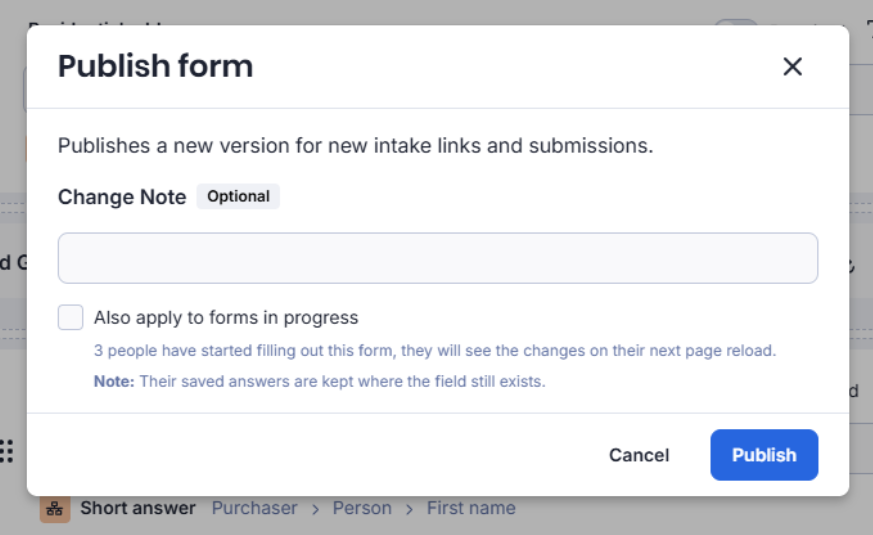
Frequently Asked Questions
Was this article helpful?
That’s Great!
Thank you for your feedback
Sorry! We couldn't be helpful
Thank you for your feedback
Feedback sent
We appreciate your effort and will try to fix the article