

Learn how to enable Voice-Guide for your Intake Forms, allowing clients and respondents to complete forms using spoken responses instead of typing.
Table of Contents
Enabling Voice-Guide
1. From the triConvey Desktop App, click the gear icon on the top-right corner.
2. Select Intake Forms.
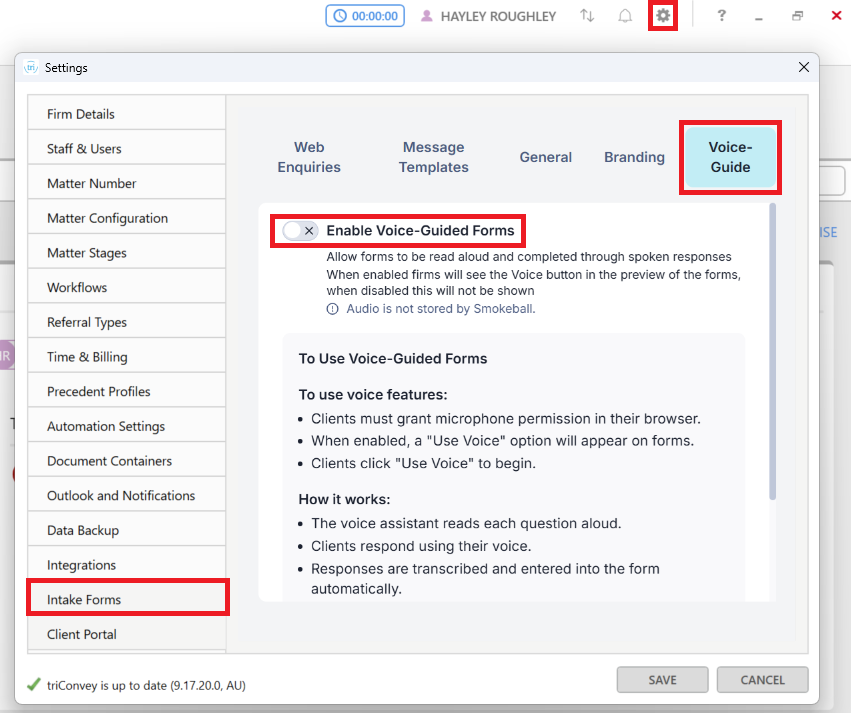
3. Select the Voice-Guide tab.
4. Toggle Enable Voice-Guided Forms on.
Voice Fill is controlled at the firm level. Once enabled, the Use Voice option appears on every Intake Form your firm sends and no additional setup is needed per form.
How Voice-Guide works
When Voice-Guide is enabled, form respondents see a Use Voice option in the header of any Intake Form they receive.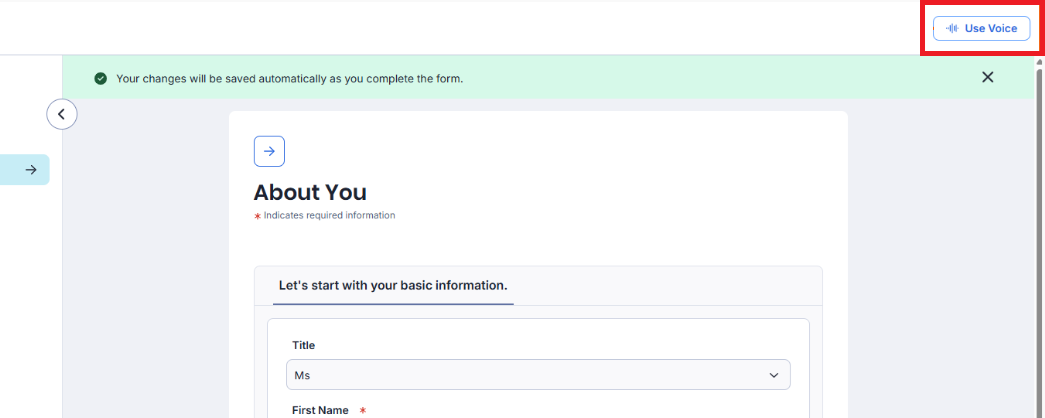
When a form respondent opens an Intake Form on a computer or their mobile phone:
1. They select Use Voice from the form header.
2. They grant microphone permission in their browser.
3. The voice assistant reads each question aloud and listens for the response.
4. The assistant transcribes the response and enters it into the matching field, then moves to the next question.
5. The respondent can review and edit any answer before submitting the form.
Frequently asked questions
Was this article helpful?
That’s Great!
Thank you for your feedback
Sorry! We couldn't be helpful
Thank you for your feedback
Feedback sent
We appreciate your effort and will try to fix the article