

Liquid Glass compatibility has been added to the iPhone and iPad versions of the Mobile App.
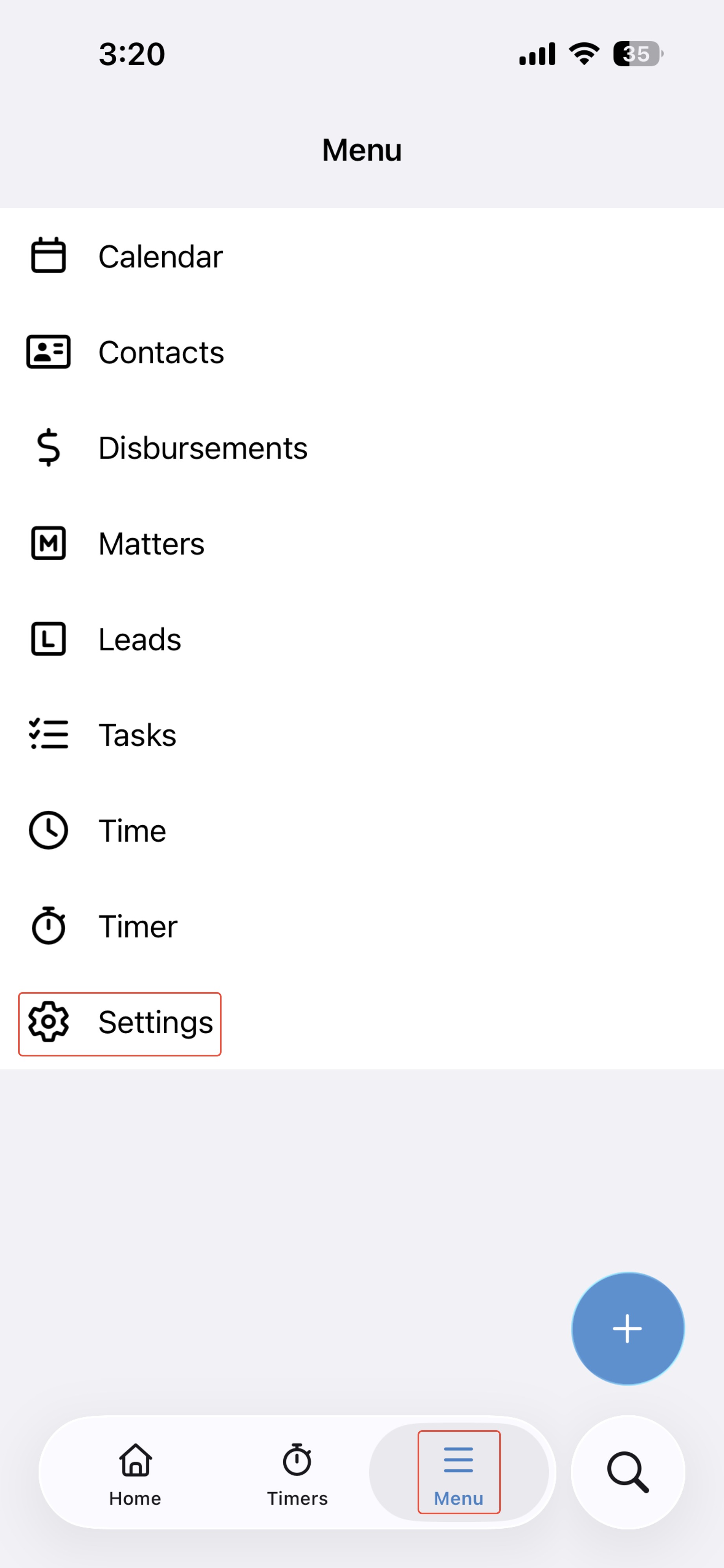
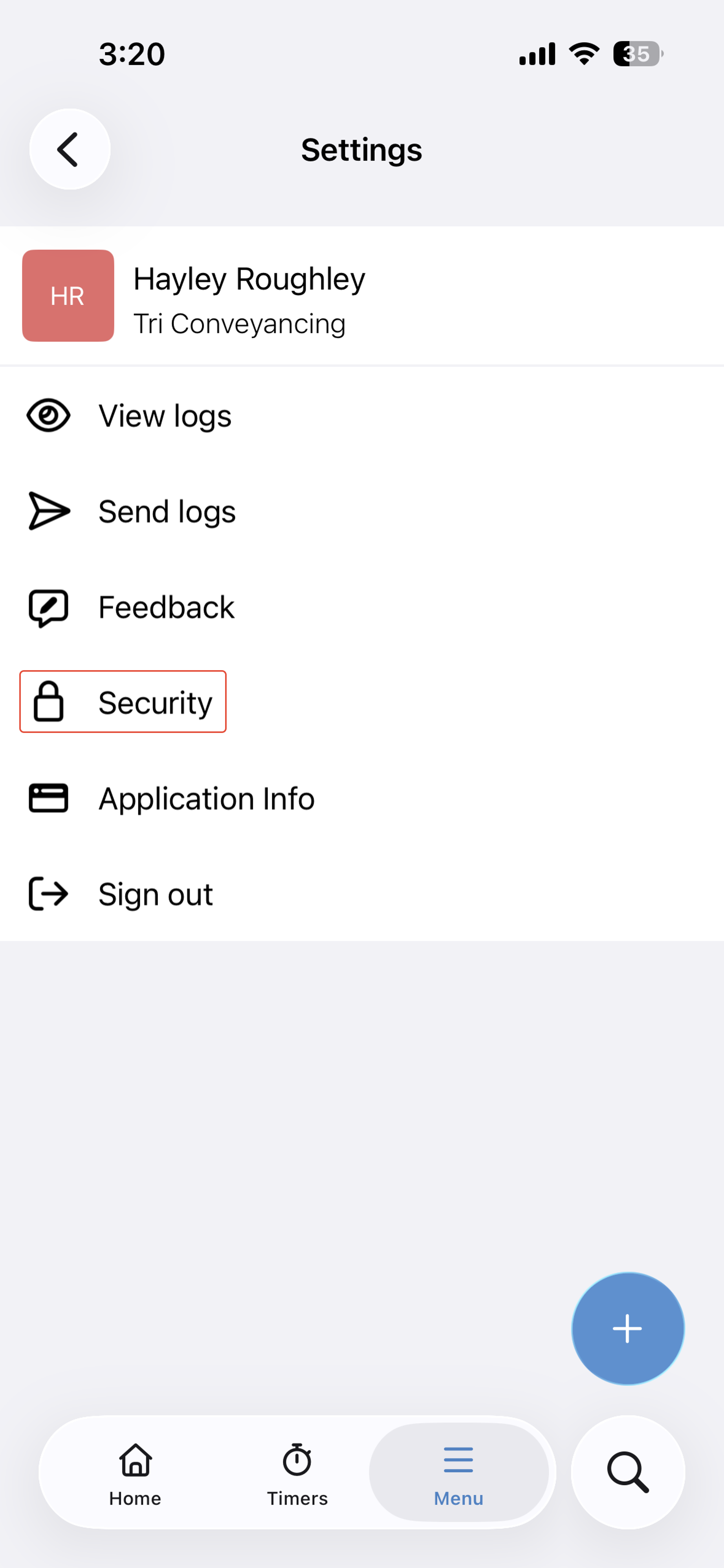
You can now secure the triConvey Mobile App with a lock screen or Face ID to trigger after the app is sent to the background and reopened, or has been idle. To set this up:
1. Tap on Menu on the bottom bar.
2. Tap on Settings, then Security.
 |  |
3. Toggle on the Lock Screen option.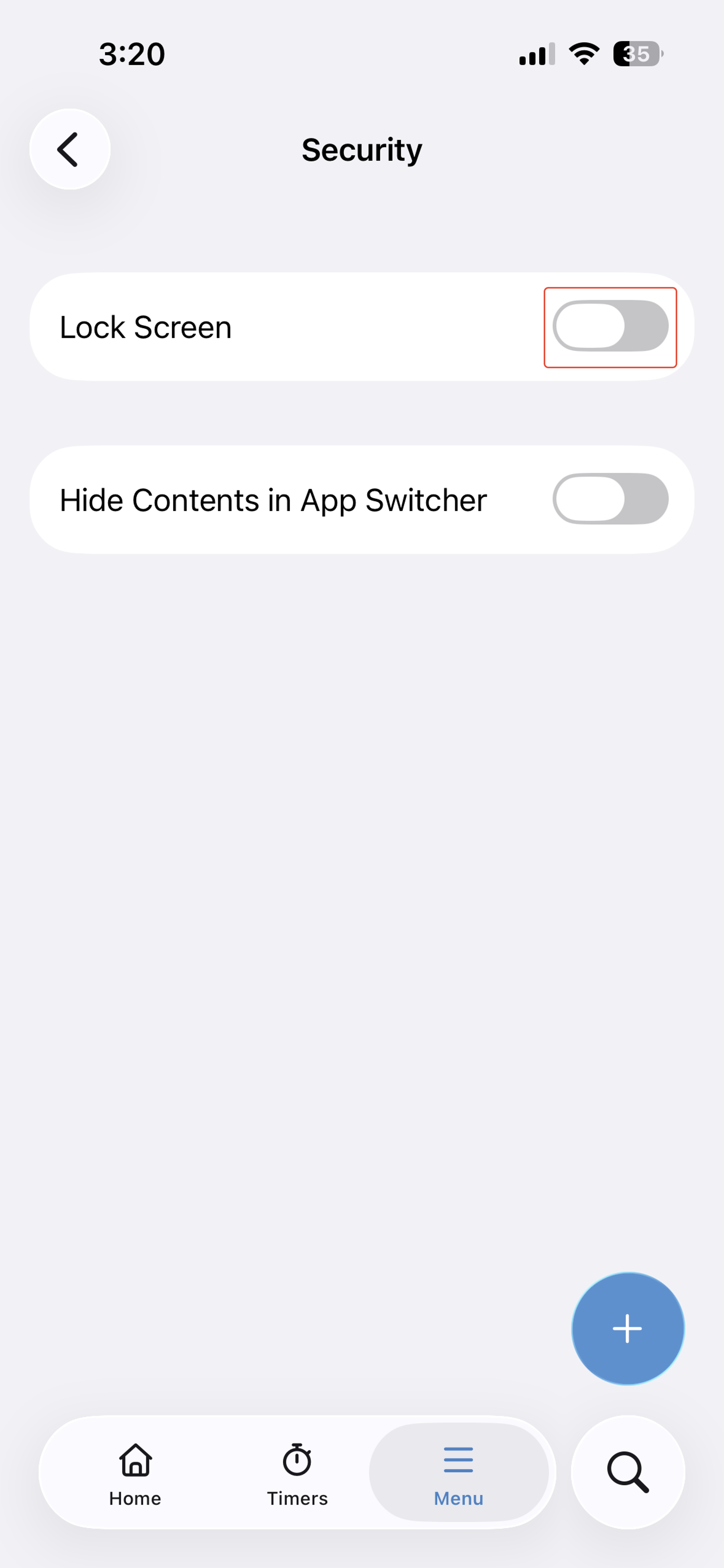
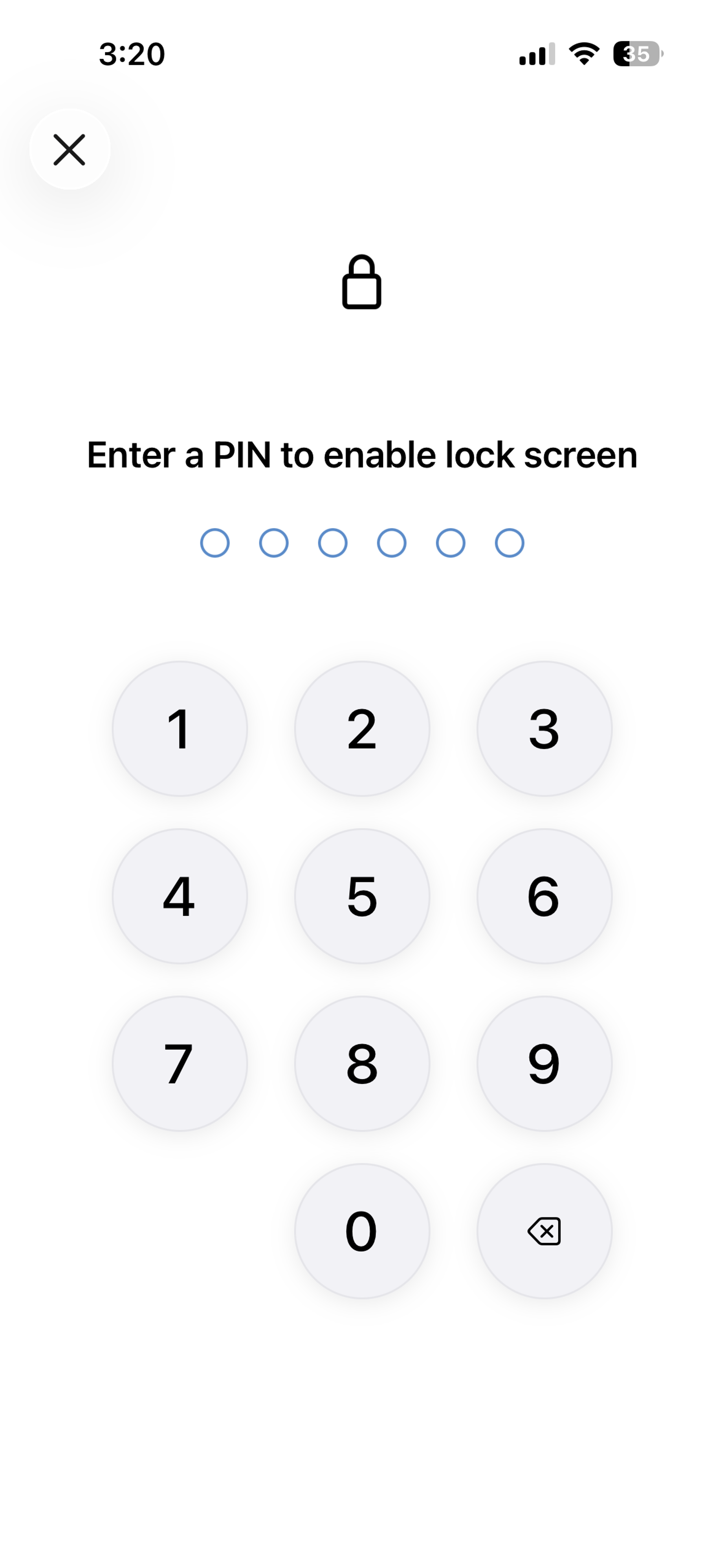
4. Set up a PIN number and confirm it to enable the lock screen.
5. [iOS App only and Optional] Toggle on Unlock with Face ID to enable the option to unlock the Mobile App with Face ID, and have the PIN number as a backup option for when Face ID fails.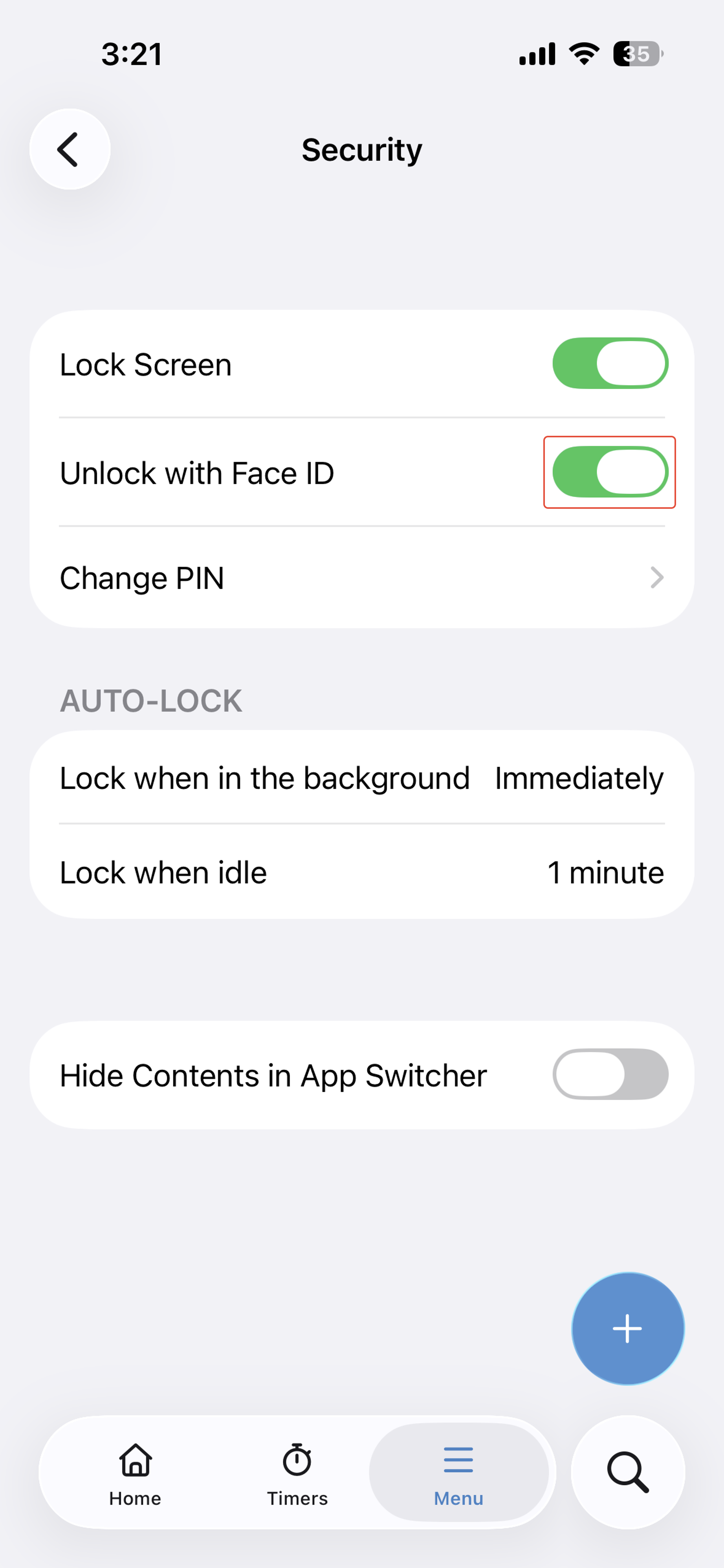
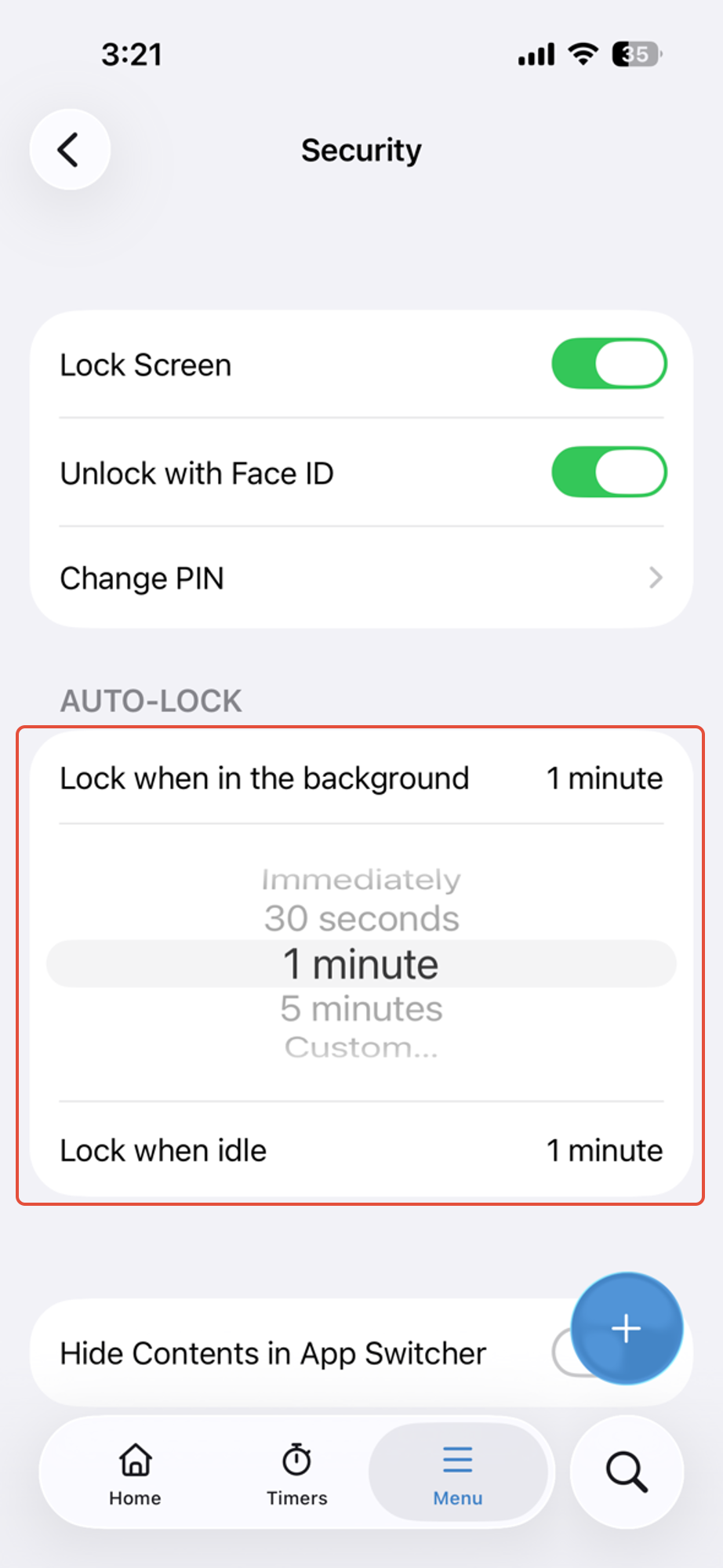
6. After you enable the Lock Screen, set how long it takes to auto-lock in two situations:
- Lock when in the background: when you switch away from the app
- Lock when idle: when the app is open on screen but not in use
Was this article helpful?
That’s Great!
Thank you for your feedback
Sorry! We couldn't be helpful
Thank you for your feedback
Feedback sent
We appreciate your effort and will try to fix the article