

Learn how to connect your Cloudchat phone system, powered by 3CX to triConvey.
Table of Contents
- Getting Started
- What is CloudChat
- Before you begin
- Connecting 3CX to triConvey
- How the 3CX Integration works
Getting Started
triConvey is built on Smokeball, so when you connect a third-party app you'll be asked to authorise Smokeball, even though you're setting it up from triConvey.
What is CloudChat
Cloudchat is a provider of physical phone systems in Australia. 3CX is a communications software that integrates with Cloudchat phones. For more information on Cloudchat and 3CX, refer to the Cloudchat website.
A note on support scope

triConvey integrates with this third-party solution but does not develop or manage it. Our support team can assist with issues related to the integration not functioning correctly within triConvey (e.g., it's not appearing or working as expected). Questions about the tool's functionality, features, or capabilities should be directed to CloudChat (https://www.cloudchat.com.au/).
Before you begin
You must be an Admin of the 3CX phone system configured to your firm.
Connecting 3CX to triConvey
1. Log in to the 3CX Admin Console.
2. Select Settings from the left menu, then select Integrations.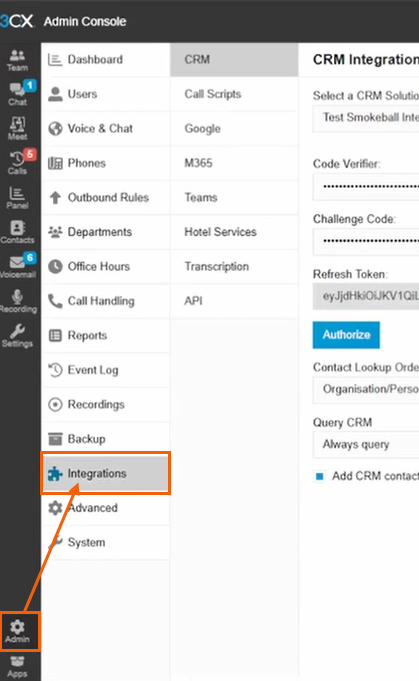
3. Select Authorize.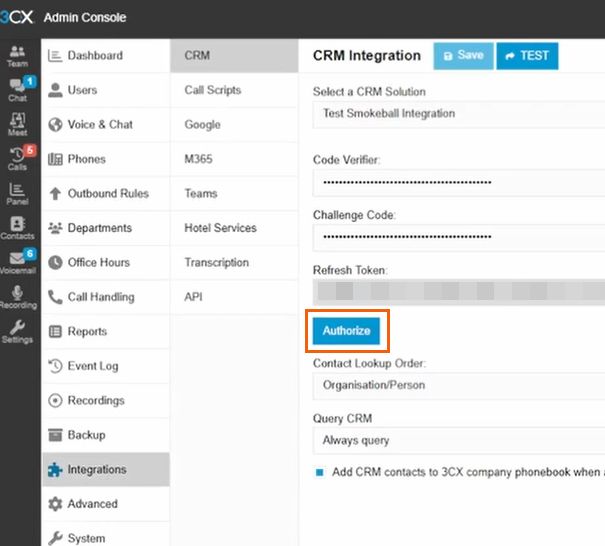
4. Enter your triConvey login details on the next page, then select Sign in.
5. Navigate back to 3CX once you have successfully connected.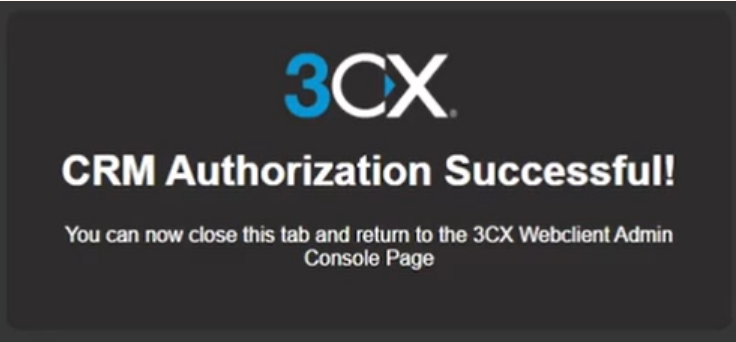
How the 3CX Integration works
This integration works by syncing triConvey contacts to 3CX, allowing you to search for contacts to call from 3CX.
You can search for triConvey contacts in the Contacts page or the Dialler by entering their Name, Phone Number or Email.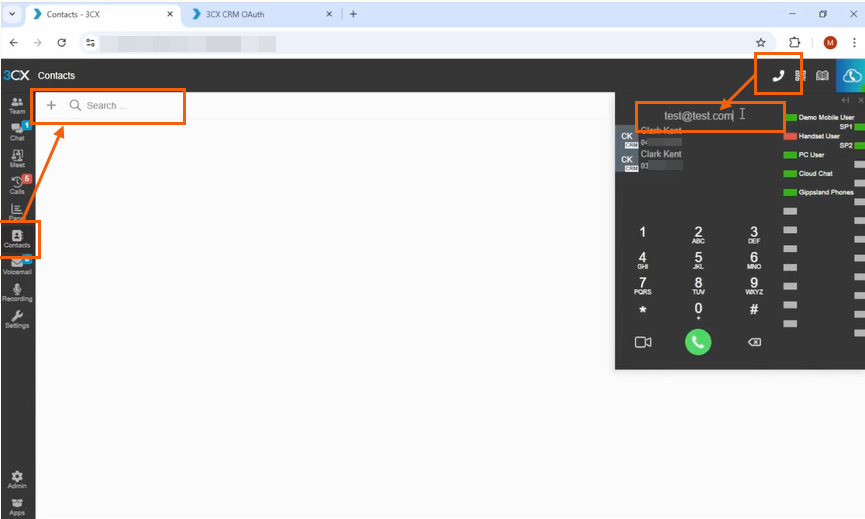
triConvey contacts will also appear when you search on the 3CX web client, desktop app, Android/iOS app or Cloudchat handset.
When calling a contact via the Dialler, clicking on the CRM link next to their name will open the corresponding contact card in the triConvey Companion Site Web App.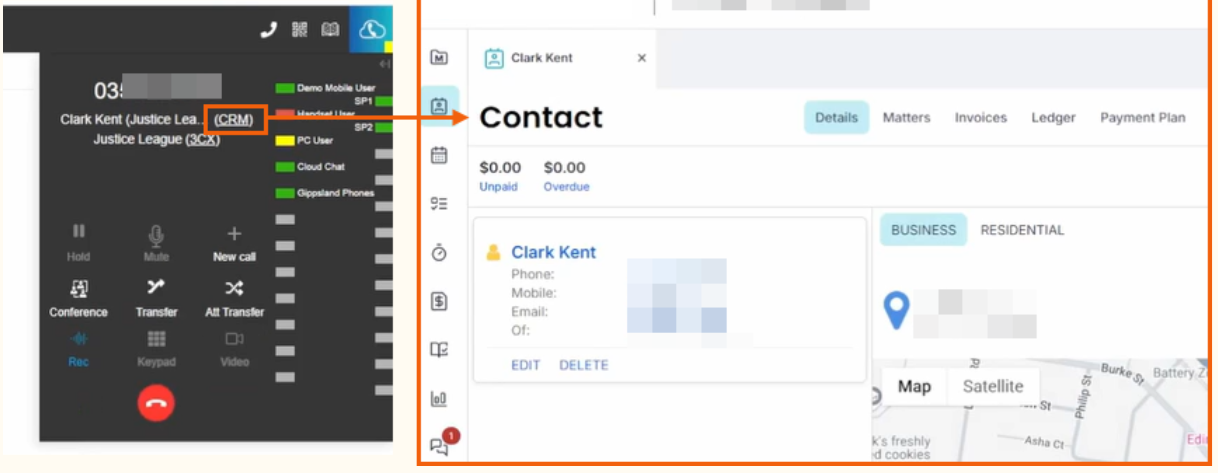
You can change this behaviour by navigating to Settings > Integrations from the left menu. By default, it is set to Off.
If you set it to Open Contact URL using Server Side CRM Integration, this will open triConvey whenever you click on the green call button on the Dialler.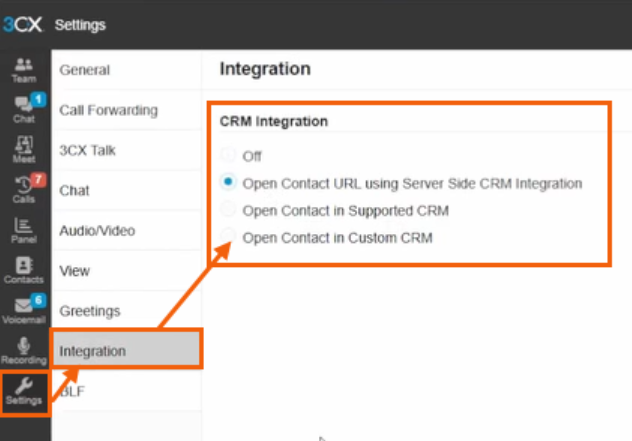
Was this article helpful?
That’s Great!
Thank you for your feedback
Sorry! We couldn't be helpful
Thank you for your feedback
Feedback sent
We appreciate your effort and will try to fix the article