

Learn how to integrate triConvey with CloudCTI, syncing incoming callers with contacts in triConvey.
Table of Contents
- Getting Started
- What can be synced with triConvey
- Connecting triConvey to CloudCTI
- Using the Click-to-Call feature
- Additional features in the CloudCTI Integration
Getting Started
triConvey is built on Smokeball, so when you connect a third-party app you'll be asked to authorise Smokeball, even though you're setting it up from triConvey.
What can be synced with triConvey
The following CloudCTI features can be synced with triConvey:
- Click-to-call
- Multiple contact recognition
- Call registration, at the end of a call
- Adding a call note
A note on support scope

triConvey integrates with this third-party solution but does not develop or manage it. Our support team can assist with issues related to the integration not functioning correctly within triConvey (e.g., it's not appearing or working as expected). Questions about the tool's functionality, features, or capabilities should be directed to CloudCTI (https://cloudcti.nl/).
Connecting triConvey to CloudCTI
1. Sign into the CloudCTI Webconfigurator.
2. Select Add New Integration.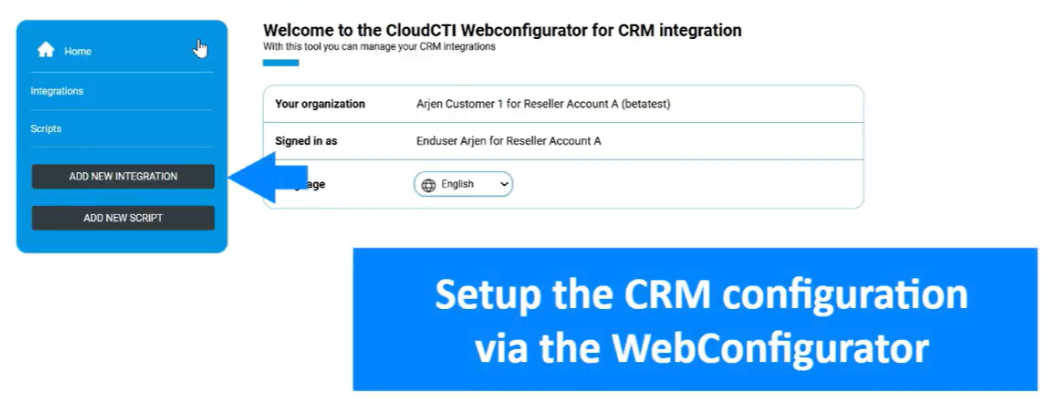
3. In the Integration Template Library, use the search bar to find "Smokeball" and then click the Configure button.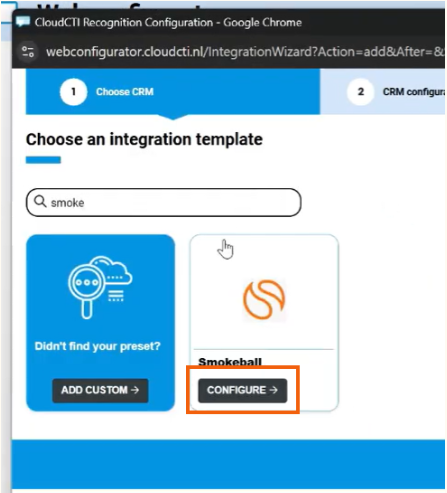
4. On the Authorize access to the API screen, choose "Australia" under the Region drop-down menu.
5. Enter https://app.smokeball.com.au/ in the Host URL field.
6. Select Connect.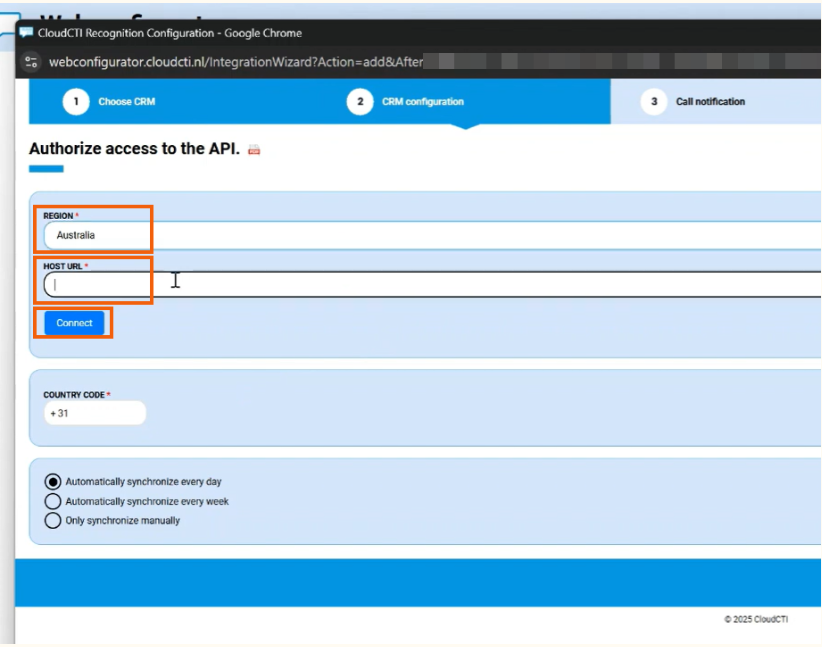
7. Follow the prompts to sign into triConvey. If successfully connected, the message Smokeball connection token received successfully will appear under the Host URL field.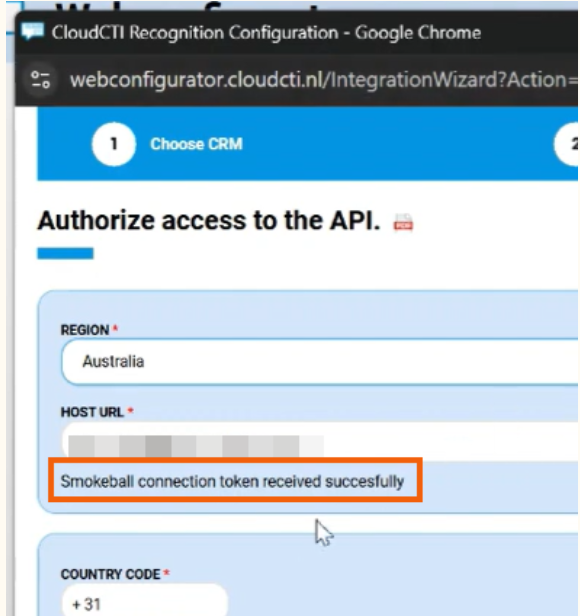
8. Select Next to configure the layout of the incoming call notification. You can customise the header and up to four lines of information using variables like contact name, email, and phone number.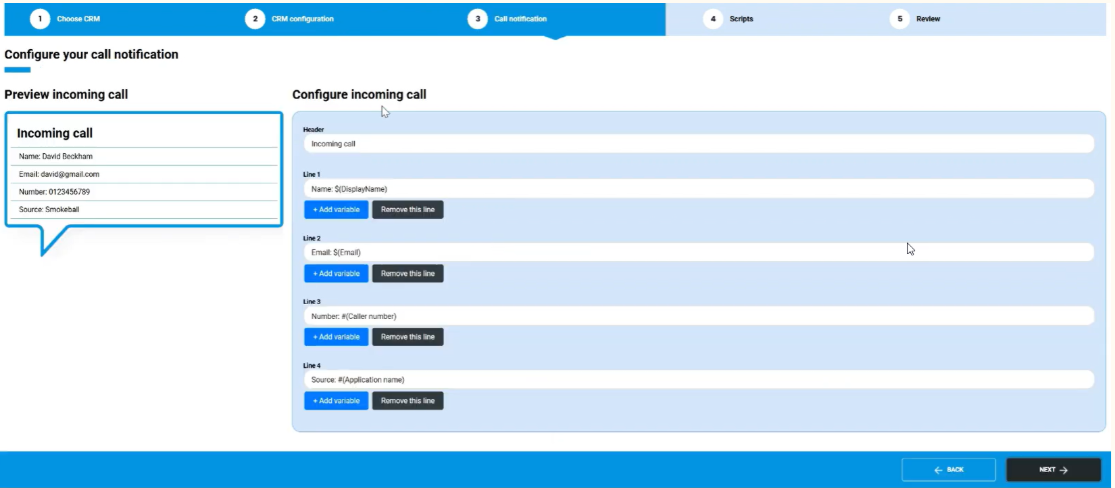
9. Select Next and review the available actions for incoming calls.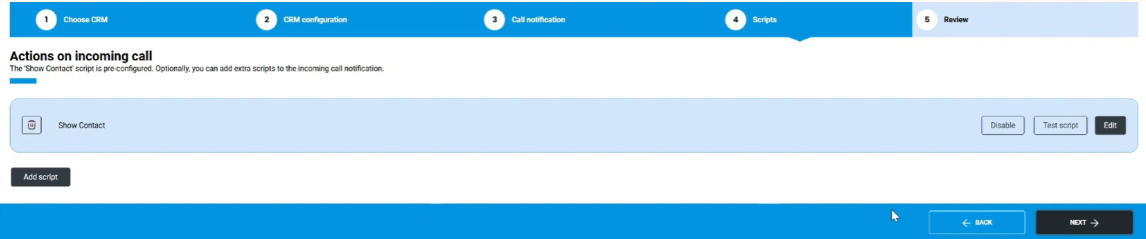
10. Select Next to review all settings, then select Finish.

Using the Click-to-Call feature
Use this feature whenever you are viewing a contact's record in triConvey and want to call them quickly. It eliminates the need to manually copy or type the phone number into your dialer.
1. Log in to the triConvey Companion Site Web App and navigate to the Contacts section.
2. Click on the contact you wish to call.
3. Locate the phone number you want to dial within the contact's record. The integration will automatically recognise and highlight the number, making it clickable.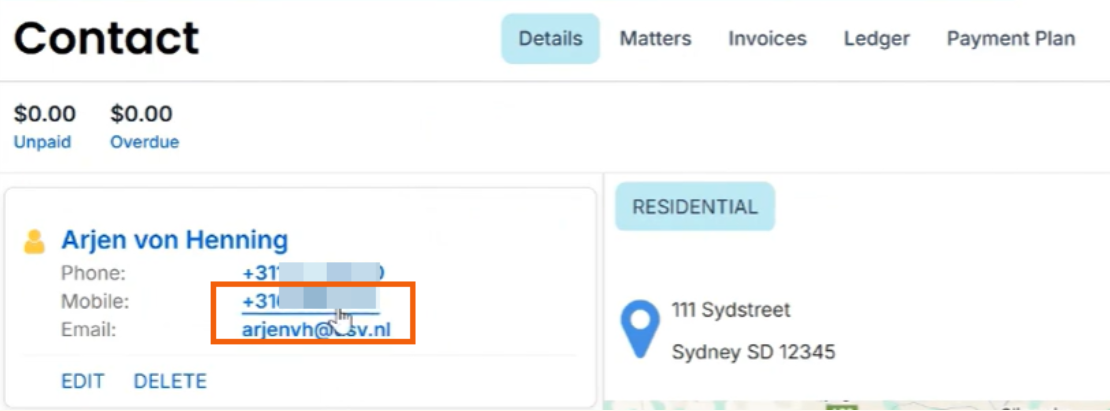
4. Upon clicking the number, CloudCTI will instantly launch and begin dialing the selected number.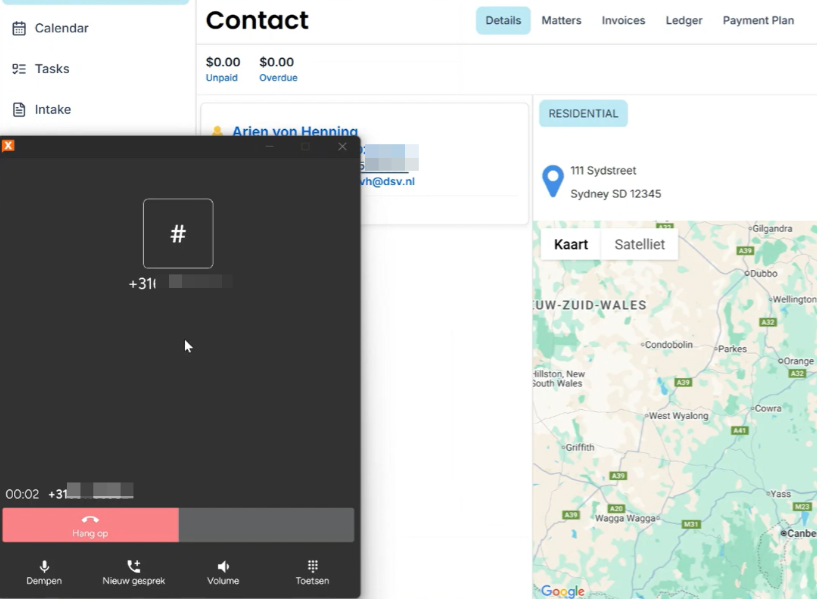
Additional features in the CloudCTI Integration
When you click Show Contact in the CloudCTI webclient, the contact record will open in the triConvey Companion Site Web App.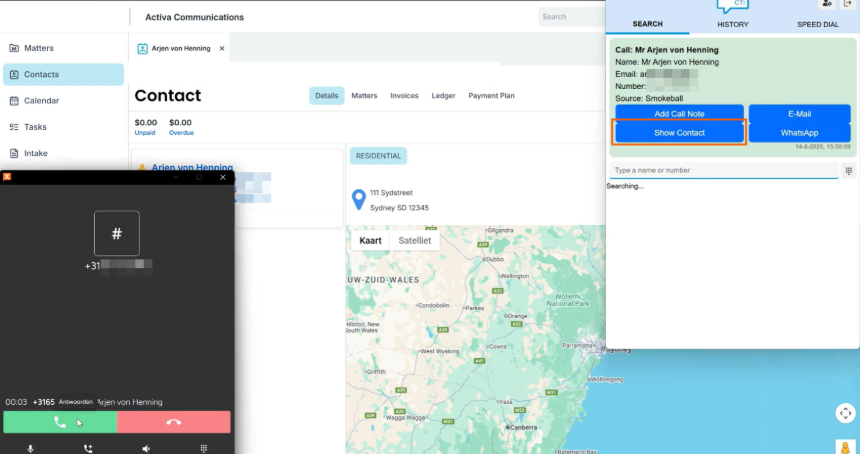
Selecting Add Call Note will open up the Add Task menu in the triConvey Companion Site Web App.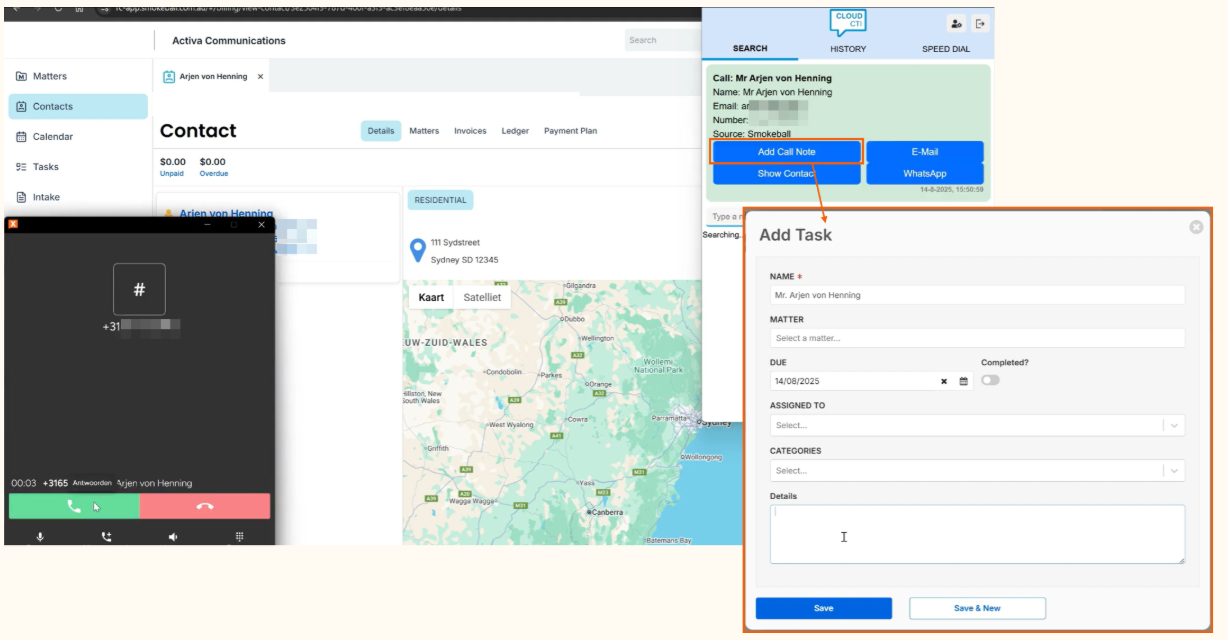
Upon hanging up on a call, an inbound call Task will be created in the triConvey Companion Site Web App.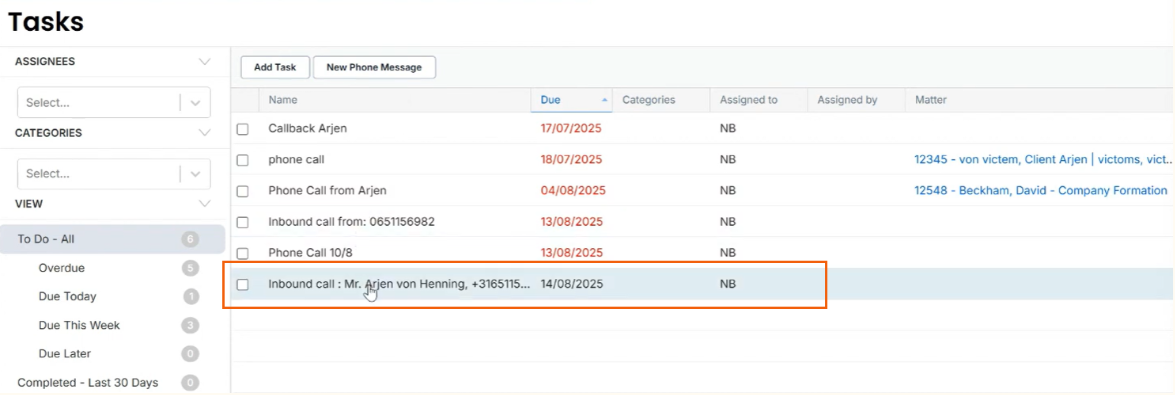
Was this article helpful?
That’s Great!
Thank you for your feedback
Sorry! We couldn't be helpful
Thank you for your feedback
Feedback sent
We appreciate your effort and will try to fix the article