

Learn how to connect File Republic Productivity (formerly known as BundlePro) to triConvey and generate a File Republic bundle from your triConvey files.
Table of Contents
- Getting Started
- Connecting to File Republic
- Generating a File Republic bundle from your triConvey matter
- Saving the bundle to your triConvey matter
This article relates to the File Republic Productivity App and its integration with triConvey. Refer to the File Republic Storage Integration article if you're looking for an integration with the File Republic Storage App (formerly known as FileMan).Getting Started
triConvey is built on Smokeball, so when you connect a third-party app you'll be asked to authorise Smokeball, even though you're setting it up from triConvey.
A note on support scope

triConvey integrates with this third-party solution but does not develop or manage it. Our support team can assist with issues related to the integration not functioning correctly within Smokeball (e.g., it's not appearing or working as expected). Questions about the tool's functionality, features, or capabilities should be directed to File Republic (https://www.filerepublic.com.au/).
Connecting to File Republic
1. Log into your File Republic account.
2. Navigate to the Productivity app.
3. Select your name on the top-right corner and click on System Settings.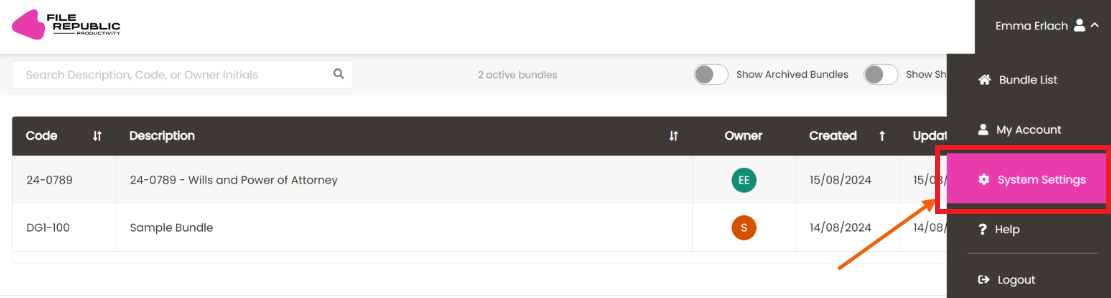
4. Authenticate the connection between File Republic and triConvey by logging in using your triConvey credentials.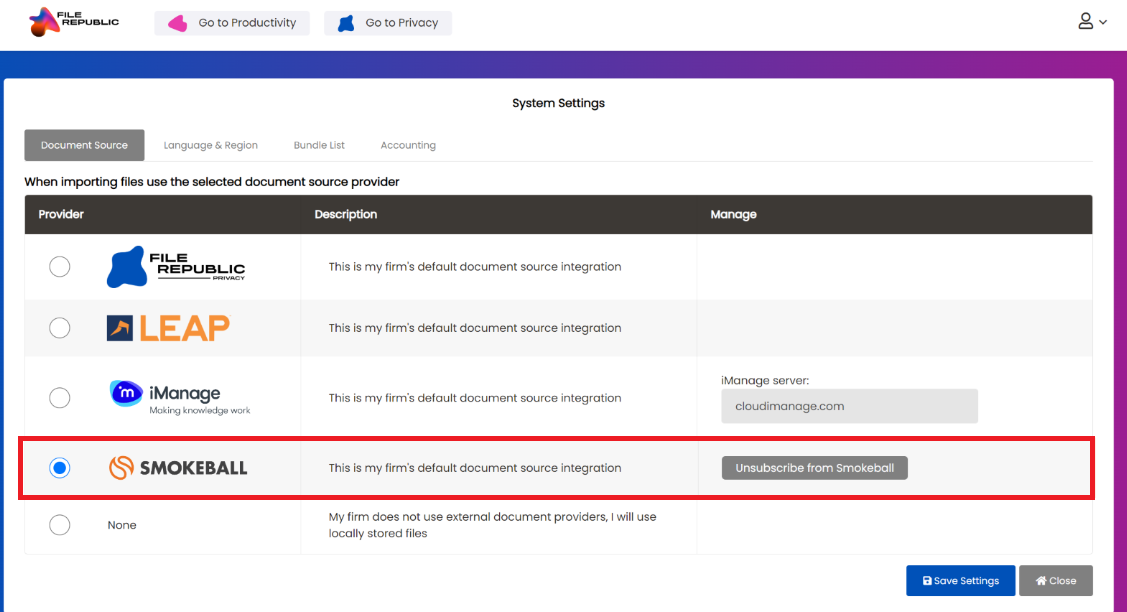
Generating a File Republic bundle from your triConvey matter
1. Open a matter file and select the File Republic button from the matter action bar.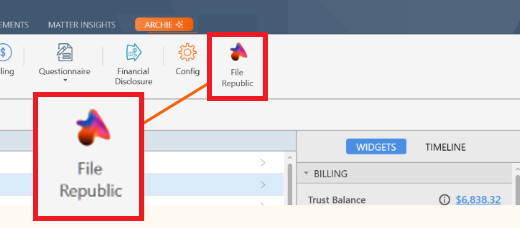
2. Log in using your File Republic credentials. Select Remember Me to reduce the number of times it prompts you to log in.
3. The matter number should populate into the File Republic window. Select Create Bundle.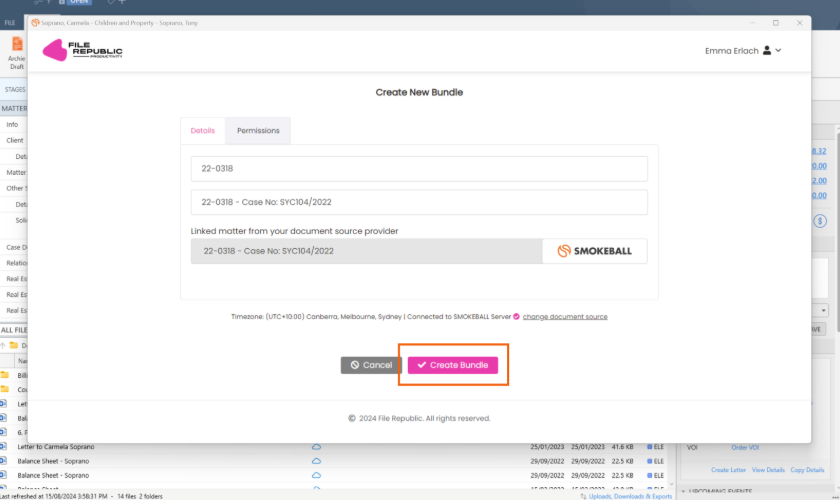
4. To add files from triConvey to the bundle, select Add Files from the left panel.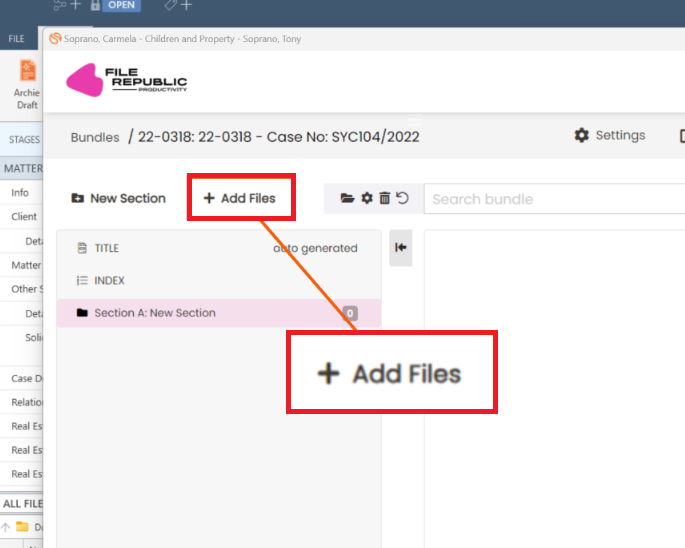
5. Select Import from Smokeball.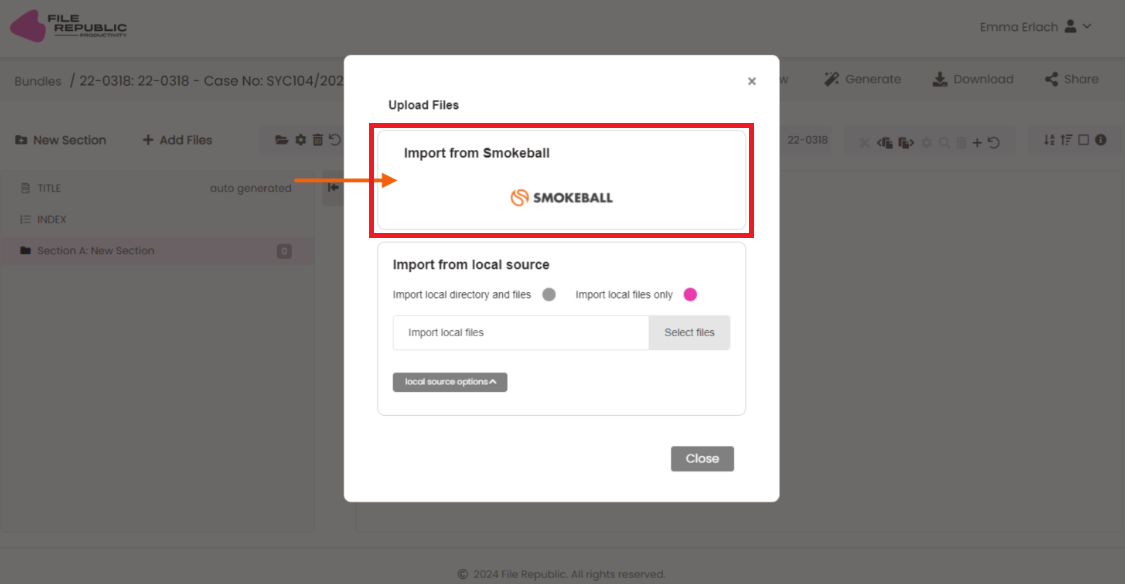
6. Click on specific documents or select all documents from your triConvey matter.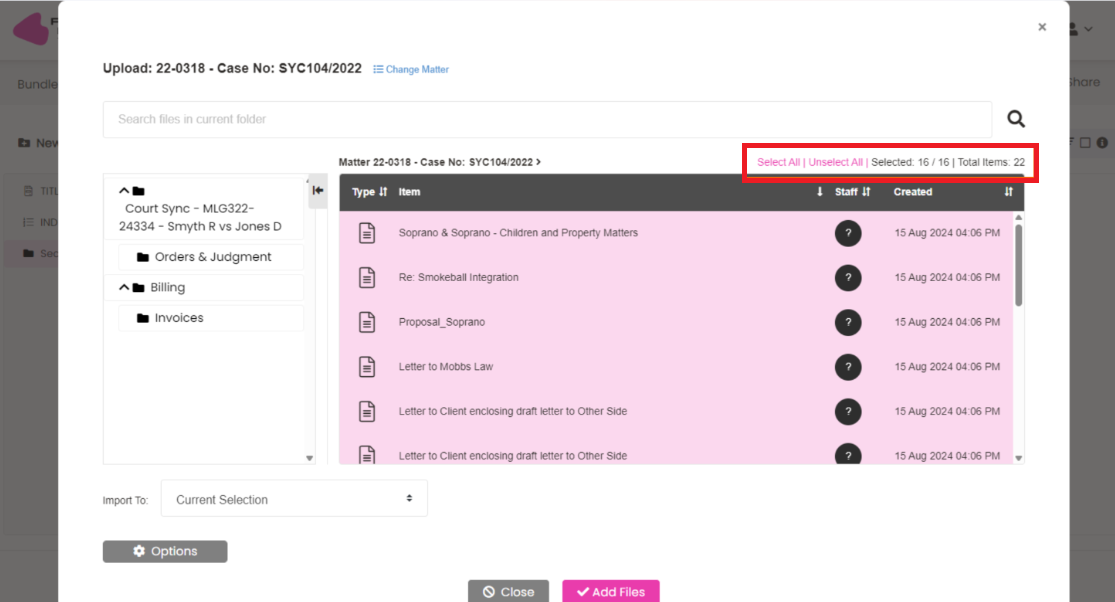
Once a file is synced, it will display a checkmark to indicate that it is now available in your File Republic bundle.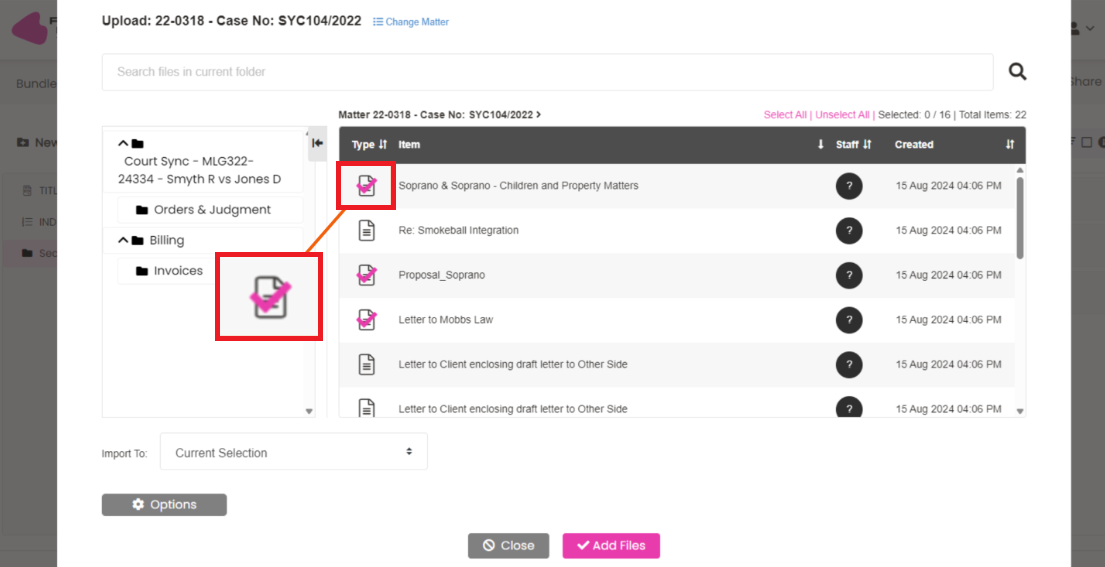
7. Select Close at the bottom of the window.
Saving the bundle to your triConvey matter
1. To save your bundle back to triConvey, select Generate.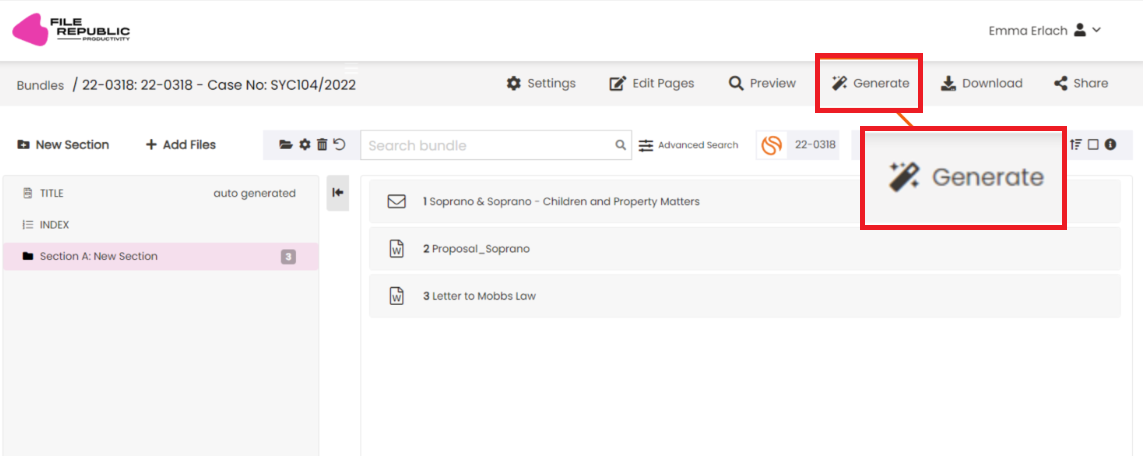
2. Configure the bundle to your liking using the tabs on the left menu, then select OK.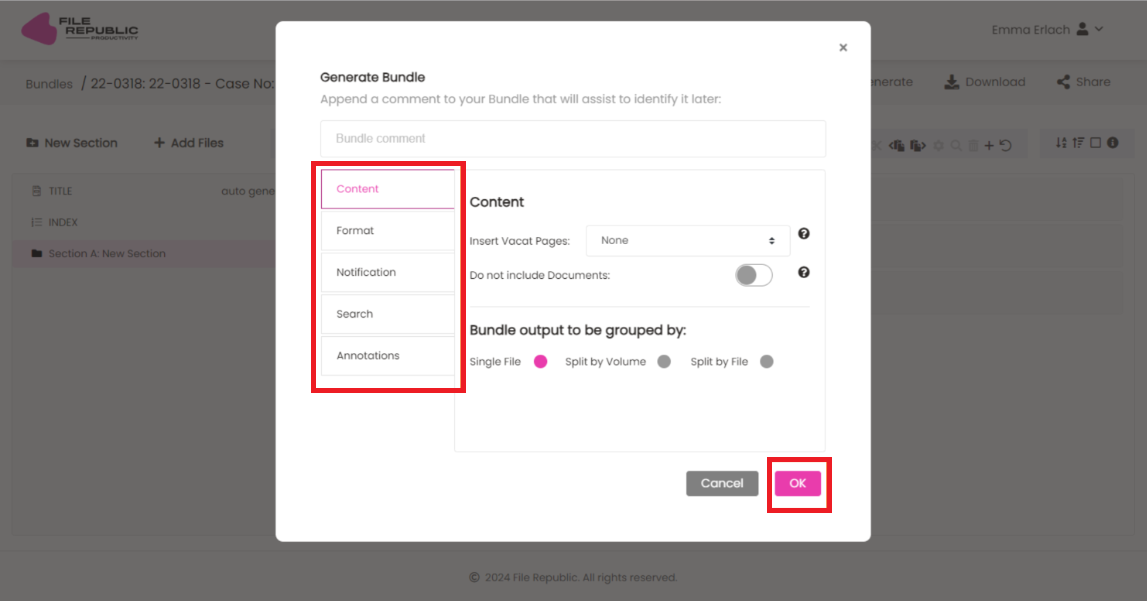
3. Once the bundle has been generated, select the cloud icon to Import to Smokeball.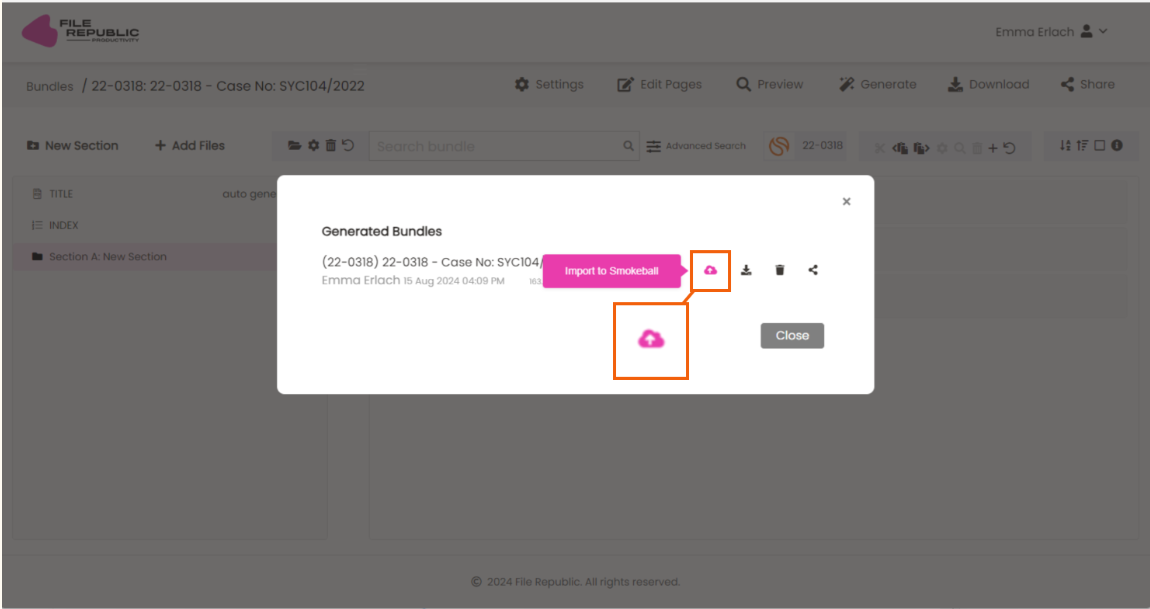
The bundle will now be available on your triConvey matter in the File Republic Generated Bundles folder.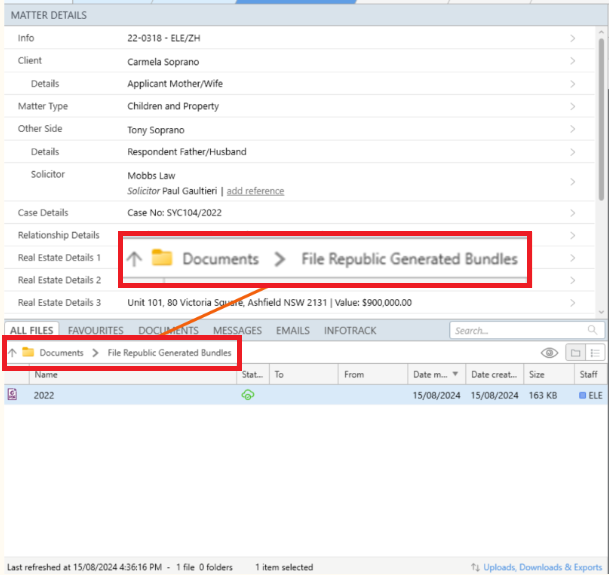
Was this article helpful?
That’s Great!
Thank you for your feedback
Sorry! We couldn't be helpful
Thank you for your feedback
Feedback sent
We appreciate your effort and will try to fix the article