

Learn how to use the Contact details component in the Intake Form builder to add, configure and save pre-made sets of contact fields that you can reuse on other forms.
Table of Contents
Getting Started
Navigate to the Intake Forms window from either the:
triConvey Desktop App
Select File from the top-left corner of triConvey, then select Intake Forms.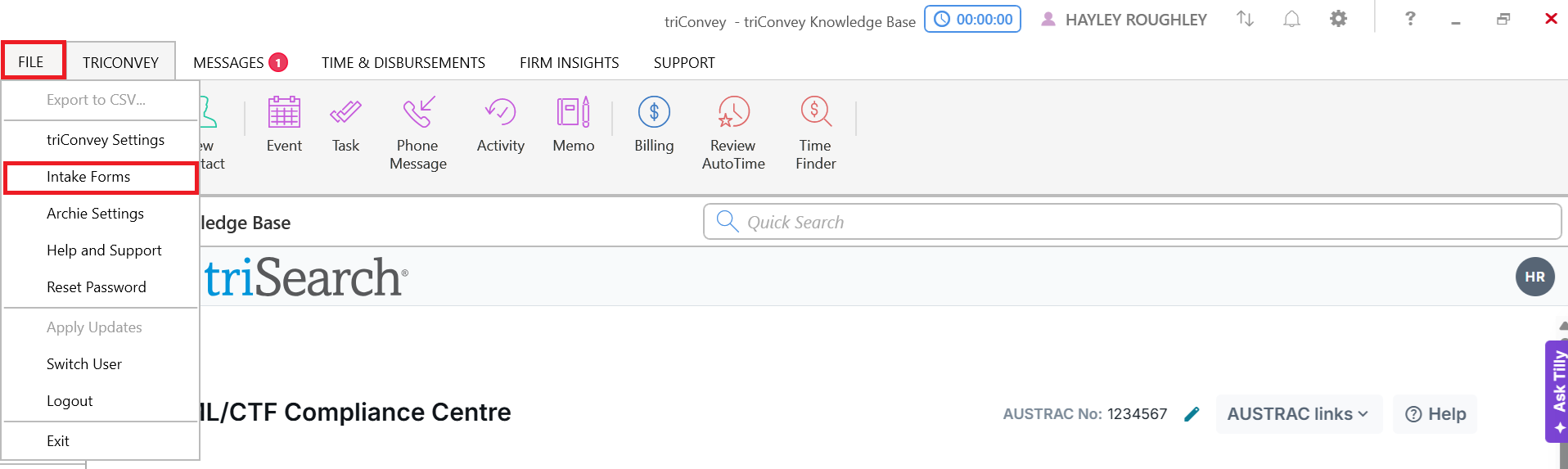
triConvey Companion Site Web App
Select the gear icon from the bottom-left corner, then select Intake Forms.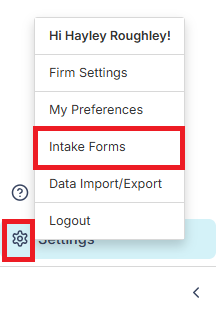
Add Contact Details component
1. Click on an Intake Form to open it in the Intake Form Builder.
2. Drag the Contact details component into the main form section.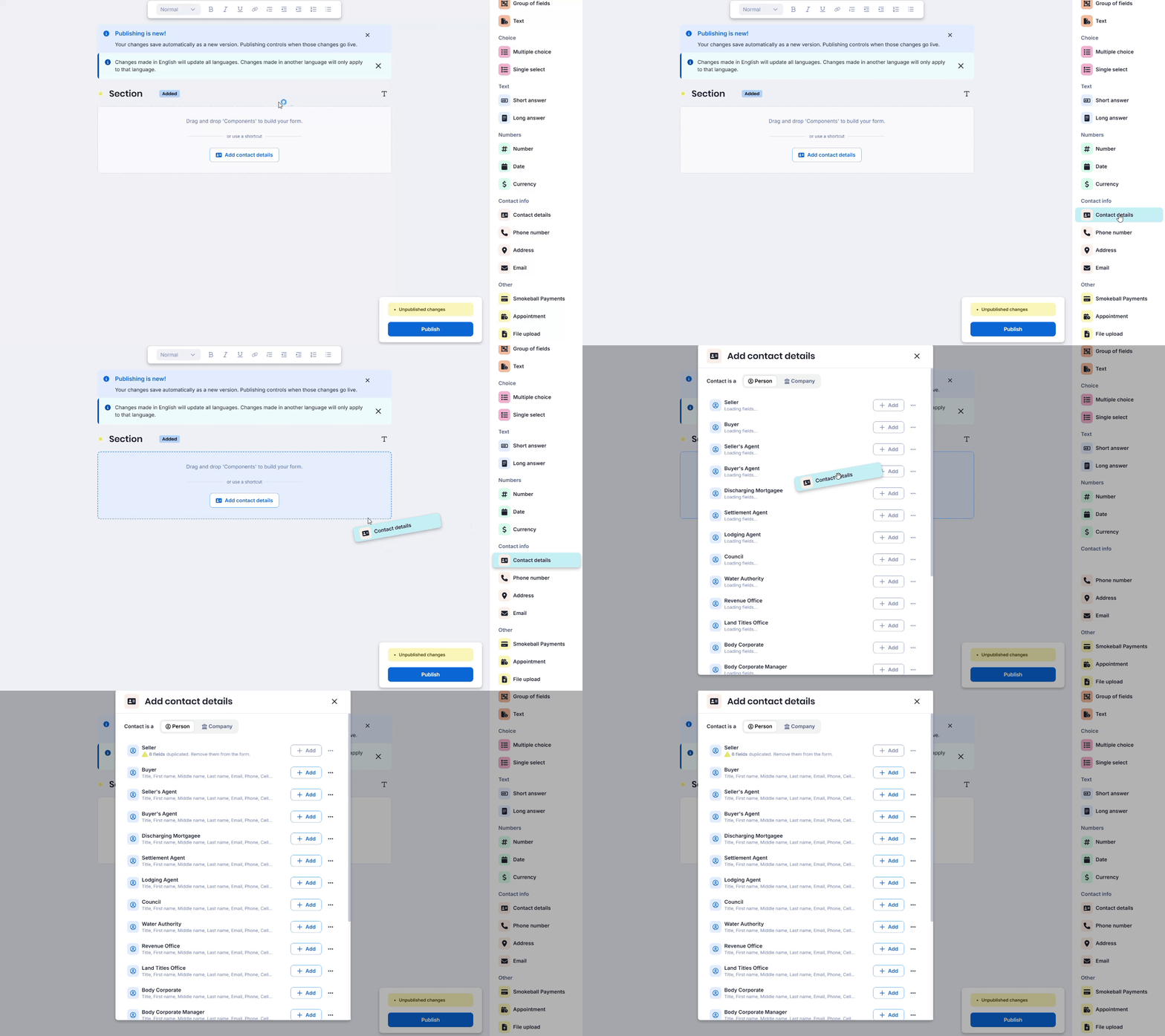
If the section is empty, you can also click Add contact details on the middle of the screen.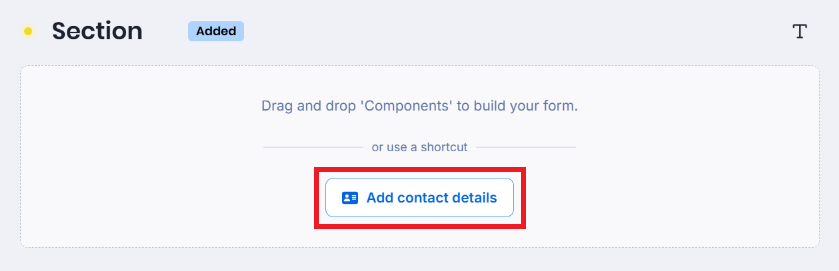
3. Choose whether you wish to add Person or Company contact fields.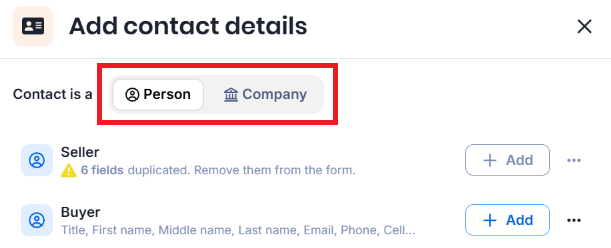
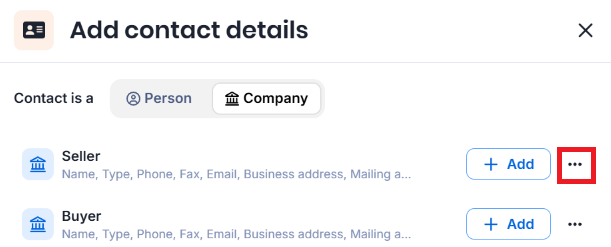
4. Select the Ellipsis (three dots icon) on the right-hand side of the role you wish to add. This opens a new section where you can check the fields to be added.
 | 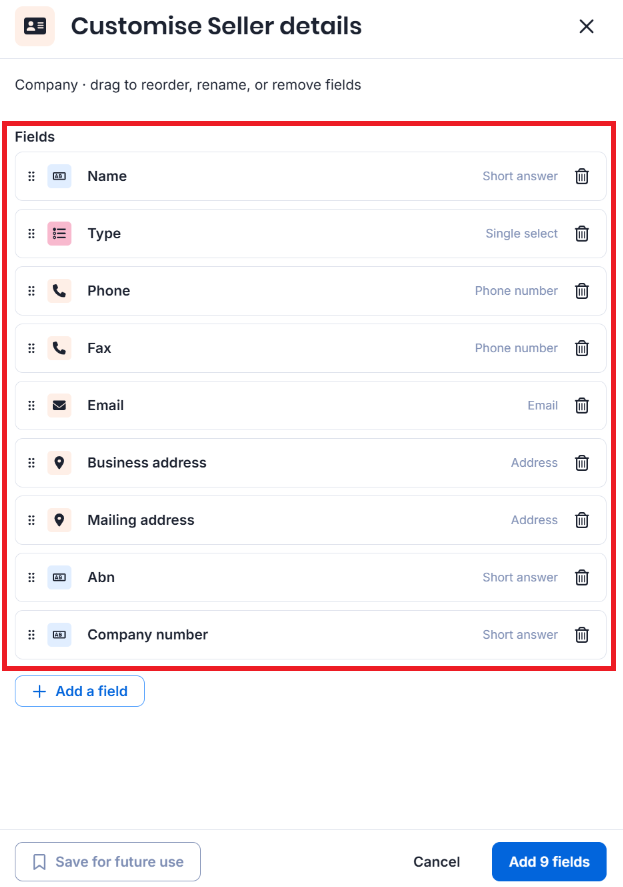 |
- You can add, reorder or delete fields in this list.
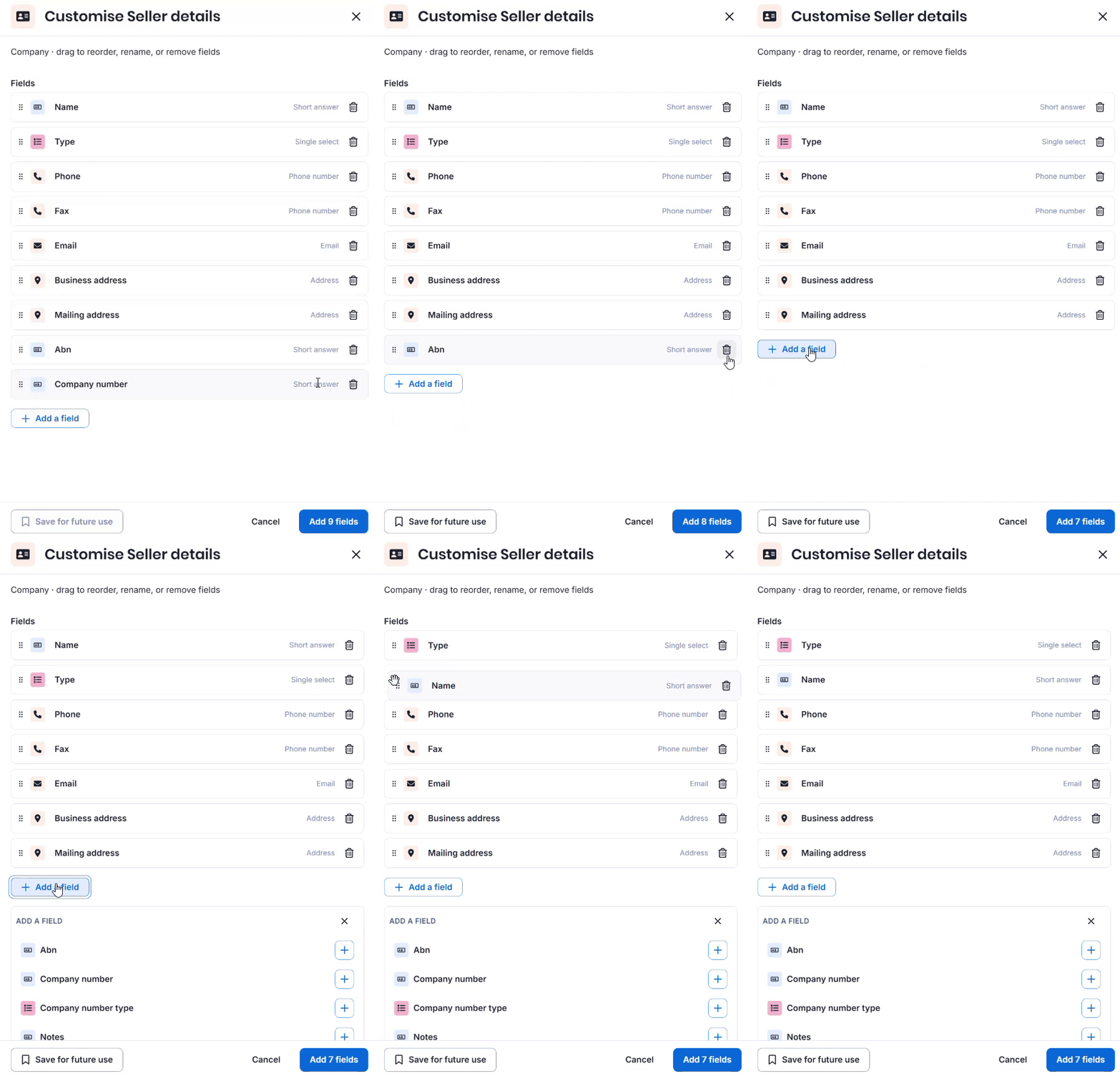
- To reuse your edited configuration on future Intake Forms, select Save for future use and name the new field set.
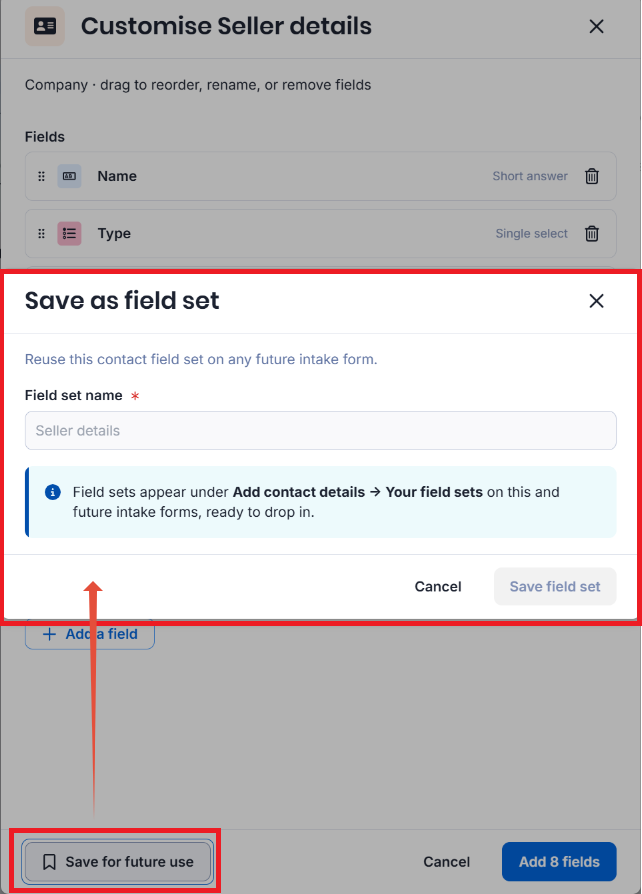
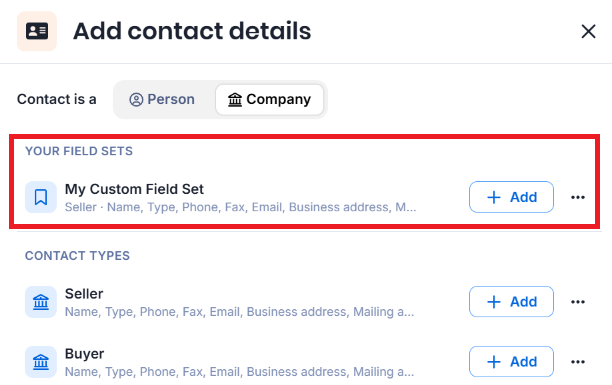
- Custom field sets appear under the Your Field Sets section in the main Add contact details window.
5. Select Add fields to add the contact fields into the form.
The next time you add the field set, you can quickly click +Add from the main Add contact details window.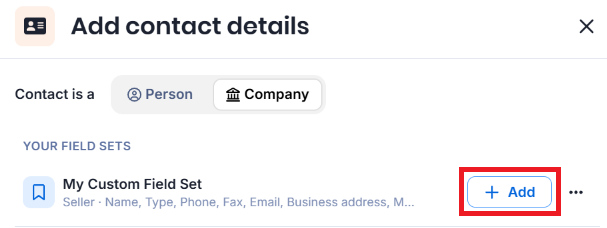
Good to know
- You can link a role to only one set of contact fields. If the form already has contact fields for a role, that role is not available.
- You can edit a component after you add it. The changes apply to that form only.
- Contact field sets contain only contact fields. They do not contain other component types, such as short answer or multi-select.
- Saved custom field sets are visible to the whole firm. They appear on any form for a matter type that has the same role.
- You cannot combine Person and Company contact detail components.
- A contact field is unavailable for selection when the form already contains that field. To use it, remove it from the form first, or select a different role.
Was this article helpful?
That’s Great!
Thank you for your feedback
Sorry! We couldn't be helpful
Thank you for your feedback
Feedback sent
We appreciate your effort and will try to fix the article