

Learn how to turn your firm's document review checklist into Playbooks, enabling a consistent experience for all staff when they review documents.
Table of Contents
- Getting Started
- Accessing the Archie Word Add-in
- Accessing Playbooks
- Creating a Playbook
- Editing, duplicating or deleting a Playbook
- Running a Playbook
- Understanding Playbook results
- Frequently Asked Questions
Getting Started
A Playbook is your firm's review checklist, saved so you can run it over any document.
Each item in a Playbook is called a Rule. When you run a Playbook, Archie reads the words in the document and, for every rule, tells you what it found and, where it can, offers you an action.
Read on to learn how to create a Playbook and rules for that Playbook.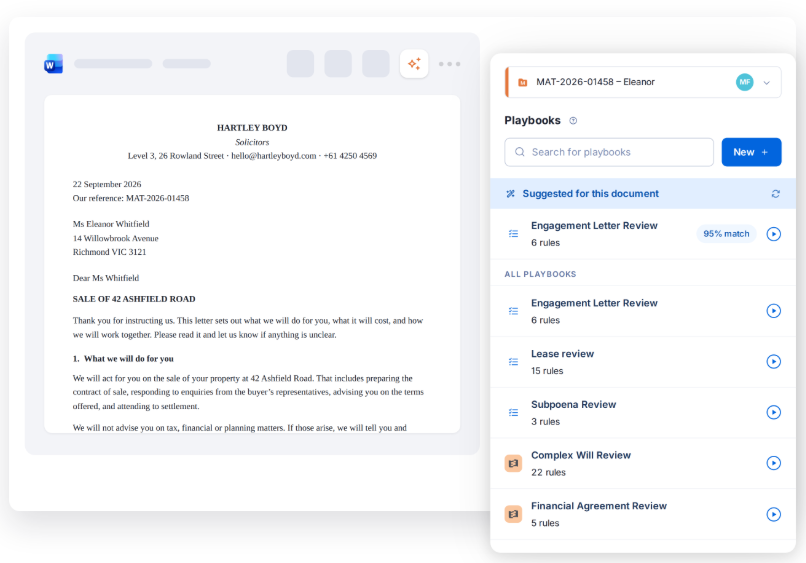
Accessing the Archie Word Add-in
To get started, open the Archie add-in in Microsoft Word.
1. Open the Microsoft Word App on your PC.
2. Select Archie on the top-right corner of the Word toolbar.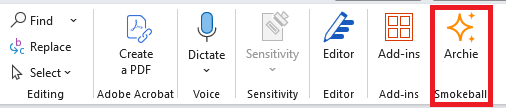
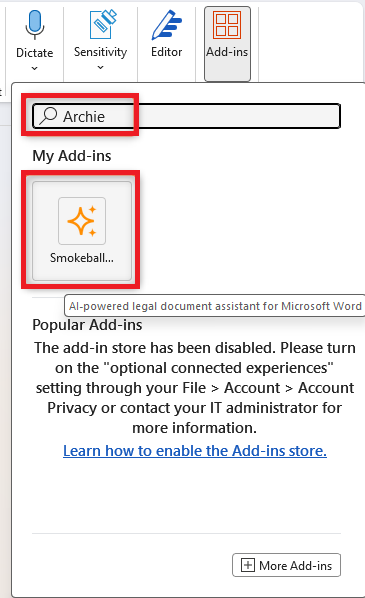
- If it's not there, select Add-ins, located on the right-hand side of the Word ribbon.

- Search for "Archie" and select the Archie add-in.
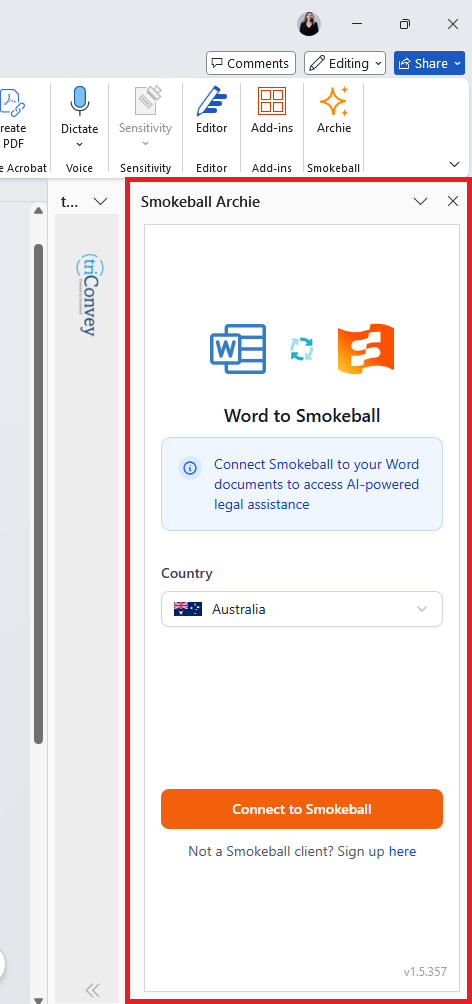
- The Archie Word add-in will appear on the right-hand side of Word. Log in with your triConvey email, password and 2FA code when prompted.
Accessing Playbooks
To access the Playbooks section in the Word add-in, select Review on the bottom-right corner of the panel.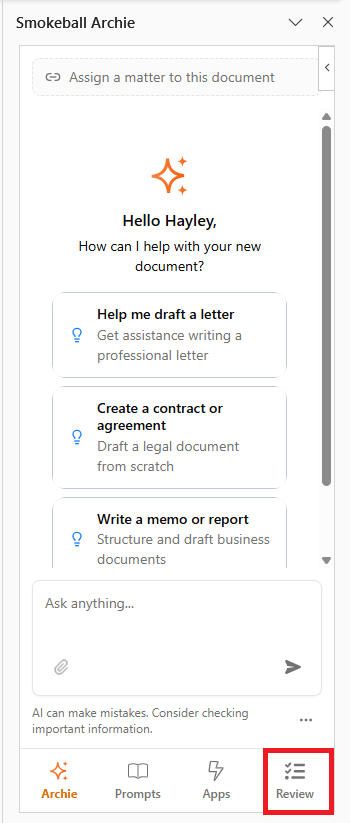
The Playbooks panel will show some pre-configured Playbooks created by us, and suggest Playbooks for you to run if it believes it is relevant for this document.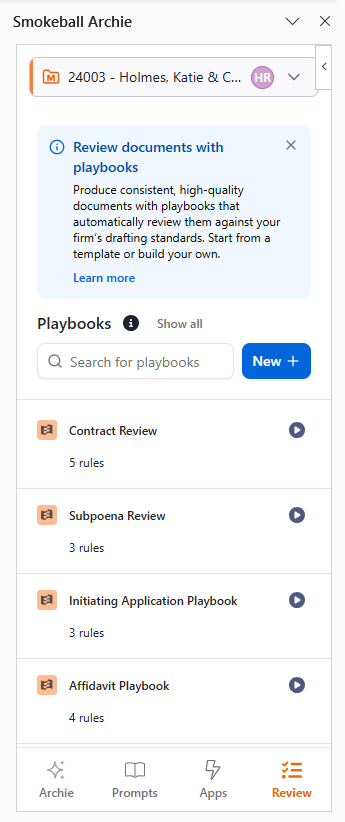
Creating a Playbook
To create a new Playbook for your firm:
1. Click New+.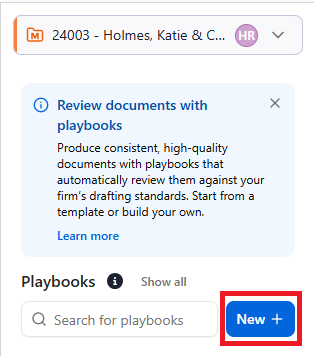
2. Enter a Name and Description of the Playbook, then choose the State/s and Matter Type/s that this Playbook should appear on.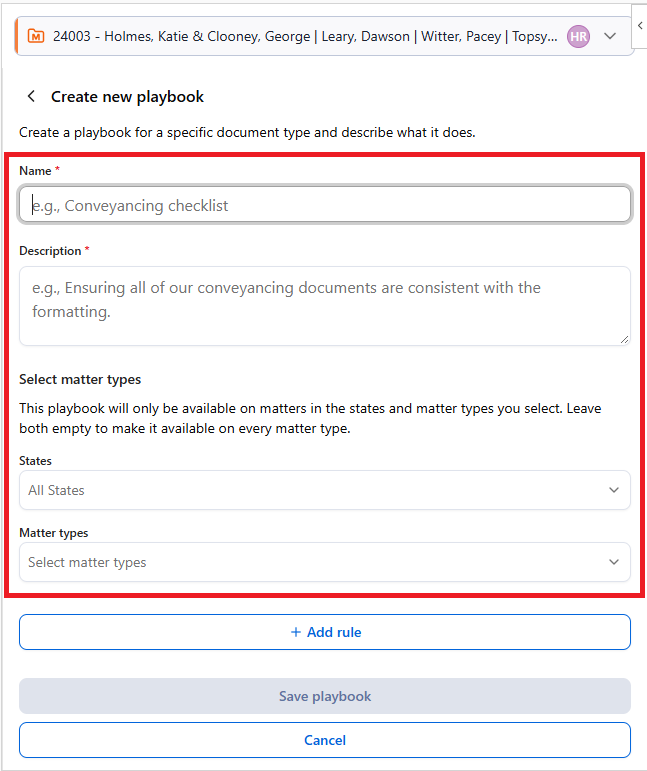
3. Select Add Rule and enter a Rule name.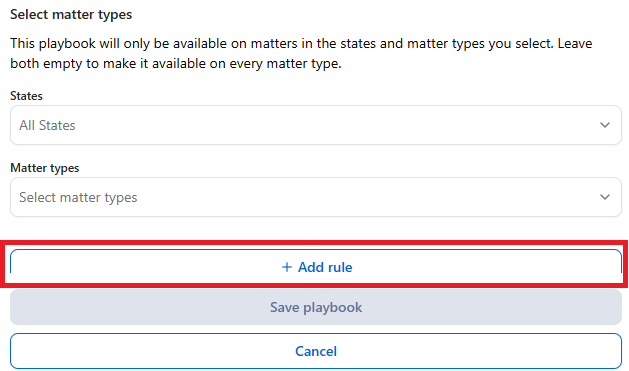
4. In the Instructions text box, enter plain-language instructions telling Archie what to check.
- Archie reads the document's text, paragraph metadata, list numbering and nesting levels, and paragraph styles.
- It's best practice to write a rule that describes something Archie can locate in the text.
- A good rule reads like "there is a confidentiality clause and it survives termination", not like "the parties are correct".
- A good rule reads like "there is a confidentiality clause and it survives termination", not like "the parties are correct".
- The Rule instructions can be written to check more than one thing; each distinct thing it checks is a Condition.
- For example, your rule called "Payment terms" can include three bullet-points to check that an amount is stated, a due date is given, and that late-payment interest is mentioned. Archie will find every instance these conditions appear in the document.
- For example, your rule called "Payment terms" can include three bullet-points to check that an amount is stated, a due date is given, and that late-payment interest is mentioned. Archie will find every instance these conditions appear in the document.
- Learn more about best practices for creating Archie Playbooks.
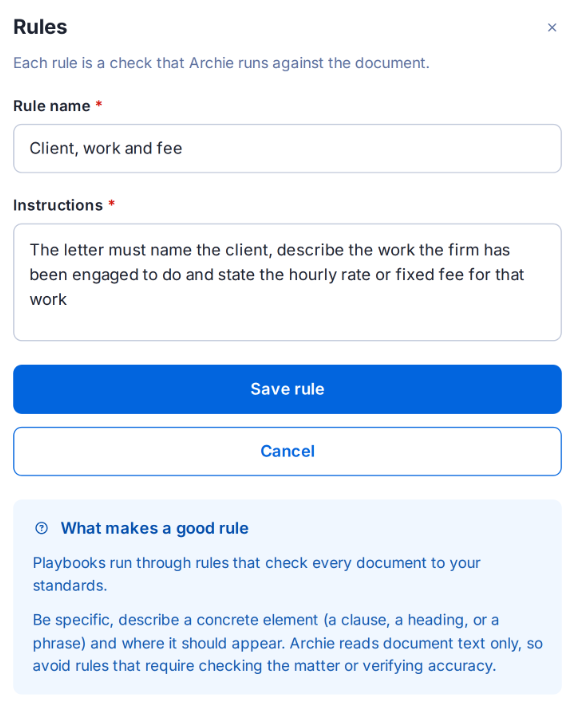
5. Select Save rule.
6. You can add up to 50 rules in a Playbook. Once you're done, select Save Playbook.
Editing, duplicating or deleting a Playbook
You can edit, duplicate or delete a Playbook by hovering over the Playbook name and selecting the Pencil icon to edit, the Duplicate icon to duplicate it, or the Trash icon to delete it.
Note: Playbooks created by triConvey cannot be edited or deleted, however they can be duplicated.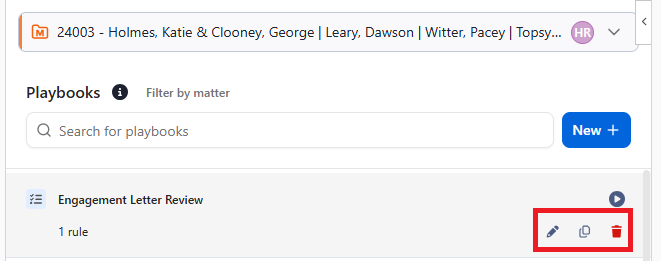
Running a Playbook
To run a Playbook, click on the Play icon next to it. Archie will then start the document review based on your defined rules in the Playbook.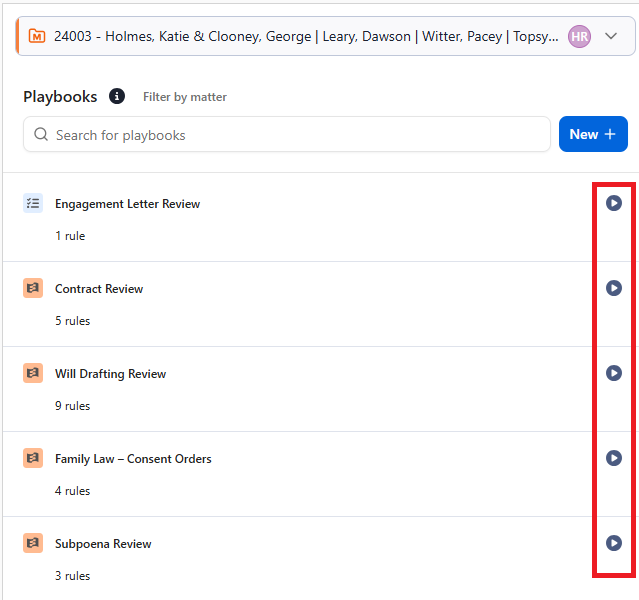
Understanding Playbook results
Once Archie has finished running the Playbook, a bar will appear at the top which summarises the findings.
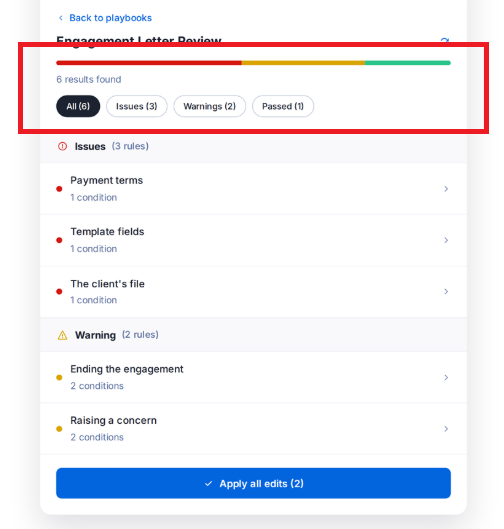
Rules are grouped by outcome:
- Issues/Failed - The conditions are missing entirely, completely wrong, or the wording works against it (i.e. the opposite of the rule has been found in the document).
- Warnings - The conditions are partly met. They are present but fall short of best practice and need human intervention (i.e. weak, vague or could be stronger).
- Passed - The condition is fully met.
A Rule takes the worst status of its conditions. For example, one Failed condition shows as the whole Rule failed, even if the rest of the conditions passed. Click on a rule for the full breakdown.
The header shows the Rule name, along with a number in brackets. This number signifies how many conditions it contains. In the example below, "Ending the engagement (2)" is one rule made of two separate checks.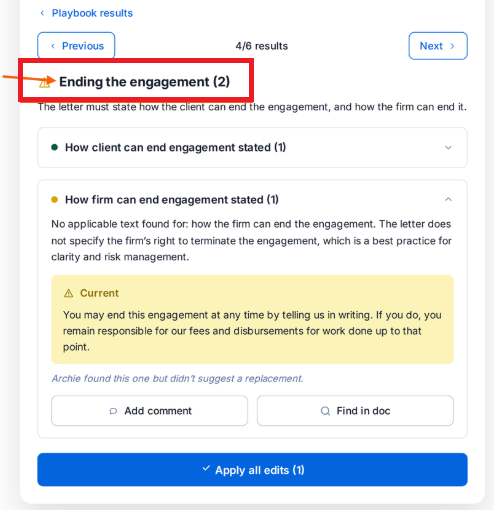
Click on a condition to find out why it was flagged. Depending on the nature of the condition, the following actions can be taken:
- Add comment - Adds a Word comment at the location of the finding in the document.
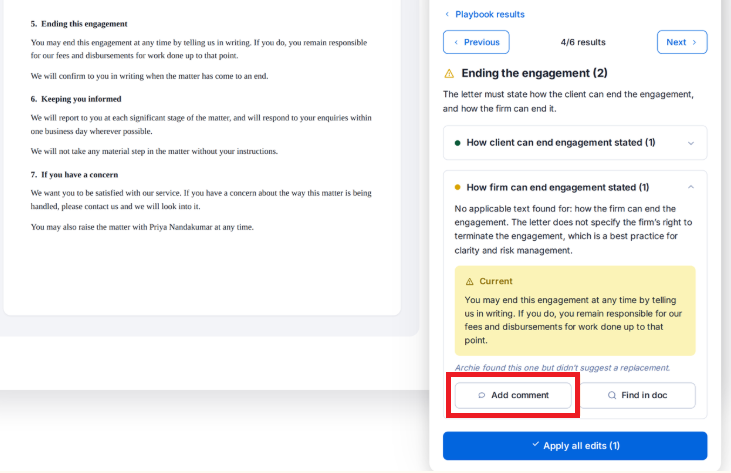
- Apply edits - Puts the suggested text at the location of the finding in the doducment.
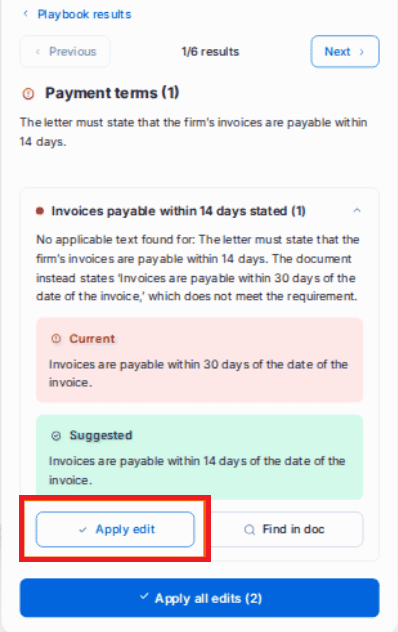
- Apply all edits - Fixes everything across the Playbook. The number in this button counts only findings that have a suggested fix.
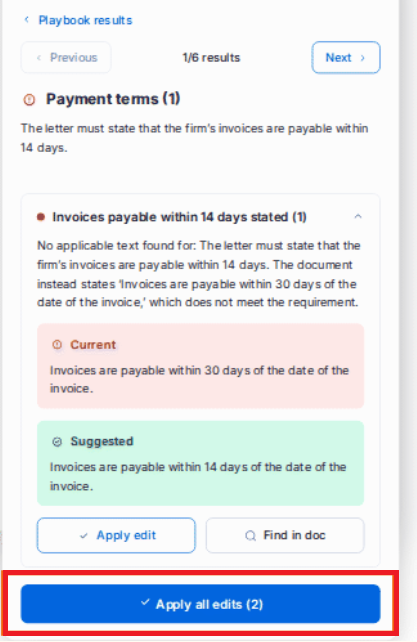
You can also quickly jump between findings using the Previous and Next buttons at the top of the panel.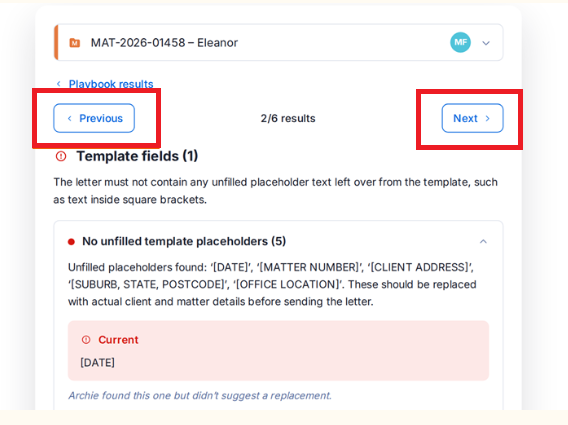
Once you have reviewed all the suggestions, run the Playbook again by clicking on the Circular arrows icon above the results bar.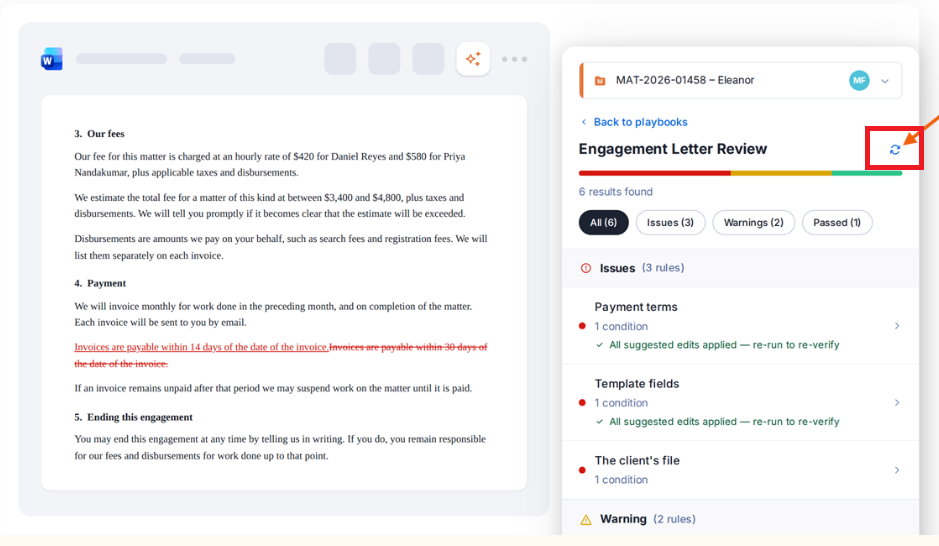
Frequently Asked Questions
If the finding is about the whole document, such as suggestions around the tone or structure, or whether a clause exists, there's no single spot to point to, so it shows an explanation with no action button.
Was this article helpful?
That’s Great!
Thank you for your feedback
Sorry! We couldn't be helpful
Thank you for your feedback
Feedback sent
We appreciate your effort and will try to fix the article