

Learn how to use the Audio Transcription Archie App to generate a timestamped and labelled transcript of audio and video files in the matter.
Table of Contents
- Getting Started
- Accessing the Audio Transcription Archie App
- Working with your transcript
- Frequently Asked Questions
Getting Started
Archie can transcribe audio and video files up to 1 GB in size and up to 8 hours long.
- Video formats: mp4, mov, avi, mkv, webm
- Audio formats: mp3, m4a, wav, flac, ogg
Accessing the Audio Transcription Archie App
1. Open a matter in triConvey.
2. Select the Archie tab and then select Apps.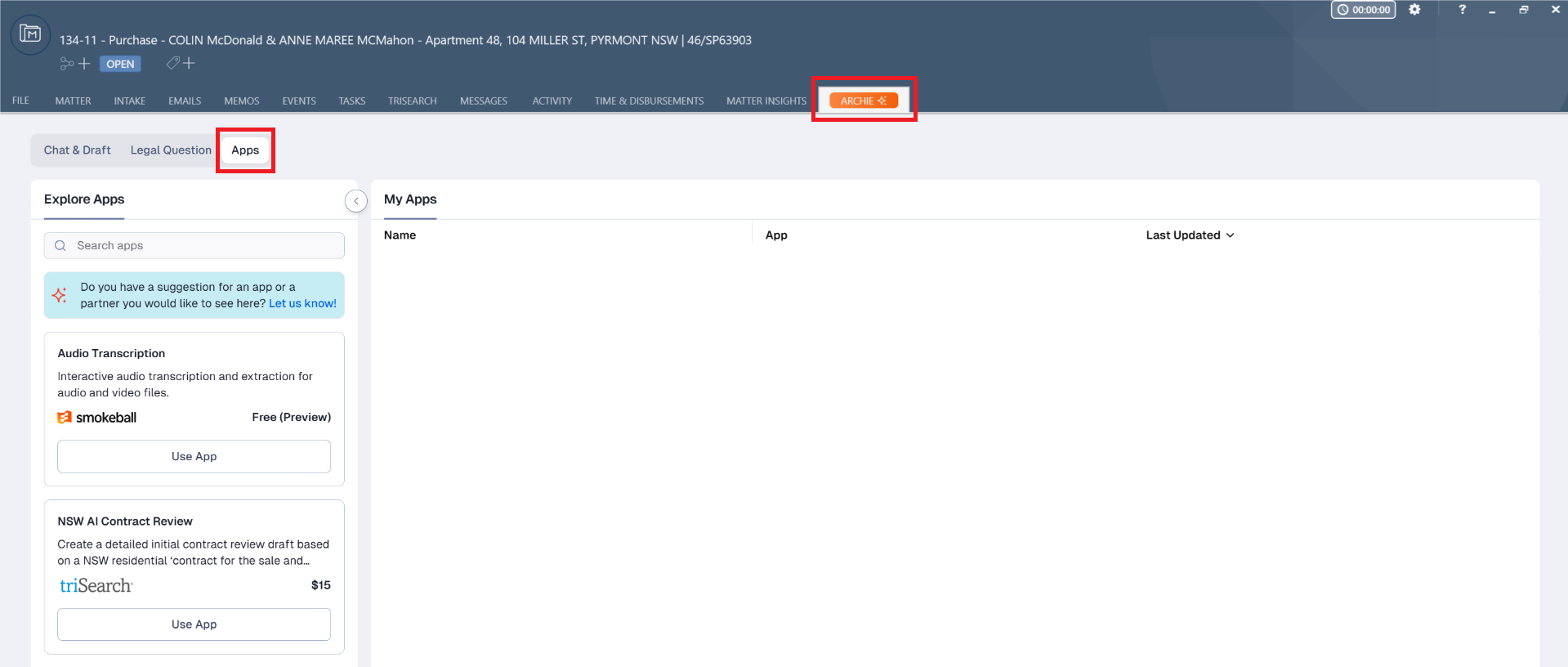
3. Find Audio Transcription under the Explore Apps section on the left menu, then select Use App.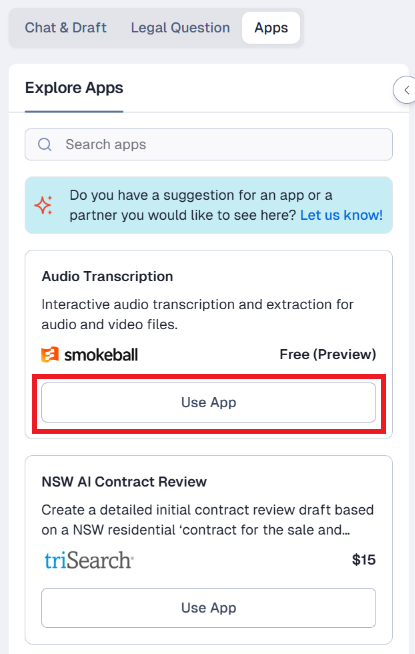
4. Select Browse and choose one audio or video file from your matter. Then click on Select 1 Files.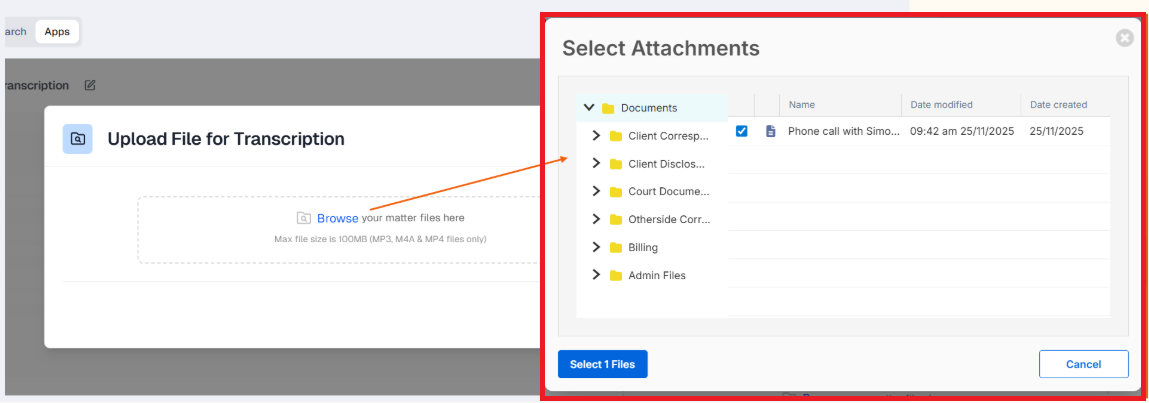
5. Select Process.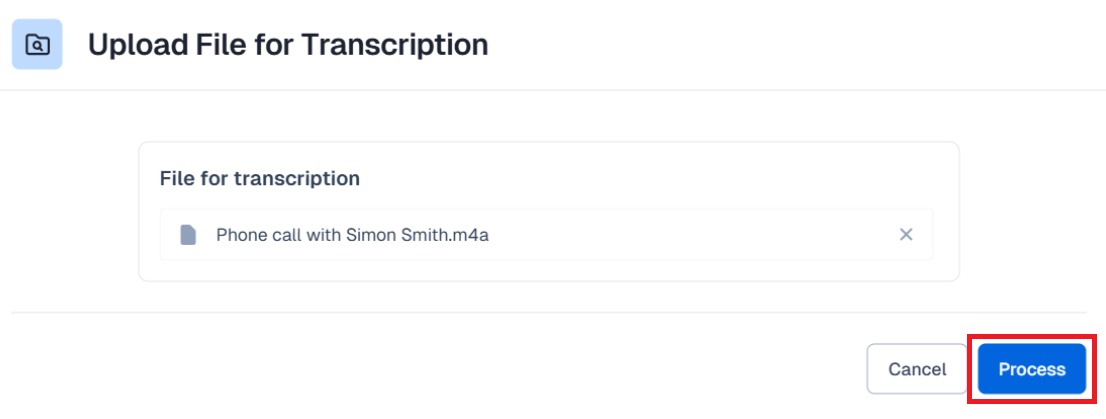
6. Archie will begin transcribing your file. This may take longer for larger file sizes. Do not navigate away from this screen.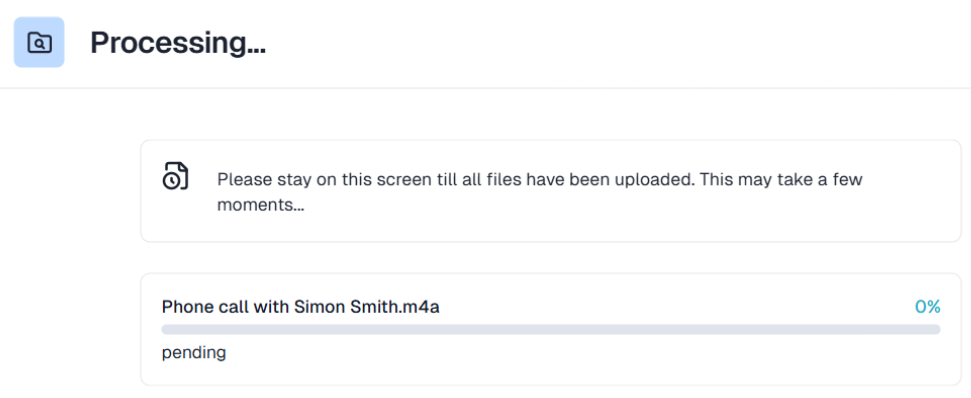
7. Once the upload is complete, select View Transcription.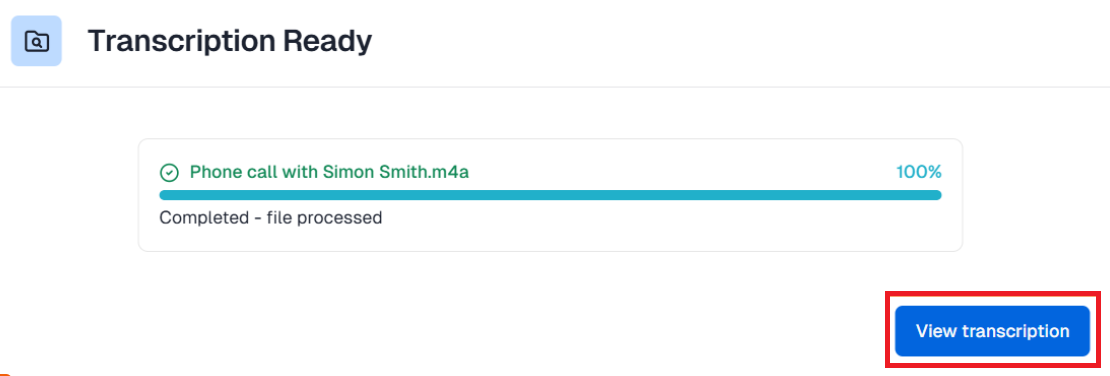
8. The transcription will appear on the next screen.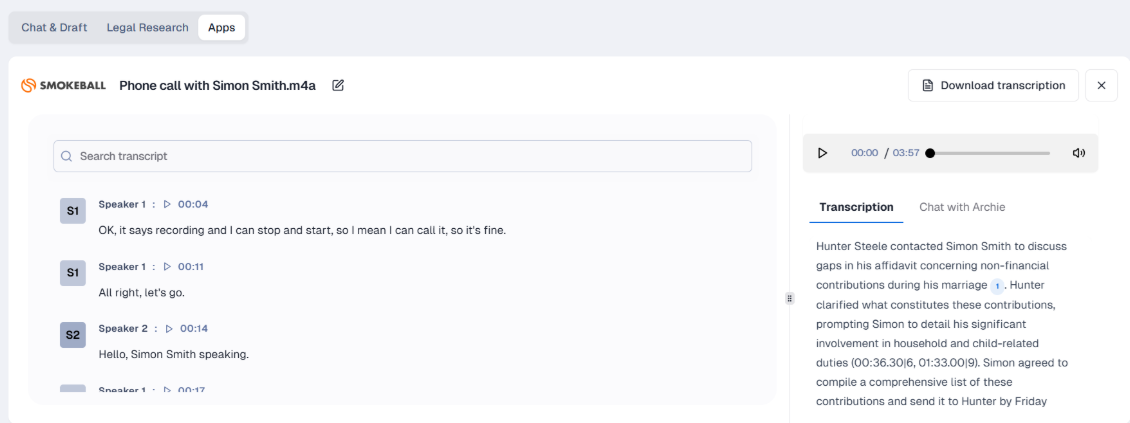
You can also access the transcription from the main Apps screen.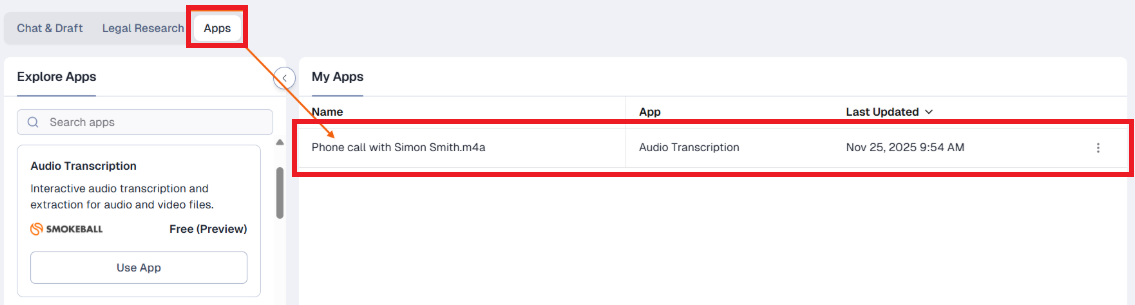
Working with your transcript
Select the Play icon to listen to the audio. The transcript on the left will highlight each word in real time as it’s spoken.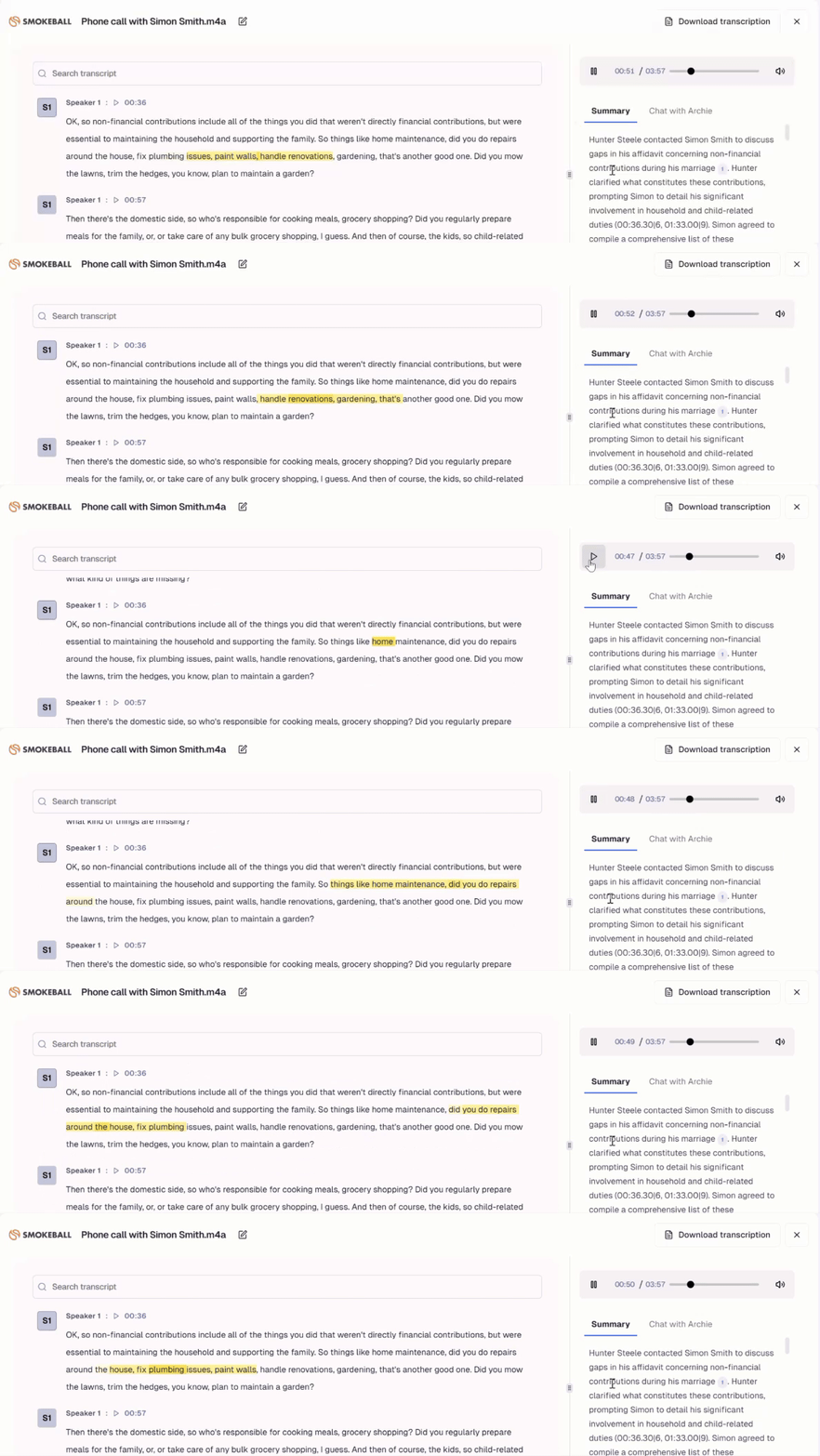
Click on the Speaker tag to rename the speaker in the transcript.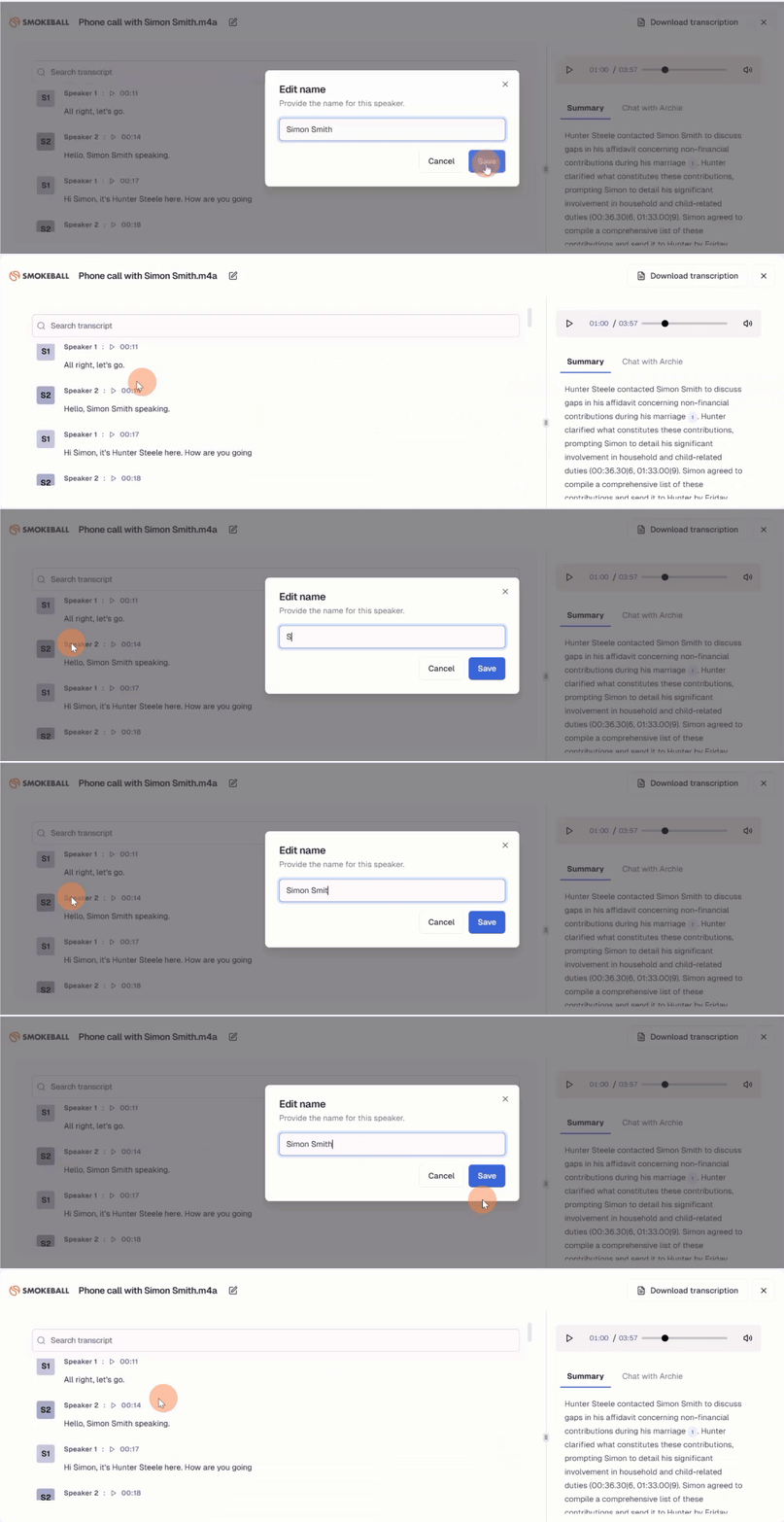
The Summary tab on the right-hand panel displays an AI summary of the contents in the audio or video file. You can also select the Chat with Archie tab to quickly ask Archie a question about the file.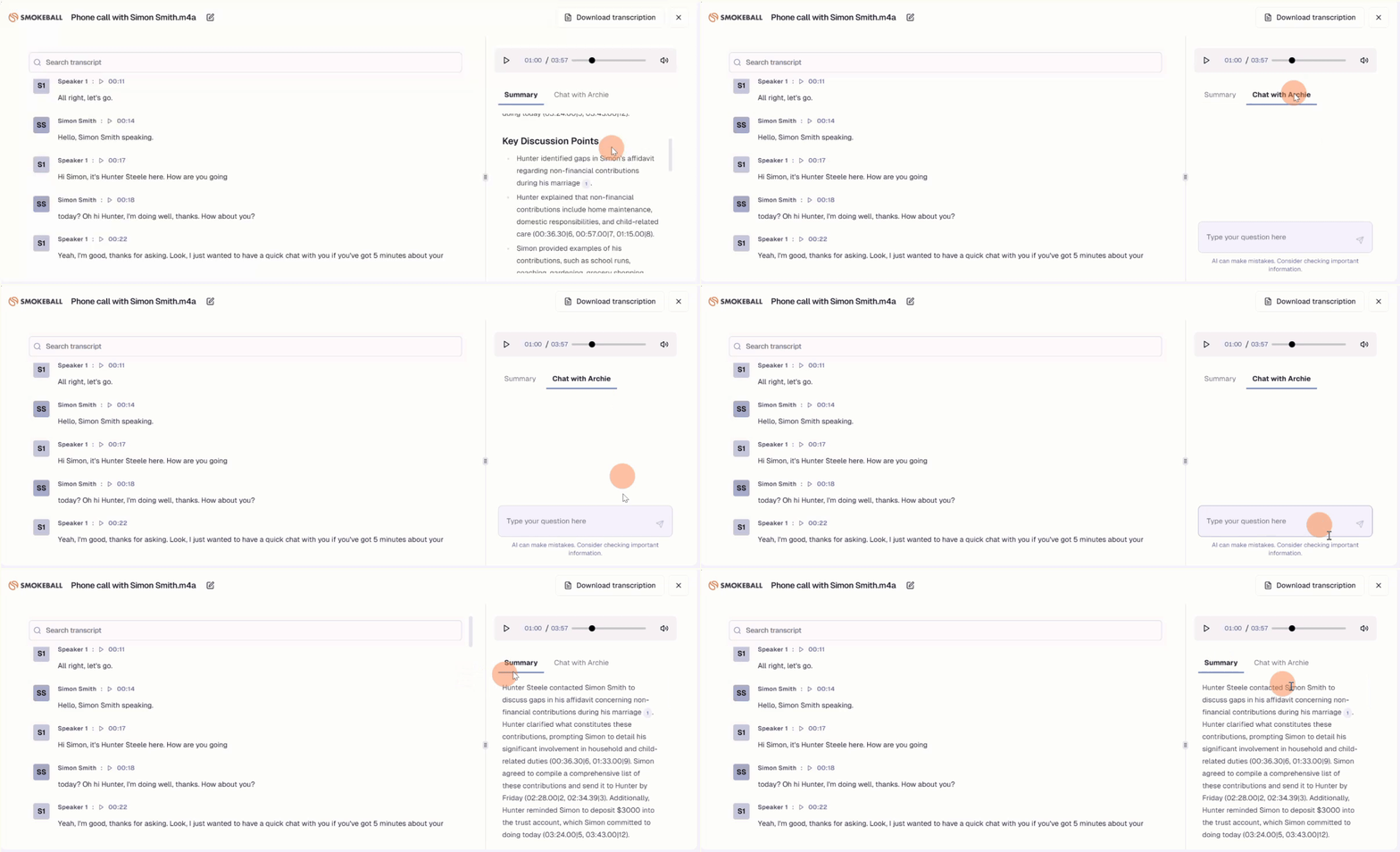
Select Download transcription to save the transcript to the matter as a Word document. The summary will also be included in the transcription file.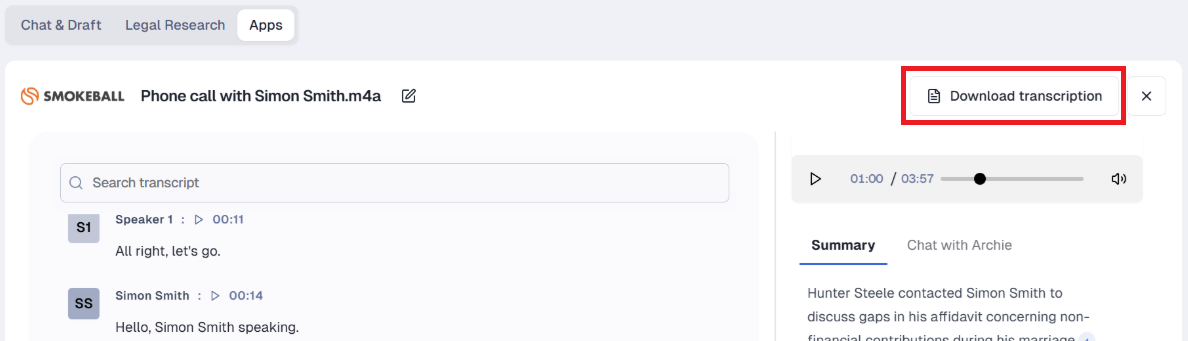
Access downloaded transcripts in the Archie-Transcripts folder of the main Documents list.
Frequently Asked Questions
Was this article helpful?
That’s Great!
Thank you for your feedback
Sorry! We couldn't be helpful
Thank you for your feedback
Feedback sent
We appreciate your effort and will try to fix the article