

Learn how to set up an Out of Office message in the Client Portal that displays to recipients during your specified Out of Office dates.
Table of Contents
Set Out of Office message
1. Select the gear icon from the top-right corner of the triConvey Desktop App.
2. Select Staff & Users from triConvey Settings.
3. Double-click on user you wish to set an Out of Office message for.
Tip: You can set up Out of Office dates on behalf of another staff member by double-clicking on their name.4. Navigate to the Out of Office section and tick Schedule an out of office message.
5. Use the date picker to choose the Start Date and End Date of your Out of Office days.
6. Select Save.
How the Out of Office message works
When a staff member opens a Messages conversation with another staff member during a day they are out of the office, they will be notified in the text box.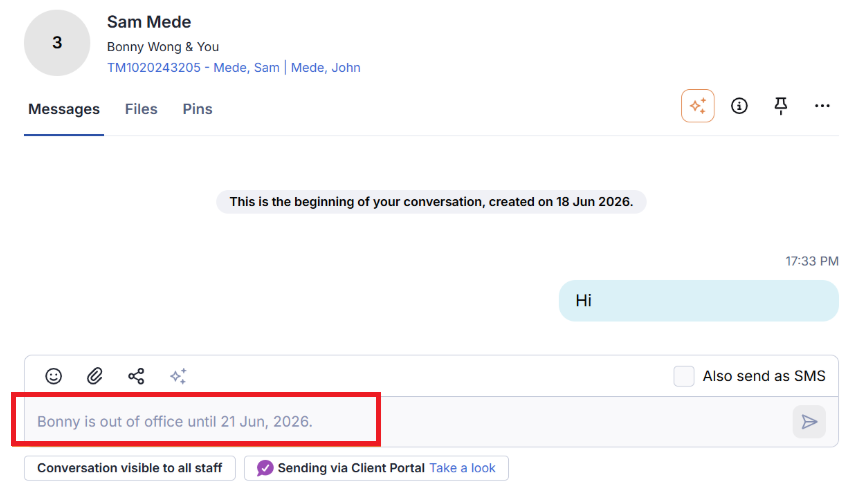
If you are replying to a message during your out-of-office period, the text box will display a small reminder that you are currently set as out of the office.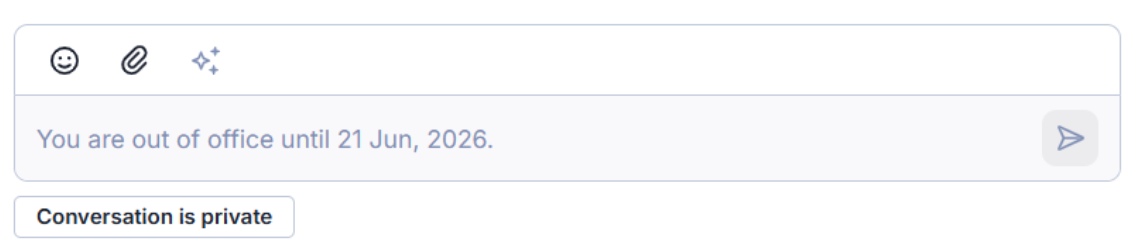
When your client opens the conversation with you while you are out of the office, they will see a similar message on the Communicate mobile app or web browser.
Was this article helpful?
That’s Great!
Thank you for your feedback
Sorry! We couldn't be helpful
Thank you for your feedback
Feedback sent
We appreciate your effort and will try to fix the article