

The Messages feature in triConvey is where your firm can send messages and files securely to your client's Client Portal.
In addition to messages and documents, you can also send event invitations, Intake Forms and invoices from Messages.
Table of Contents
Accessing Messages
To access Messages, you can either:
- Select the Messages tab from the triConvey Home Dashboard (to view messages across all matters and staff). Accessing Messages this way allows you to view:
- Channels
- Direct Messages (with other staff members)
- All Internal Matter Conversations you have across all matters
- All External Matter Conversations you have across all matters
triConvey Home Dashboard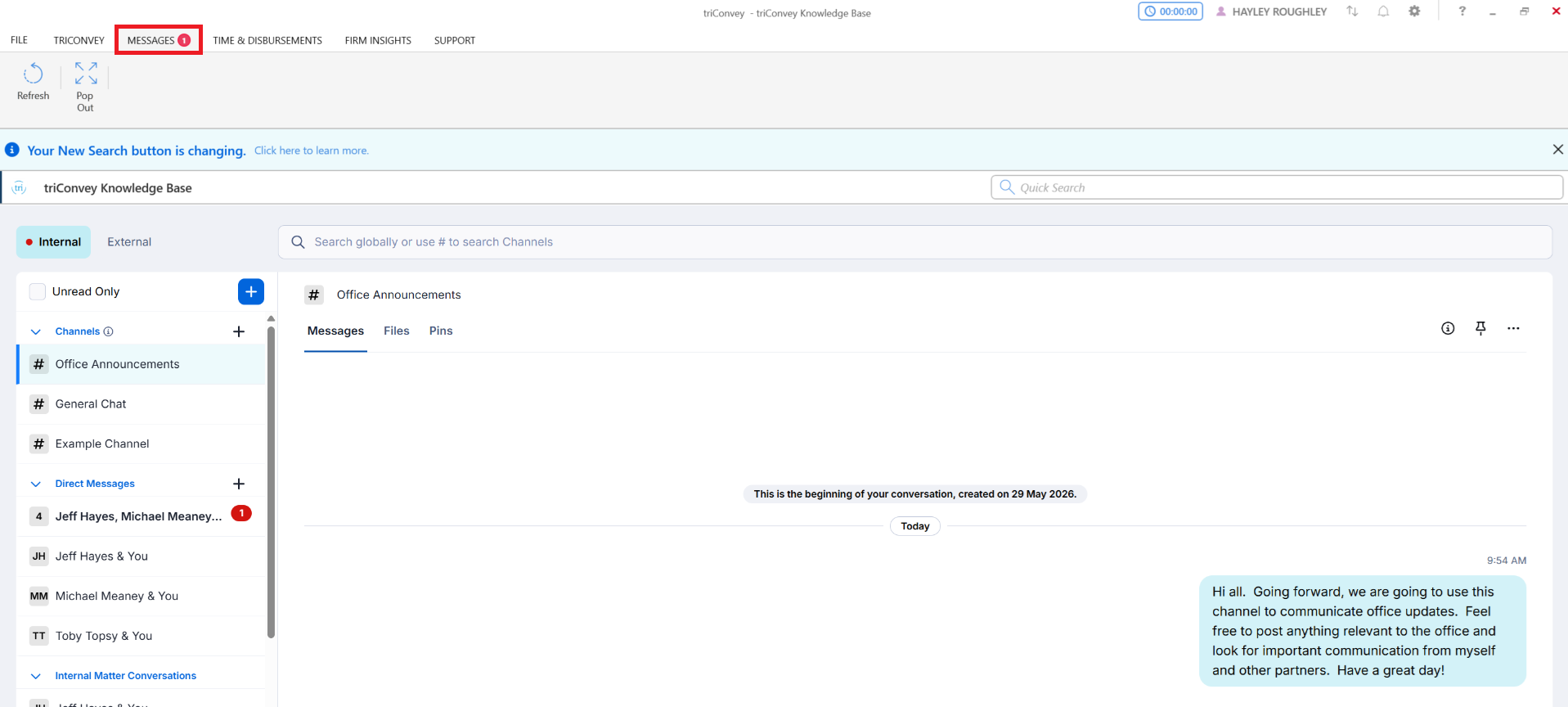
triConvey Companion Site Web App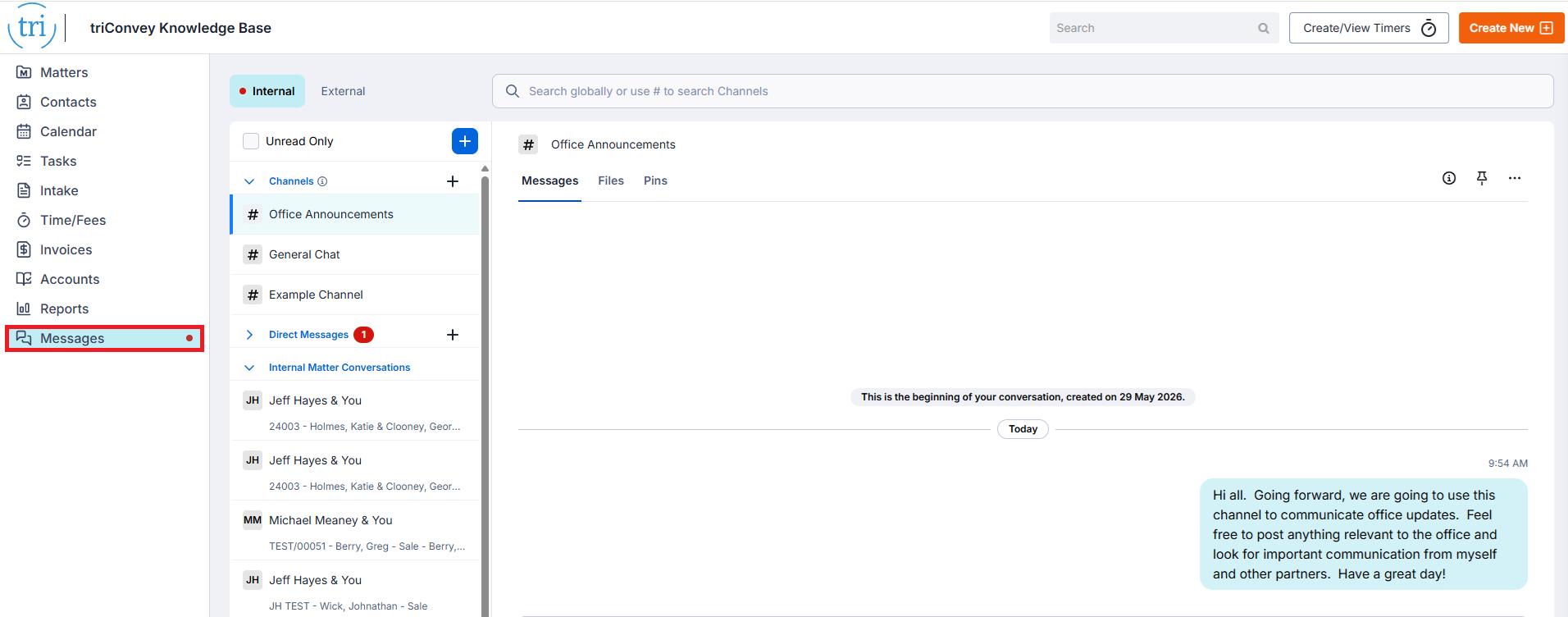
- Select the Messages tab from within a matter (to view messages specifically for that matter). Accessing Messages this way allows you to view:
- Internal Matter Conversations for the specific matter
- External Matter Conversations for the specific matter
triConvey Desktop App
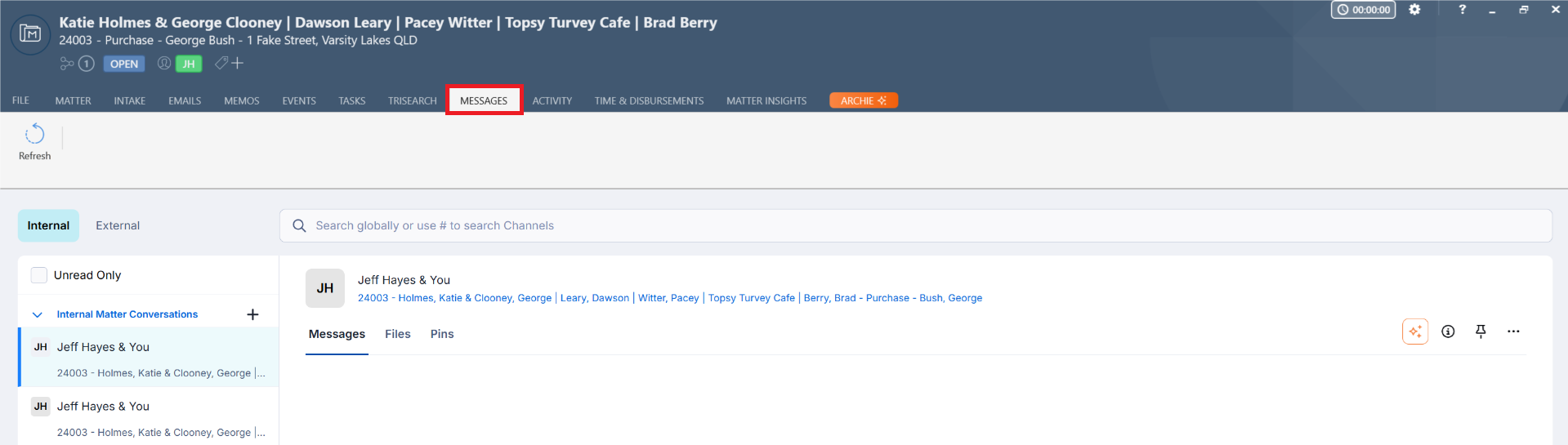
triConvey Companion Site Web App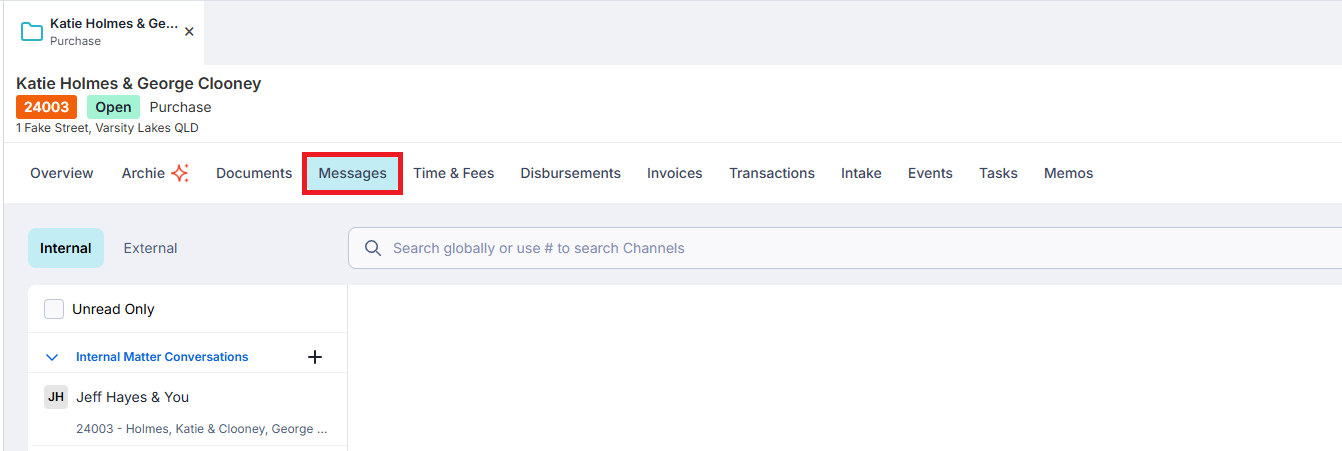
What to expect when sending messages to a third party
If sending something to an external party, they will receive a customisable email invitation prompting them to log in to their very own Client Portal. They won’t need a username or password; access is granted securely through the unique link in the email.
Once they are in, the external party will be able to see all the items sent over to them in the form of a To Do list.
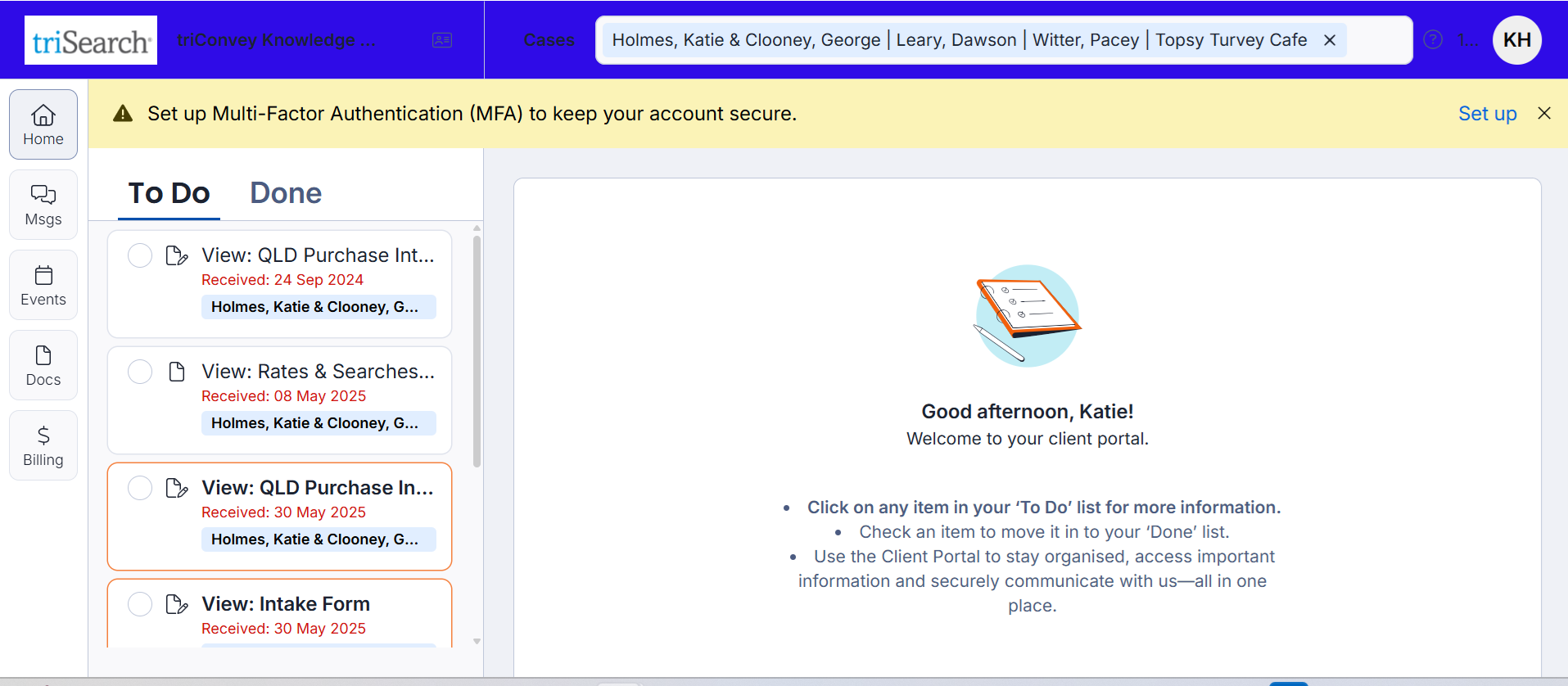
View our Client Portal Tour article for more screenshots of the Client Portal experience from your client's perspective.
Best way to access the Client Portal

To enjoy the new client portal experience, clients and third parties should access their items through a web browser.

If they already have the Communicate app on their mobile device, they can delete it to switch to this updated web, portal experience. They are also welcome to keep using the previous app, but please note that some features won’t be available there.
If you would like to send your clients and/or third parties an introductory guide for how to access and start using the Client Portal, please use this link.
What can you do in Messages
Secure File Sharing & Messaging
- Share confidential files or chat securely with your client without leaving triConvey.
- Ensure all communications stay protected. You can even share entire folders with your client!
- Learn more about sending and receiving files securely via Messages.
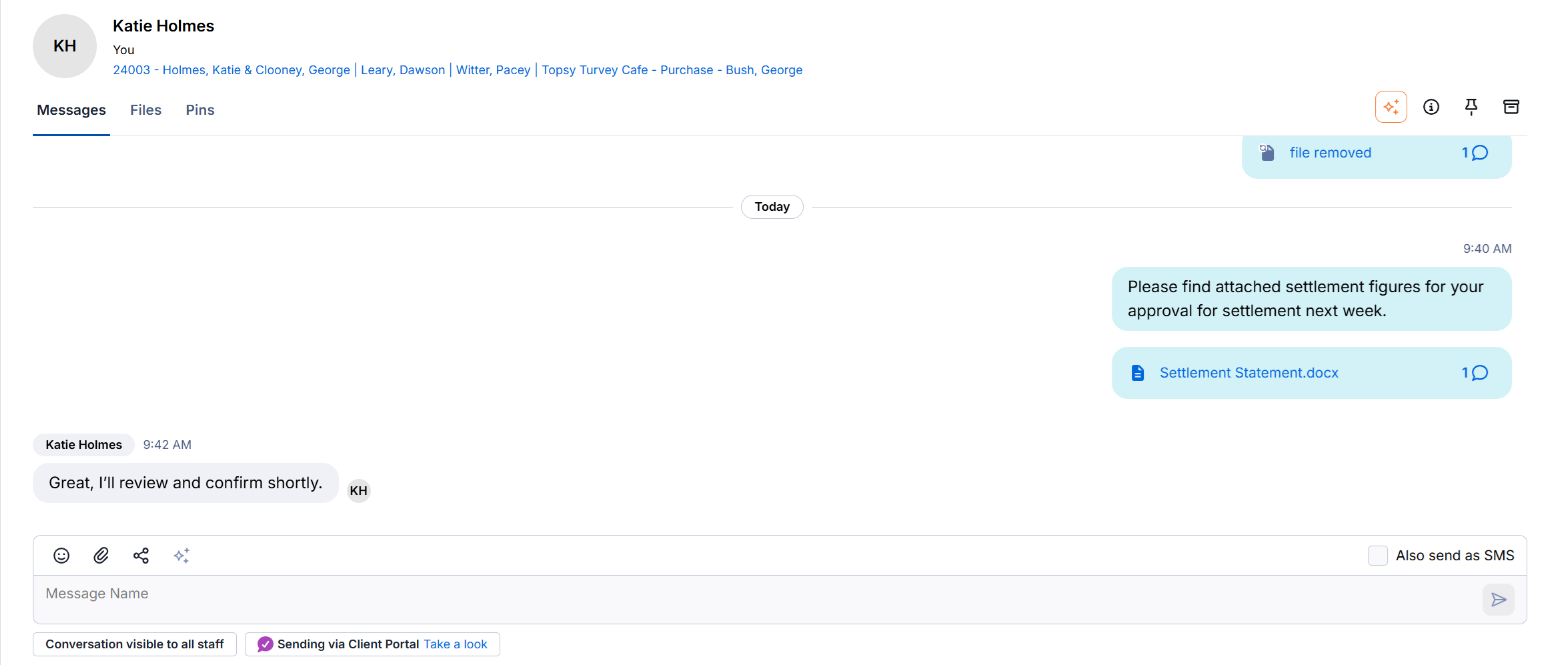
If you have the Productivity Pack enabled, you can use Archie to help convey your message by changing the tone, length or by improving your writing.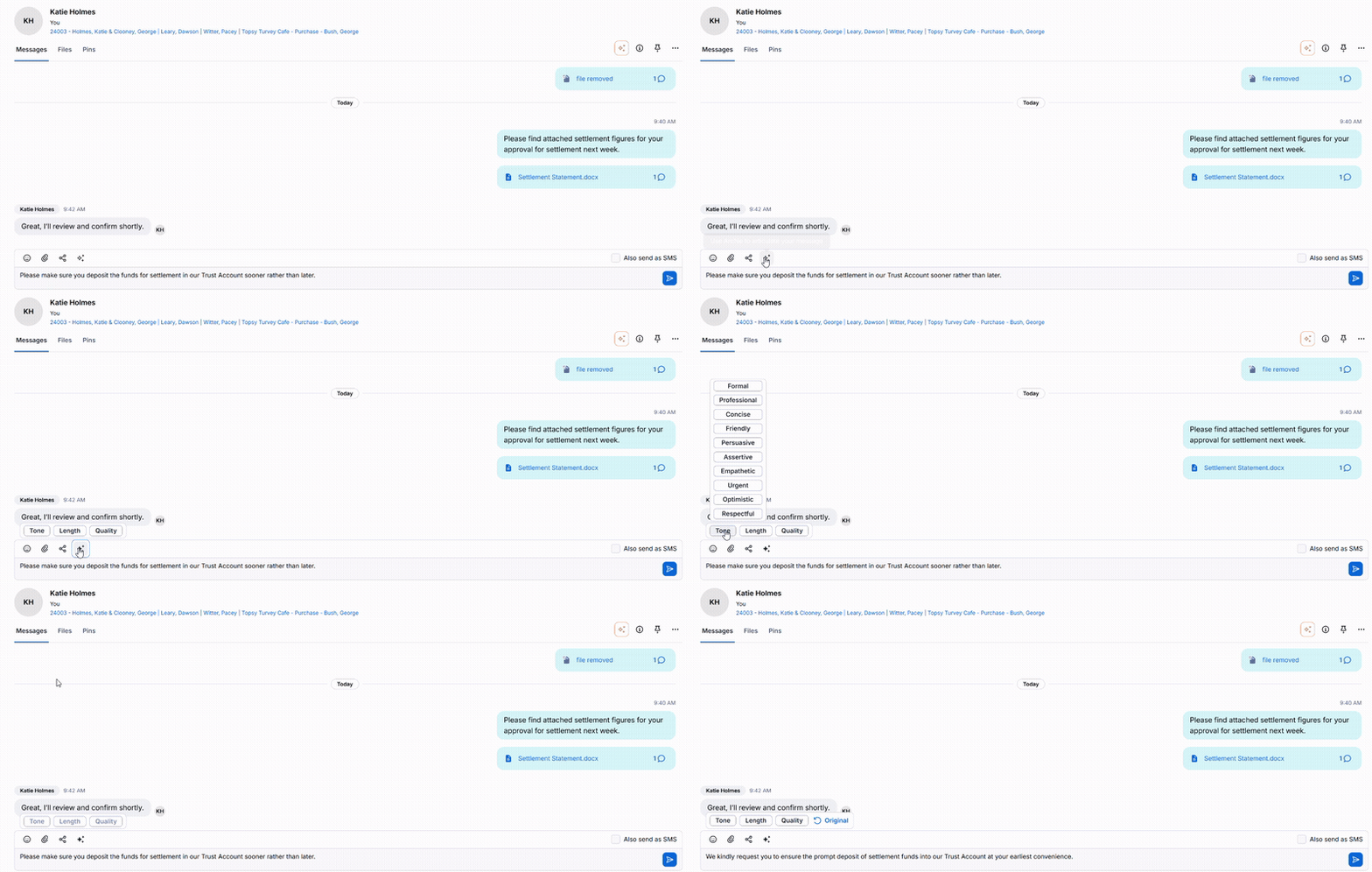
Invoice Viewing and Payments

Intake Form Submission
Clients can complete Intake Forms directly in the portal, keeping all correspondence in one secure location.
Learn more about Lead Intake and Matter Intake.

Staff Internal Messaging
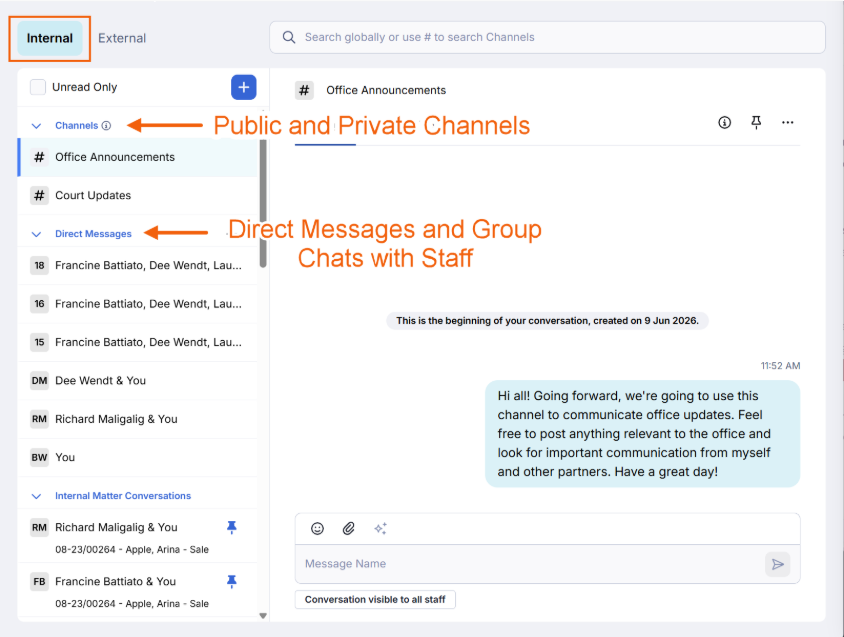
Communicate Mobile App
SMS Text Messaging

Was this article helpful?
That’s Great!
Thank you for your feedback
Sorry! We couldn't be helpful
Thank you for your feedback
Feedback sent
We appreciate your effort and will try to fix the article