

Learn how to find all Internal and External messages addressed to you and how to access them at any time.
Table of Contents
- Receiving notifications for new messages
- How to tell if a recipient has viewed a message
- Search for a message or file in a conversation
- Add participants to a conversation
- Remove participants in a conversation
Receiving notifications for new messages
triConvey Desktop App
When you receive a new message, a notification will display on the firm-level Messages tab. It also contains conversations across all matters.
If you’re in a matter that has a new message, the notification will also display in the Messages tab of the matter.
You’ll also receive a notification on your Windows taskbar.
If you don't have the triConvey window active, triConvey will also send a Windows desktop notification for any new messages that remain unread after 30 seconds.
Tip: This only works if any Windows notification blockers, such as Focus Assist, are disabled.
triConvey Companion Site Web App
Messages can be accessed by selecting Messages from the left panel. When you receive a new message, a notification will display there.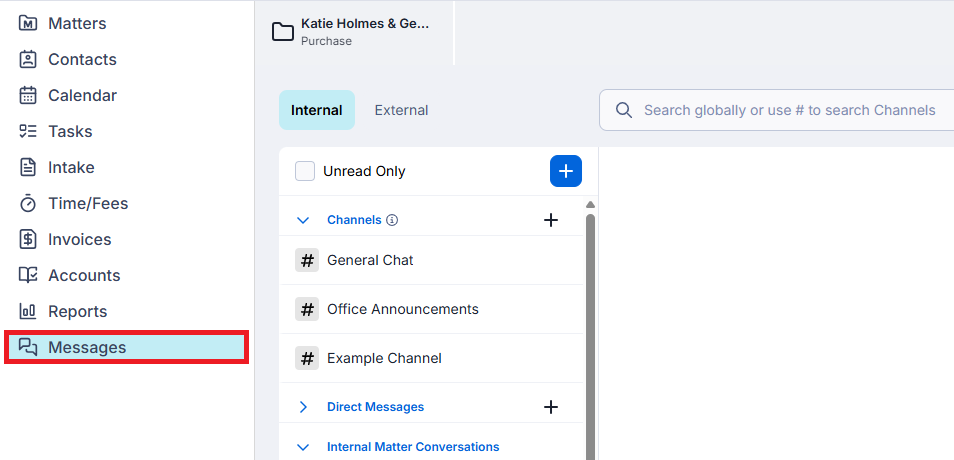
If you’re in a matter that has a new message, the notification will also display in the Messages tab of the matter.

Understanding the notification count
The red number that appears next to the Messages tab is the number of unread conversations you have across both Internal and External conversations. It is not a total number of unread messages.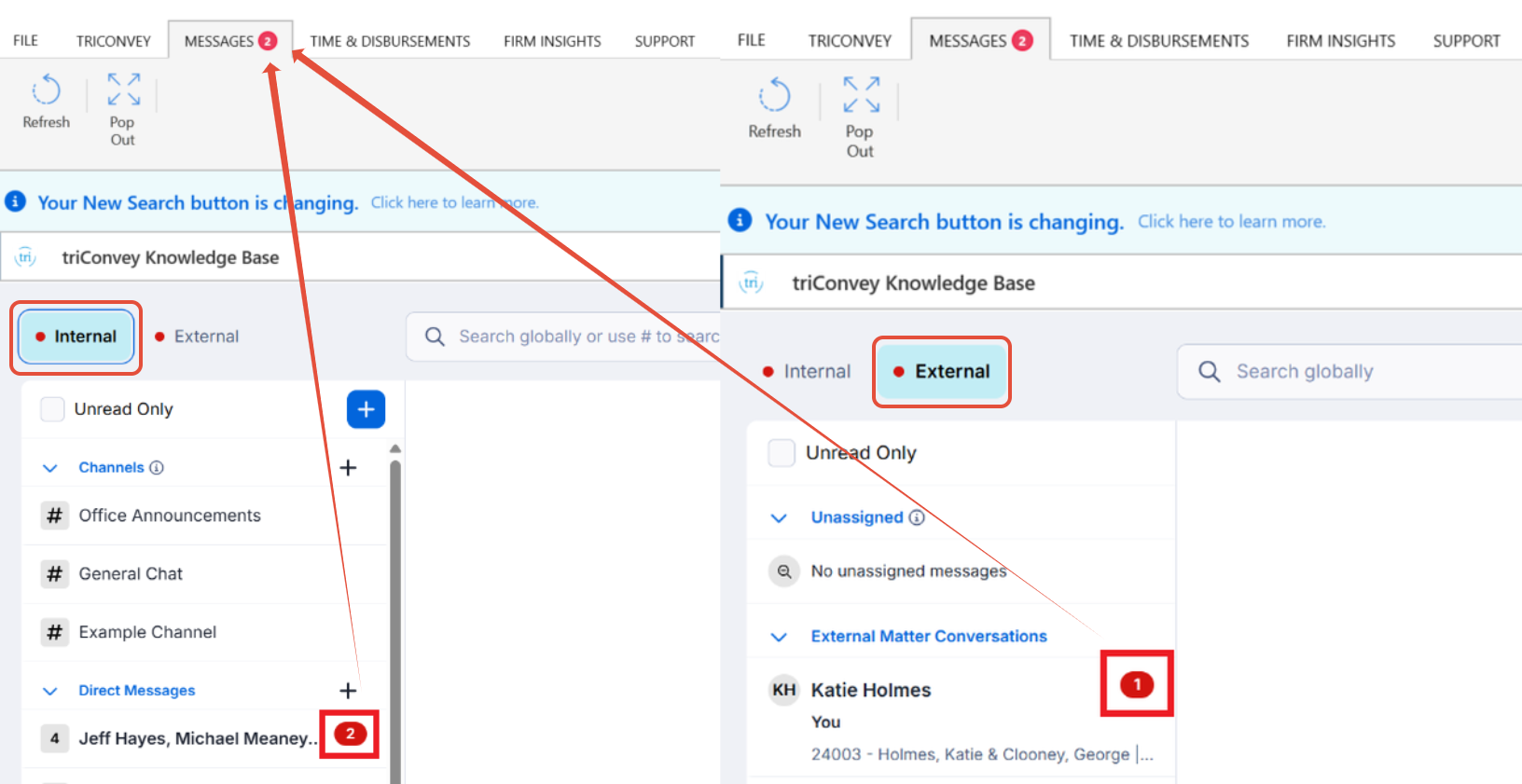
How to tell if a recipient has viewed a message
An icon will appear next a message when a conversation participant has viewed that message. Hover over the icon to view timestamps and all other participants who have seen the message.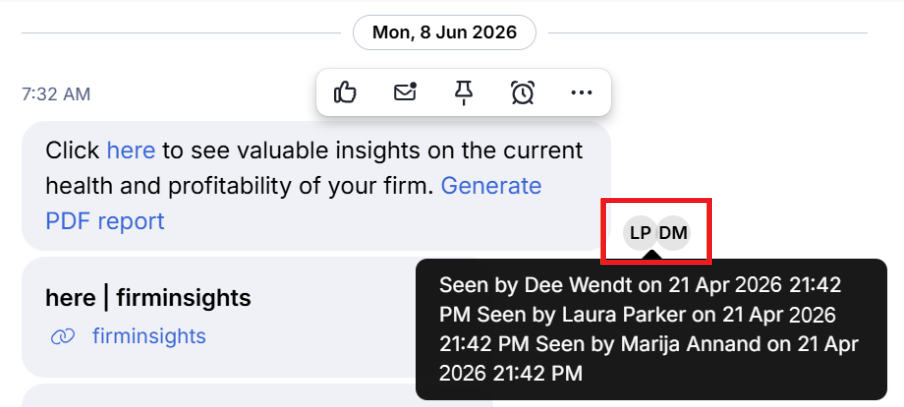
Search for a message or file in a conversation
Use the Search bar at the top of the Messages tab to search all of either Internal or External conversations you have access to. We recommend entering at least one word for best results.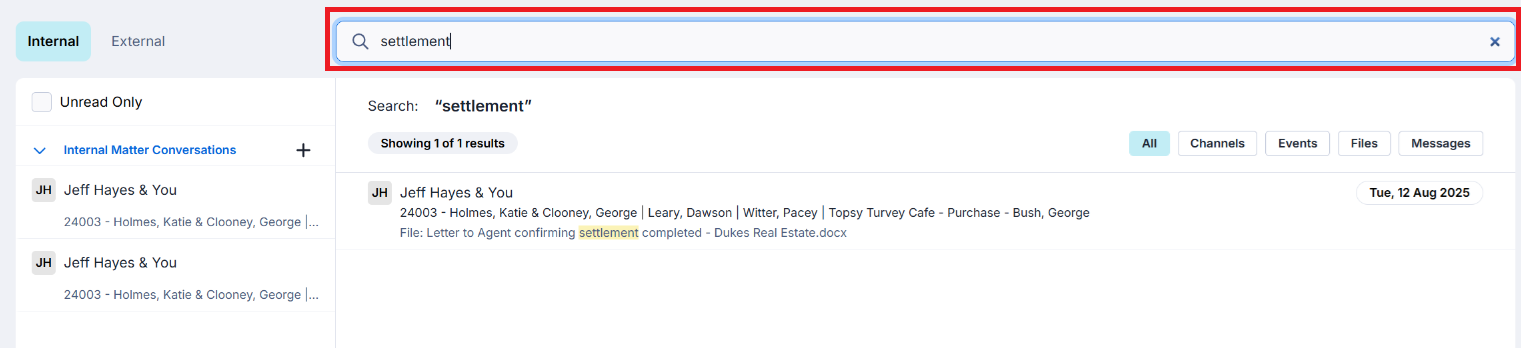
Hover over the search bar and click on the X to exit search and go back to your messages.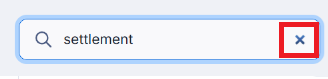
Add participants to a conversation
To add users to a conversation, select the Info icon on the top right corner of the channel.
If the conversation is an Internal Matter Conversation, select the staff members to add from the drop-down menu, then select Add.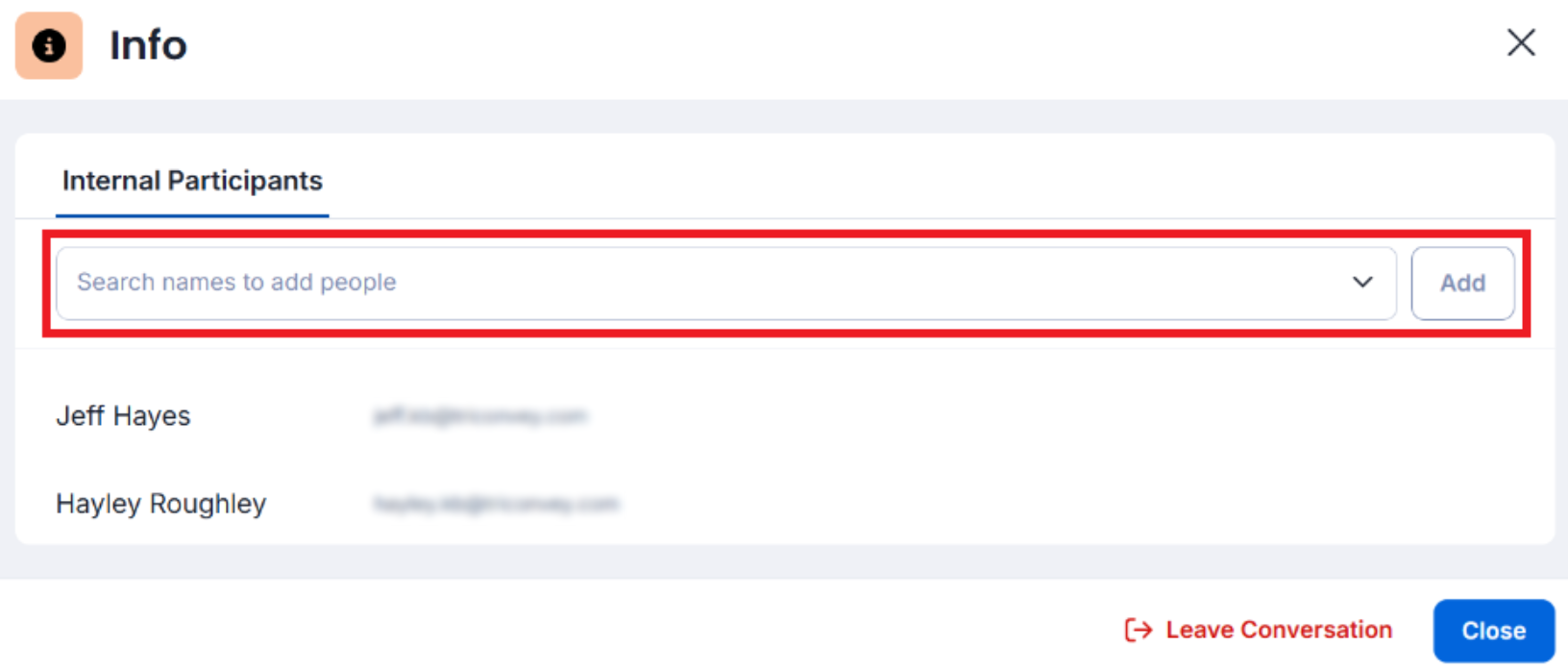
If the conversation is an External Matter Conversation, you can add both Internal Participants (Staff) or External Participants. Select Add from matter contacts if the person's details are already in a triConvey contact card, or select Invite guest by email and enter their email to send them a Client Portal invitation.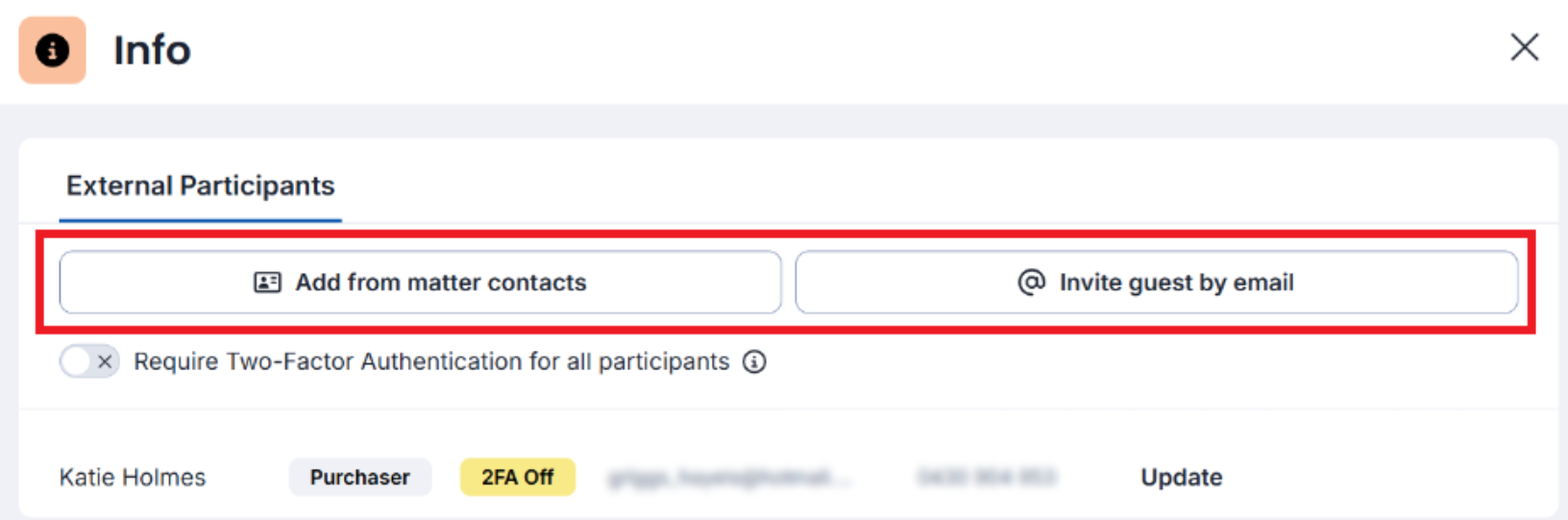
Remove participants in a conversation
To remove users after a conversation has been created, select the Info icon on the top-right corner of the channel.
Hover over a participant's name, then select Remove. You can also remove yourself by clicking Leave Conversation.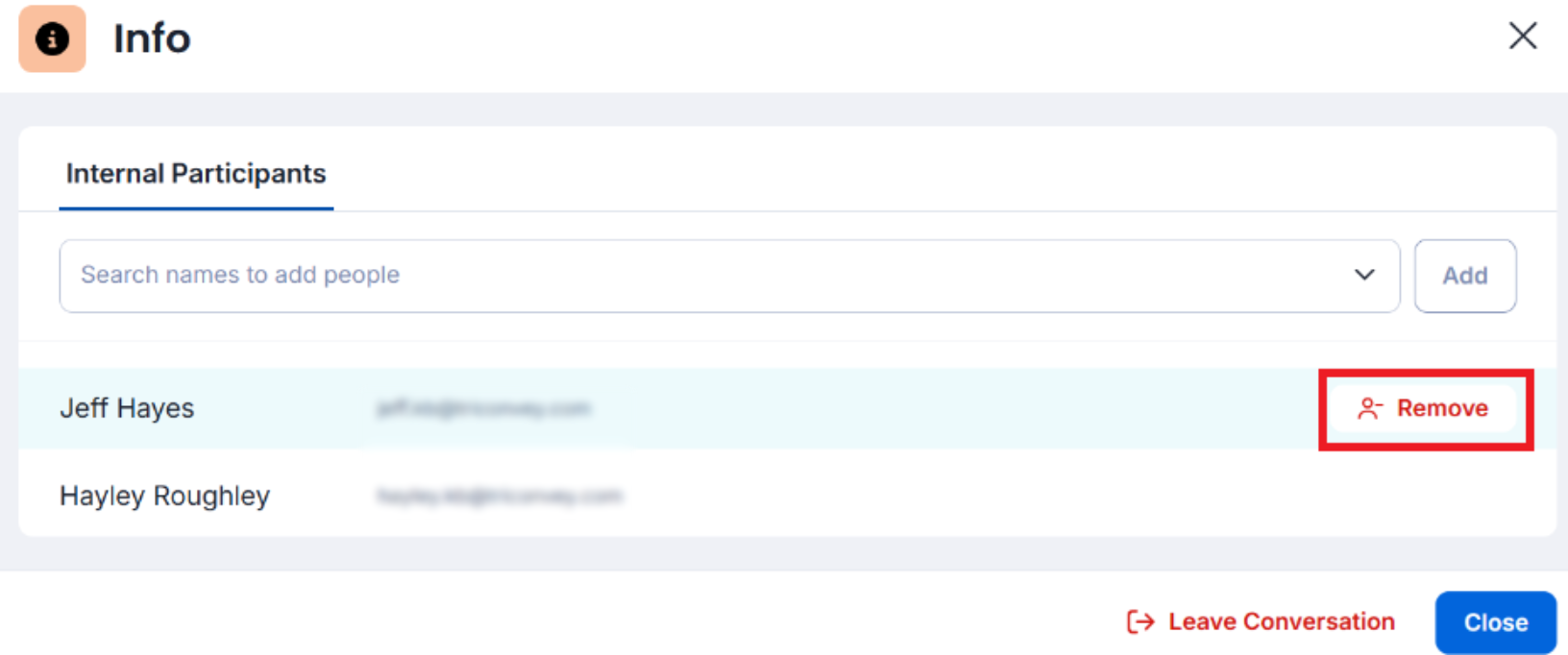
Was this article helpful?
That’s Great!
Thank you for your feedback
Sorry! We couldn't be helpful
Thank you for your feedback
Feedback sent
We appreciate your effort and will try to fix the article