

When a conversation with a client gets lengthy, use the AI summary to focus on key points and actions.
Table of Contents
Summarise a conversation
1. Select the Messages tab in triConvey or within a triConvey matter, and open the relevant conversation.
2. Select the AI (sparkle) icon on the top-right corner. 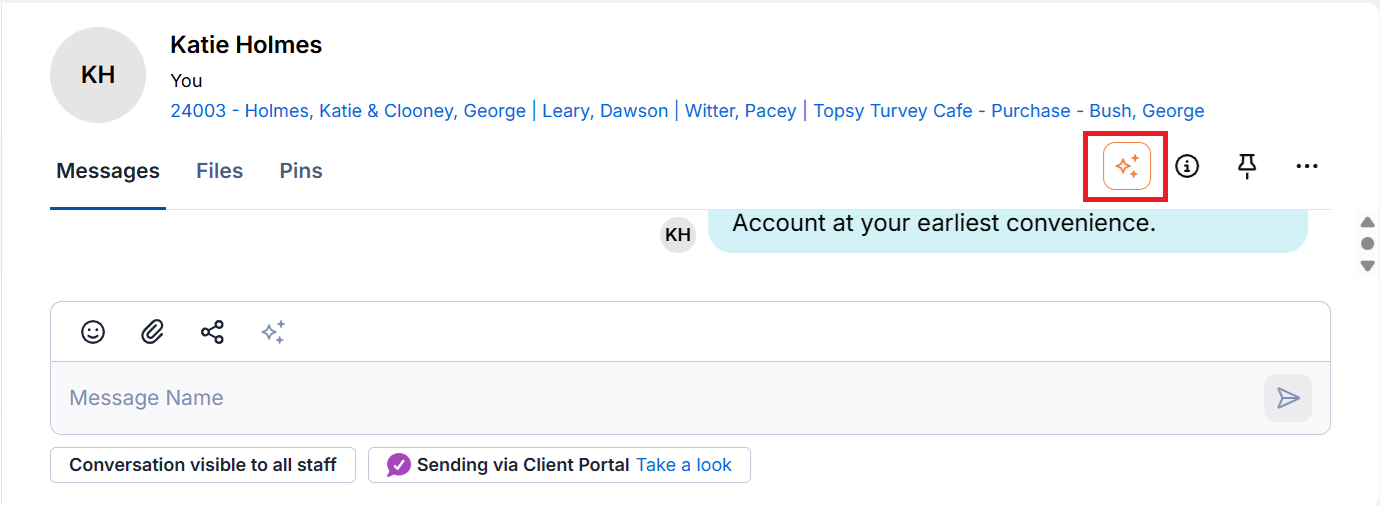
3. A panel on the right-hand side of the screen will appear, displaying the AI Summary of the conversation so far.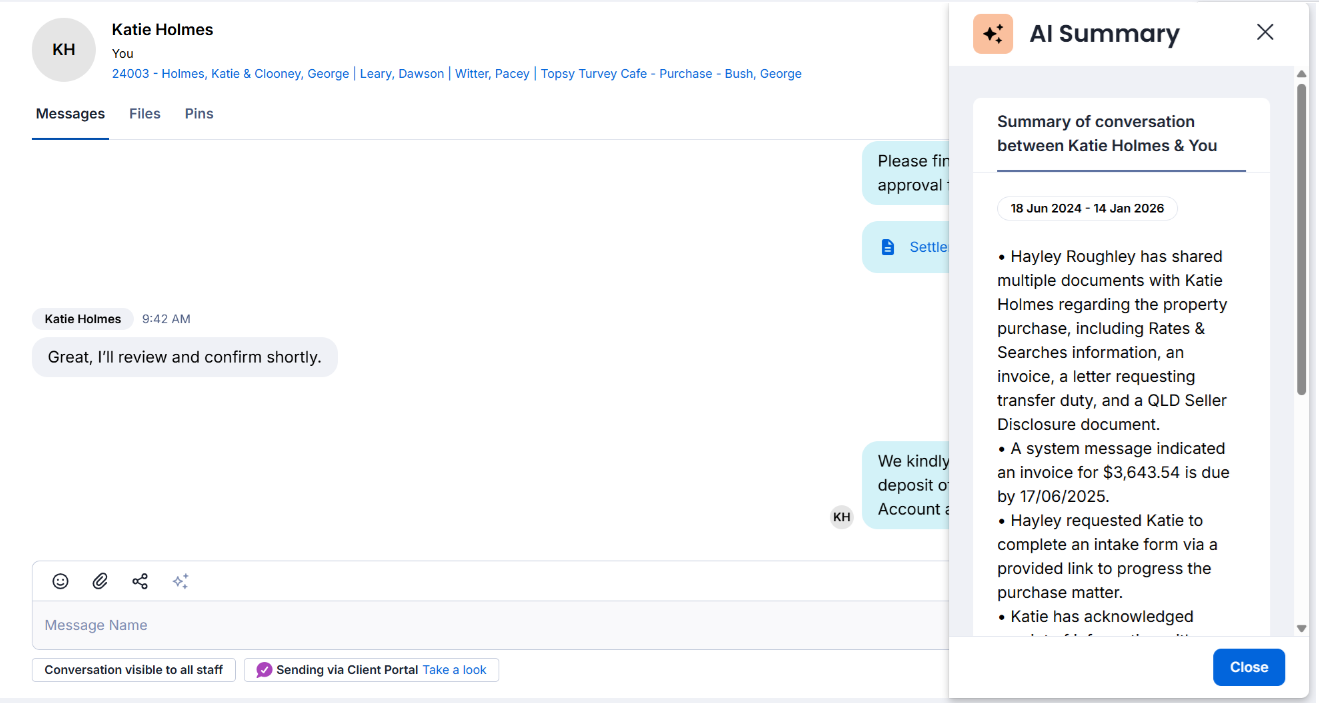
Good to know
- You can summarise internal and external matter conversations so long as you are a participant in the conversation. However, you cannot summarise conversations in Channels or Direct Messages between staff.
- Only staff can view the summary.
- Clicking on the AI button again will remove the previous summary. The new summary will account for any new messages that have been posted in the conversation.
Was this article helpful?
That’s Great!
Thank you for your feedback
Sorry! We couldn't be helpful
Thank you for your feedback
Feedback sent
We appreciate your effort and will try to fix the article