

triConvey features several powerful integrations with Microsoft products to enhance your productivity. Keeping track of all these options can be challenging, so we have written this article to provide you with an overview to help you get started.
Table of Contents
- Microsoft products available and supported plans
- Outlook Email and triConvey
- Outlook calendar and triConvey
Microsoft products available and supported plans
Refer to the following table for a quick summary of Microsoft products and their compatibility with triConvey:
| Microsoft 365 | |
| Web Word | No |
| Web Outlook | Yes |
| Outlook Classic (Desktop) | Yes |
| Outlook New (Desktop) | Yes |
| Word (Desktop) | Yes |
| Microsoft Office | |
| Outlook Classic (Desktop) | Yes |
| Word (Desktop) | Yes |
Microsoft Office and Microsoft 365 explained
Microsoft Office and Microsoft 365 are two different ways to pay for Microsoft applications.
Microsoft Office is a traditional suite of applications installed directly to your computer's hard drive and requires the purchase of a conventional software license.
Microsoft 365 provides access to the same applications through a paid subscription model. The subscription provides regular feature updates and additional benefits such as cloud computing storage. Microsoft 365 applications can be installed directly on your hard drive or accessed through your web browser.
Outlook Email and triConvey
"Classic" Outlook and "New" Outlook explained
"Classic" Outlook refers to the version which traditionally has been included in the Microsoft Office suite or Microsoft 365. This version must be installed locally to your hard drive, and it will be supported by Microsoft through 2029.
Outlook for Windows, also known as the "New Outlook", is an updated version. Developed as a web app, it is designed to replace Classic Outlook and the defunct Calendar and People Windows apps. Although New Outlook is also installed locally on your hard drive, its functionality and interface is very similar to Outlook on the web. The new version is also only available to Microsoft 365 users.
You can access Outlook through Microsoft 365 or Microsoft Office. The former option will give you the option to use the classic version of Outlook or the new version; the latter option is restricted to the classic version.
Read this article if you need help determining which version of Outlook you currently use.
Our transition to New Outlook
Microsoft is transitioning away from classic Outlook, and so is triConvey. Our New Outlook add-in supports the New Outlook app for Windows as well as Outlook’s web and mobile app, giving you more flexibility to work where you want while maintaining your key workflows.
While we’ll continue to support classic Outlook until Microsoft sunsets it, new features and improvements will be released only to our new add-in. Some recent updates that are exclusive to the New Outlook add-in include:
- Archie AI for drafting and summarising emails
- Ability to create triConvey tasks in Outlook
- Continuous email syncing - even when Outlook or your computer is closed
- Ability to connect Microsoft365 accounts hosted by GoDaddy
Switching to our new add-in ensures you get access to the latest features as they roll out. Everyone in your firm doesn’t need to switch at once; you can start exploring the latest add-in in new Outlook while others continue using classic Outlook.
Setting up the New Outlook add-in is done entirely from Outlook. Follow our setup and usage guide to get started.
Outlook calendar and triConvey
Aside from emails, triConvey also syncs with Microsoft 365 Outlook calendars. This two-way sync allows you to manage your events either in Outlook or within triConvey.
Once you have synced your triConvey user account with your Outlook calendar, you will be able to set up meetings and events in any triConvey matter or within your Outlook calendar view and have them automatically sync so your calendar stays consistent across both platforms.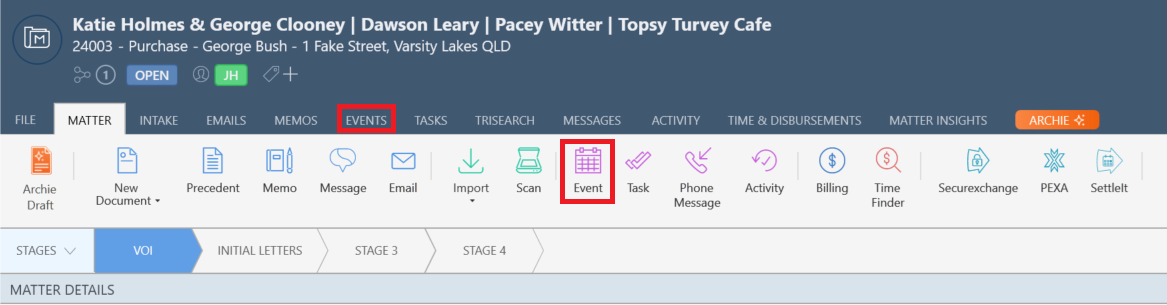
Any changes to calendar events will also update in triConvey and Outlook. You can also view and create events in the triConvey Web App.
Was this article helpful?
That’s Great!
Thank you for your feedback
Sorry! We couldn't be helpful
Thank you for your feedback
Feedback sent
We appreciate your effort and will try to fix the article