

triConvey's Messages feature serves as both an external communication platform and an internal communication hub.
In addition to easily sending messages and sharing files with individual users or groups within your firm, you can create channels to keep everyone up-to-date and on the same page.
Table of Contents
Starting direct message or group conversation
To start a message to staff member/s:
1. Select the Messages tab from the triConvey Home Dashboard.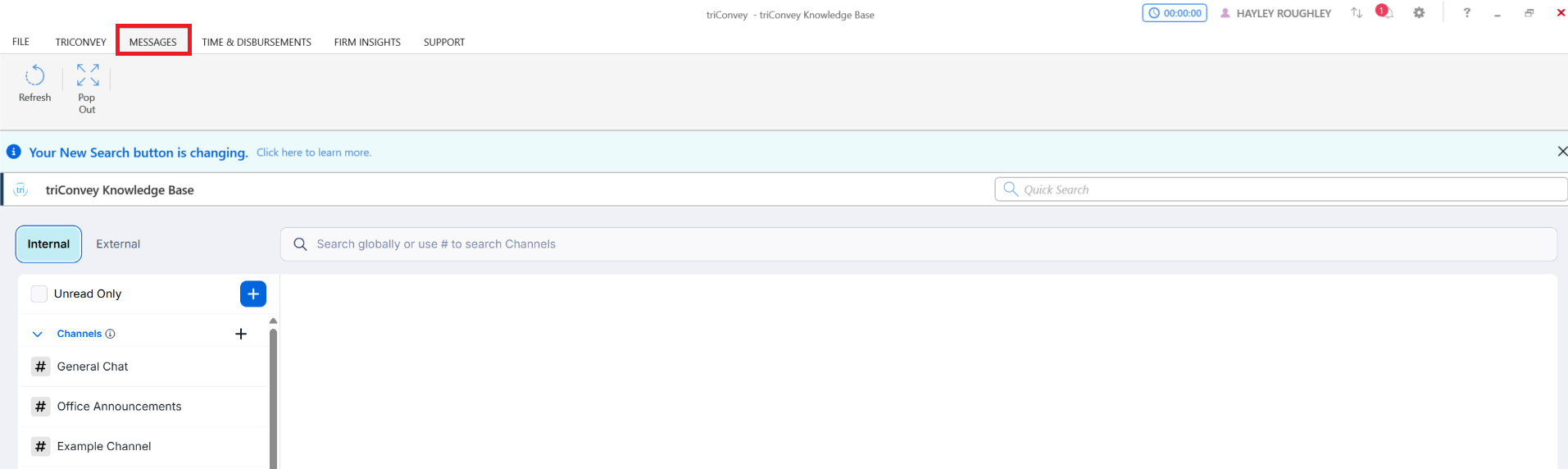
2. Select the Plus + icon in the Direct Messages section.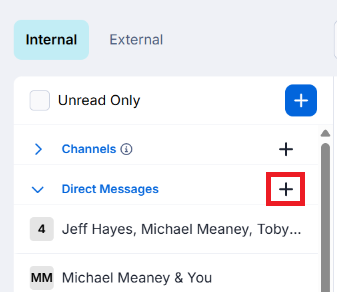
3. Select one or more staff members from the drop-down menu.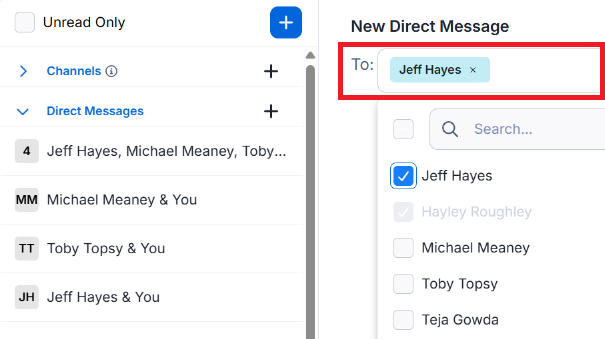
4. Enter your first message in the text box at the bottom of the screen, then hit Enter on your keyboard or click on the Paper plane icon to send the message.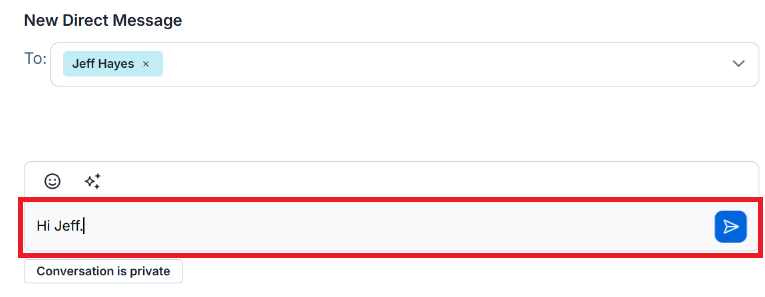

Like in a conversation with your client, you can view files shared and pinned messages from the Files and Pinned tabs.
Internal Direct Messages can also be viewed from the Communicate Mobile App.
Loop in staff members on a matter
With Messages, you can easily collaborate with other firm members and send internal messages about specific matters. This ensures all correspondence and activity related to a particular matter stays within triConvey.
You can access the Internal Matter Conversations feature on both the Android and iOS apps as well as within triConvey.
1. Open a Matter and select the Messages tab.
2. Select the Plus + icon under Internal Matter Conversations.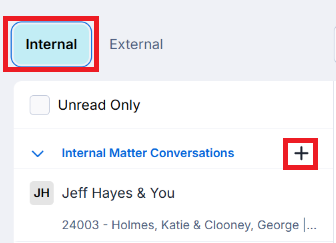
3. Select one or more staff members from the drop-down menu.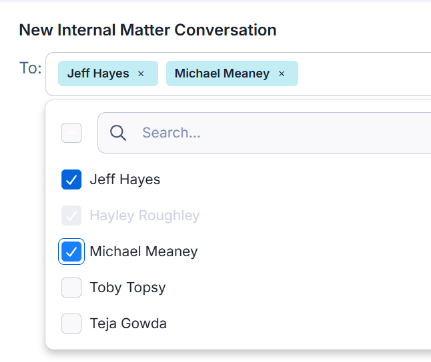
4. Enter your first message in the text box at the bottom of the screen, then hit Enter on your keyboard or click on the Paper plane icon to send the message.
The internal conversation will be accessible from the left panel of the Matter at any time. They can also be accessed from the Communicate Mobile App.
Was this article helpful?
That’s Great!
Thank you for your feedback
Sorry! We couldn't be helpful
Thank you for your feedback
Feedback sent
We appreciate your effort and will try to fix the article