

Learn how to send secure messages and files to clients, matter parties and internal staff members using the Messages tab in triConvey. Please take a look at the overview for the feature to learn more.
Table of Contents
- Accessing Messages
- Creating a conversation
- Send messages
- Sending and sharing files from a matter
- Attach a file from a matter
- Sharing a file or folder
- Alternative ways to access Messages
Accessing Messages
To access Messages, you can either:
- Select the Messages tab from the main triConvey navigation bar (to view messages across all matters and staff). Accessing Messages this way allows you to view:
- Channels
- Direct Messages (with other staff members)
- All Internal Matter Conversations you have across all matters
- All External Matter Conversations you have across all matters
triConvey Desktop App

triConvey Companion Site Web App
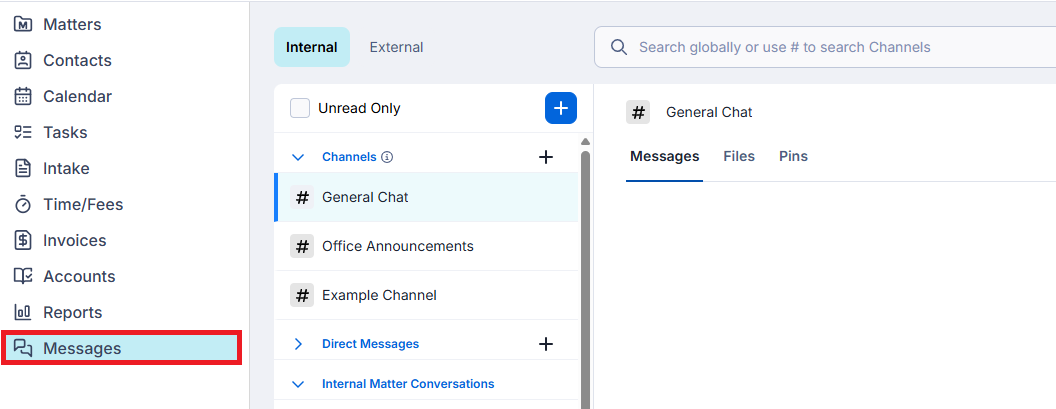
- Select the Messages tab from within a matter (to view messages specifically for that matter). Accessing Messages this way allows you to view:
- Internal Matter Conversations for the specific matter
- External Matter Conversations for the specific matter
triConvey Desktop App matter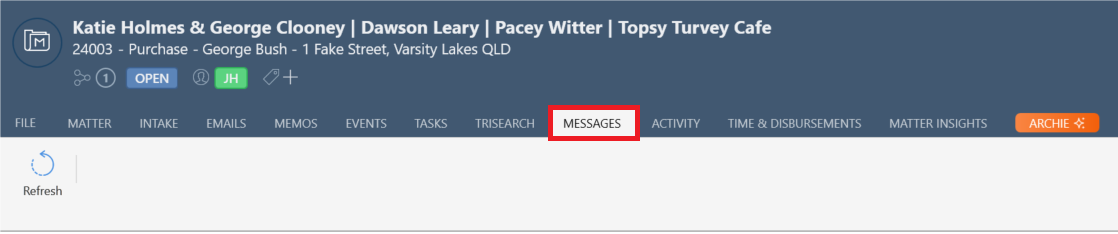
triConvey Companion Site Web App matter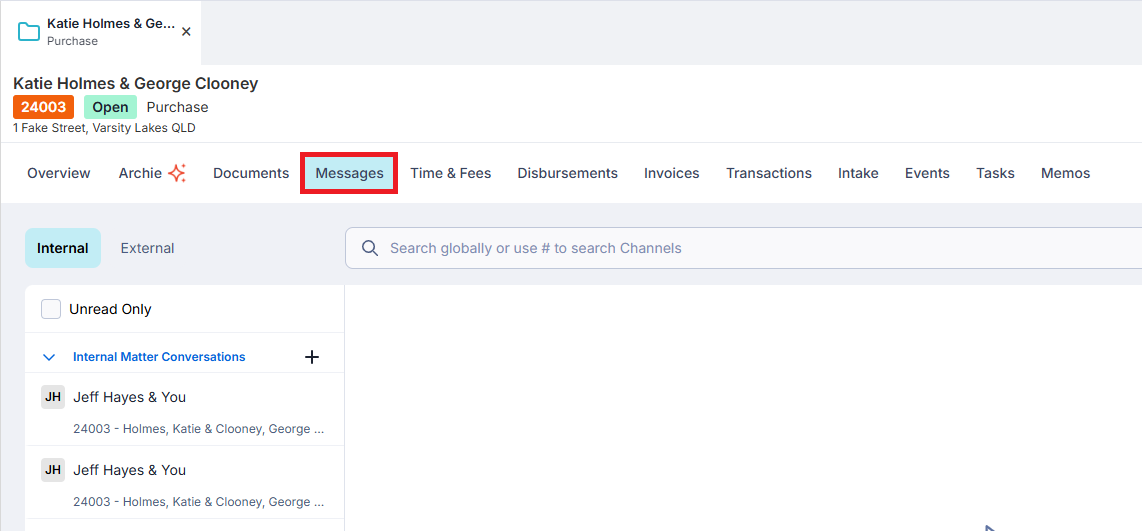
Creating a conversation
The Messages tab is split into two panels; Internal and External:
- The Internal panel is where your internal staff conversations, staff channels and direct messages with other staff members live.
- The External panel is where your conversations with clients and parties to a matter live. This includes group conversations that a client has with multiple staff members in your firm.
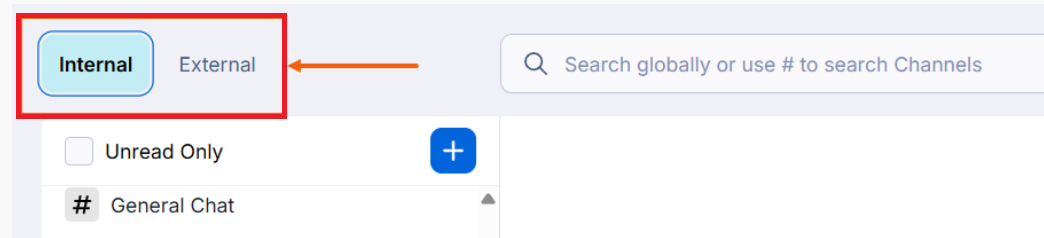
To start a new conversation:
1. Select Internal or External from the top-left corner of the Messages tab. See Accessing Messages above for guidance on which way you should access the Messages tab.
2. Select the Plus (+) icon under the type of conversation you wish to create.
- If you're creating a Channel, refer to the article on Channels for more information on setting them up.
3. Choose the conversation participants using the drop-down menu.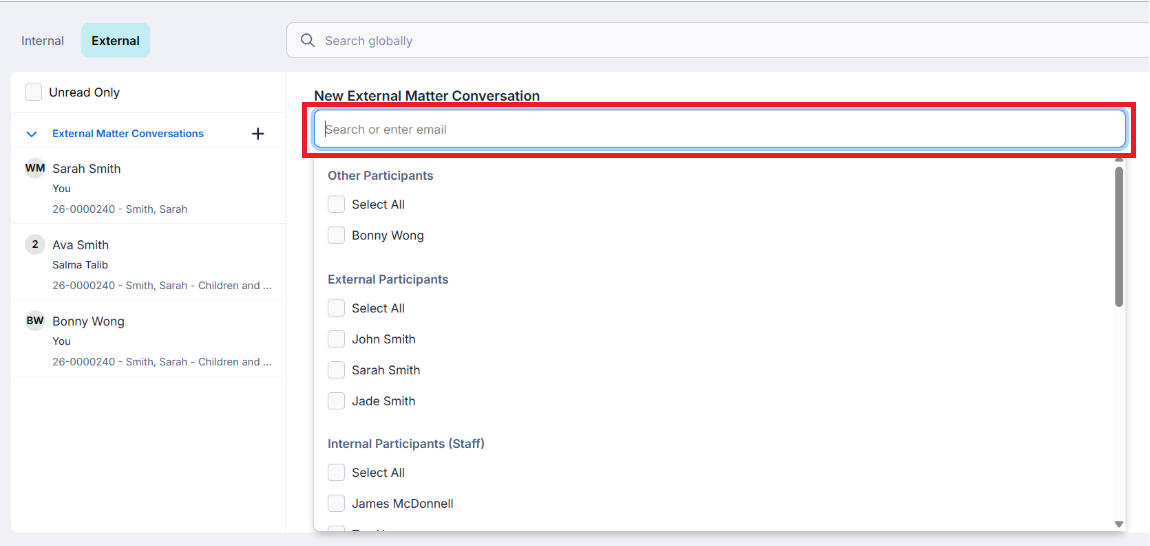
4. For External Matter Conversations, click Require Two-Factor Authentication for added security to view messages. This step is optional.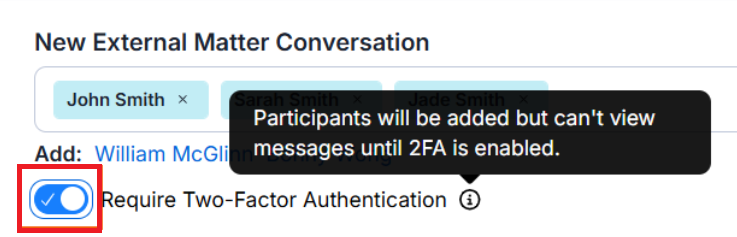
5. Type your message at the bottom of the screen (max. 2000 characters per message). You can add emojis by clicking on the Emoji icon.
6. If you have Archie AI enabled, you can use Archie to help better convey your message by changing the tone, length or by improving your writing.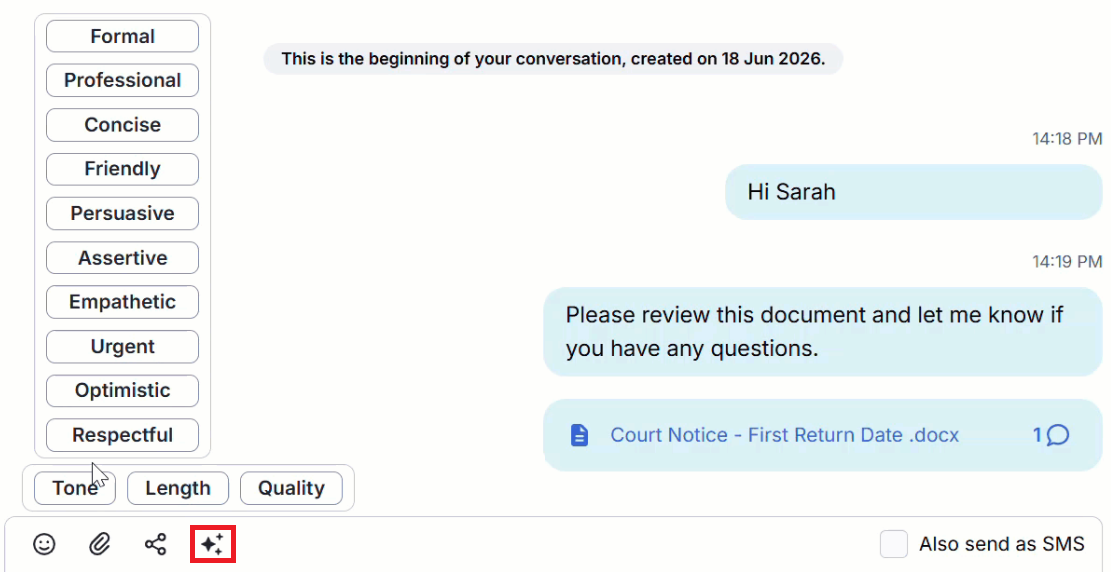
7. For External Matter Conversations, click Also send as SMS if you wish to start the conversation with a text message to the external parties.
8. Press Enter on your keyboard or click on the Paper plane icon to send the message and start the conversation.
Send messages
To send a message in an existing conversation:
1. Navigate to the Messages tab.
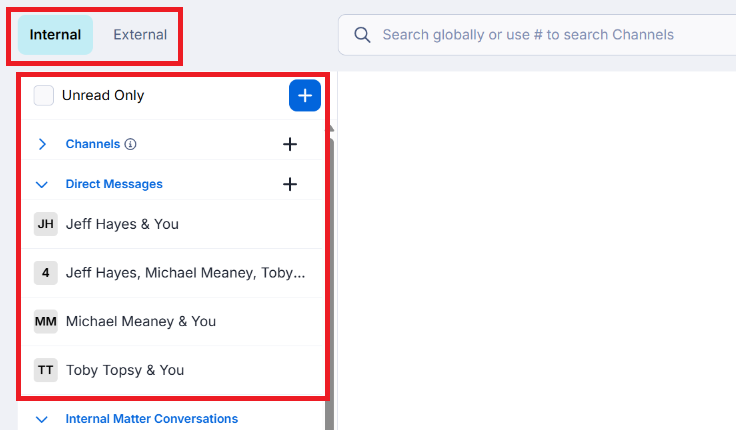
2. Select Internal or External from the top-left corner of the Messages tab.
3. Click on the relevant conversation from the left menu.
4. Type your message at the bottom of the screen (max. 2000 characters per message). You can add emojis by clicking on the Emoji icon.
5. If you have Archie AI enabled, you can use Archie to help better convey your message by changing the tone, length or by improving your writing.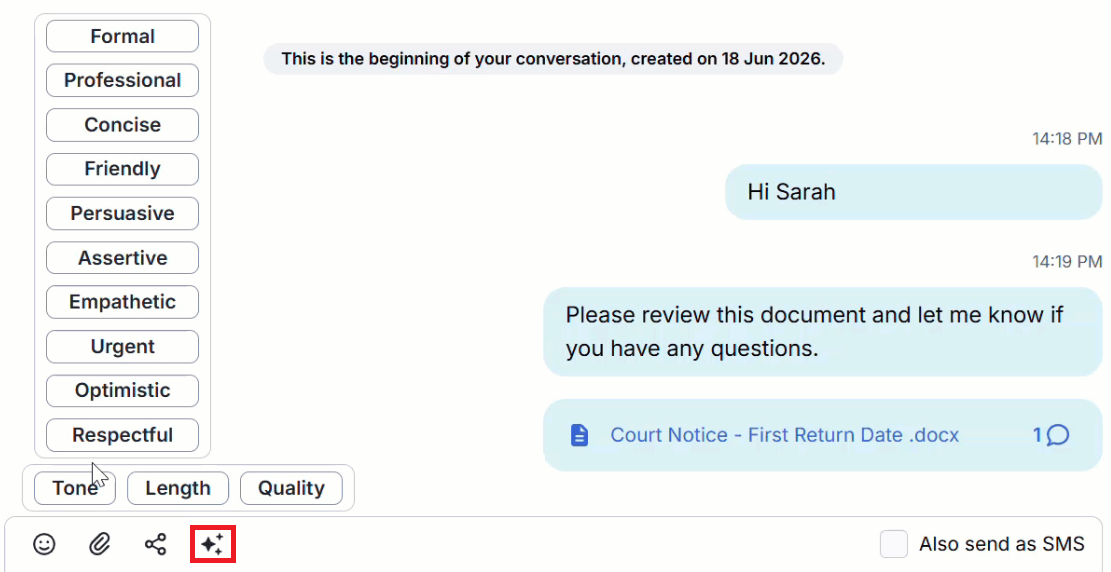
6. For External Matter Conversations, click Also send as SMS if you wish to start the conversation with a text message to the external parties.
7. Press Enter on your keyboard or click on the Paper plane icon to send the message.
Sending and sharing files from a matter
There are two ways for conversation participants to view files and documents you send them:
- As a one-off, standalone Attachment or attachment to a message
- As a Shared file or folder
Attach a file from a matter
Sending a file as a message delivers it as a one-off attachment in a conversation.
1. Navigate to the Documents section of your Matter and locate the file you wish to send.
- From the triConvey Desktop App, right-click on the file and select Send, then select Client Portal.

- From the triConvey Companion Site Web App, select the three dots on the right-hand side of the file and select Send a copy.
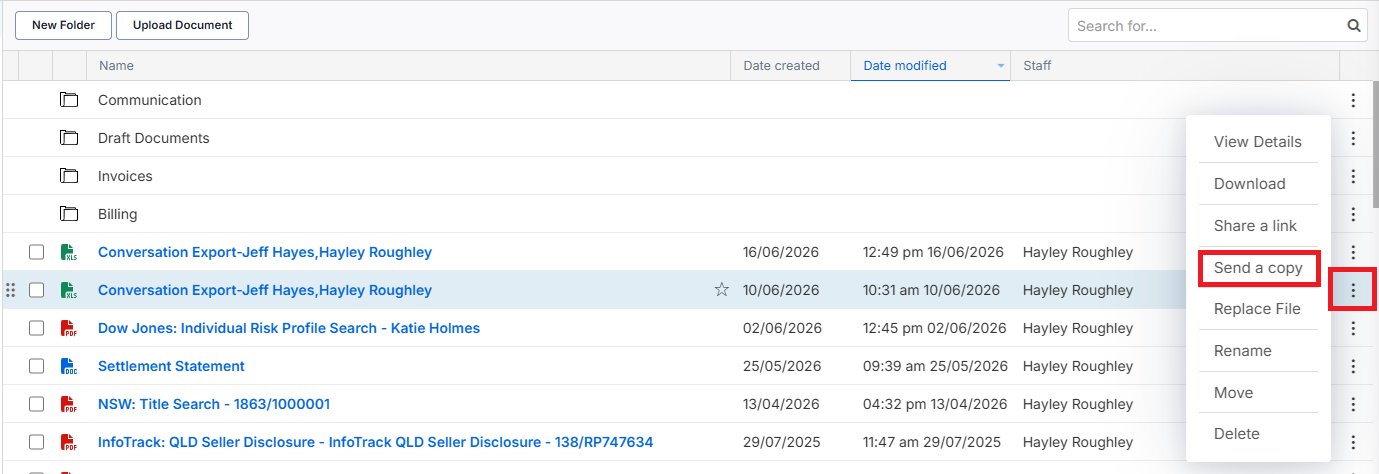
2. Choose the parties/staff you would like to send the file to and add an optional message. You can also attach extra files by clicking the Attach button below the Message field if working in the Desktop App, or the Add button if working in the Web App.
4. Choose the parties/staff and add an optional message.
triConvey Desktop App view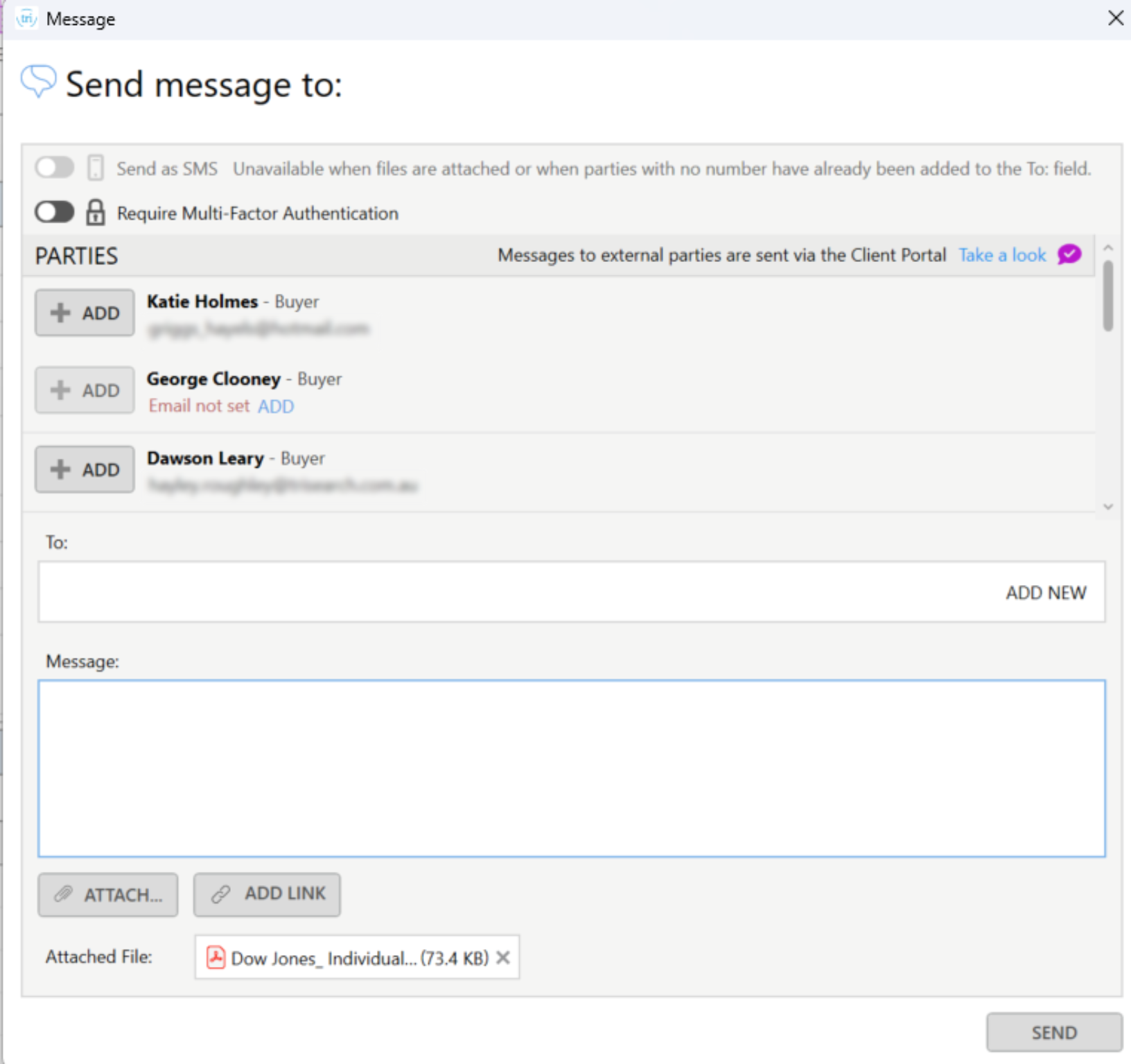
triConvey Companion Site Web App view
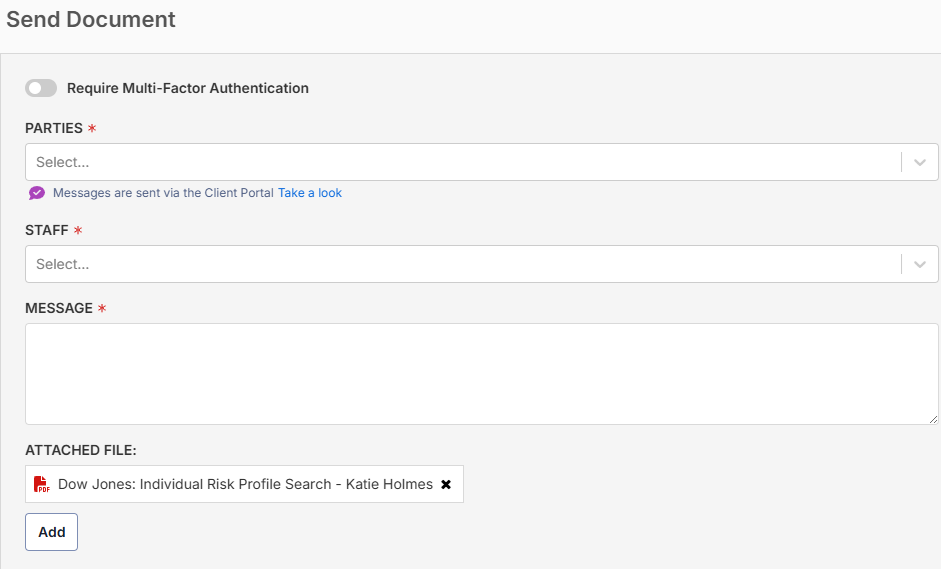
5. Click the Send button when ready.
You can also attach a file from within a conversation by clicking on the Paperclip icon above the text box, then selecting the file to send.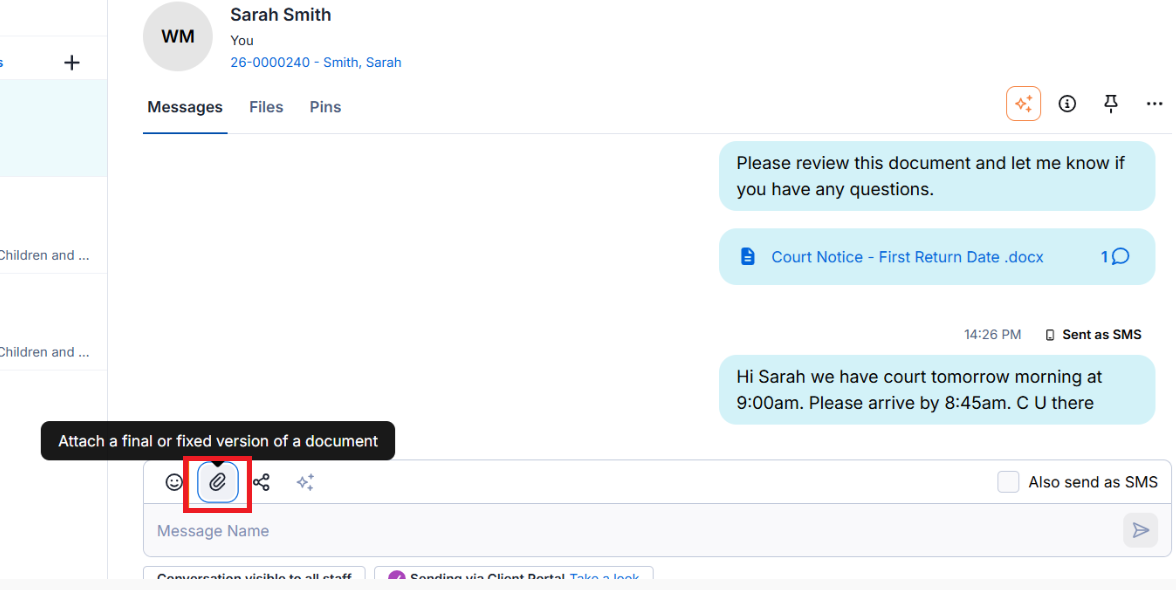
Sharing a file or folder
The Share action in the Client Portal involves delivering the file or folder as a dynamic link, meaning that the conversation participants can view any changes you make to the file itself.
Changes you make to a document or folder (including changing the folder structure) in triConvey will carry over to participants when shared. They can then view the latest version of the document or folder from their Client Portal without you needing to send them multiple versions.
1. Navigate to the Documents section of your matter.
- From the triConvey Desktop App, right-click on the file and select Send, then select Client Portal.
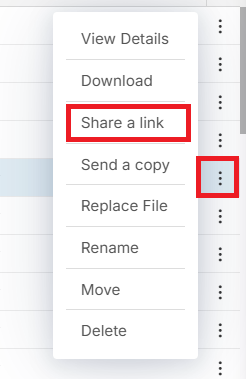
- From the triConvey Companion Site Web App, select the three dots on the right-hand side of the file and select Share a link.
2. Choose the parties/staff and add an optional message. You can also choose extra files to share. 
3. Select Send.
Alternatively, you can share a file (or folder in the Desktop App) from within a conversation by selecting the Share icon under the chat box: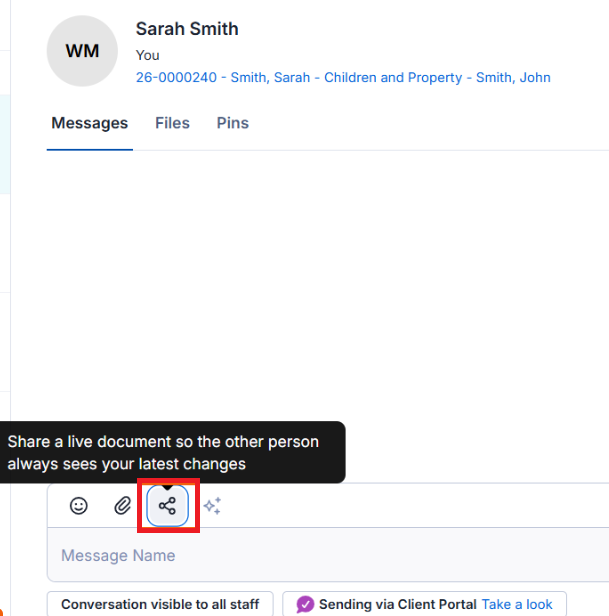
Files that have been Shared rather than Attached are denoted with a small circular arrow on their icon.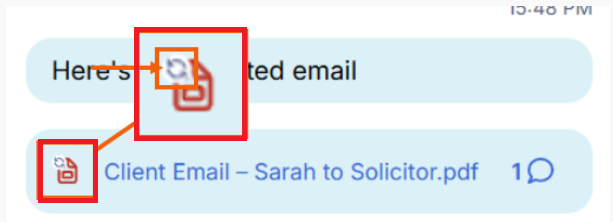
To remove client access to the file or folder, click on it and select Remove File on the top-right corner of the preview.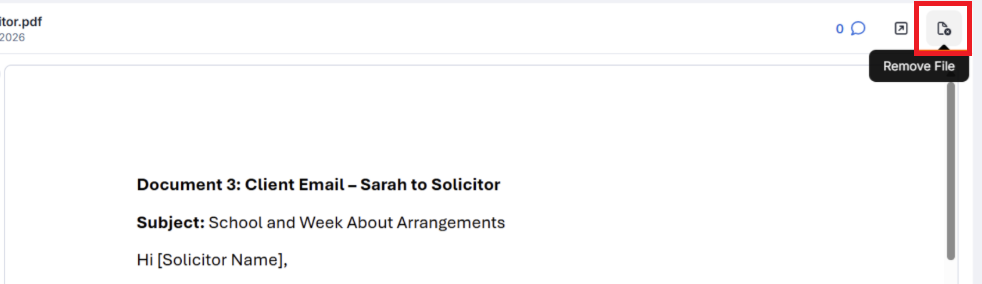
Important notes
- When sharing a folder, the recipient will have access to all files within the folder and subfolders contained in it.
- If you remove/delete either a message, file, or message with file attached to it from a conversation, the other side/client will no longer see what was deleted on their end.
- Each folder can have a maximum of 130 files, and each file can be up to 5GB in size.
- There is no restriction on file types you can send or share.
- Documents and folders shared between parties on the Client Portal can be viewed from the Messages section in the matter’s File viewer in the triConvey Desktop App.
Alternative ways to access Messages
You can also access Messages from the browser or the mobile app.
If you require any help with the Client Portal and Communicate, refer to our Frequently Asked Questions and Troubleshooting Guide for assistance.
Was this article helpful?
That’s Great!
Thank you for your feedback
Sorry! We couldn't be helpful
Thank you for your feedback
Feedback sent
We appreciate your effort and will try to fix the article