

Learn how to install the Archie Word Add-in to use Archie seamlessly alongside your Word documents.
Table of Contents
- Installing the Archie Word Add-in
- Using the Archie Word Add-in
- Saving commonly used document prompts
- Using Archie Word add-in Apps
- Using Archie for Document Review
Installing the Archie Word Add-in
1. Open the Microsoft Word App on your PC.
2. Select Add-ins, located on the right-hand side of the Word ribbon.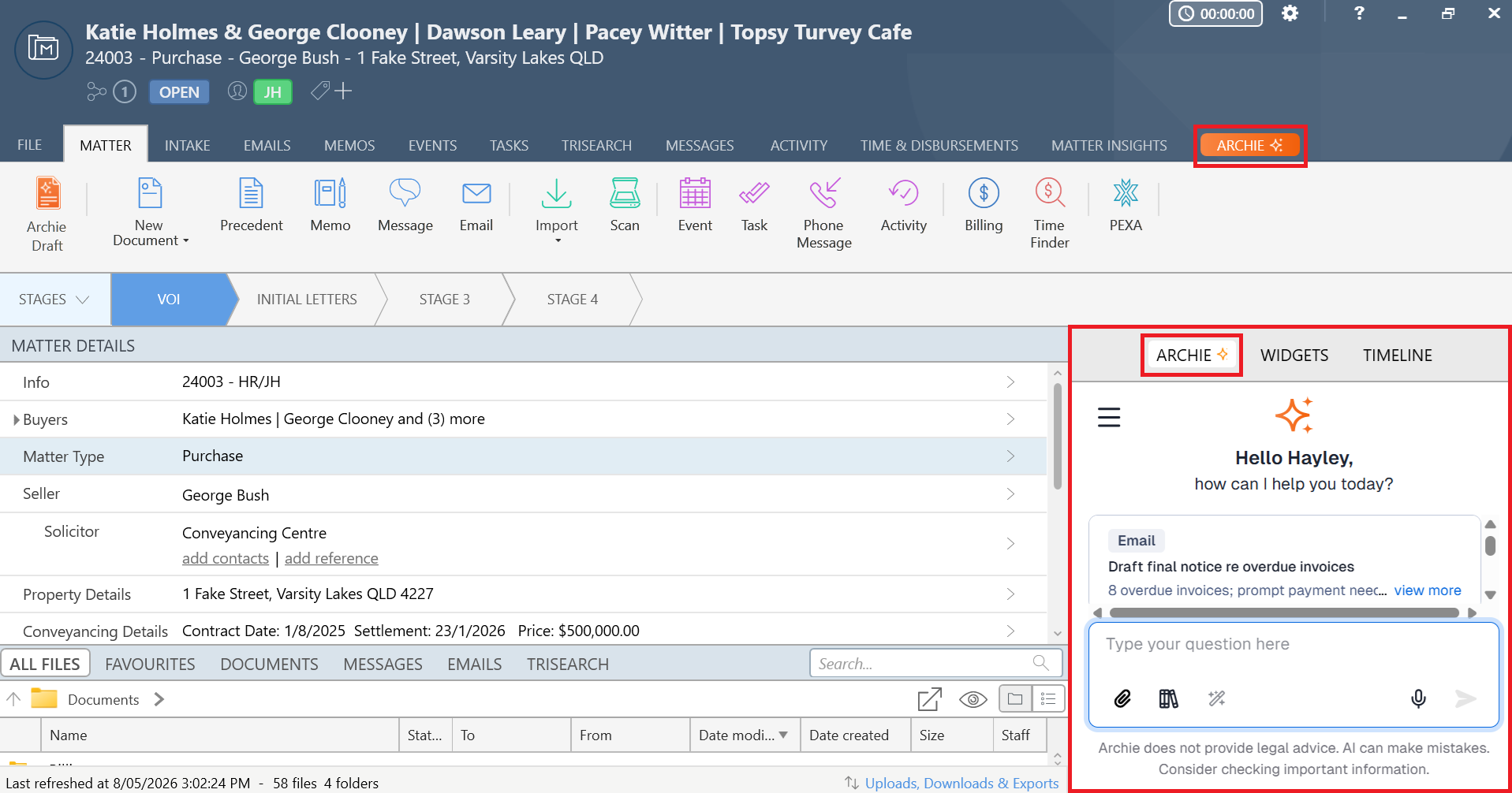
3. Select More add-ins and click on the Store tab to open the Microsoft add-in store.
4. Search for "Archie" and install the Smokeball Archie add-in.
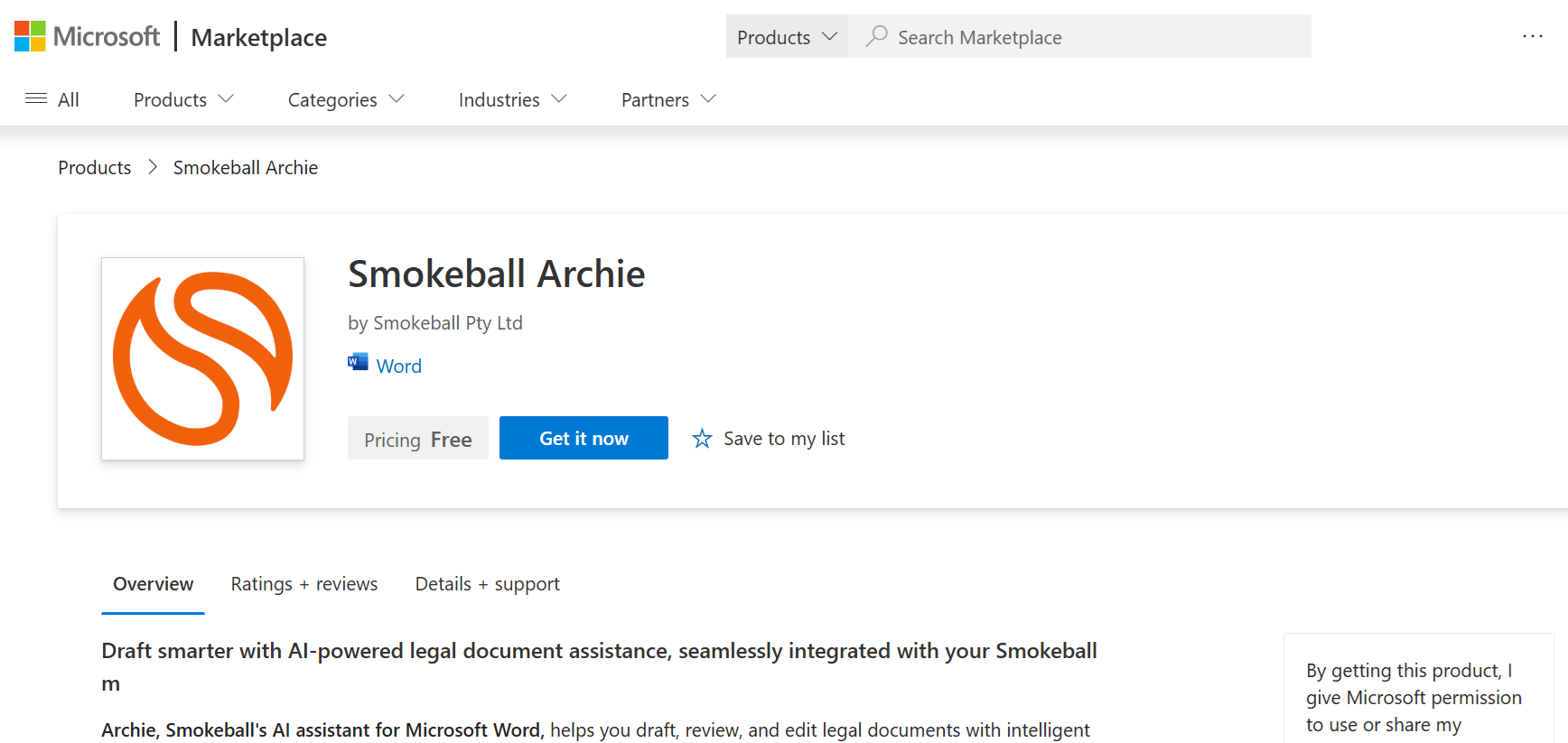
Note: If you cannot find the add-in on the Store, try installing it from this link to the Microsoft Marketplace listing then clicking Get it now.
5. Select Add-ins again on the Word ribbon and click on Smokeball Archie.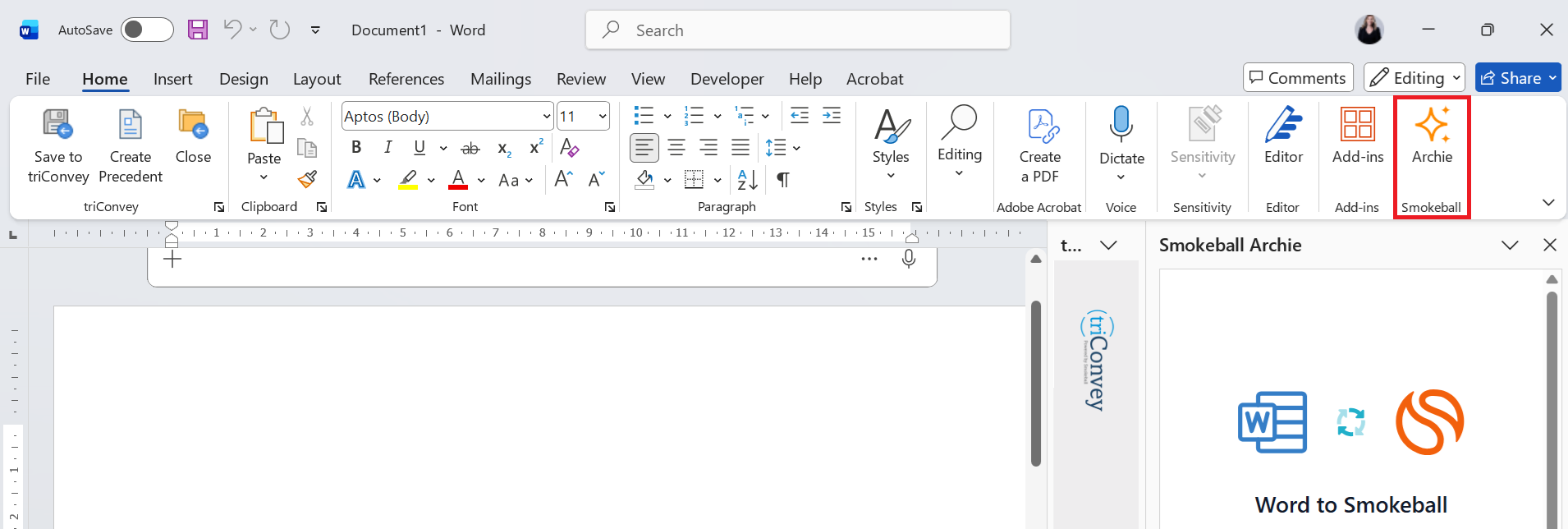
6. The Archie Word add-in will appear on the right-hand side of Word. Log in with your triConveyemail, password and 2FA code when prompted.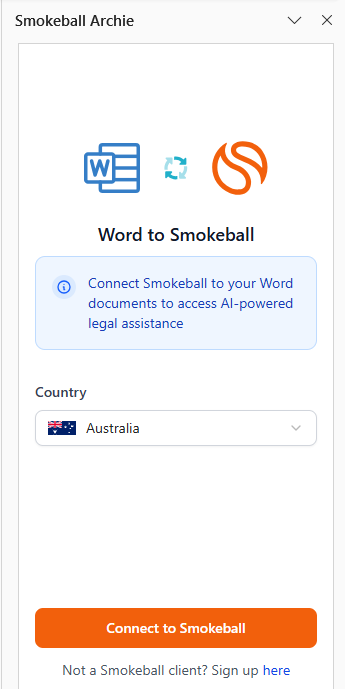
Good to know
- The Archie Word Add-in works completely separate to the triConvey Word add-in. You can have both add-ins running simultaneously.
- Changes made in the document are saved differently to the matter depending on whether you're using the Word desktop app or web app.
- Word desktop app - changes to documents are able to be saved to triConvey automatically since the Word desktop add-in is in use.
- Word web app - changes in the document are not able to be saved to triConvey.
Using the Archie Word Add-in
The Archie Word Add-in is a panel that opens up on the right-hand side of your Word document.
Assigning a matter
When a document is opened from a triConvey matter, the add-in automatically detects it and can access the matter details, documents and email files. If you opened Word outside of triConvey, click on Assign a matter to this document at the top of the panel to manually select a matter for Archie to work with.
To change the matter you have connected Archie to, select the Arrow icon to the right of the matter name, then select Change matter. You can also Unlink the matter from this drop-down menu.
Choosing Archie's AI model
Select the Ellipsis icon under the chat text box to specify which AI model Archie should use.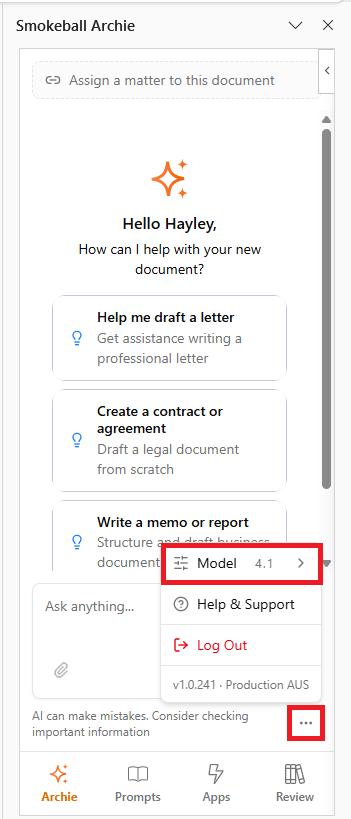
Microsoft Word supports a different set of Archie AI models compared to those available when using Archie in your matters.
Here's a helpful guide on each of the models available for Archie in Microsoft Word:
- OpenAI GPT-4.1 - A dependable all-rounder that's especially good with long or multiple documents. It can read large contracts and document sets in one go without losing track and is reliable at following detailed instructions.
Use it when: you're working across long documents or several files at once or need Archie to follow precise drafting instructions. - Gemini 3.1 Flash The fast, efficient option. It keeps up with everyday work at speed without a big drop in quality and can put in extra effort on trickier questions when needed.
Use it when: you want quick answers for routine work — summaries, quick questions, straightforward drafting — and when responsiveness matters most. - Gemini 3.1 Pro The top-end model for the hardest work. It reasons more deeply and is the strongest choice for complex matters, cross-document analysis, and spotting conflicts or ambiguity across a file.
Use it when: the matter is complex or high-stakes and getting it right matters more than speed.
NOTE: If wanting to draft long documents using Archie, the Gemini Flash model is a better fit since its output capacity is larger compared to the Gemini Pro model.
Chatting with Archie about your document
Once you have assigned a matter, you can ask Archie questions about the document.
You can attach additional documents from the matter to help with providing additional context to Archie. Select the Paperclip icon and choose one or more files from your matter's documents list.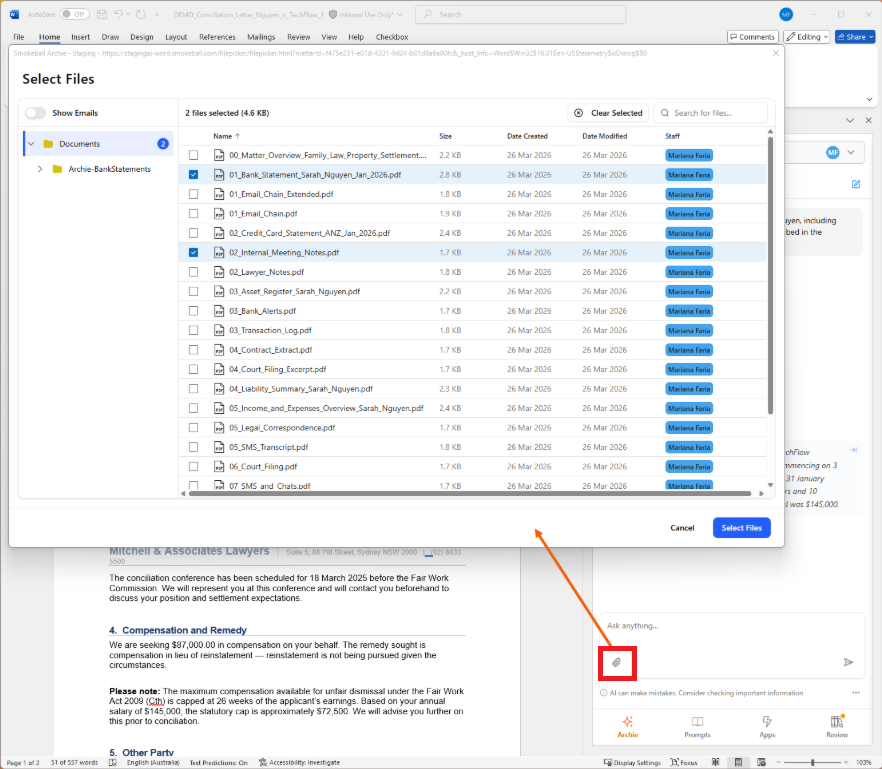
Below are some ways you can interact with Archie in Word.
Extracting key information
Ask Archie to extract key information from the document so you don't have to read through the entire document.
Document citations are linked at the bottom of the Archie output. Click on a citation to jump to the location of the Word document it is referring to.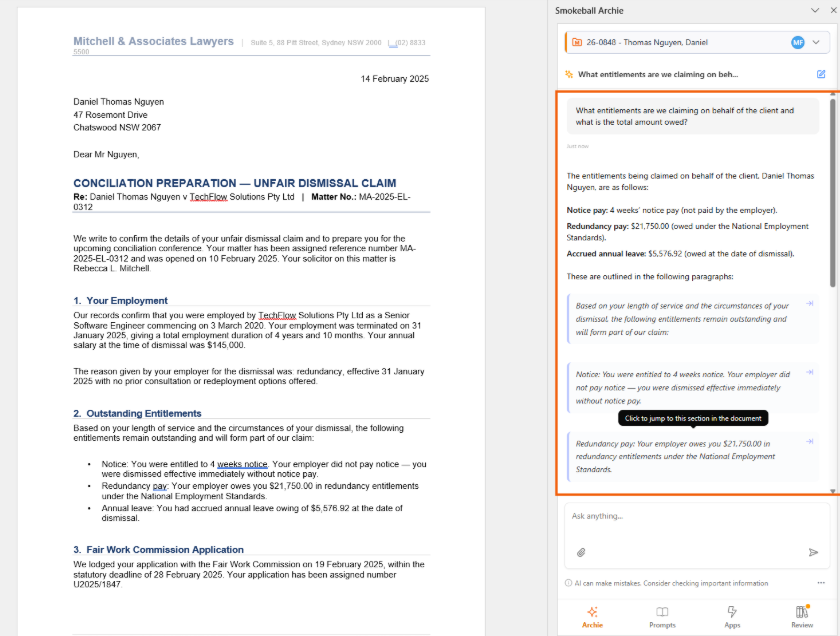
Editing and adding content to the document
Ask Archie to edit or rewrite specific parts of the document.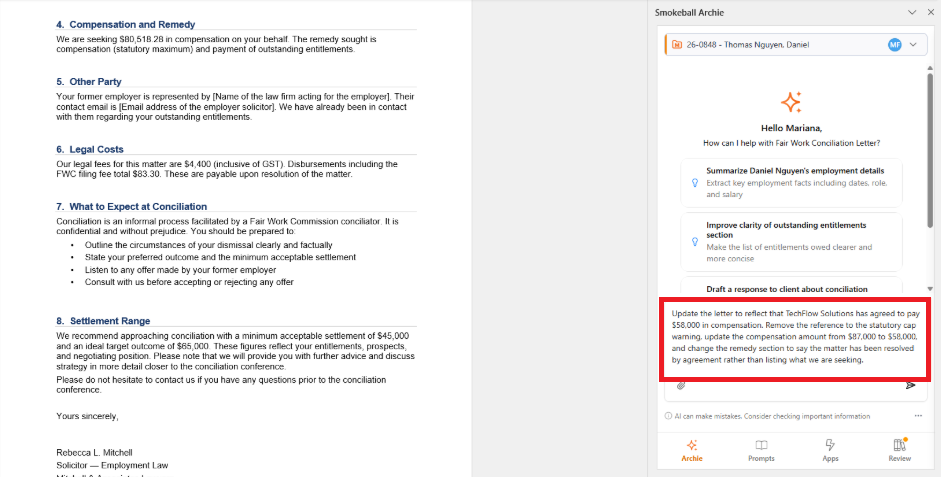
Archie will utilise the Tracking functionality in Word to log the changes to the document. Navigate to Review Tab > Accept/Reject buttons in the Word ribbon to accept or reject Archie's suggestions.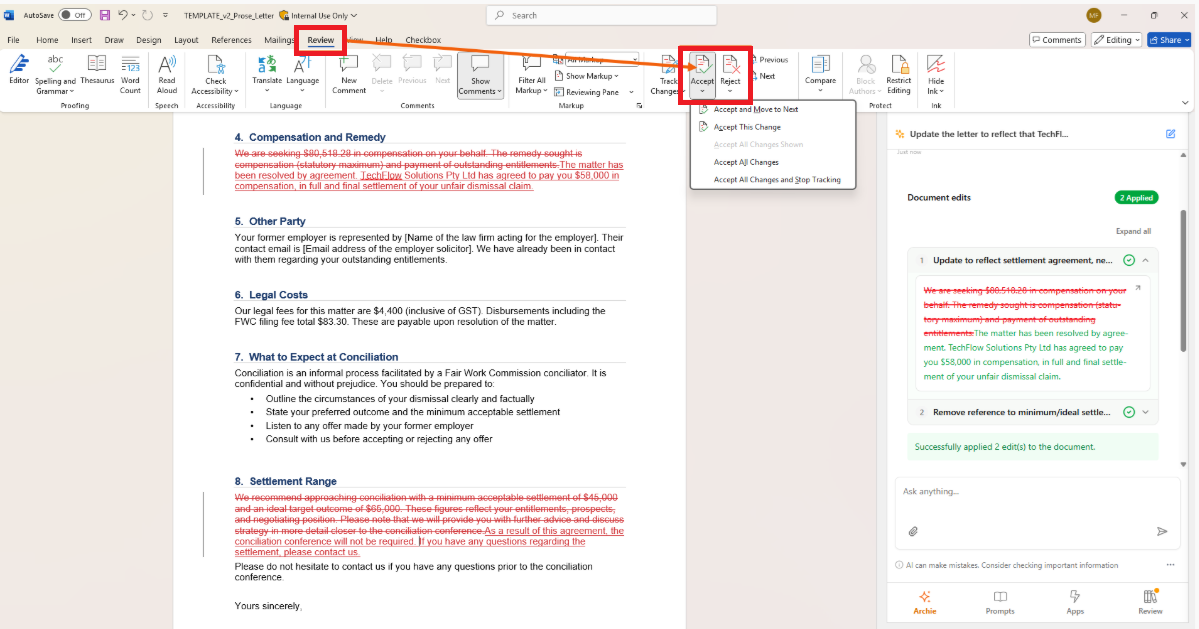
Starting a new chat
To start a fresh conversation with Archie, select the Notes icon on the top-right corner of the conversation.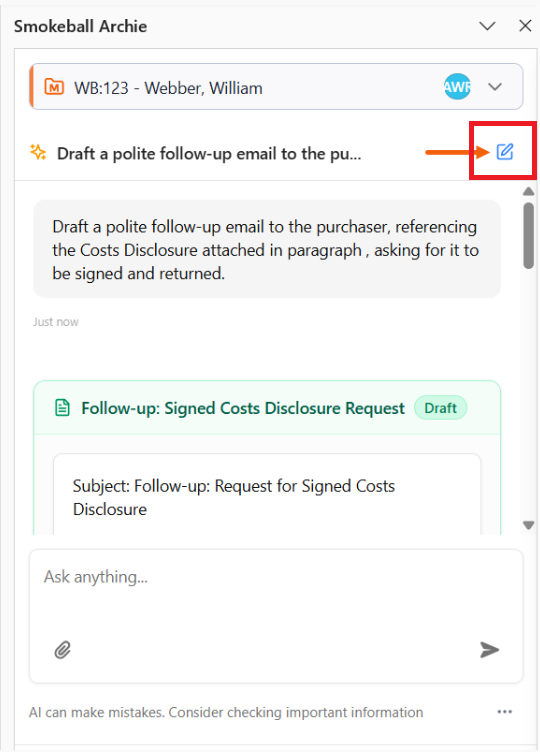
Saving commonly used document prompts
The Prompt tab located at the bottom of the Archie panel is where you can save commonly used prompts to the Word add-in. This Prompt Library is separate to the one used in the Archie tab in triConvey, as it's designed for storing document-focused prompts, while the regular Prompt Library supports broader use cases.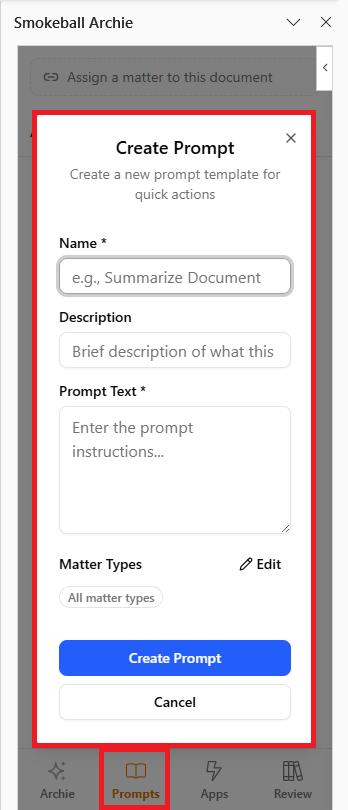
Using Archie Word add-in Apps
Select the Apps tab located on the bottom of the Archie panel to view and use apps that are connected to the Archie Word add-in.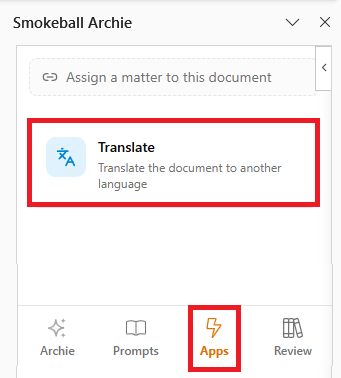
Translate App
Currently the Archie Word add-in has one app - Translate. The Translate app allows you to translate selected text or entire documents into other languages.
If you select a section of text in the document, the option to Translate selected paragraphs only will be selectable.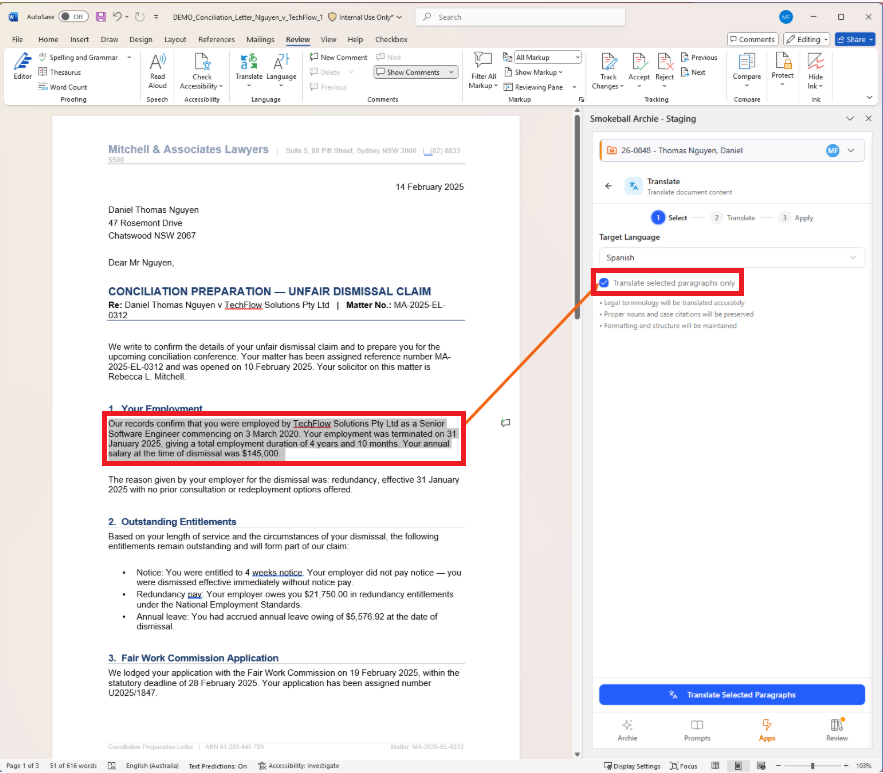
Once the text has been translated, the original and translated versions are put side-by-side to help you review and compare.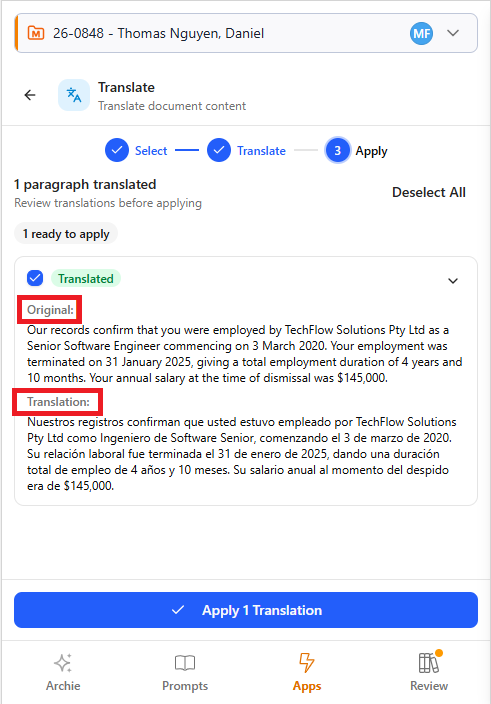
Using Archie for Document Review
Select the Review tab at the bottom of the Archie panel to run structured document reviews using predefined rule sets called Playbooks.
A Playbook is a set of rules based on how you and your firm would like documents to be written. This could includes structure, wording, required clauses, formatting and compliance requirements.
Each playbook contains a set of review rules classified by severity:
- Critical - Must be addressed; blocks compliance
- Important - Should be addressed as it has a significant impact
- Suggestion - Consider addressing as it would be a minor improvement
Archie evaluates the document against each rule and highlights potential issues or areas that may require attention, while providing a way to jump directly to the relevant section and apply suggested fixes where appropriate.
Creating a Playbook
1. Select Create your first playbook or +Add.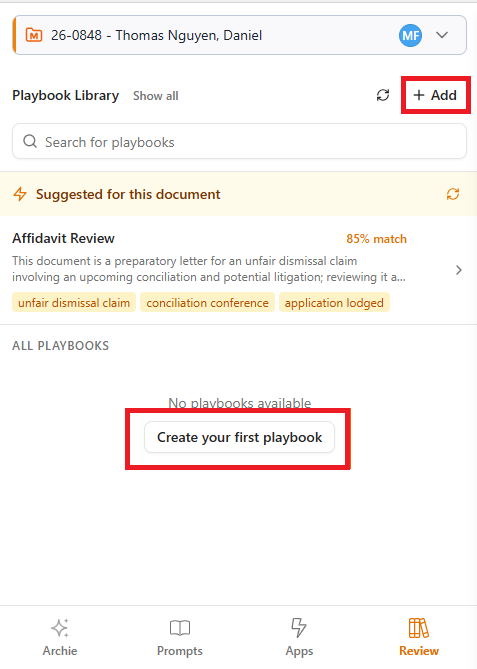
2. Enter a Name and Description of the Playbook.
3. Choose the Matter Types that this Playbook should appear on.
4. Select Add Rule. Rules are notes that Archie should check the document for to determine if it follows them. Refer to the example below for some ideas you can incorporate.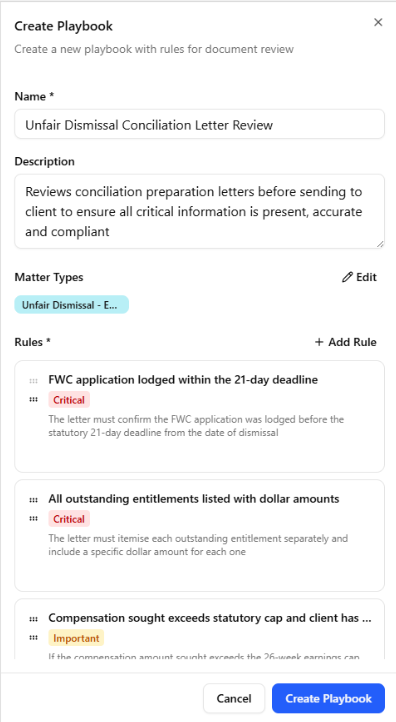
5. Select Create Playbook.
Example of a Playbook - Reviewing a conciliation preparation letter against a set of rules


Playbook Name: Unfair Dismissal Conciliation Letter Review


Description: Reviews conciliation preparation letters before sending to client to ensure all critical information is present, accurate and compliant


Rules:
Rule 1 — FWC application lodged within the 21-day deadline
Description: The letter must confirm the FWC application was lodged before the statutory 21-day deadline from the date of dismissal


Rule 2 — All outstanding entitlements listed with dollar amounts
Description: The letter must itemise each outstanding entitlement separately and include a specific dollar amount for each one


Rule 3 — Compensation sought exceeds statutory cap and client has been warned
Description: If the compensation amount sought exceeds the 26-week earnings cap under the Fair Work Act, the letter must explicitly warn the client of this risk


Rule 4 — Employer's legal representative is identified
Description: The letter must name the law firm or solicitor acting for the employer


Rule 5 — Notice non-payment is addressed
Description: The letter must explicitly state whether the employer paid the client's notice entitlement and if not, confirm it forms part of the claim
Applying a Playbook
To run a Playbook, click on it from the Review tab. Archie will then start the document review based on your defined rules in the Playbook.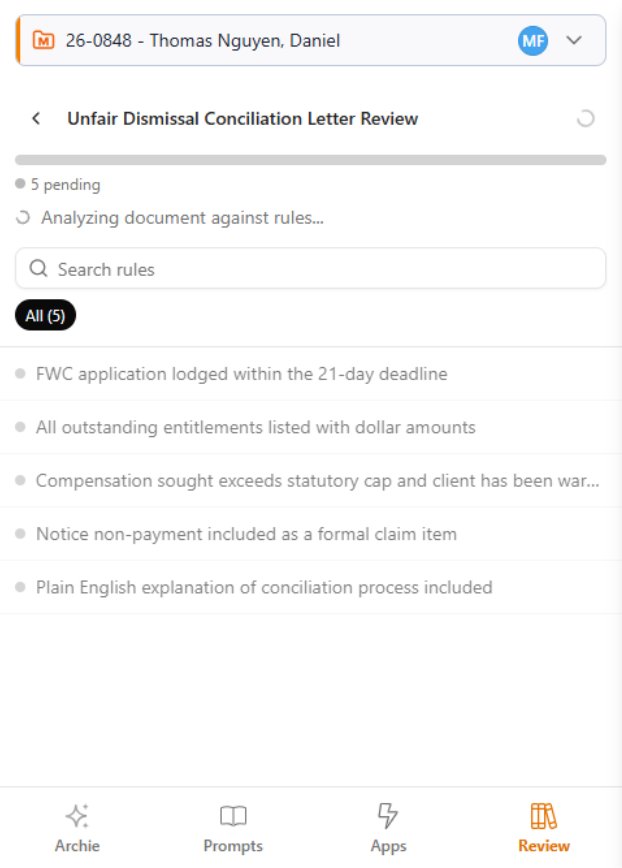
Archie will then flag sections of the document that have passed review, and sections that need further attention.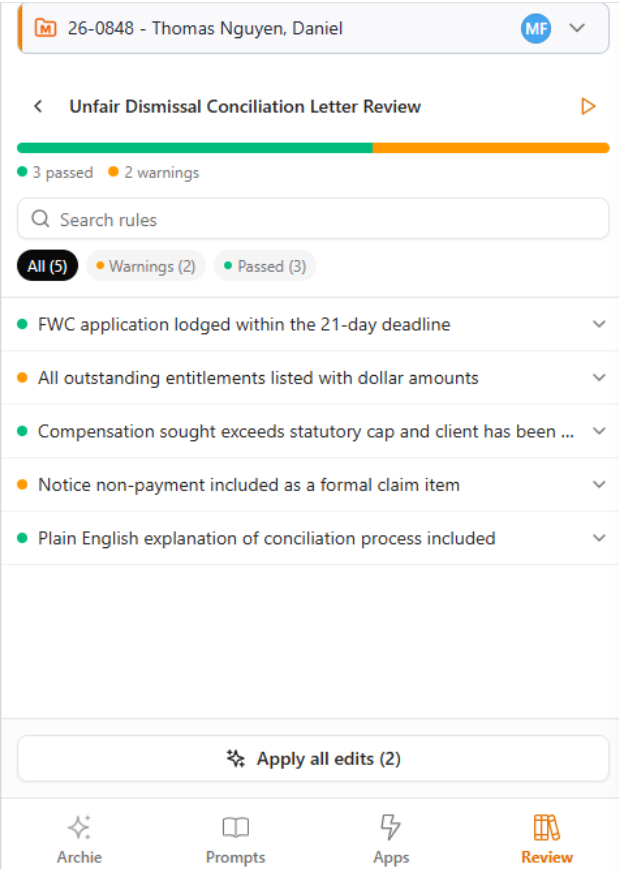
Selecting Apply Edit/Apply all edits will appear as an Archie document edit for a final check before it replaces text. Navigate to the Word Ribbon > Review > Accept/Reject to finalise changes.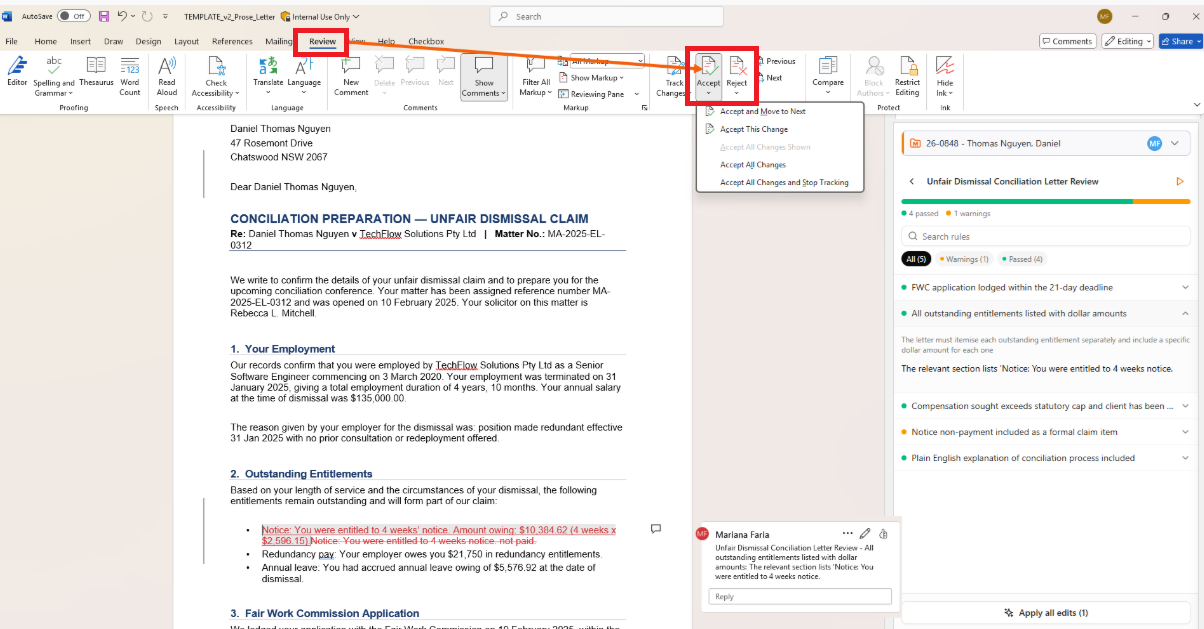
If a rule displays as an Issue (denoted in red), this means you will need to take further action to rectify the rule in the document. Clicking on the issue will give you more details.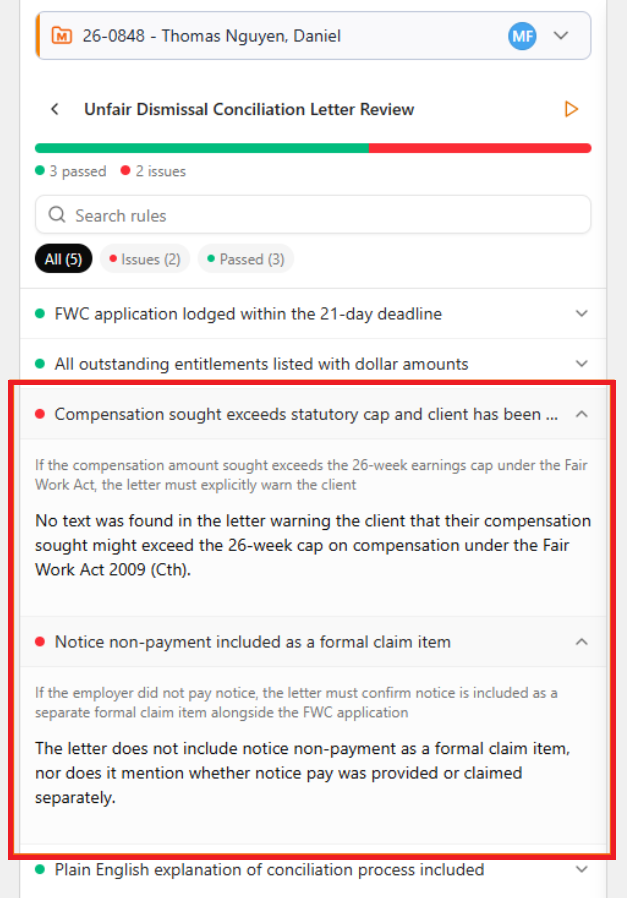
Was this article helpful?
That’s Great!
Thank you for your feedback
Sorry! We couldn't be helpful
Thank you for your feedback
Feedback sent
We appreciate your effort and will try to fix the article