

Have all matter information at your fingertips on the triConvey Mobile App. Whether you are trying to get quick contact information, look up a file or create a calendar event, the app has you covered.
Table of Contents
Getting Started
- There may be slight variances to the App depending on whether you use an Apple or Android device.
- New matters cannot be created from the triConvey Mobile App.
1. Tap on the hamburger icon at the bottom-right corner of the screen and then tap on Matters.
Tip: You will be presented with a list of all matters under your triConvey firm.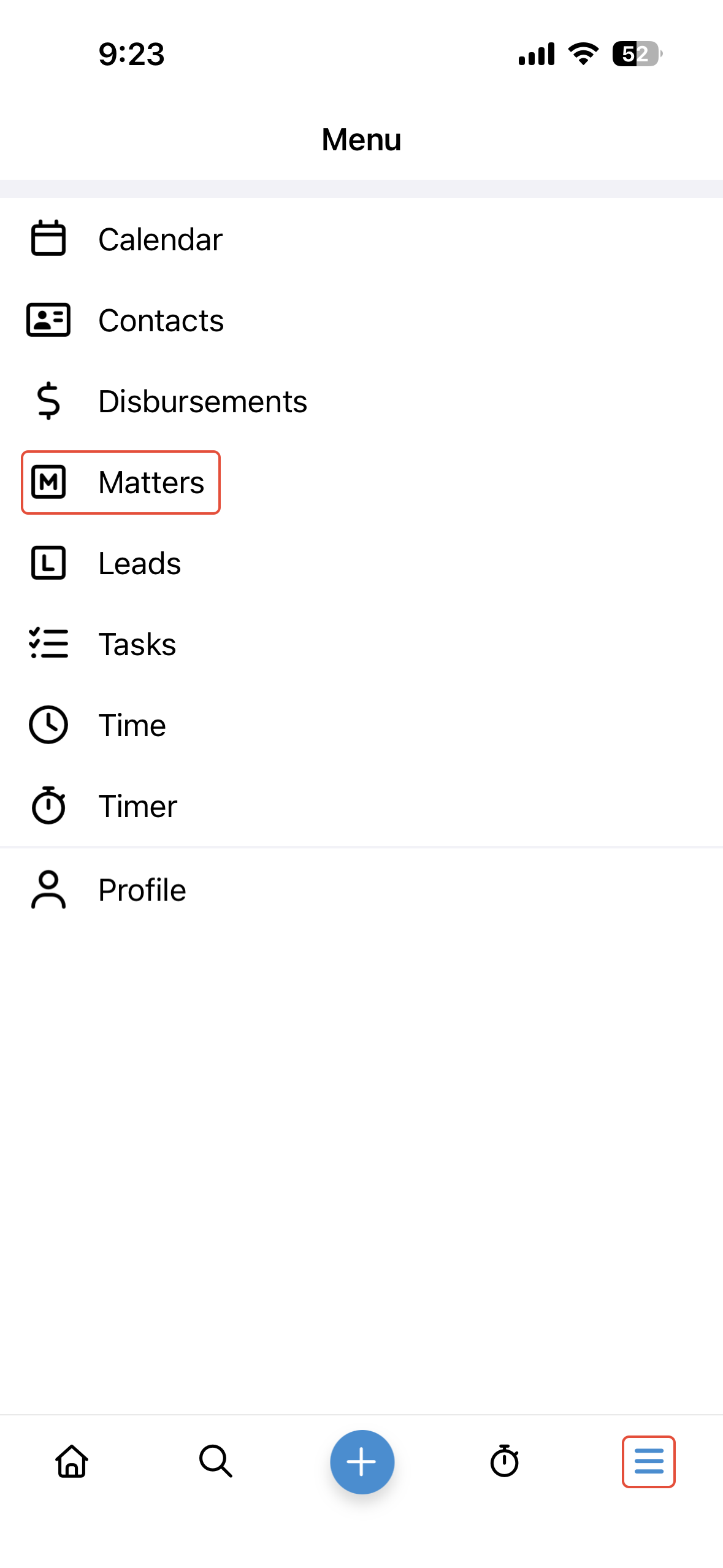
2. Tap on Search on the top of the screen to search to find a matter by the Matter Name, Description or Matter Number.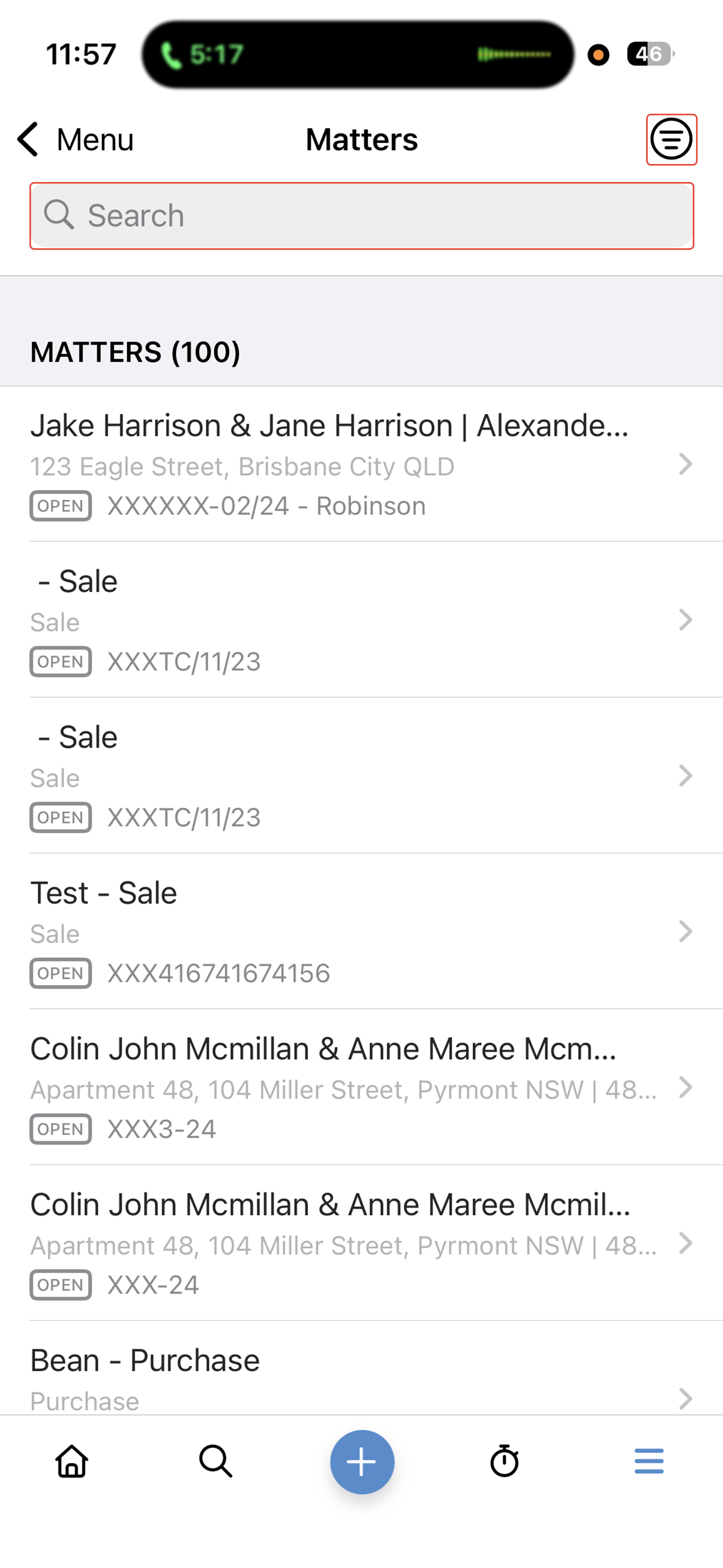
3. You can also use the Filter icon on the top-right corner to filter the list of matters. Tick the statuses and persons responsible you wish to see and select Done.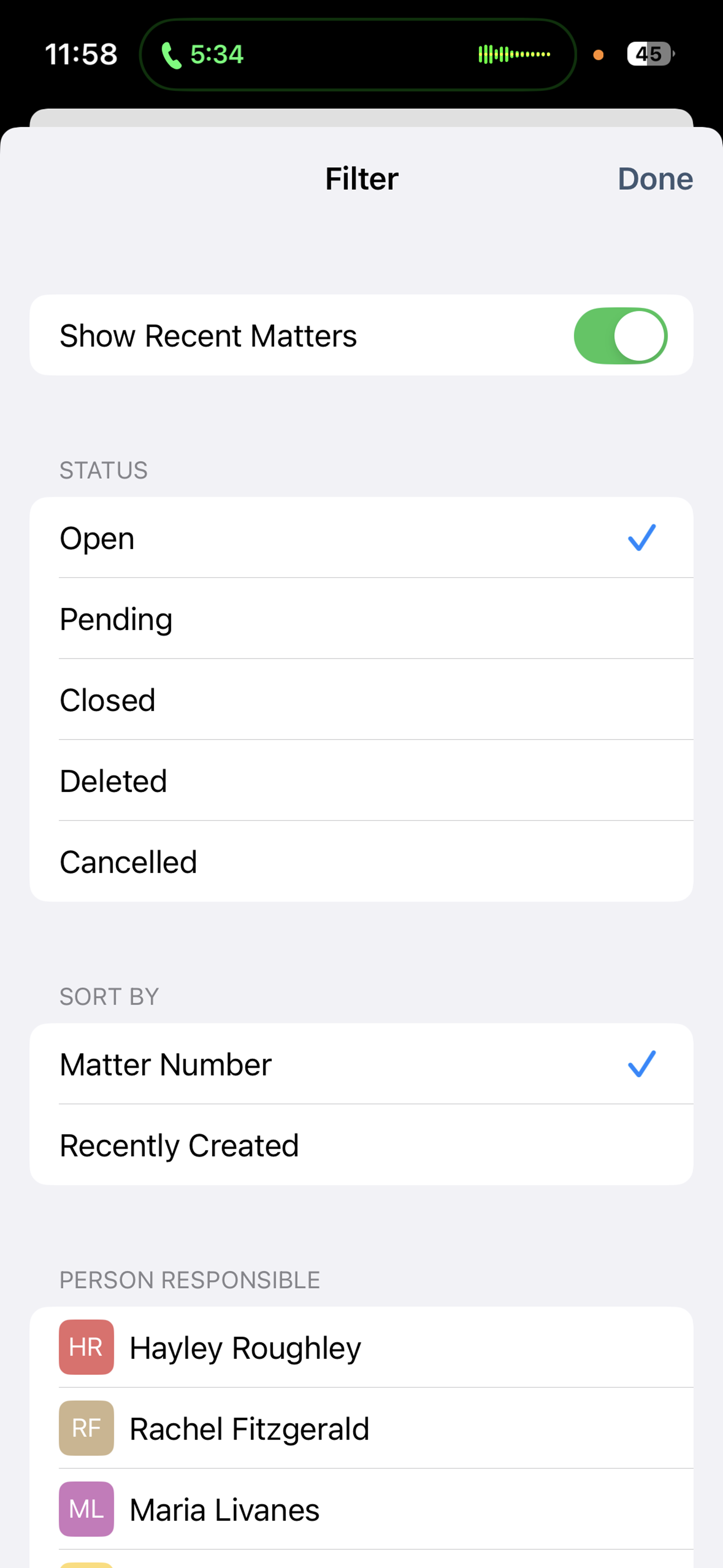
Note: The Mobile App displays your matters in groups of 100 to keep everything running smoothly. To see more, scroll to the bottom of your current list and the next 100 matters will automatically appear.
View matter details
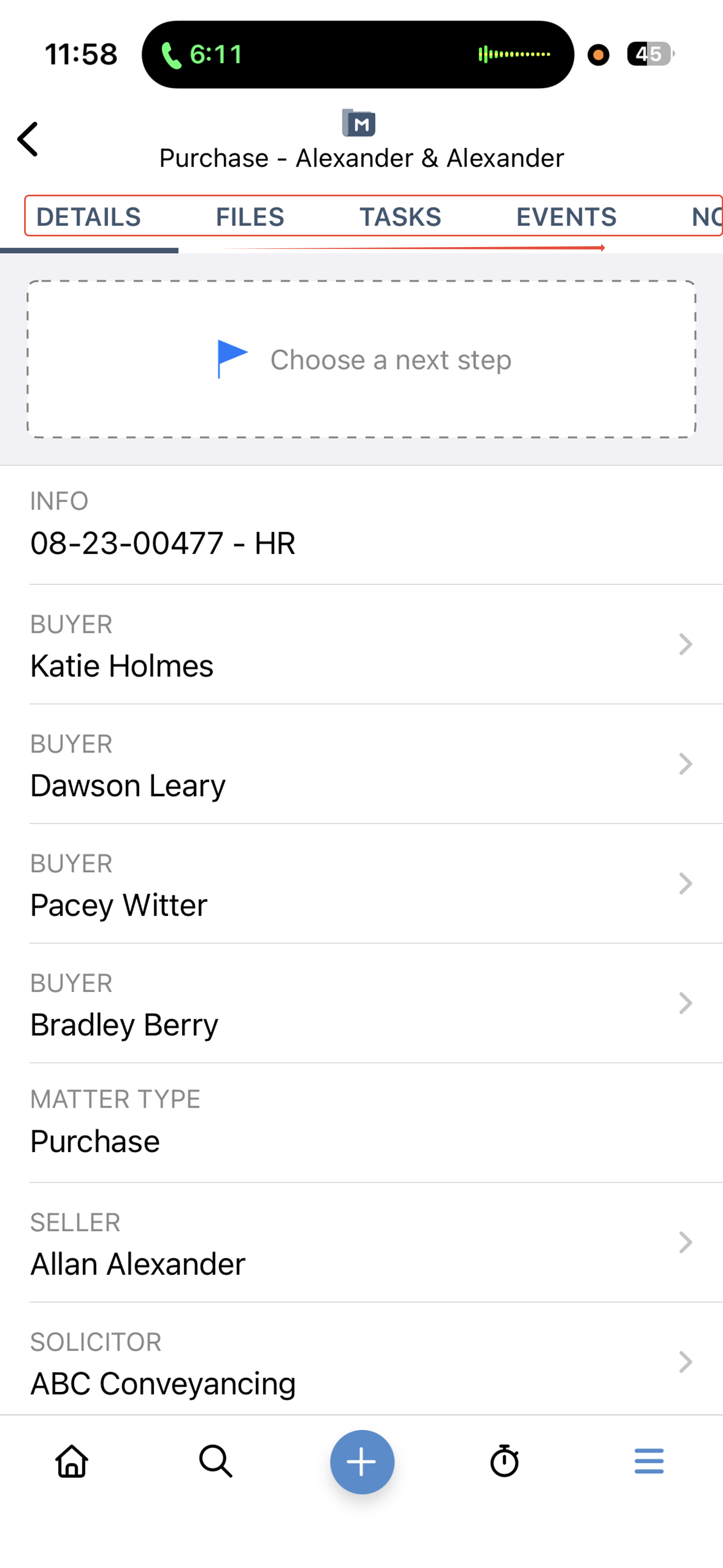
When you tap on a matter, you'll access a condensed view of all the matter's details. Scroll across the top navigation bar to find the information you need.
Details tab
The Details tab contains party contact information and a customisable Next Step section to bring any tasks regarding this matter to the forefront.
Tap on Choose a next step to create a new task or select from an existing task.
If you have a party's email address listed here, you can send them an email - however please note that emails sent using this method won't be saved to triConvey unless they are part of an existing email chain.
Files tab
The Files tab shows a list of all files and documents attached to the matter. You can view and save them to your mobile device for easy access to printing on the go.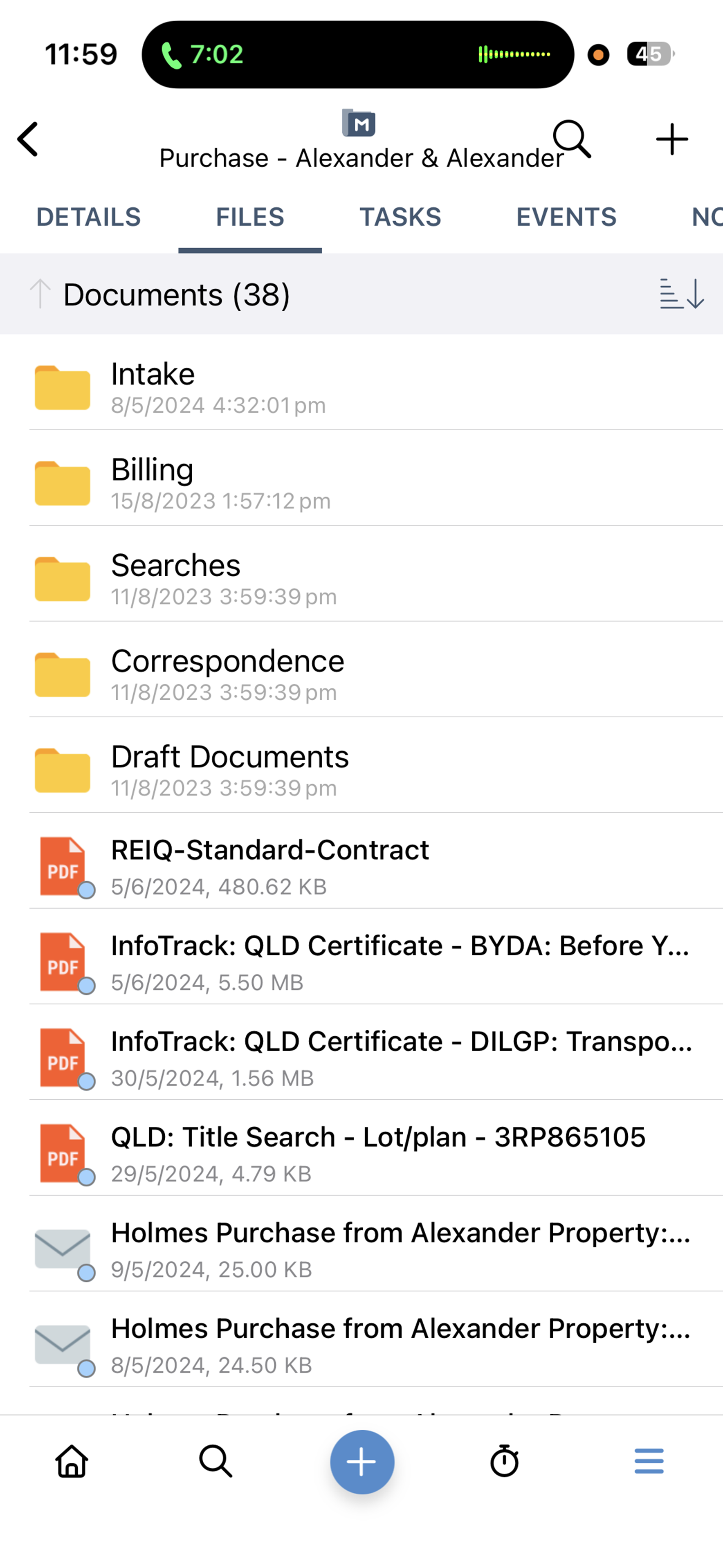
On iOS, you an also add triConvey as a Sharing option to easily save files from your device to the matter in one tap.
If you are sharing sensitive files or information, the best practice is to use the Client Portal for secure messaging and file sharing.
Tasks tab
The Tasks tab shows all tasks associated with the matter, sorted by To Do, Due Later and Completed. You can also create a new task by tapping the Plus icon.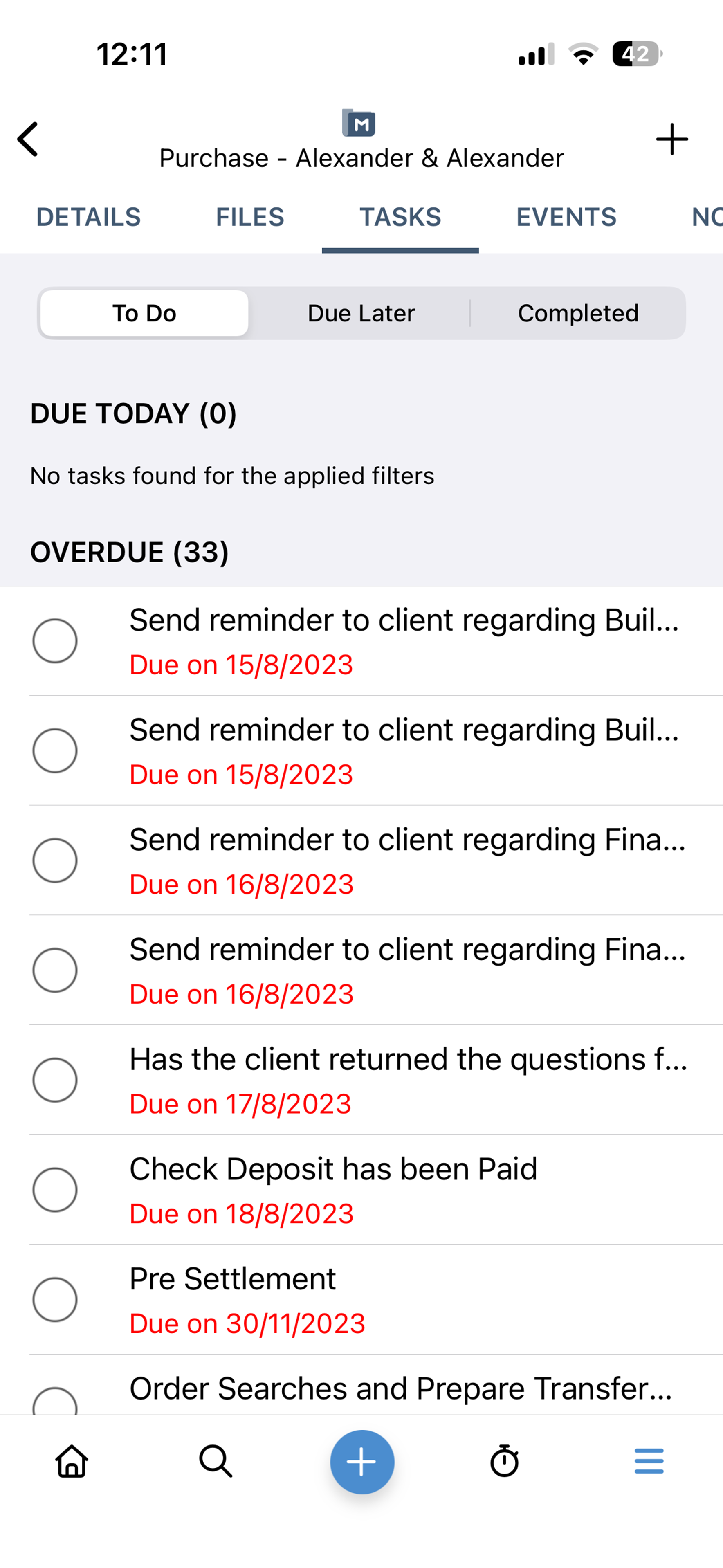
Events tab
The Events tab shows all calendar events associated with the matter. Tap on the Plus icon to create new events that synchronise with the triConvey calendar.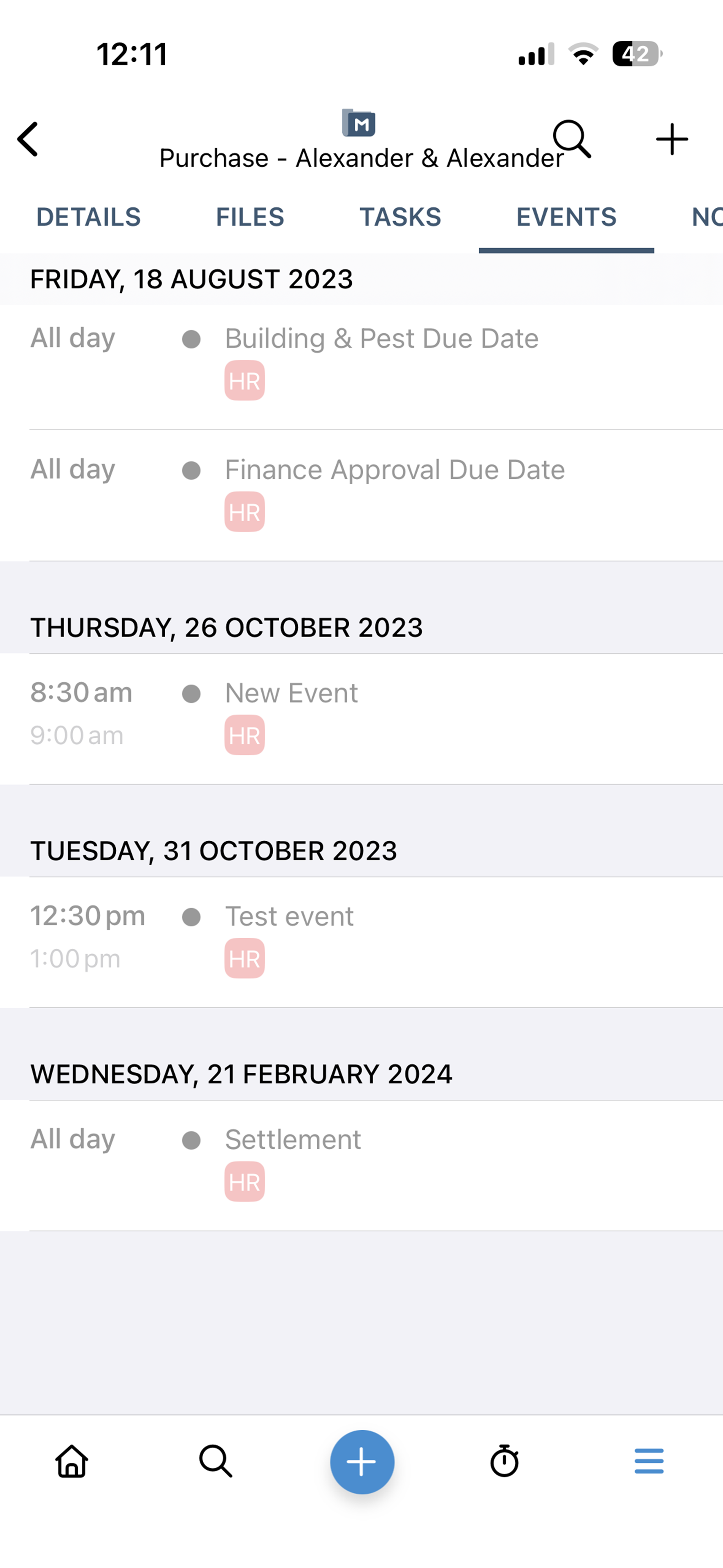
To view all calendar events across all matters, navigate to the Calendar section in the triConvey Mobile App.
Notes tab
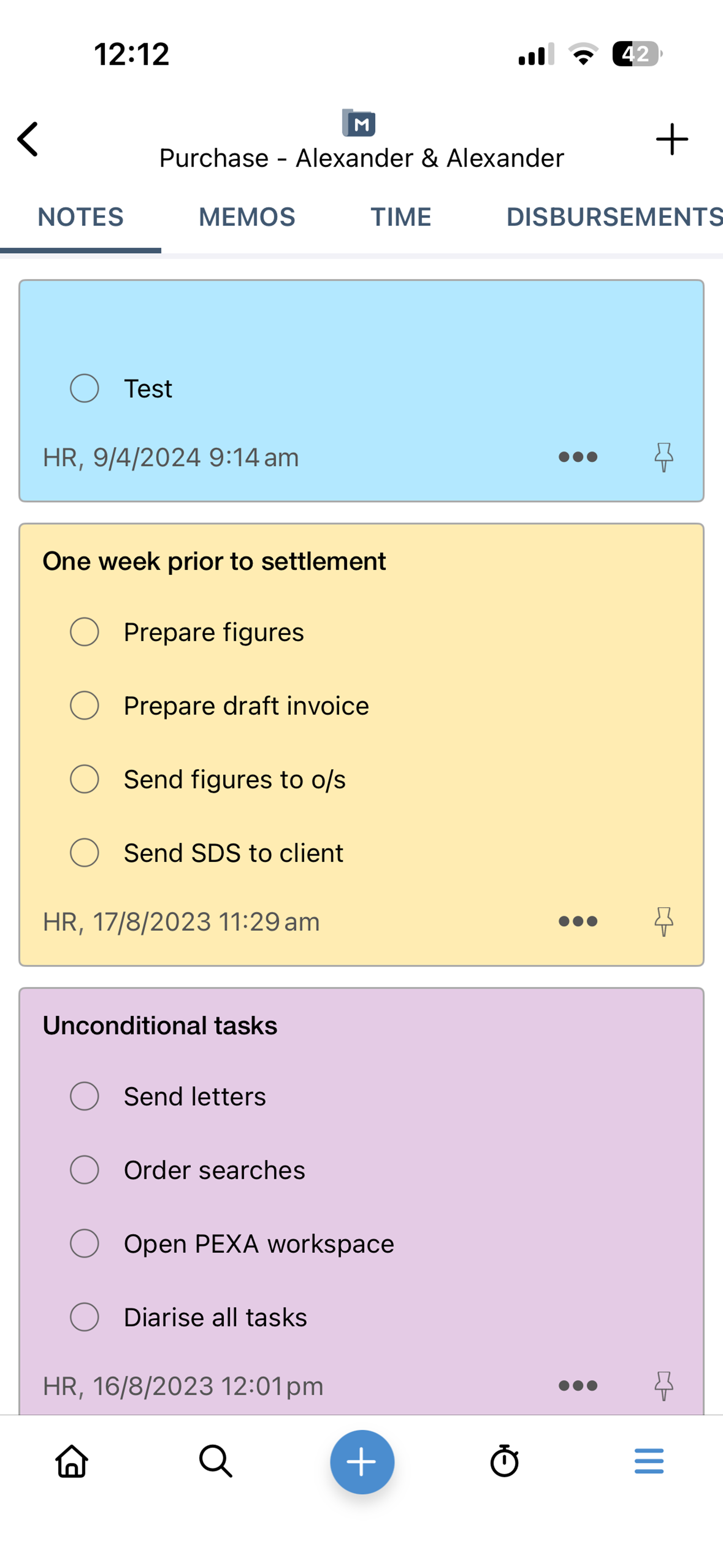
The Notes tab synchronises with the Notes section in the triConvey Desktop App, allowing for convenient access.
Memos tab
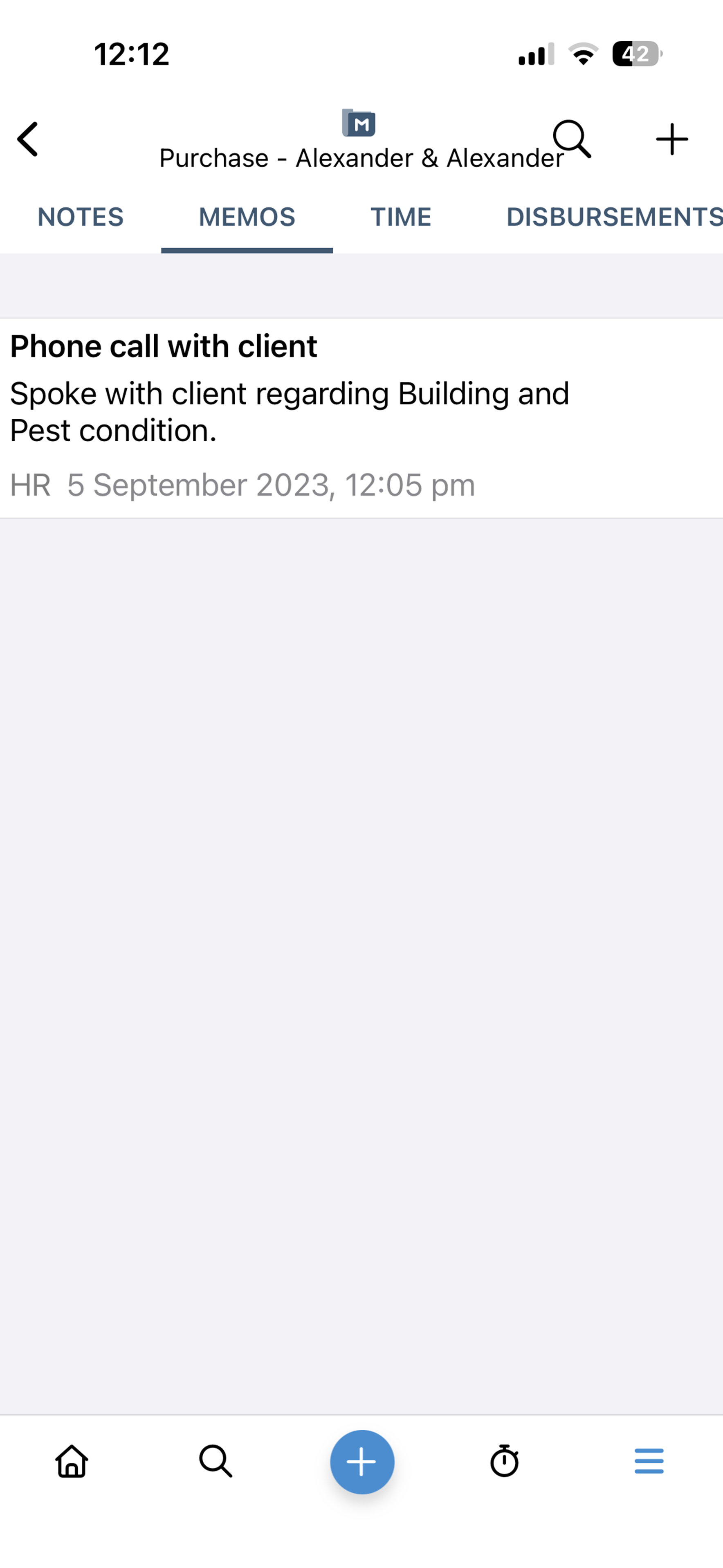
The Memos tab links to the Memos section in the triConvey Desktop App, allowing for convenient access.
Time tab
The Time tab shows all time and fee entries associated with the matter. Tap on the Plus icon ato create a new entry.
You can also create a time entry from the main menu on the triConvey Mobile App.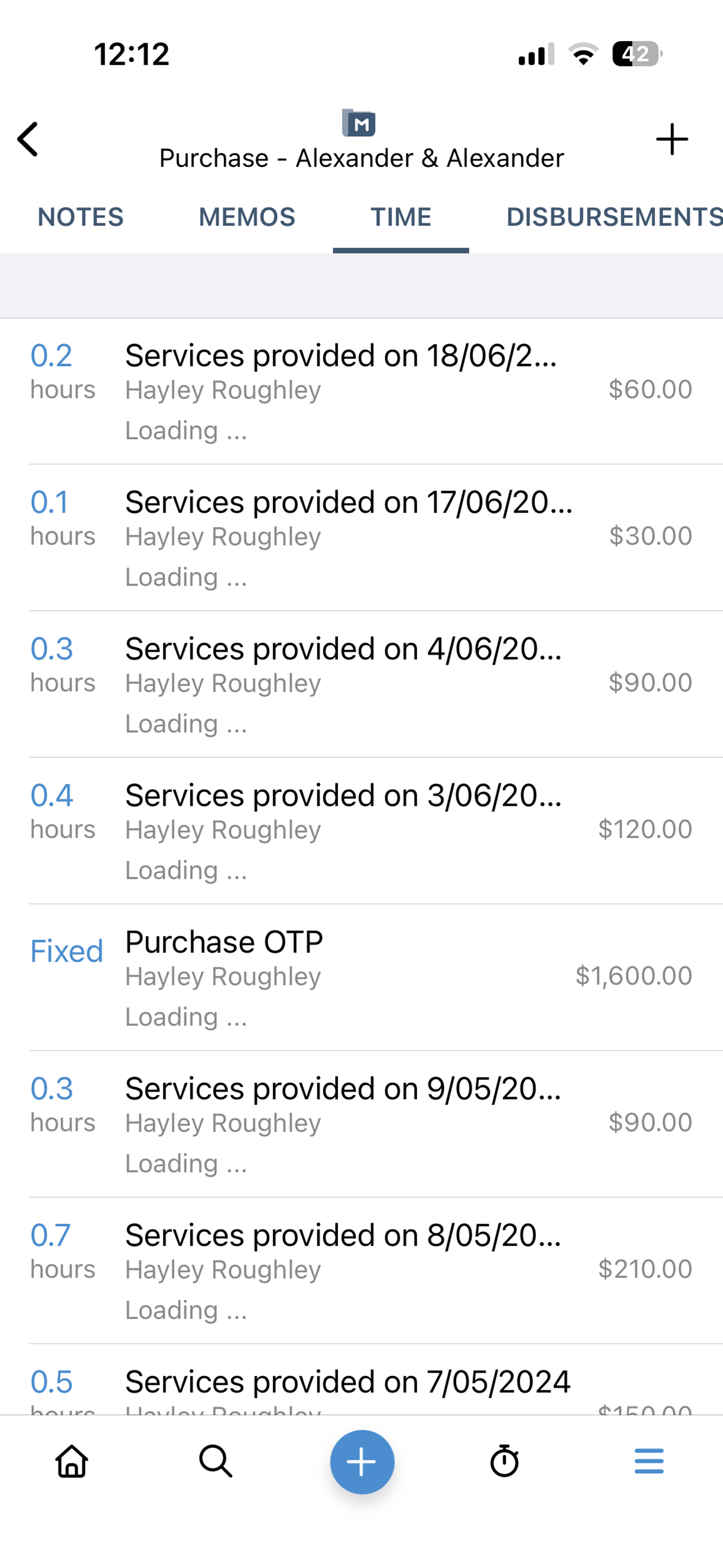
Disbursements tab
The Disbursements tab shows all disbursement entries associated with the matter. Tap the Plus icon to create a new entry.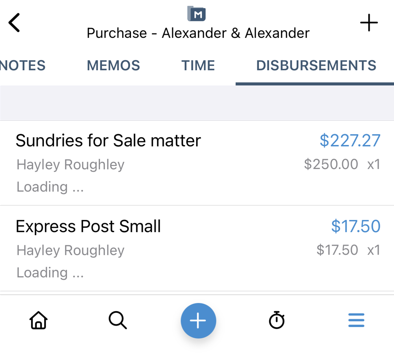
Next Steps
Learn more about each feature in the mobile app:
Was this article helpful?
That’s Great!
Thank you for your feedback
Sorry! We couldn't be helpful
Thank you for your feedback
Feedback sent
We appreciate your effort and will try to fix the article