

Stay on top of tasks on the go with the triConvey Mobile App. In addition to viewing tasks, you can also add and edit them directly from the app.
Table of Contents
- Getting Started
- View task details
- View tasks assigned to staff members
- Mark a task as completed
- Add a task
- Edit or delete an existing task
- Next Steps
Getting Started
There may be slight variances to the App depending on whether you use an Apple or Android device.
To access your tasks, tap the hamburger icon from the bottom-right corner of the screen and then select Tasks.
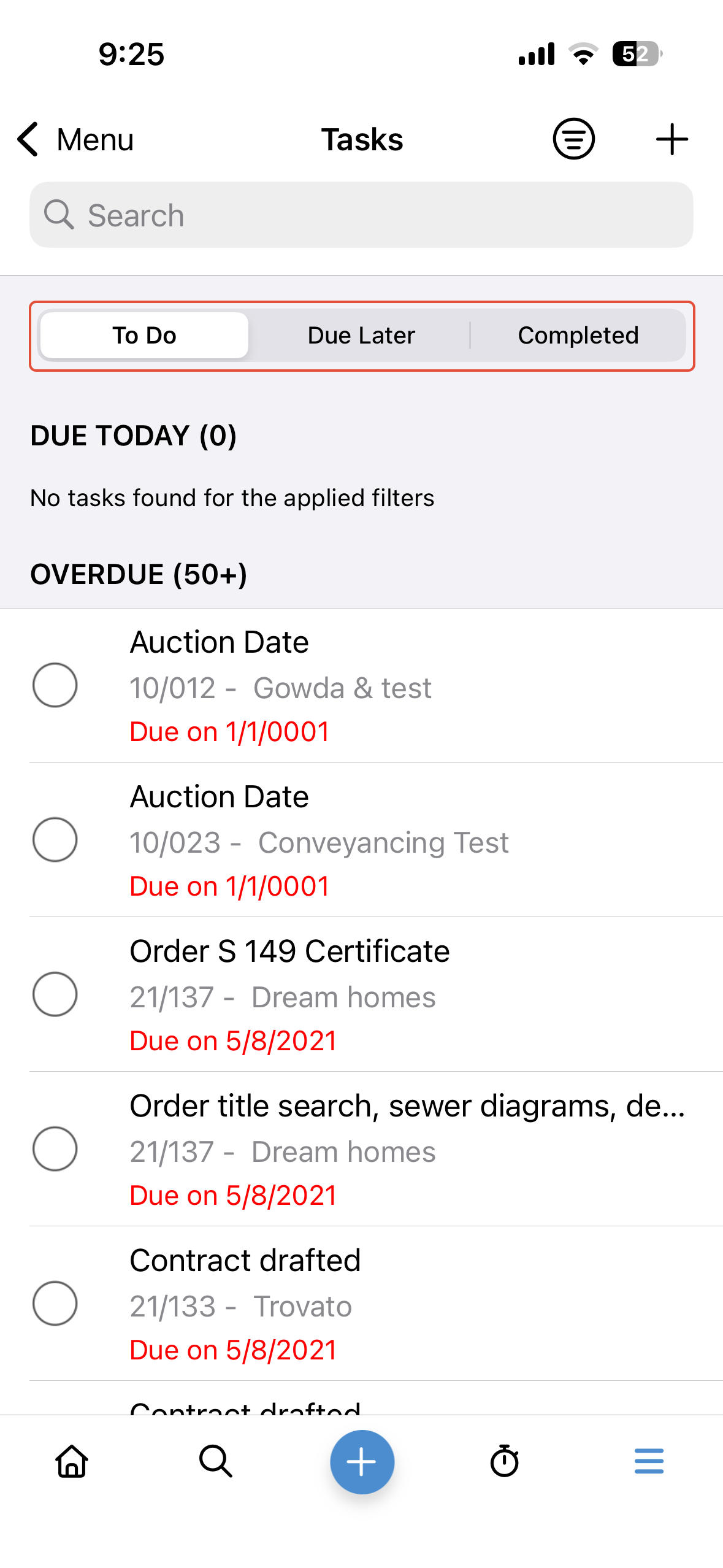
Tip: By default, you will land on the To Do tab which shows all tasks that are due today or overdue.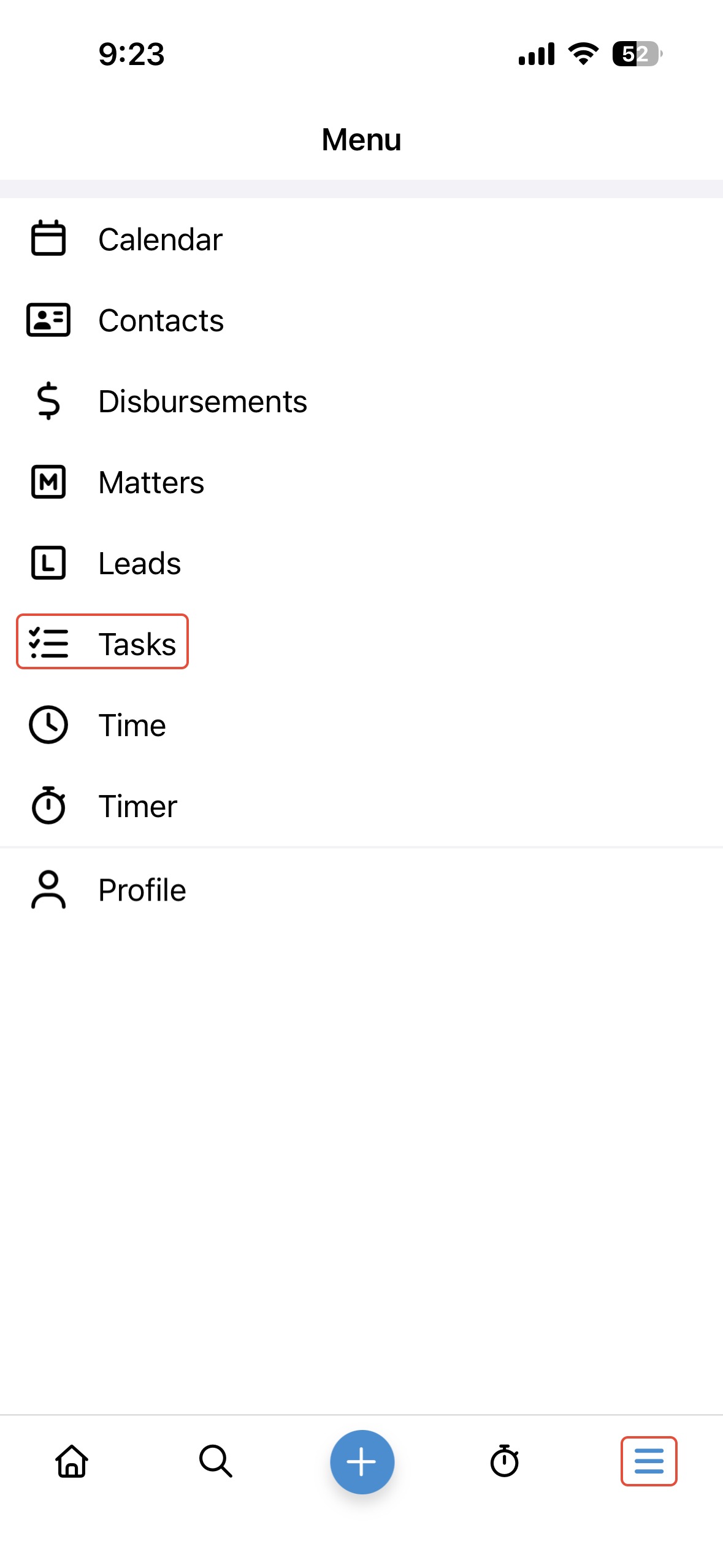
Use the top menu bar to view the list of tasks due later or tasks that are completed.
View task details
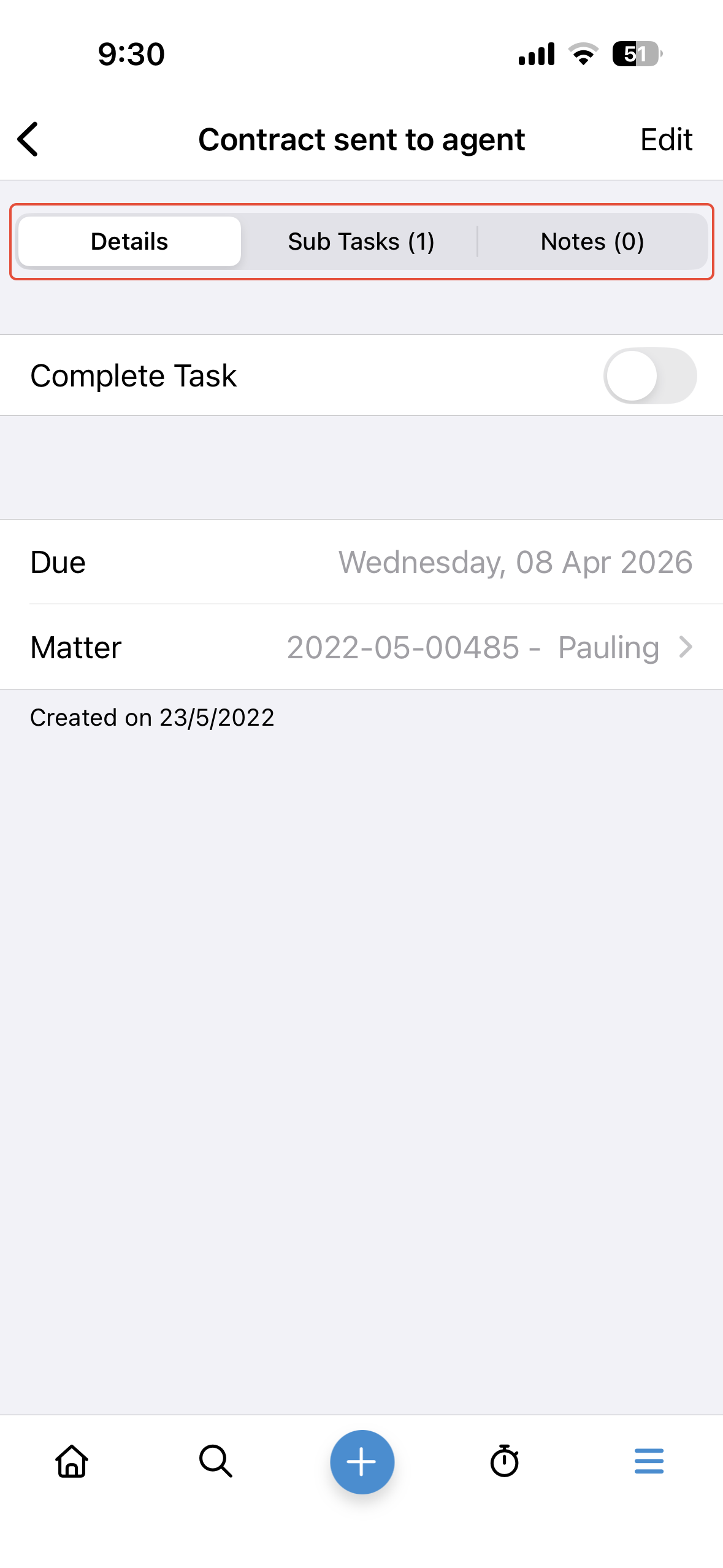
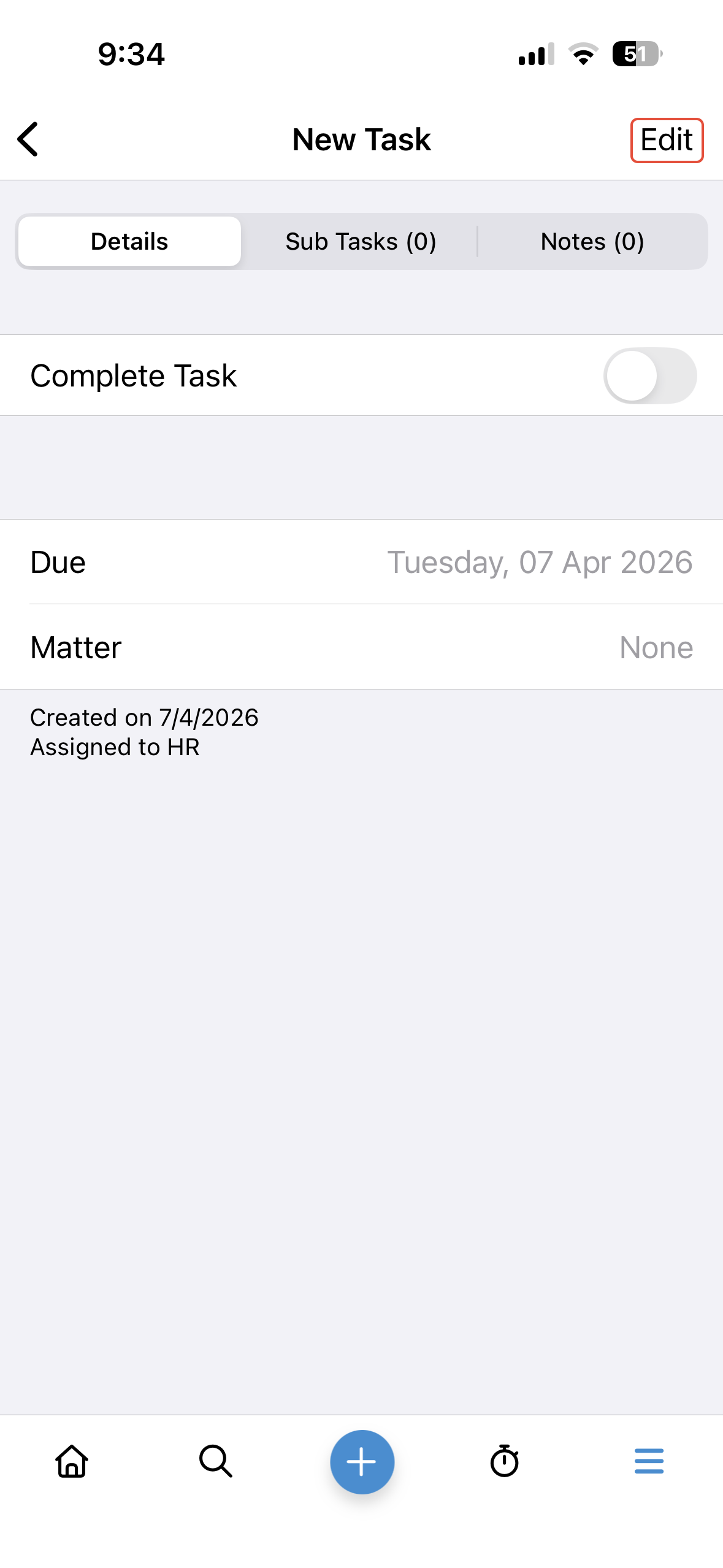
Tapping on a task name shows more details around the task, either entered from the triConvey Desktop App or Mobile App. From this screen, you can also view or add sub tasks and notes.
View tasks assigned to staff members
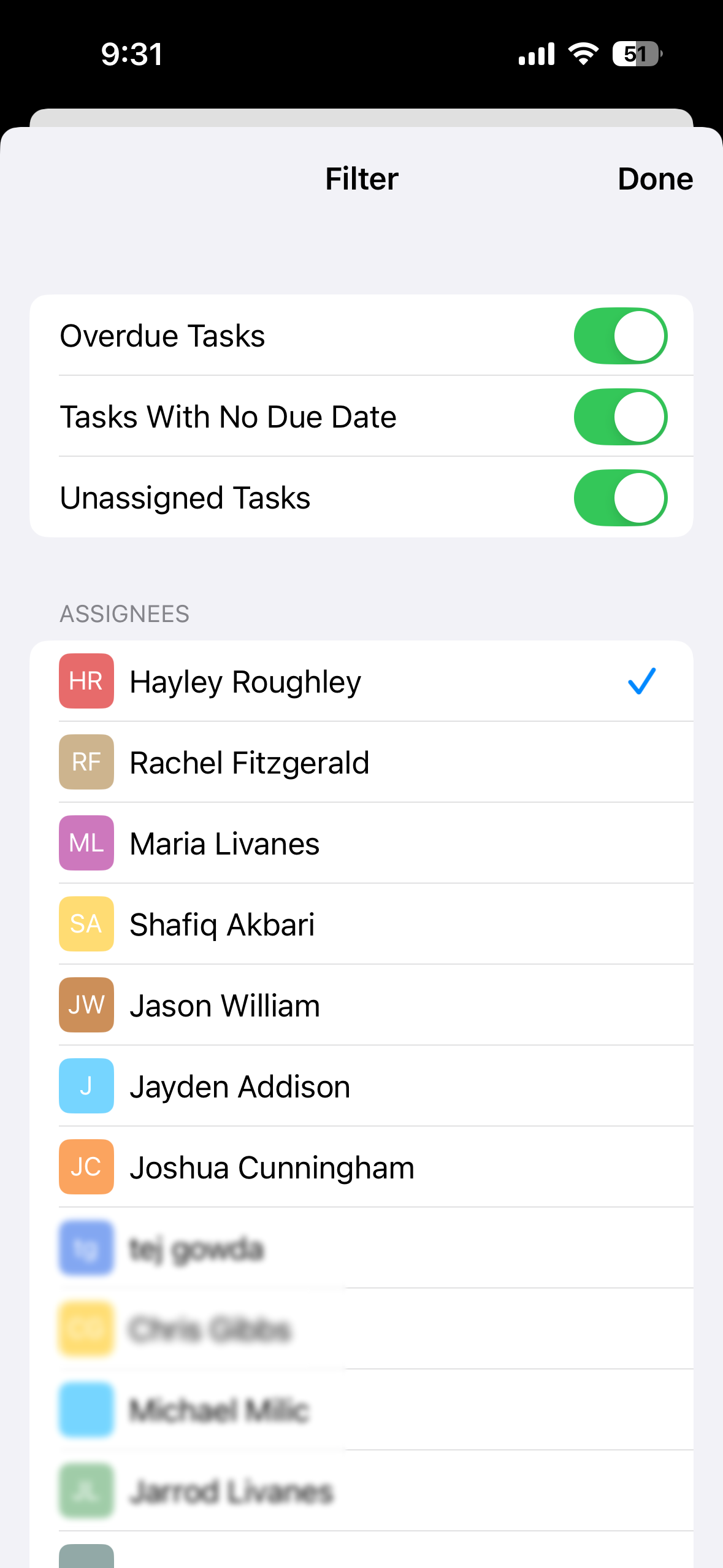
To view tasks owned by specific staff members, select the filter icon on the top-right corner of the main Tasks list. 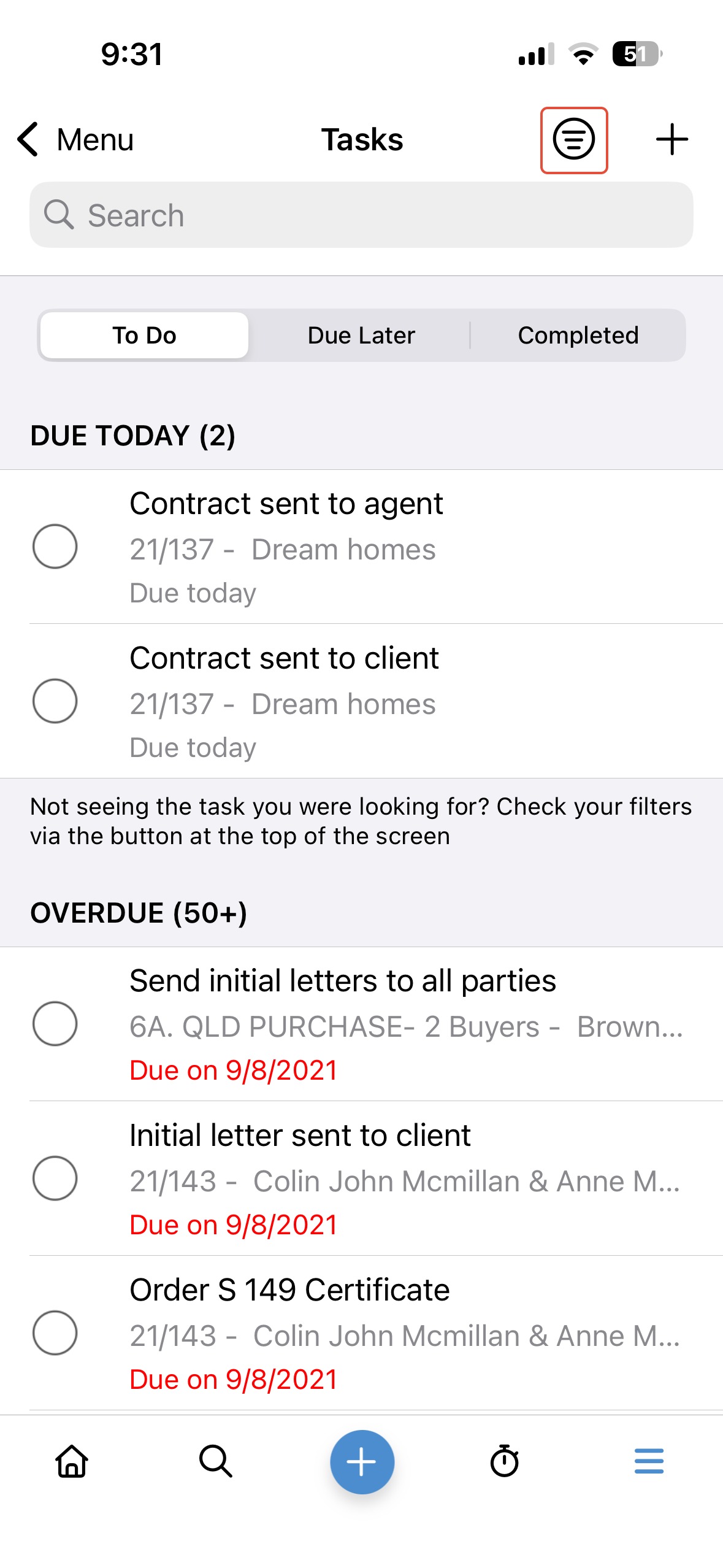
Tick or untick the names of staff members you wish to view or stop viewing tasks for, then select Done.
From this screen, you can also toggle settings to view overdue tasks, tasks with no due date, or unassigned tasks.
Mark a task as completed
1. Tap on the circle to the left of the task name.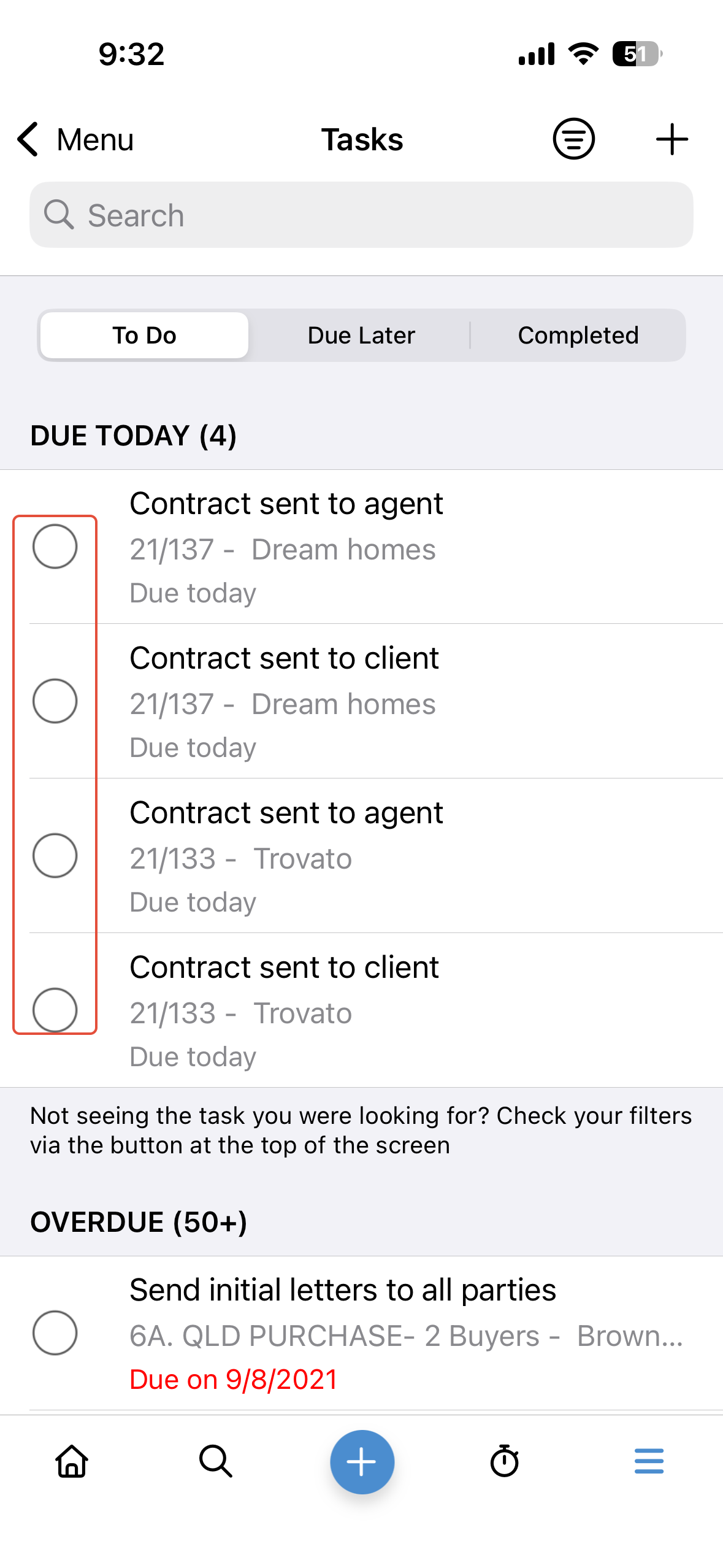
2. To revert a completed task back to incomplete, tap on the Completed tab.
3. Find the task and tap the ticked circle to send it back to the To Do or Due Later tab.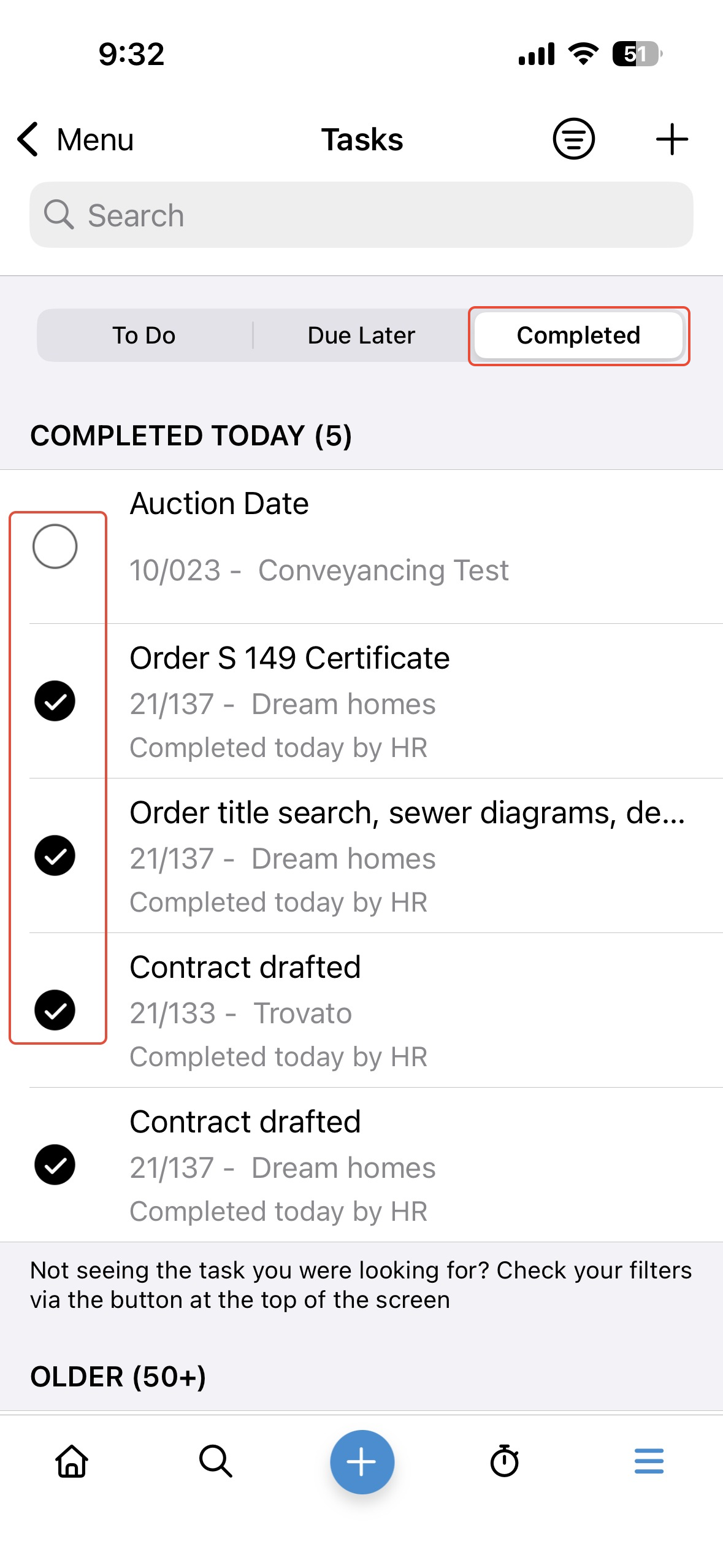
Add a task
1. Select the Plus icon to open a New Task.
2. Ensure the task has a name at the minimum, before tapping Done.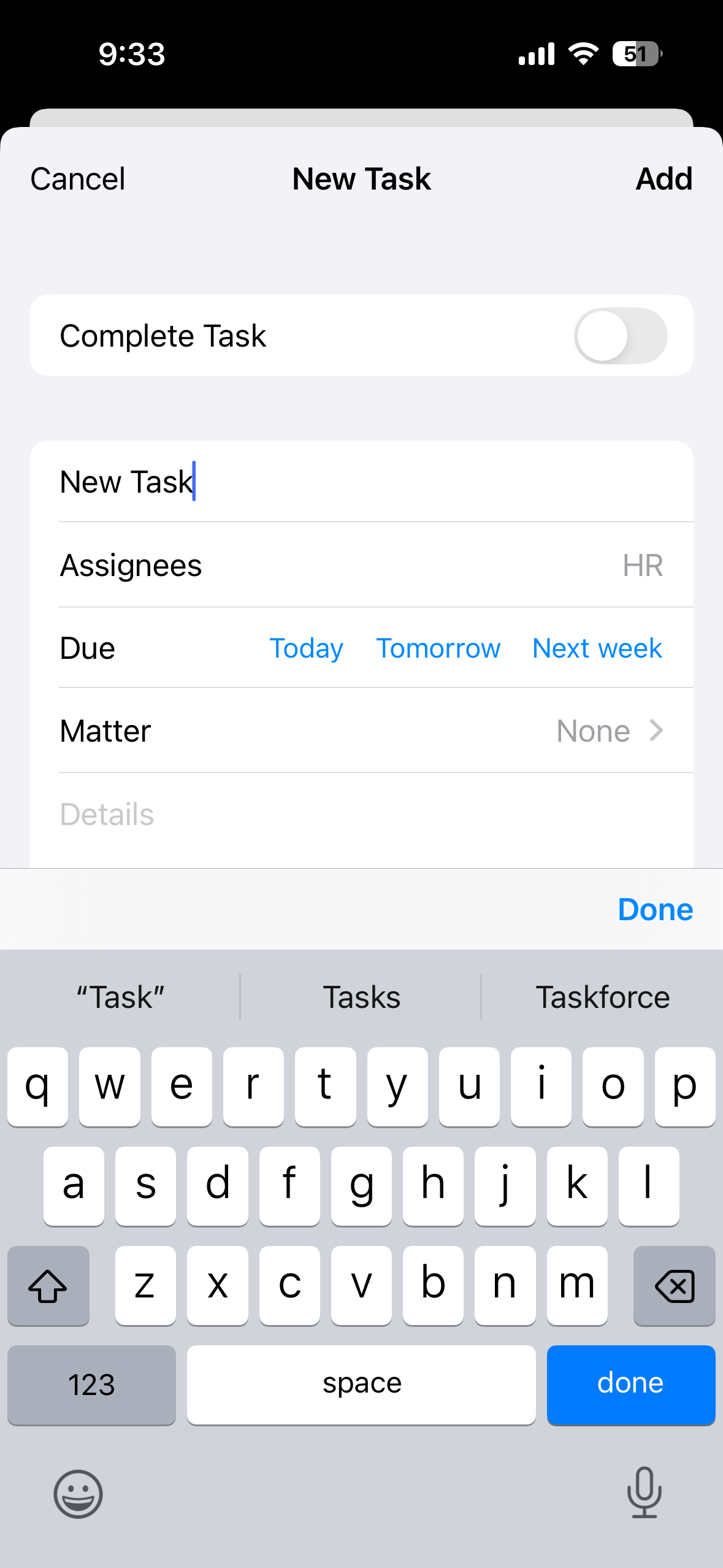
Edit or delete an existing task
1. Tap on the task name and then select Edit from the top-right corner.
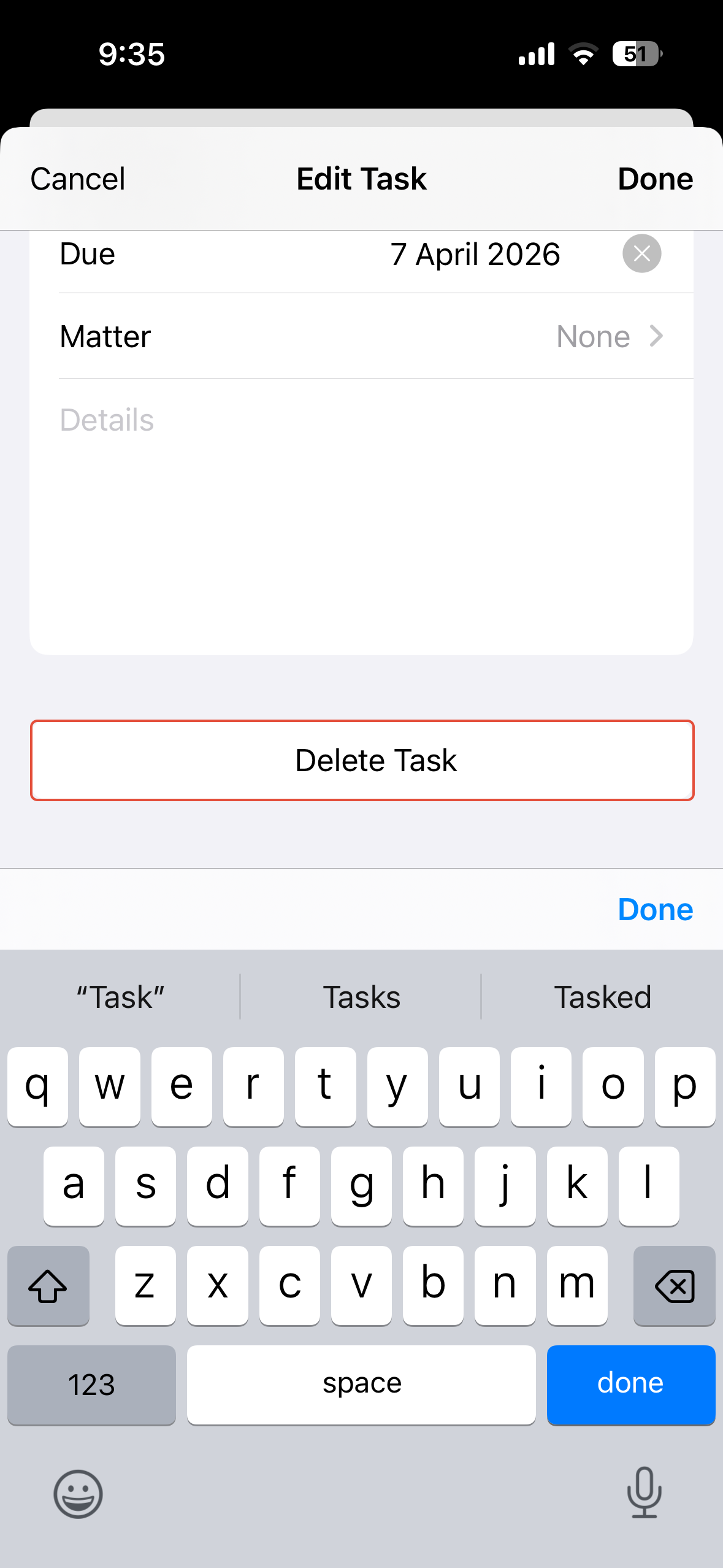
2. From the edit screen, you can also delete the task.
Next Steps
Learn more about each feature in the mobile app:
Was this article helpful?
That’s Great!
Thank you for your feedback
Sorry! We couldn't be helpful
Thank you for your feedback
Feedback sent
We appreciate your effort and will try to fix the article